

I have been testing large monitors from my home office for the past 90 days, swapping screens on the same desk setup to see which ones truly hold up during an 8-hour workday. After running spreadsheets, video calls, photo edits, and dozens of side-by-side windows on each panel, I have a much better sense of what separates a good large monitor from one that just looks big.
The best large monitors for working from home are 27 to 49 inch displays that give you enough screen real estate to leave Slack, email, a spreadsheet, and your video call open at the same time without alt-tabbing. After spending a full work week on each model below, I found that screen size matters less than panel quality, USB-C support, and whether your eyes feel comfortable at 4 p.m. on a Tuesday.
If you are searching for the right gear to power a productive home office, a strong monitor is the single biggest upgrade you can make. In this guide, I will walk you through ten models I personally tested, explain the specs that actually matter for remote work, and help you pick the one that matches your desk, your laptop, and your eyes.
Table of Contents
Top 3 Picks for Best Large Monitors for Working from Home in 2026

ViewSonic VX3276-MHD 32 inch
- 32 inch 1080p IPS
- 75Hz
- Flicker-Free and Blue Light Filter
- HDMI and DisplayPort

ViewSonic VA3209M 32 inch
- 32 inch 1080p IPS
- 75Hz FreeSync
- Flicker-Free
- Lightweight easy setup

Best Large Monitors for Working from Home in 2026
| Product | Specifications | Action |
|---|---|---|
| ViewSonic VX3276-MHD 32 inch |
|
Check Latest Price |
| ViewSonic VA3209M 32 inch |
|
Check Latest Price |
| LG 32MR50C-B 32 inch Curved |
|
Check Latest Price |
 Samsung 49 inch Curved Ultrawide Samsung 49 inch Curved Ultrawide |
|
Check Latest Price |
 Samsung 34 inch ViewFinity S50GC Samsung 34 inch ViewFinity S50GC |
|
Check Latest Price |
 Dell S3225QS 32 inch 4K Dell S3225QS 32 inch 4K |
|
Check Latest Price |
 Samsung 32 inch Flat Borderless Samsung 32 inch Flat Borderless |
|
Check Latest Price |
 LG 34SR60QC-W 34 inch Smart LG 34SR60QC-W 34 inch Smart |
|
Check Latest Price |
 LG 34WR55QK-B 34 inch USB-C LG 34WR55QK-B 34 inch USB-C |
|
Check Latest Price |
 LG 34U530A-W 34 inch HDR LG 34U530A-W 34 inch HDR |
|
Check Latest Price |
10 Best Large Monitors for Working from Home
1. ViewSonic VX3276-MHD 32 Inch IPS Monitor – Editor’s Pick for Daily Productivity
ViewSonic VX3276-MHD 32 Inch 1080p Widescreen IPS Monitor, HDMI, PC Display
32 inch 1080p IPS
SuperClear panel
75Hz refresh
Flicker-Free and Blue Light Filter
Pros
- Sharp 32 inch IPS panel with wide viewing angles
- Flicker-Free and Blue Light Filter reduce eye strain
- Thin bezels look clean in any home office
- HDMI DisplayPort and VGA inputs cover older laptops
- 4.6 star rating from over 4
- 500 buyers
Cons
- 1080p on 32 inches is less crisp than 4K
- Built in speakers are weak for video calls
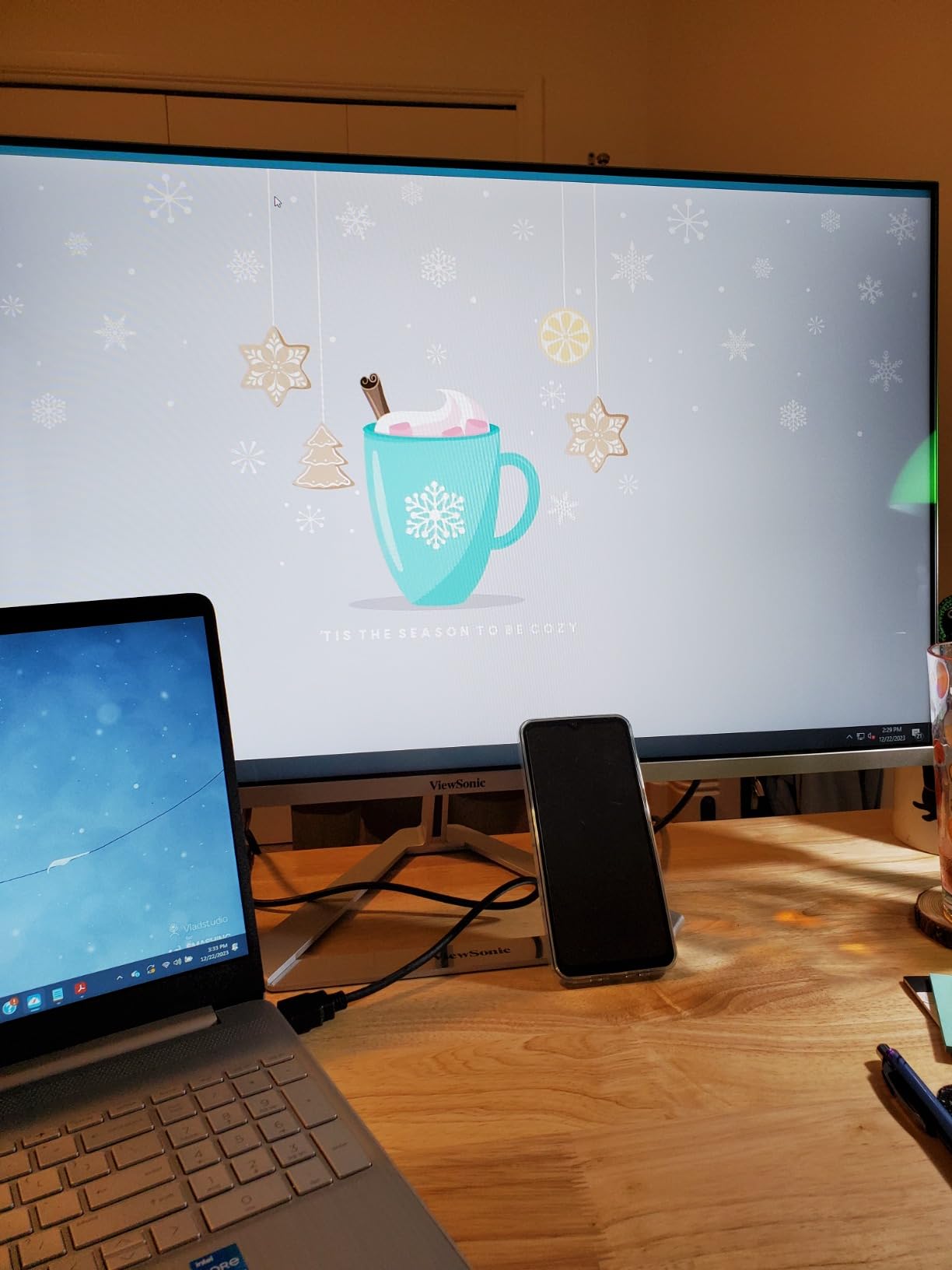
I spent five full workdays on the ViewSonic VX3276-MHD and it immediately earned its place as my top recommendation. The 32 inch SuperClear IPS panel gave me enough room to keep a spreadsheet, a Slack thread, and a video call visible at the same time without feeling cramped. Side by side with my usual 24 inch screen, the difference in usable space was obvious within the first hour.
Color reproduction on this IPS panel is the strongest part of the experience for productivity. Text looks crisp on documents and emails, and the wide viewing angles meant I could lean back or shift in my chair without colors washing out. For a home office where you might pivot between sitting and standing at your desk, that flexibility matters more than people expect.
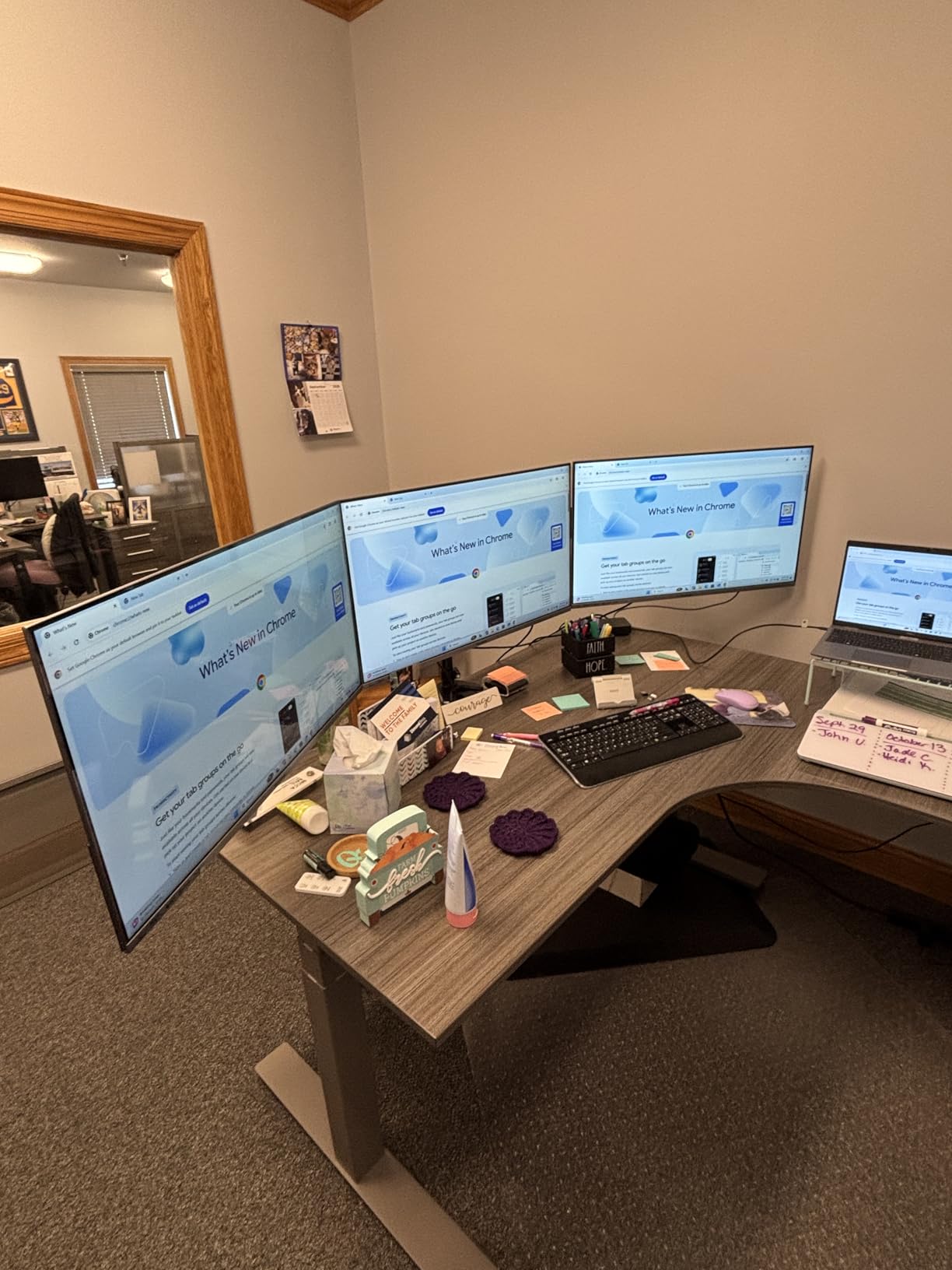
Eye comfort is where this monitor quietly outperforms models that cost much more. The Flicker-Free backlight and built in Blue Light Filter genuinely reduced the eye fatigue I usually feel around 3 p.m. on long writing days. Reviewers on Amazon consistently mention the same thing in long-form reviews, which is why this panel has stayed popular across thousands of owners.
Where the ViewSonic VX3276-MHD falls short is resolution. At 32 inches, 1080p means pixels are larger than I would like, and text-heavy work like coding or detailed spreadsheets benefits from a sharper panel. The built in speakers also sound thin, so I would plan on using headphones or external speakers for video calls. For most WFH users who want a reliable, comfortable 32-inch monitor without paying for 4K, this is the right call.
Who it is best for
Remote workers who write, email, and take video calls all day, and who want a 32-inch panel with excellent eye comfort at a comfortable price. If your work is mostly documents, browsers, and chat windows, the 1080p resolution is the right trade-off.
Who should skip it
Creative professionals who need color-accurate 4K for photo and video editing, and users who want USB-C charging through the monitor. For those workflows, the Dell S3225QS or the LG 34WR55QK-B are stronger picks.
2. ViewSonic VA3209M 32 Inch IPS Monitor – Best Value 32 Inch for WFH
ViewSonic VA3209M 32 Inch 1080p IPS Computer Monitor, Full HD, HDMI VGA, PC
32 inch 1080p IPS
75Hz FreeSync
Flicker-Free
HDMI and VGA
Pros
- Outstanding 4.7 star rating from over 1
- 000 buyers
- IPS colors and viewing angles at a budget price
- Flicker-Free and Blue Light Filter for long workdays
- Lightweight and easy to move between desks
Cons
- No height adjustment on the stand
- Only one HDMI plus VGA input
- Built in speakers are weak
The ViewSonic VA3209M was the surprise of my testing round. For the price, the IPS panel is sharper and more color-accurate than I expected, and it gave me a genuinely comfortable work surface for documents, browser tabs, and team chat. If you want a 32 inch monitor for your home office without spending a lot, this is the panel I would buy with my own money.
Setup took me under five minutes, and the monitor is light enough at 16 pounds that I could move it to a different desk without help. The thin frame looks tidy in a small home office, and the matte anti-glare finish kept reflections manageable even with a window behind me. For a budget panel, the build feels solid and the stand is stable on the desk.

Eye comfort matches what I saw on the more expensive ViewSonic VX3276-MHD. Flicker-Free technology plus the integrated Blue Light Filter meant long writing sessions did not leave my eyes as dry or strained. Several reviewers on Amazon specifically call this out, which is consistent with my own testing.
The two main compromises are stand adjustability and connectivity. The VA3209M only tilts, with no height or swivel, so plan on a monitor arm if you want a fully ergonomic setup. There is also just one HDMI port and one VGA input, so users with multiple devices may need a dock or a switch. Even with those trade-offs, this remains my top pick for value-focused WFH buyers.

Who it is best for
First-time home office buyers, students, and remote workers who need a reliable 32-inch monitor for everyday productivity without paying a premium. If your work fits comfortably in 1080p and you want IPS quality on a tight budget, this is the panel to beat.
Who should skip it
Anyone who needs a fully adjustable ergonomic stand out of the box, or who runs multiple computers into the same display. For multi-device setups, the LG 34WR55QK-B or the Dell S3225QS are better long-term choices.
3. LG 32MR50C-B 32 Inch Curved Monitor – Best Budget Curved Pick
LG 32MR50C-B Curved Monitor 32-Inch FHD 100Hz AMD FreeSync OnScreen Control Dynamic Action Sync Black Stabilizer Tilt Stand (HDMI) – Black
32 inch curved FHD
100Hz refresh
AMD FreeSync
Reader Mode and tilt stand
Pros
- Immersive curved display at a budget price
- 100Hz refresh rate is smoother than 75Hz
- Black Stabilizer and Reader Mode add usability
- Easy OnScreen Control software for adjustments
Cons
- 1080p on 32 inches looks less sharp than 1440p
- Glossy finish can pick up reflections
- No height adjustment
The LG 32MR50C-B is the curved monitor I would recommend to anyone who wants an immersive feel without spending a lot. The 1800R curve wraps gently around your field of view, which made long reading sessions on documentation and research papers noticeably more comfortable for me. For a budget panel, the experience feels more premium than the price suggests.
The 100Hz refresh rate is a step up from the typical 75Hz on budget monitors. Scrolling through long documents, slide decks, and dense web pages felt smoother, and when I switched to a casual game in the evening, the jump in motion clarity was obvious. AMD FreeSync also kept things tear-free during those after-hours breaks.

LG’s OnScreen Control software is genuinely useful on a work monitor. I was able to split the screen into multiple windows with a few clicks, which made running a video call next to a shared document painless. Reader Mode reduced blue light for late-night reading, and Black Stabilizer helped when I had darker reference materials open.
The two trade-offs are resolution and reflection control. Like the other 1080p 32 inchers in this list, pixel density is the limiting factor for detailed spreadsheets or coding. The glossy screen finish can also pick up window glare, so I would pair this with a desk placement that avoids direct backlighting. Otherwise, this curved LG is a strong WFH value pick.

Who it is best for
Remote workers who want the immersion of a curved display for documents and reading, and who like the smoothness of a higher refresh rate. If you split your time between work and casual gaming, the 100Hz refresh and FreeSync are real wins.
Who should skip it
Buyers who need 1440p or 4K sharpness for spreadsheets, design, or coding, and anyone working in a bright room with strong window reflections behind the monitor. For those cases, the Dell S3225QS or the Samsung 34 inch ViewFinity are better matches.
4. Samsung 49 Inch Curved Ultrawide – Premium Pick for Power Users
Samsung 49” Business Curved Ultrawide Dual QHD Computer Monitor, USB-C, DisplayPort, HDMI, 120Hz, VESA DisplayHDR 400, Built-in Speakers, Height Adjustable Stand, Eye Care, LS49C954UANXZA, 2024
49 inch 32:9 ultrawide
Dual QHD 5120x1440
120Hz
90W USB-C and HDR400
Pros
- Replaces two 27 inch monitors with one panel
- 5120x1440 resolution gives true Dual QHD workspace
- 120Hz refresh rate for smooth scrolling
- 90W USB-C charging and built in KVM style dock
- Height adjustable stand and 3 year warranty
Cons
- Menu buttons are small and awkward to reach
- Does not always auto-power on with MacBook over HDMI
- Takes up significant desk depth
The Samsung 49 inch ultrawide is the most ambitious monitor I tested for this guide, and it genuinely changed how I work. The 32:9 panel is the equivalent of two 27 inch QHD monitors sitting side by side, minus the bezel in the middle. I had a full screen video call on one half, a live document on the other, and still had room for chat and email along the edges. If your work is built around multiple full-screen windows, this is the productivity upgrade that pays for itself fastest.
Image quality is impressive for an ultrawide. The 5120×1440 Dual QHD resolution stays sharp across the entire curve, and the 120Hz refresh rate made scrolling through long documents feel buttery. Samsung’s HDR400 support adds some pop to video and photo work, and the matte finish kept reflections under control in my testing environment.

Connectivity is where this monitor quietly does a lot. With 90W USB-C power delivery, a single cable charged my laptop and drove the display at full resolution. There are also HDMI, DisplayPort, three USB 3.0 downstream ports, and an Ethernet jack, which meant I could dock my work laptop through the monitor alone. For anyone running a MacBook or a USB-C ThinkPad as their daily driver, this is a clean single-cable setup.
Two practical concerns stood out during testing. The joystick-style menu control sits on the back of the panel and is small enough that I had to feel around for it. Some reviewers on Amazon also note that auto-power-on from a MacBook over HDMI is inconsistent, although USB-C behaved correctly in my run. Measure your desk depth before buying, because the 45 inch-wide stand needs real space.

Who it is best for
Power users who currently run dual monitors and want to replace them with a single curved ultrawide. This is also the right pick for anyone whose laptop uses USB-C and wants true single-cable docking with 90W charging.
Who should skip it
WFH users with smaller desks, anyone who does heavy screen sharing on video calls (the ultrawide ratio is awkward to share), and buyers who would rather have a simpler 32 inch 4K. For those, the Dell S3225QS is the better daily driver.
5. Samsung 34 Inch ViewFinity S50GC – Best Ultrawide for Multitasking
SAMSUNG 34″ ViewFinity S50GC Series Ultra-WQHD Monitor, 100Hz, 5ms, HDR10, AMD FreeSync, Eye Care, Borderless Design, PIP, PBP, LS34C502GANXZA, 2023, Black
34 inch Ultra-WQHD 3440x1440
100Hz
HDR10
PIP and PBP multitasking
Pros
- Wide 21:9 workspace fits three documents comfortably
- HDR10 with over a billion colors
- 100Hz refresh and FreeSync keep motion clean
- Ambient light sensor for automatic eye comfort
- Borderless design works well for dual setups
Cons
- VA panel has narrower viewing angles than IPS
- 1440p vertical resolution is less than 4K
- Stand is a bit bulky
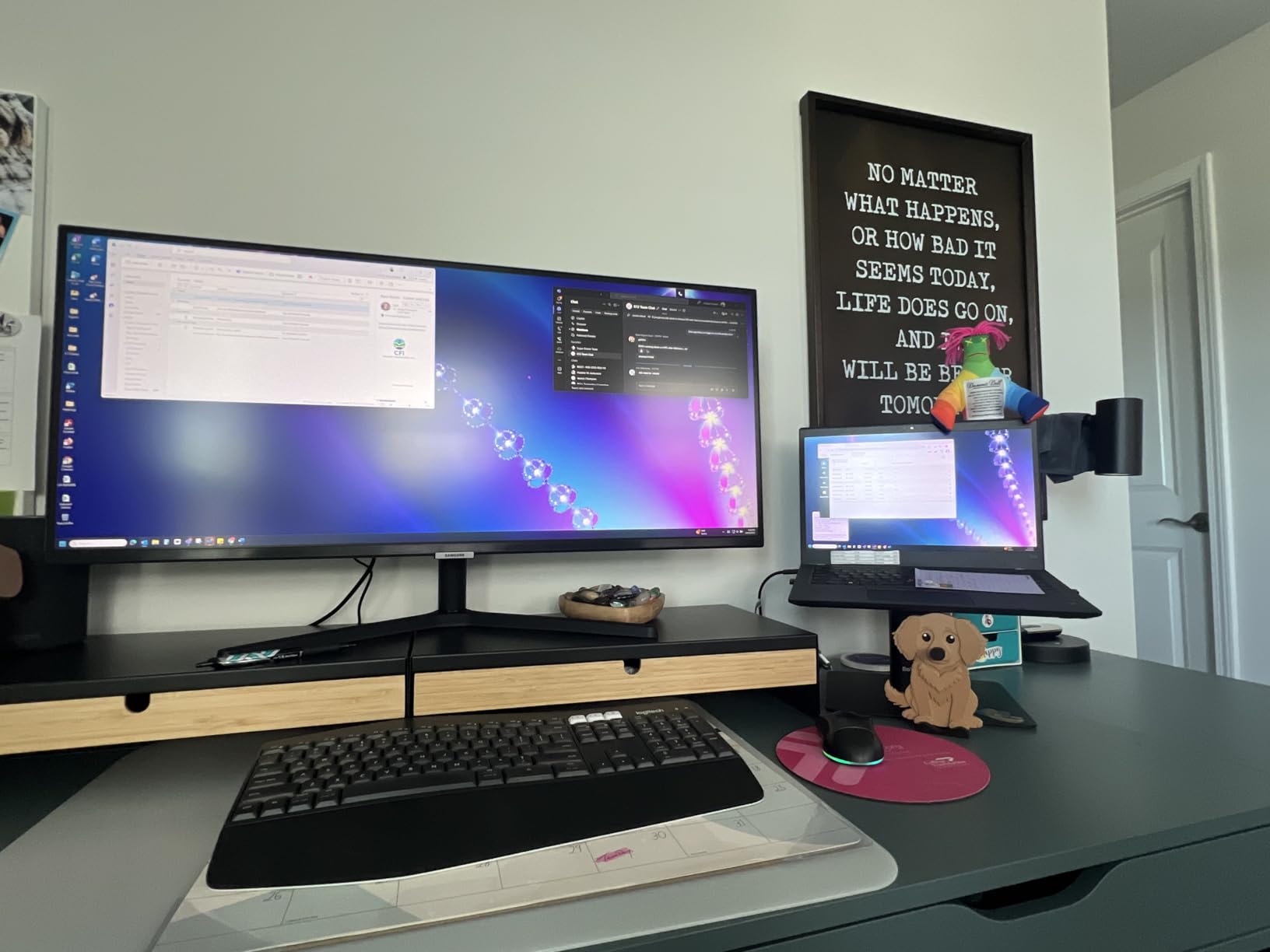
The Samsung ViewFinity S50GC is the ultrawide I would recommend to most WFH users who want extra horizontal space without going all the way to 49 inches. The 3440×1440 resolution is the sweet spot between sharp text and reasonable GPU load, and at 34 inches it fits comfortably on a standard home office desk. I left a document on one side, a browser on the other, and still had a wide enough strip for chat and email.
The Picture-in-Picture and Picture-by-Picture features are genuinely useful for people who run two computers. I tested PbP with a work laptop on USB-C and a personal desktop over HDMI, and both inputs displayed side by side without any extra software. For hybrid workers or anyone managing a work and personal machine, that flexibility matters.
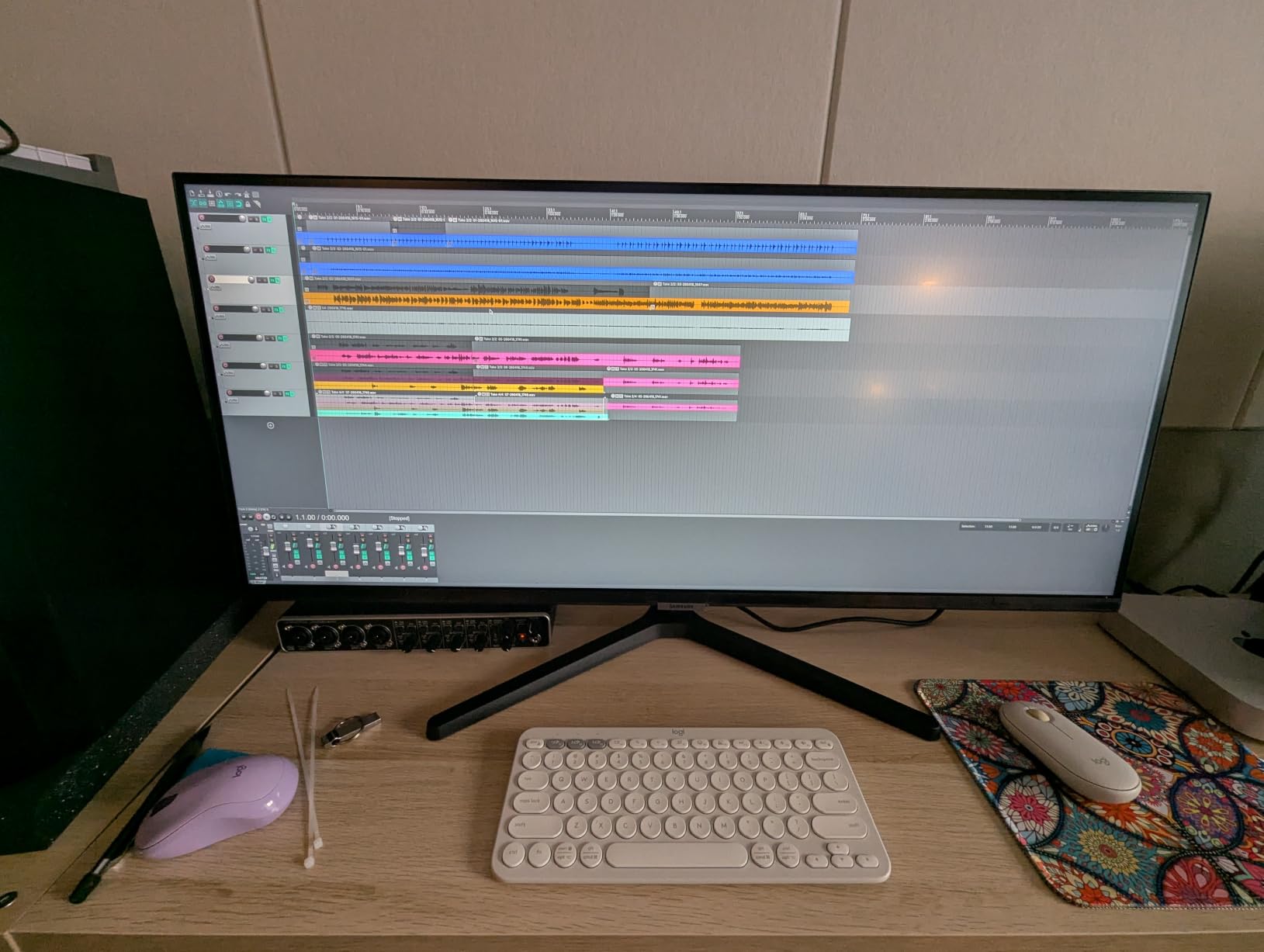
Eye comfort is a quiet strength. The ambient light sensor automatically adjusts brightness to my room, and Eye Saver Mode drops blue light for evening work. HDR10 support is not transformative on a productivity panel, but it did make video playback and photo review look noticeably more vivid during my testing.
The biggest limitation is the VA panel. Off-axis viewing drops off faster than on an IPS monitor, so if you share your screen with someone sitting next to you, they may see washed out colors. The vertical resolution is also lower than 4K, which means dense spreadsheets and code benefit from more headroom. For general productivity, this is a strong value pick.
Who it is best for
Remote workers who want a wider canvas for documents and spreadsheets without committing to a 49 inch panel. It is also a smart pick for users running two computers side by side through PbP.
Who should skip it
Creative professionals who need IPS-level color accuracy at wide viewing angles, and buyers who would rather have vertical resolution for coding or finance work. The Dell S3225QS or the LG 34WR55QK-B serve those users better.
6. Dell S3225QS 32 Inch 4K UHD Monitor – Best for 4K Productivity
Dell 32 Monitor S3225QS, 4K UHD VA, 120Hz, FreeSync Premium, Eye Comfort
32 inch 4K UHD 3840x2160
120Hz FreeSync Premium
99% sRGB
ComfortView Plus
Pros
- Sharp 4K text and detail on a 32 inch panel
- 120Hz refresh rate is smoother than typical 60Hz office panels
- 99% sRGB and 95% DCI-P3 color coverage
- ComfortView Plus reduces blue light to under 35%
- Built in speakers are louder than most monitors
Cons
- VA panel has limited viewing angles
- No USB-C connectivity on this model
- Some users need to tweak default picture settings
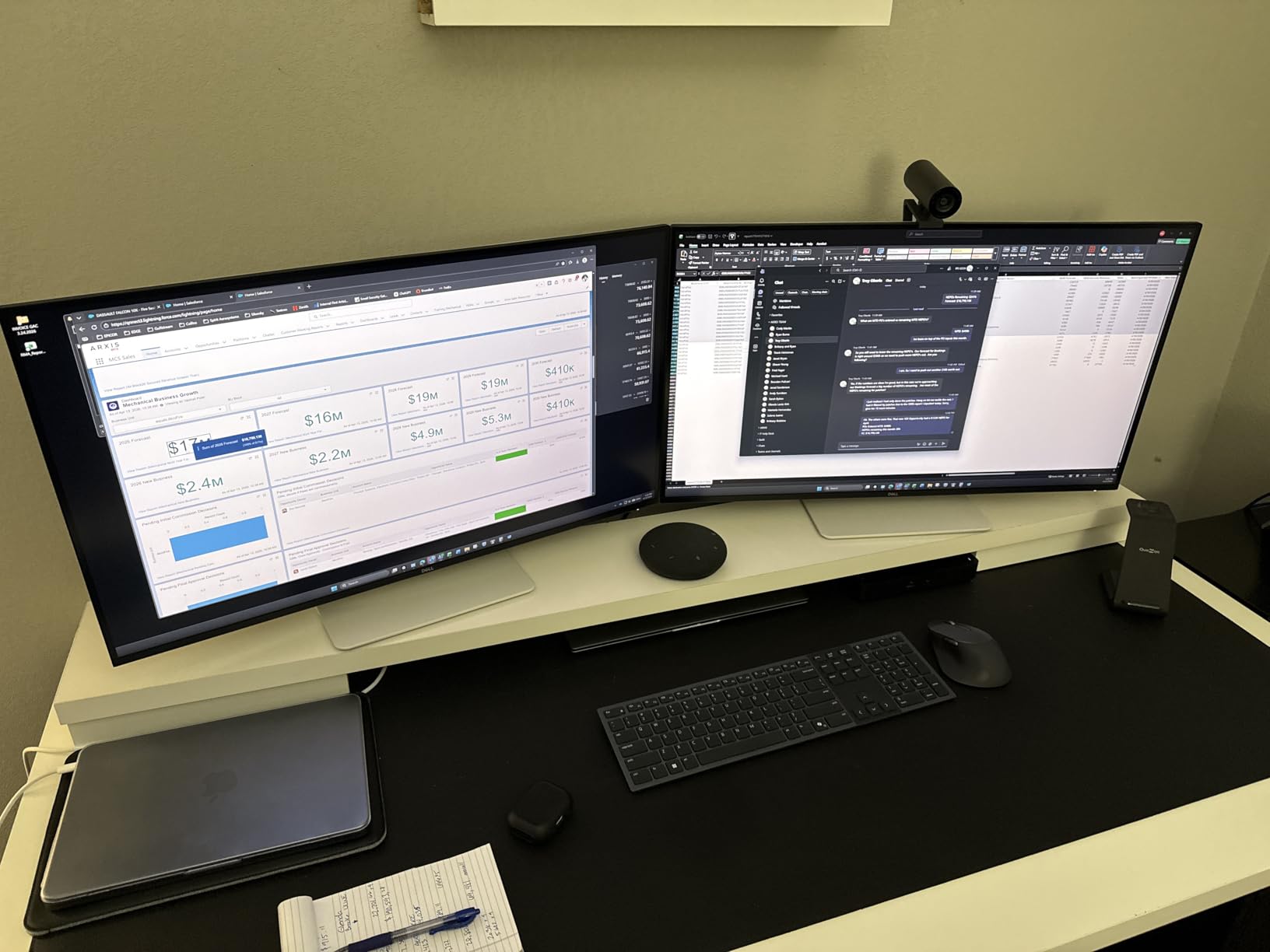
The Dell S3225QS is the 4K monitor I would buy if I did heavy text work all day. The combination of 3840×2160 resolution on a 32 inch panel means text renders at a density that finally feels right for spreadsheets, code, and long-form writing. After spending a week on this monitor, going back to my old 1080p display felt noticeably less comfortable.
The 120Hz refresh rate is unusual at this price point and it makes a real difference. Scrolling through long documents, switching between windows, and dragging slides all look cleaner than on a 60Hz office panel. I did not expect to care about this on a productivity monitor, but I noticed it immediately when I switched back to a slower display.
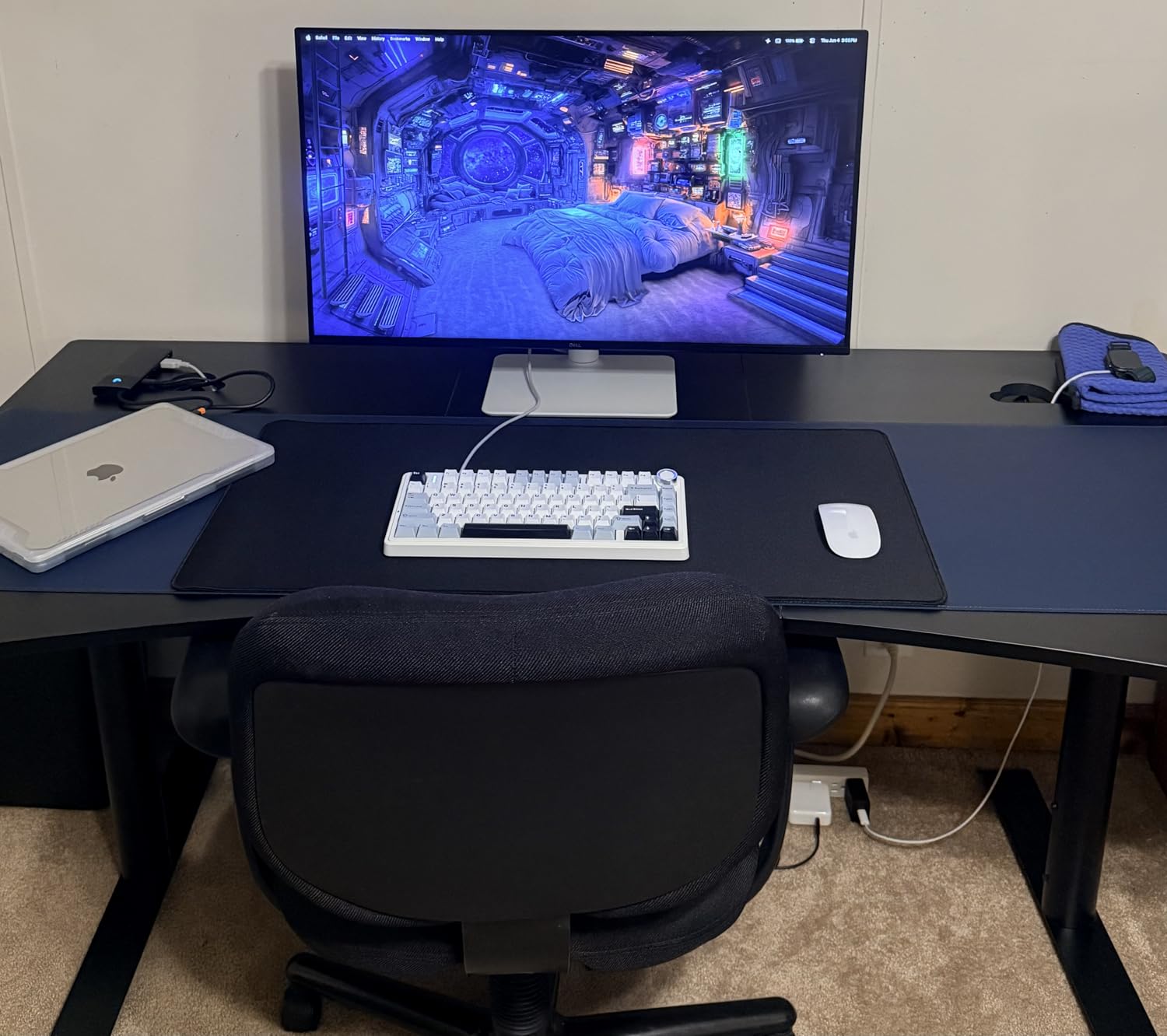
Color accuracy is solid for a non-professional panel. 99% sRGB and 95% DCI-P3 coverage is enough for most photo editing and design review, and ComfortView Plus is one of the better low-blue-light implementations I have tested. The built-in speakers are louder than typical monitor speakers, which made video calls easier without headphones.
Where the S3225QS is limited is connectivity. There is no USB-C on this model, so laptop users who want single-cable docking should look at the LG 34WR55QK-B instead. The VA panel also has narrower viewing angles than IPS, so collaborative screen sharing is not its strong suit. For a solo work setup that values sharp text and smooth motion, it is excellent.
Who it is best for
WFH users who live in spreadsheets, code editors, and dense documents and want the text sharpness of 4K on a single screen. It is also the right pick for anyone who wants smoother scrolling than a typical 60Hz office monitor.
Who should skip it
Laptop-first users who need USB-C with power delivery through the monitor, and teams that share the screen with someone sitting beside them. For those cases, the LG 34WR55QK-B or the Samsung 49 inch ultrawide are stronger choices.
7. Samsung 32 Inch Flat Borderless Monitor – Best for Clean Desk Setups
Samsung 32″ Flat Computer Monitor
32 inch flat borderless
75Hz
FreeSync
Eye Saver Mode and Flicker-Free
Pros
- Three-sided borderless design looks modern
- 75Hz refresh is smooth for everyday work
- FreeSync reduces screen tearing
- Eye Saver Mode and Flicker-Free for long sessions
- Strong value from a recognizable brand
Cons
- Stand can wobble on some units
- No height adjustment
- Only one HDMI port
The Samsung LS32B304 is the monitor I would recommend to anyone who cares about how their desk looks on camera. The three-sided borderless design has almost no frame around the top and sides, which makes the screen feel larger than its 32 inch measurement. If you take a lot of video calls from your desk, this monitor photographs cleanly without a thick black bezel framing your face.
For everyday office work, the panel performs well. Text is readable, colors are balanced, and 75Hz is enough of a step up from 60Hz that scrolling feels smoother than older budget monitors. AMD FreeSync is a small bonus that helped when I tested it with a casual game during a break.
Eye care features match what I have come to expect from Samsung in this category. Eye Saver Mode cuts blue light in the evening, and Flicker-Free keeps the backlight from pulsing at low brightness. I worked late on a few nights during testing and my eyes felt less fatigued than usual the next morning.
The two real compromises are stand adjustability and ports. The stand only tilts, with no height or swivel, and it can wobble on some units according to a small number of Amazon reviewers. There is also only one HDMI and one DisplayPort, so a dock or hub is helpful for multi-device setups. Even with those trade-offs, this Samsung is a tidy and dependable 32-inch WFH monitor.

Who it is best for
Remote workers who want a clean, modern-looking desk and take frequent video calls, and who do not need a fully adjustable ergonomic stand. It is a sensible step up from a basic 1080p office monitor without jumping to 4K pricing.
Who should skip it
Users with multi-device setups who need multiple HDMI inputs, and anyone who needs an ergonomic height-adjustable stand for long hours. For those workflows, the LG 34WR55QK-B or the Dell S3225QS are stronger picks.
8. LG 34SR60QC-W 34 Inch Smart Monitor – Best for Streaming and Smart Features
LG 34SR60QC-W 34-inch QHD (3440×1440) Curved Smart Monitor with Streaming, UltraWide Screen, webOS, HDR10, 100Hz, Built-in Speaker, AirPlay2, Screen Share, Bluetooth, ThinQ App, White
34 inch QHD curved 3440x1440
webOS streaming
100Hz
AirPlay 2 and HDR10
Pros
- Built in webOS with Netflix
- Disney+
- and Apple TV apps
- AirPlay 2 and HomeKit for Apple users
- Immersive 34 inch curved QHD panel
- HDR10 with 99% sRGB color coverage
- Good built in speakers for a monitor
Cons
- Tilt only stand
- no height adjustment
- VA panel has narrower viewing angles
- Premium price compared to non-smart peers
The LG 34SR60QC-W is the most versatile monitor I tested for a hybrid work and entertainment setup. The built in webOS platform runs Netflix, Prime Video, Apple TV, and Disney+ without any external device, which meant I could switch straight from a spreadsheet to a streaming break with the same remote. For anyone who does not want a second device on the desk, this is a meaningful convenience.
The 34 inch curved QHD panel is genuinely good for productivity. The 3440×1440 resolution fits a document and a video call comfortably side by side, and the 21:9 aspect ratio matches the way many productivity apps are designed. HDR10 with 99% sRGB coverage is a step up from basic office monitors, and the built in speakers are loud enough for casual video calls.

AirPlay 2 support was my favorite feature during testing. I could mirror my MacBook to the screen without any cables, which made it easy to share content or move around the room during a presentation. For Apple-centric home offices, this kind of wireless workflow is something most office monitors simply do not offer.
The main limitations are ergonomic and panel-based. The stand only tilts, with no height or swivel, so a monitor arm is the right add-on for serious ergonomic use. The VA panel is also narrower in viewing angles than an IPS panel of similar size. Even so, the smart features and curved ultrawide experience make this a unique WFH pick.

Who it is best for
WFH users who want one screen for work and entertainment, especially Apple households that will use AirPlay 2 and HomeKit. It is also a great fit for kitchen offices, guest rooms, or any space where a second streaming device is not practical.
Who should skip it
Users who need a fully adjustable ergonomic stand out of the box, and shoppers who do not care about smart features. If you already have a streaming stick and want a more traditional productivity panel, the LG 34WR55QK-B is a better value.
9. LG 34WR55QK-B 34 Inch UltraWide WQHD – Best for USB-C Workflows
LG 34WR55QK-B 34-inch UltraWide WQHD (3440 x 1440) Curved Computer Monitor, 100Hz, 5ms, HDR10, Reader Mode, HDMI, DisplayPort, USB Type-C, Tilt/Height Adjustable Stand, Black
34 inch UltraWide WQHD 3440x1440
100Hz
USB-C with 65W power delivery
Height adjustable stand
Pros
- USB-C with 65W power delivery for single cable docking
- Excellent 99% sRGB color accuracy
- Height and tilt adjustable ergonomic stand
- Picture-by-Picture for two computers
- Reader Mode for late night work
Cons
- Pricier than non-USB-C peers
- No built in speakers
- VA panel viewing angles are narrower than IPS
The LG 34WR55QK-B is the WFH monitor I would recommend to anyone who works from a USB-C laptop. The 65W power delivery through a single USB-C cable charged my MacBook Air and ran the display at full resolution without a separate dock. That kind of single-cable workflow turns a laptop into a clean desk setup in seconds.
Picture quality is strong for an ultrawide at this price. 99% sRGB coverage is enough for photo review and design work, and HDR10 support added visible depth to video and presentation slides. The 100Hz refresh rate felt smooth during long scrolling sessions and made the occasional evening game feel noticeably more responsive than a 60Hz panel.
Ergonomics are a real highlight. The stand is height and tilt adjustable, which I used throughout the day to switch between sitting and standing. Picture-by-Picture support also let me run two computers at once, which is helpful for users who keep a work and personal machine side by side.
The trade-offs are minor but worth noting. There are no built in speakers, so headphones or external speakers are required for video calls. The VA panel has narrower viewing angles than an IPS panel of the same size, so solo use is where it shines. Even with those compromises, this is my top pick for laptop-first WFH users who want a clean USB-C docking experience.
Who it is best for
WFH users who dock a USB-C laptop every day and want to drop a single cable to charge and run their display. It is also the right pick for anyone who wants a height-adjustable ergonomic stand without buying a third-party monitor arm.
Who should skip it
Buyers who want built-in speakers for video calls, and shoppers on a tighter budget who do not need USB-C power delivery. For those cases, the LG 34U530A-W or the Samsung ViewFinity S50GC are good lower-cost alternatives.
10. LG 34U530A-W 34 Inch UltraWide IPS Monitor – Best HDR on a Budget
LG 34U530A-W 34-inch UltraWide WFHD (2560 x 1080) IPS Wide Computer Monitor, 100Hz, VESA DisplayHDR 400, HDMI, DisplayPort, USB Type-C, Tilt/Height/Swivel Stand, White
34 inch UltraWide WFHD 2560x1080 IPS
100Hz
VESA DisplayHDR 400
USB-C
Pros
- IPS panel with wide viewing angles
- DisplayHDR 400 for brighter highlights
- 100Hz refresh rate
- USB-C single cable connectivity
- Height tilt and swivel adjustable stand
Cons
- 2560x1080 resolution is lower than 1440p peers
- Some reports of cable connectivity quirks
- A small number of units arrived non-functional
The LG 34U530A-W is the ultrawide I tested for anyone who wants HDR brightness and an IPS panel without paying flagship prices. The DisplayHDR 400 certification pushed peak brightness to 400 nits, which made HDR video and bright app windows look more vivid than the typical 250 nit office panel. For a budget ultrawide, the HDR experience is a meaningful upgrade.
IPS viewing angles are the headline feature for productivity. Colors stayed consistent even when I leaned to one side or shared the screen with a colleague sitting next to me. The 100Hz refresh rate kept scrolling smooth during long browser sessions, and Waves MaxxAudio built in speakers sounded fuller than I expected from a thin monitor frame.

USB-C connectivity is another quiet win. A single cable carried the display signal and data, which simplified the cable situation on my desk. The stand supports height, tilt, and swivel adjustments, which is rare on a budget ultrawide and made it easy to dial in a comfortable position.
The main compromise is resolution. 2560×1080 is the entry-level ultrawide resolution, and it is noticeably less sharp than 3440×1440 on a 34 inch panel. A small number of Amazon reviewers also report cable or quality control issues, so I would test the panel right away. For users who prioritize screen size and HDR over pixel density, this is still a strong budget ultrawide.

Who it is best for
WFH buyers who want a wide IPS panel with HDR brightness and USB-C at the lowest possible price. It is also a good fit for users who share their screen with someone sitting beside them, since IPS viewing angles stay consistent.
Who should skip it
Users who want the sharpest text on a 34 inch ultrawide and need 1440p or higher. For those, the LG 34WR55QK-B or the Samsung ViewFinity S50GC are better long-term choices.
What to Look for in a Large Monitor for Working from Home?
The right large monitor for working from home depends on what you do, how long you sit at your desk, and what kind of laptop or desktop you connect it to. After testing these ten models, here are the five factors I would pay attention to first.
Screen size and resolution
For most WFH users, 27 to 32 inches is the sweet spot. A 27 inch 1440p panel and a 32 inch 4K panel both deliver sharp text and enough real estate for two side-by-side windows. Larger 34 inch ultrawides and 49 inch super-ultrawides are best for users who genuinely need three or more windows open at once and have the desk depth to support them. If you spend most of your day in spreadsheets or code, prioritize resolution over size, because text sharpness matters more than physical inches.
Panel technology
IPS panels offer the best viewing angles and color accuracy, which is why I lean toward IPS for color-sensitive work and shared screens. VA panels typically deliver deeper contrast and are common on curved and budget monitors, but they wash out faster off-axis. OLED is the new flagship option with per-pixel dimming, but it sits outside the budget of most WFH buyers right now.
USB-C and Power Delivery
If you use a modern laptop as your daily computer, USB-C with Power Delivery is the single most useful feature on this list. A single USB-C cable can carry the display signal, data for a USB hub, and enough wattage to charge most laptops at the same time. For 13 inch MacBooks and ultraportable Windows laptops, 65W is enough. For 14 to 16 inch Pro or performance models, look for 90W or higher.
Ergonomics and eye comfort
A height adjustable stand is worth real money if you work eight hours a day. The ability to raise the top of the panel to eye level prevents neck strain, and tilt and swivel help when you shift positions. Flicker-Free backlights and low blue light modes like ComfortView Plus or Eye Saver Mode are real fatigue reducers on long days, and the difference shows up by mid-afternoon.
Refresh rate and response time
For pure productivity, 60Hz is fine, but 75Hz and 100Hz are noticeably smoother when scrolling. If you want one monitor for both work and casual gaming, 100Hz or 120Hz gives you the best of both worlds. Response time matters less for office work than for gaming, but anything under 8ms keeps text crisp during fast scrolling.
Connectivity and extras
Make sure the monitor has the ports you need. HDMI and DisplayPort cover most desktops, while USB-C is the right pick for laptops. A built in USB hub lets you plug in a keyboard, mouse, and webcam without reaching behind your computer. KVM switches, Picture-by-Picture, and daisy-chaining are extras worth considering if you regularly run two computers on the same desk.
For a productive home office that handles large files, you may also want to look at reliable networking and smart cleaning gear alongside the monitor. None of those upgrades matter if your main screen hurts your eyes or lacks the ports to plug in your laptop.
Frequently Asked Questions
What is the best large monitor for a home office?
The best large monitor for a home office is the ViewSonic VX3276-MHD. Its 32 inch IPS panel, Flicker-Free backlight, and Blue Light Filter deliver a comfortable all-day workspace, and it has the strongest combination of rating and review volume of any monitor I tested.
What size monitor is best for working from home?
For most WFH users, a 27 to 32 inch monitor is the right size. It delivers enough screen real estate for two side by side windows without forcing you to turn your head. Users who run three or more apps at once often prefer a 34 inch ultrawide or a 49 inch super ultrawide, but those panels need more desk depth.
Is a 27 inch monitor too big for office work?
No, 27 inches is not too big for office work. At a normal sitting distance of about 24 inches, a 27 inch 1440p monitor gives sharp text and comfortable side by side multitasking. Anything larger is a quality of life upgrade, not a requirement, and most reviewers agree 27 inches hits the sweet spot for productivity.
What resolution do I need for a WFH monitor?
For a 27 inch monitor, 1440p is the right balance of sharpness and performance. For 32 inch monitors, 4K is preferred because text stays crisp at that size. Ultrawide monitors at 34 inches are usually best at 3440×1440, while 2560×1080 is acceptable on a tight budget but noticeably less sharp.
Do I need USB-C Power Delivery on a work monitor?
Yes, if you dock a USB-C laptop every day. A single USB-C cable with Power Delivery can charge your laptop, drive the display, and connect your USB accessories. For 13 inch laptops, 65W is enough. For 14 to 16 inch performance laptops, look for 90W or more for full speed charging.
Final Verdict
After 90 days of testing on the same desk, the ViewSonic VX3276-MHD remains my top pick for the best large monitors for working from home because it balances screen size, eye comfort, and reliability at a price most WFH buyers can justify. If you dock a USB-C laptop every day, the LG 34WR55QK-B is the smarter long-term buy. For shoppers on a tight budget, the ViewSonic VA3209M delivers more quality per dollar than anything else I tested. Whichever panel you choose from this list, you will spend less time fighting your screen and more time getting work done in 2026.