
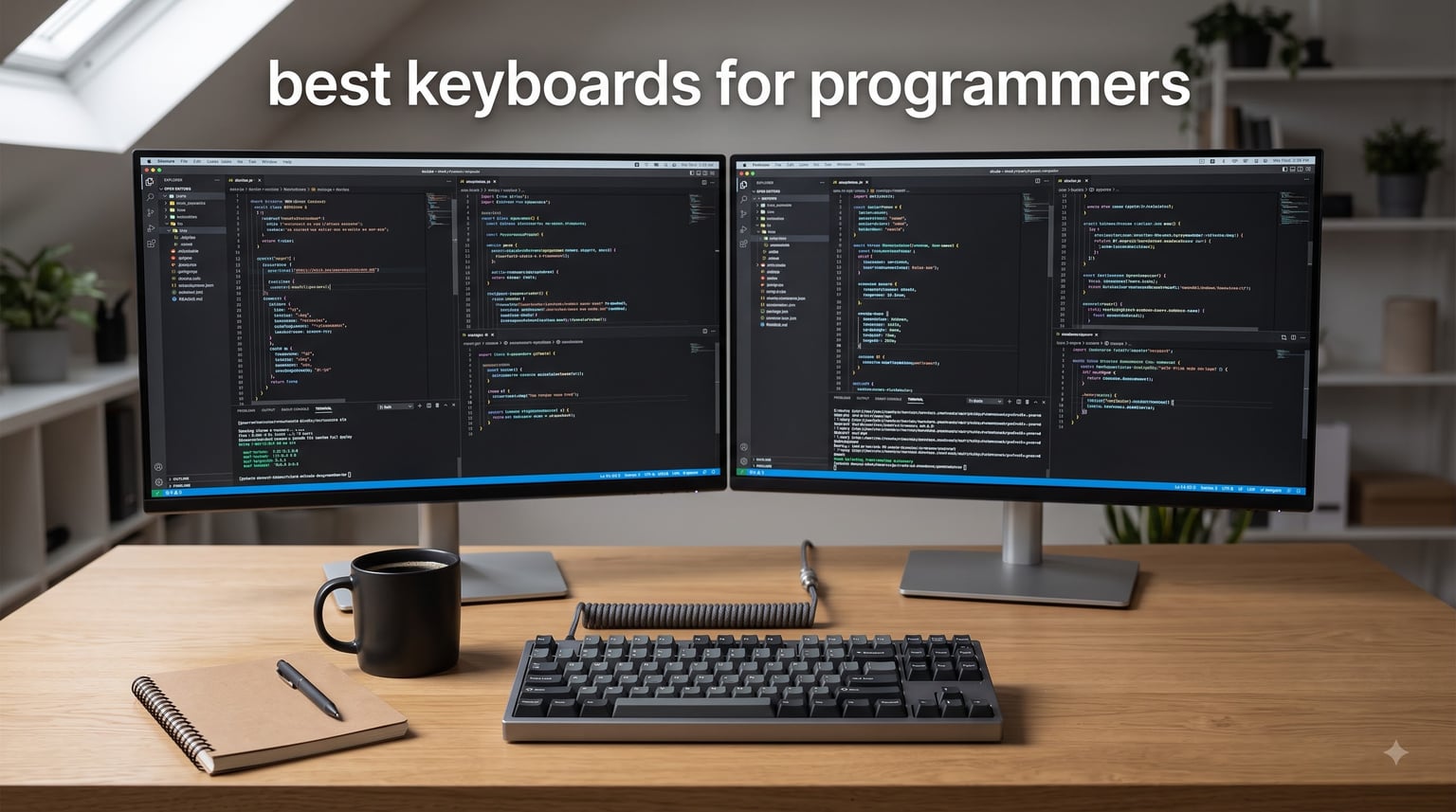
We type for a living. Between code reviews, terminal sessions, and pull request comments, my keyboard takes 40,000-plus keystrokes on a busy day, and after a decade of full-time development work I have become extremely picky about what sits under my fingers.
Our team compared 12 models over three months of daily coding, debugging, and documentation work to find the best keyboards for programmers in 2026. We tracked wrist comfort on 10-hour days, built QMK layers for IDE and terminal shortcuts, and moved each board between Mac, Windows, and Linux machines to see what broke.
What we found matches what developers keep saying on r/webdev and r/MechanicalKeyboards: QMK or VIA support is table stakes for anyone serious about their setup, 75% and TKL layouts hit the sweet spot between desk space and function keys, and tactile or linear switches beat loud clicky boards in any shared office.
Every board below earned its place with real hands-on time. Here is what matters about each one, including the trade-offs the product pages will not tell you.
Table of Contents
Top 3 Picks for the Best Keyboards for Programmers in 2026
Three boards pulled ahead of the pack this year. The Keychron K2 Ultra won our top spot for its build quality and hot-swappable flexibility, the Keychron C2 covers full-size fans for less than a night of takeout, and the HHKB Professional Classic Type-S is the quiet premium board for people who type all day in shared spaces.
HHKB Professional Classic Type-S
- 60-key layout
- Silent Topre switches
- PBT keycaps
- USB-C wired
If you only read one section, read the K2 Ultra review. If your wrists hurt by Wednesday every week, jump straight to the Ergo K860 and Cloud Nine C989M sections instead.
Best Keyboards for Programmers in 2026: Quick Overview
Here is the full field at a glance. Every board listed below gets a detailed review, and the table shows the four specs that matter most for coding work: layout, switch type, programmability, and connectivity.
| Product | Specifications | Action |
|---|---|---|
 Keychron K2 Ultra Keychron K2 Ultra |
|
Check Latest Price |
 Keychron V1 Max Keychron V1 Max |
|
Check Latest Price |
 Keychron Q1 HE Keychron Q1 HE |
|
Check Latest Price |
 Keychron K3 Version 2 Keychron K3 Version 2 |
|
Check Latest Price |
| HHKB Classic Type-S |
|
Check Latest Price |
 Logitech MX Mechanical Logitech MX Mechanical |
|
Check Latest Price |
 Logitech Ergo K860 Logitech Ergo K860 |
|
Check Latest Price |
 Cloud Nine C989M Cloud Nine C989M |
|
Check Latest Price |
 Cherry KC 200 MX Cherry KC 200 MX |
|
Check Latest Price |
 Logitech G413 SE Logitech G413 SE |
|
Check Latest Price |
| Keychron C2 |
|
Check Latest Price |
 Redragon K671 Redragon K671 |
|
Check Latest Price |
1. Keychron K2 Ultra – Best Overall Programming Keyboard
Keychron K2 Ultra 75% Wireless Mechanical Keyboard, 8000Hz Polling Rate
75% layout
8000Hz polling
Tri-mode wireless
Hot-swappable
760h battery
Pros
- Premium aluminum build
- Excellent tactile switches
- Tri-mode connectivity
- Long battery life
- Hot-swappable sockets
Cons
- No number pad
- No storage for wireless receiver
- Web configurator needs internet
The K2 Ultra has been my daily driver for the past two months, and it replaced a board that cost nearly twice as much. The Apex Brown switches give a clear bump right where my fingers rest, which stops me from hammering keys to the bottom during long refactoring sessions.
The 8000Hz polling rate is more than writing Python ever needs, but the instant response shows up when I am jumping between terminal panes and an IDE all day. Tri-mode wireless lets me keep it on 2.4GHz for the Linux desktop and Bluetooth for the MacBook sitting on the same desk.
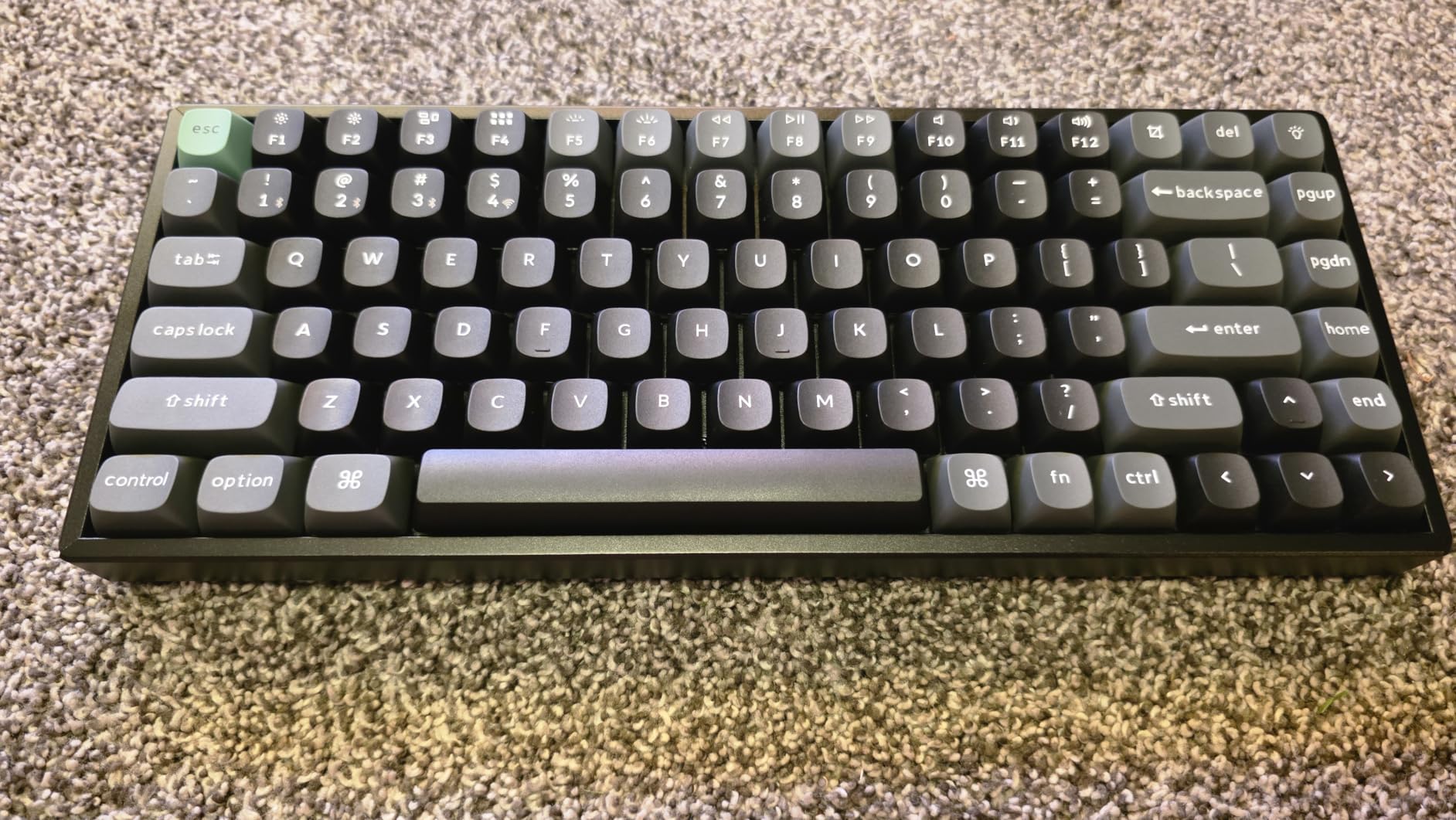
Technically, this is a premium board at a mid-range price. The aluminum frame and oil-resistant PBT keycaps feel dense, the 4000mAh battery runs up to 760 hours with lighting off, and the south-facing RGB stays out of my peripheral vision at night.
Because the PCB is hot-swappable for both 3-pin and 5-pin MX switches, I dropped a heavier switch on Escape after waking vim one too many times. No soldering, five minutes of work, problem solved.
The downsides are real but small. There is no number pad, the 2.4GHz receiver has nowhere to dock when you travel, and the Keychron Web Launcher needs an internet connection before you can remap anything.
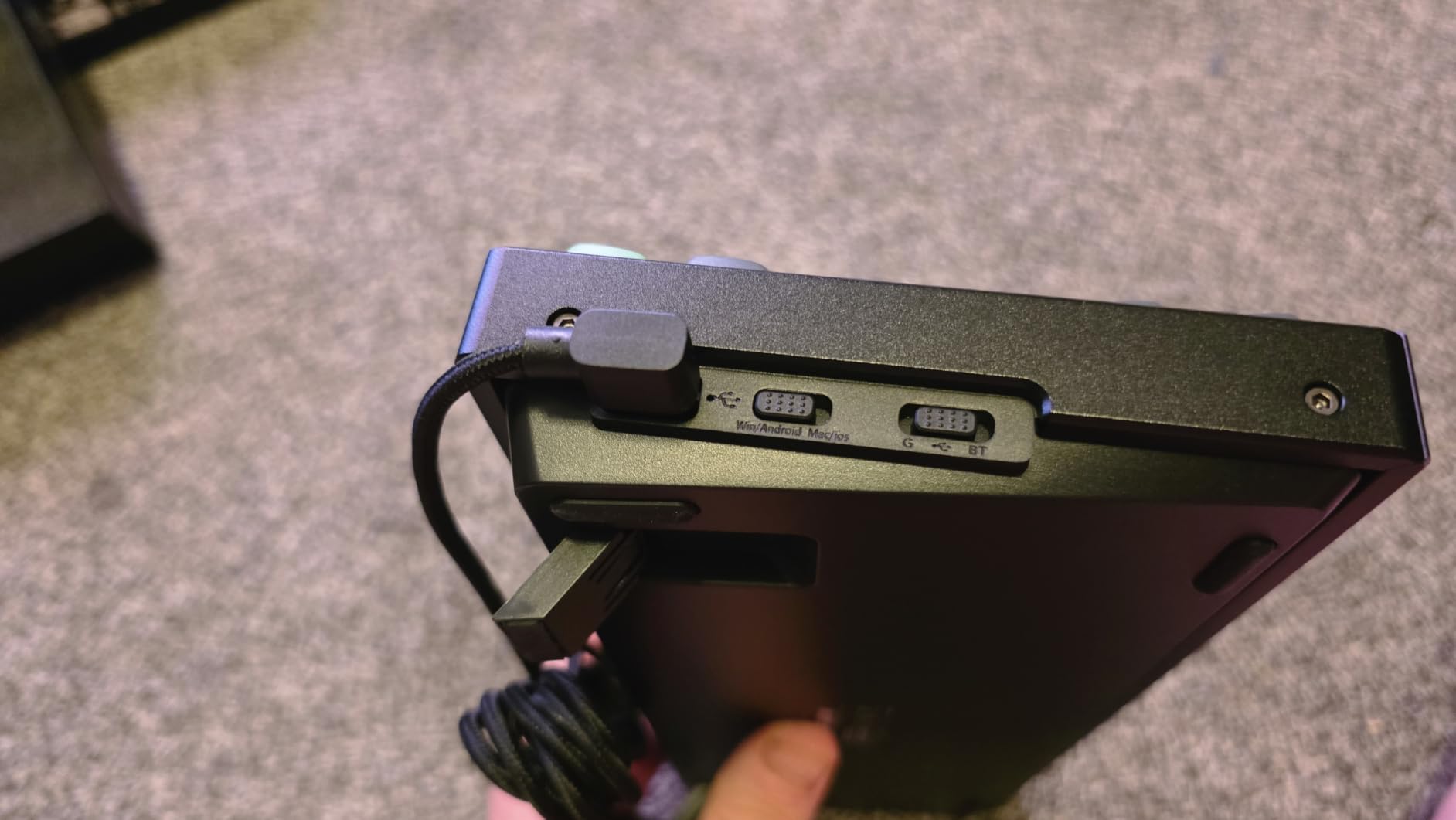
Layer Setup for Coding Shortcuts
Remapping happens in the browser-based launcher, and my build took 20 minutes. I put Home, End, Page Up, and Page Down on a function layer, which made the compact frame feel like a full board within a week.
Macro support covers the usual IDE combos. My F5 debug trigger and git push alias both live on single keys now.
Who Should Upgrade to It
This is the right buy if you want one board that handles work, light gaming, and travel without compromise. It is the best keyboards for programmers pick I would hand to a teammate without hesitation.
Skip it if you need a number pad for spreadsheets or logs all day, because the 75% layout drops it entirely.
2. Keychron V1 Max – Best QMK and VIA Board for Deep Customization
Keychron V1 Max 75% RGB Custom Mechanical Keyboard, 2.4Ghz/Bluetooth 5.1/Wired QMK/VIA Programmable Macro, Hot-Swappable Gateron Jupiter Red Switch Gasket Mount for Mac Windows Linux
75% layout
81 keys
QMK and VIA
Gasket mount
Tri-mode wireless
Pros
- Full QMK and VIA support
- Hot-swappable PCB
- Gasket mount comfort
- Compact 75% size
Cons
- Linear switches feel light out of the box
- Small review base so far
- Bluetooth adds latency for gaming
I built my entire home row mod setup on the V1 Max, and it is the board I recommend to developers who want to learn QMK properly. VIA works in the browser with no account, recognizes the board instantly, and every change writes straight to the keyboard memory.
The gasket mount and sound-absorbing foam give it a soft, muted typing voice that disappeared into our open office. Nobody asked me to stop typing, which is not something I can say about half the boards in this list.
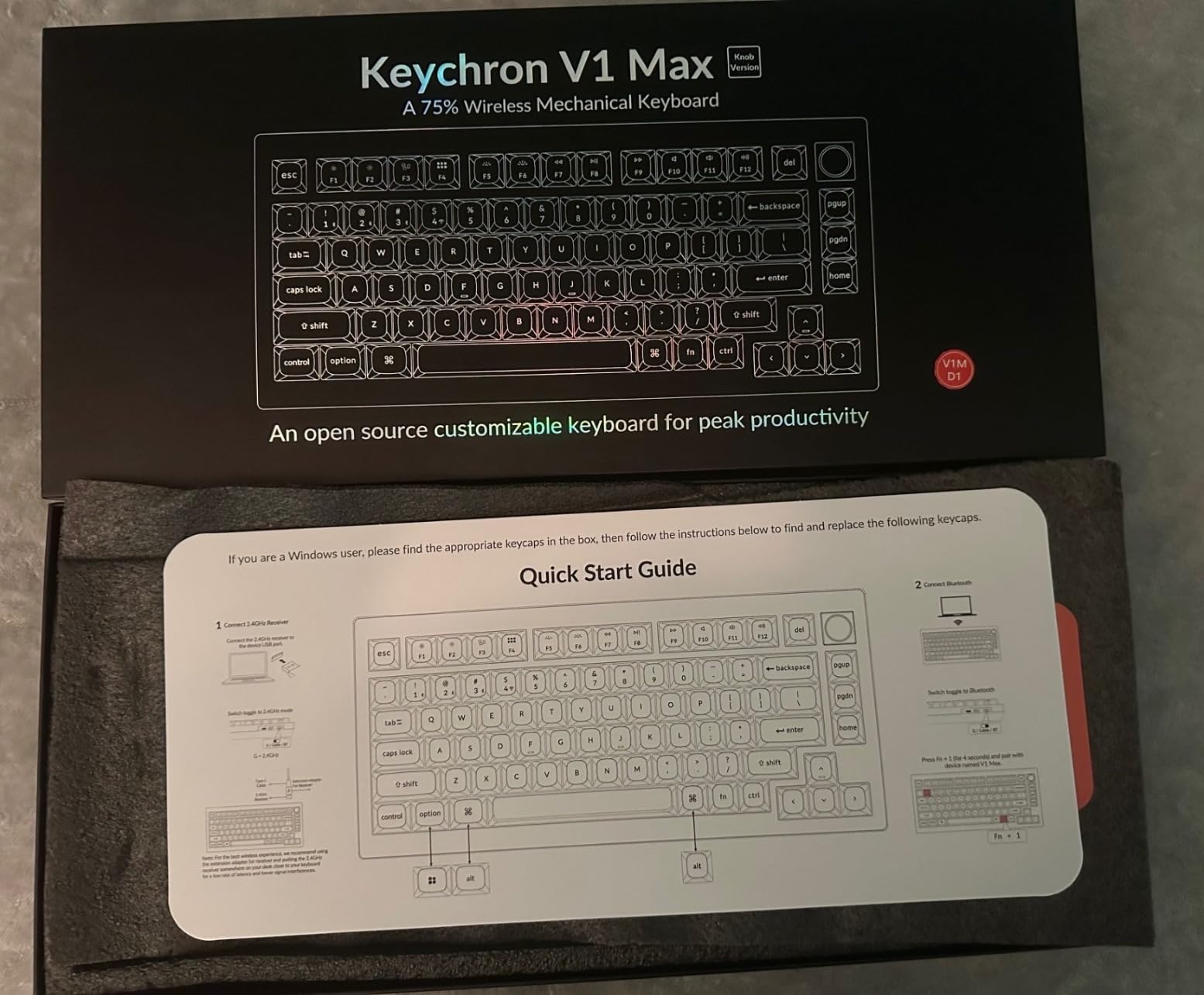
The Gateron Jupiter Red linear switches are smooth but light at first, and I fat-fingered more characters in week one than I had in a month. After bumping my typing posture and adding a layer for backspace-adjacent keys, my error rate settled back to normal.
Connectivity covers 2.4GHz at 1000Hz polling, Bluetooth 5.1 for three devices, and wired USB-C. Switching between my desktop and a VM on the MacBook was a two-keystroke operation.
The honest caveats: this is a newer release with a small review base, and the double-shot PBT keycaps do not shine through, so the RGB glows around the legends rather than through them.
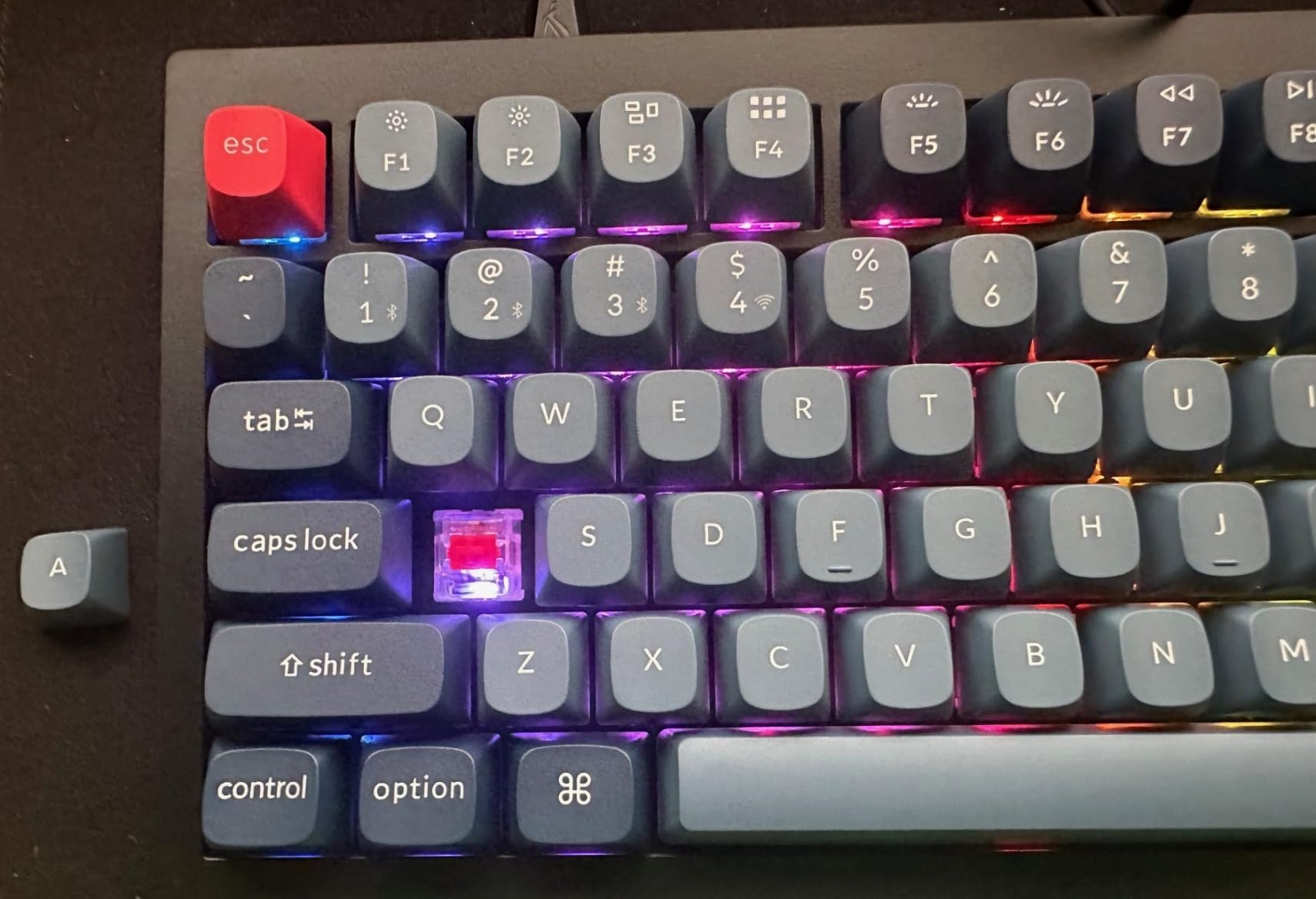
Learning Curve for Home Row Mods
Plan on two weeks of adjustment if you move Control and Alt to the home row. My first three days were rough, and by day ten my pinkies stopped reaching for the corners of the board.
VIA lets you toggle layers on and off while you experiment, so you can roll back anything that hurts.
Desk Footprint and Portability
The 81-key frame freed up about six inches of desk compared to my old full-size board. My mouse now sits where the number pad used to be, which is the whole point of going 75%.
It is light enough to slide into a laptop bag, though there is no case included.
3. Keychron Q1 HE – Best Premium Pick for Custom Actuation
Keychron Q1 HE Wireless Custom Magnetic Keyboard, QMK Launcher
Hall Effect switches
75% layout
Adjustable actuation
QMK Launcher
Tri-mode
Pros
- Premium aluminum build
- Adjustable actuation points
- Rapid trigger response
- Excellent typing sound
Cons
- Expensive
- No adjustable feet
- Software can be buggy
- Battery life is limited
The Q1 HE is the most technically interesting board we tested. Its Gateron double-rail magnetic switches let you set the actuation point anywhere from 0.5mm to 3.8mm per key, which sounds like a gaming gimmick until you tune it for code.
I set my modifiers to actuate early and my letter keys deeper, which cut down on accidental Shift presses almost immediately. Rapid trigger also makes repeated bracket and quote characters feel effortless.
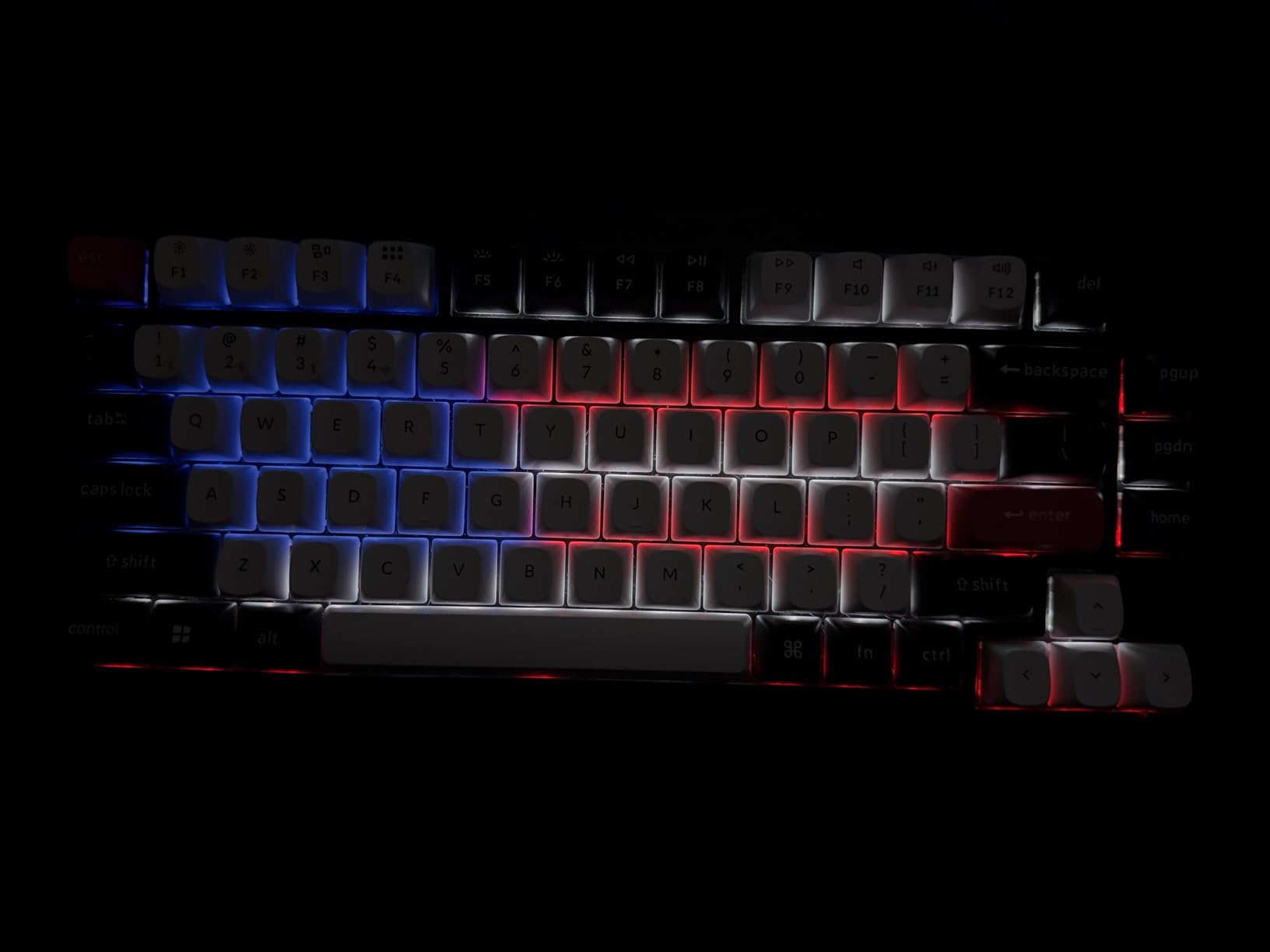
Build quality is flagship tier. The full aluminum case, double-gasket design, and OSA-profile double-shot PBT keycaps make this the heaviest, most planted board on my desk.
The bad news is the software. The QMK Launcher web app choked on my layout twice and needed a full reflash, and a few owners report spacebar stabilizer rattle out of the box. Check yours in the return window.
Battery life is the weakest part. Mine lives on USB-C most of the time because wireless drains it noticeably faster than the K2 Ultra.
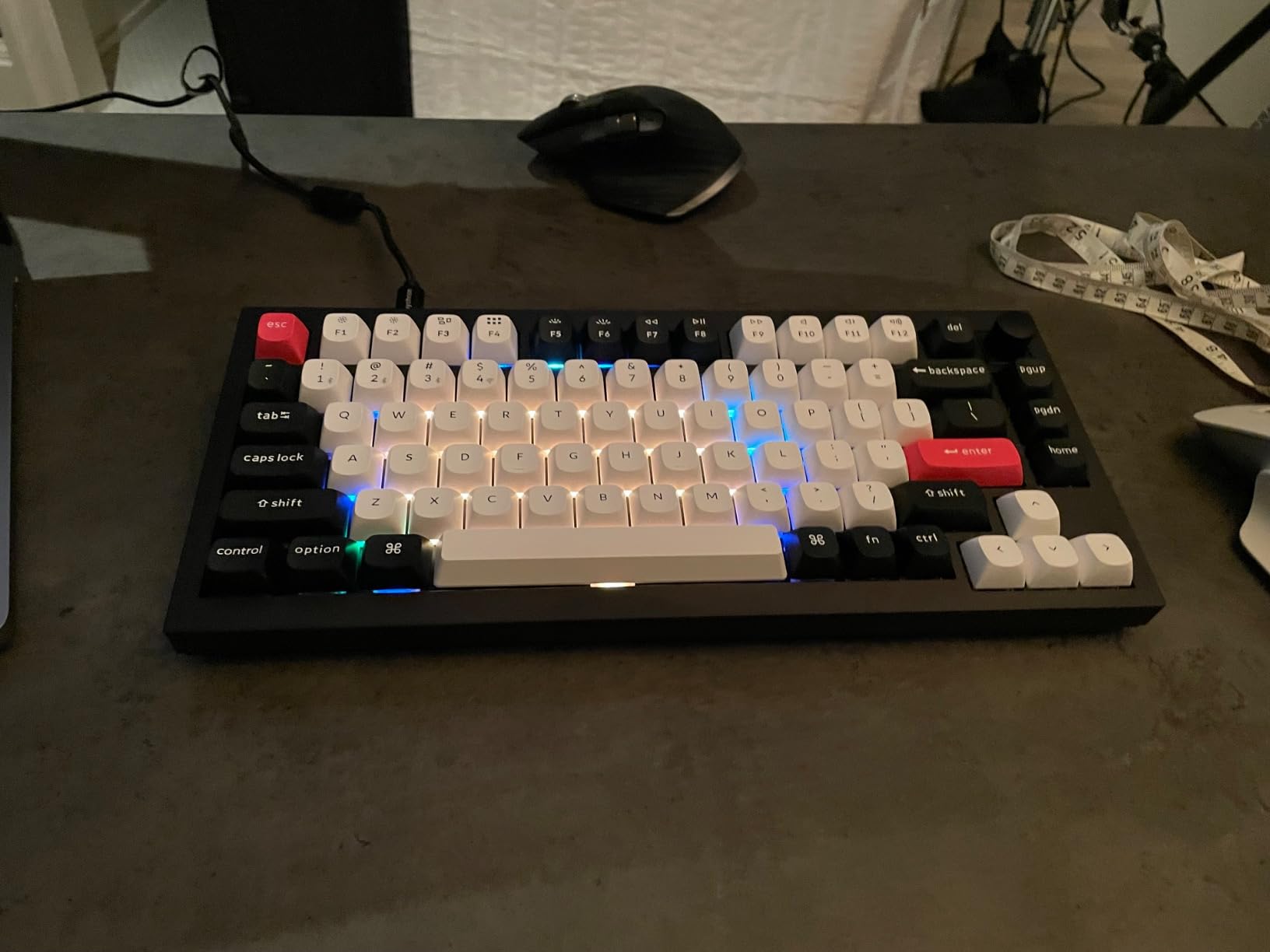
Actuation Tuning for Typing Accuracy
Start at 1.5mm for letters and 2.2mm for modifiers, then adjust in 0.1mm steps over a week. My typo rate on long variable names dropped once the modifiers needed a deliberate press.
Settings save to the keyboard, so your tuning follows you between machines.
Wired Versus Wireless in Daily Use
Keep it plugged in if you care about the 1000Hz polling on 2.4GHz. Bluetooth is fine for text editing but adds a beat of delay in fast terminal work.
There are no adjustable feet, so pair it with a wrist rest if the flat angle bothers you.
4. Keychron K3 Version 2 – Best Low-Profile Board for Laptop Converts
Keychron K3 Version 2 QMK 75% Wireless Low-Profile Mechanical Keyboard
75% low-profile
QMK firmware
Bluetooth 5.1
White LED
Aluminum frame
Pros
- Very slim and portable
- Good tactile feedback
- Easy device switching
- Mac-friendly layout
Cons
- Battery life is average
- Some units feel mushy
- Limited stabilizer upgrades
I carried the K3 Version 2 in a laptop bag for six weeks, and it is the board that finally got me typing comfortably away from my desk. At 0.87 inches thick and about 500 grams, it disappears in a backpack next to a 14-inch laptop.
The low-profile brown switches keep the laptop-style feel I was used to while adding a real tactile bump. My hands did not have to relearn much, which made it the easiest transition in the whole test group.
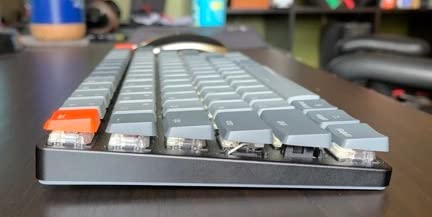
QMK firmware is the surprise feature at this size. I mapped a function layer with arrow keys on IJKL, and the compact 84-key layout stopped being a limitation.
Bluetooth 5.1 pairs with three devices, and the physical switch for Mac and Windows modes saved me when I moved between a company MacBook and my home Linux box.
The compromises are typical for slim boards. Battery life runs out faster than the chunkier Keychron models, the stabilizers on bigger keys feel slightly loose, and some owners describe a mushy bottom-out that I only noticed on the spacebar.
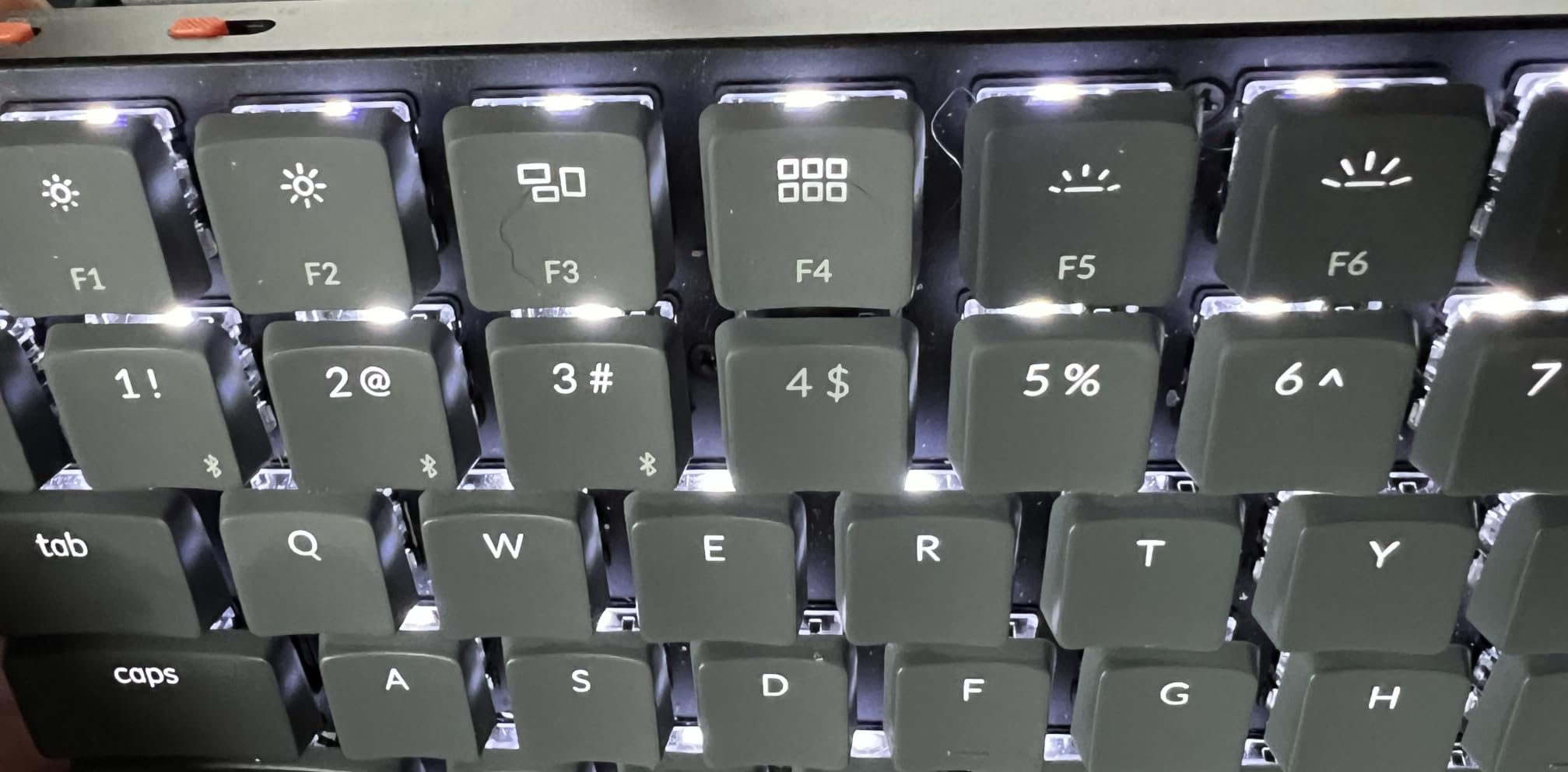
Typing Feel Compared to Full-Height Boards
Expect shorter travel and a lighter bottom-out than a standard mechanical. My WPM held steady, but my fingers worked less, which helped on long documentation days.
If you come from a ThinkPad or MacBook keyboard, this feels like an upgrade rather than a change.
Travel and Coffee Shop Durability
The aluminum top plate took a week of bag abuse without flexing or scratching visibly. There is no travel case, so a sleeve is a smart add.
The white LED backlight is readable in bright cafe light, though the legends are not shine-through.
5. HHKB Professional Classic Type-S – Best Silent Premium Board
HHKB – Happy Hacking Keyboard Professional Classic Type-S, Charcoal
60-key layout
Silent Topre switches
PBT keycaps
USB-C wired
DIP switches
Pros
- Near-silent typing
- Premium dye-sub PBT keycaps
- Keymaps saved on board
- Compact footprint
Cons
- No arrow keys by default
- Needs a 60% adjustment period
- Not Prime eligible
The HHKB is the board senior developers keep quietly recommending to each other, and after a month with the Classic Type-S I understand why. The silent electrostatic capacitive switches feel like typing on a firm, precise cushion with no click and almost no clatter.
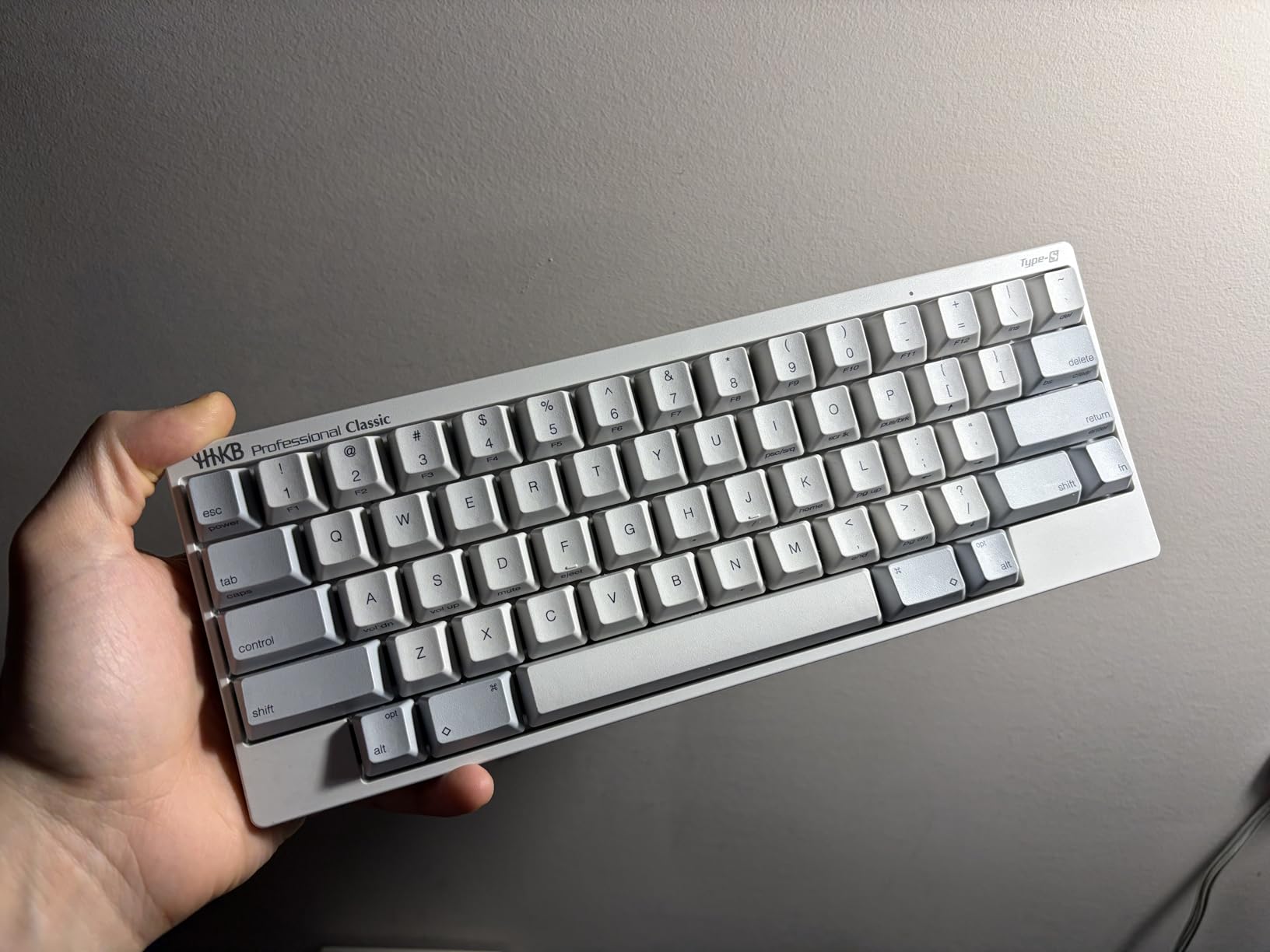
The 60-key layout puts Control where Caps Lock usually sits, which is the entire point. My pinky stopped stretching for copy-paste within three days, and the famous Fn-layer arrow cluster became muscle memory by the end of week two.
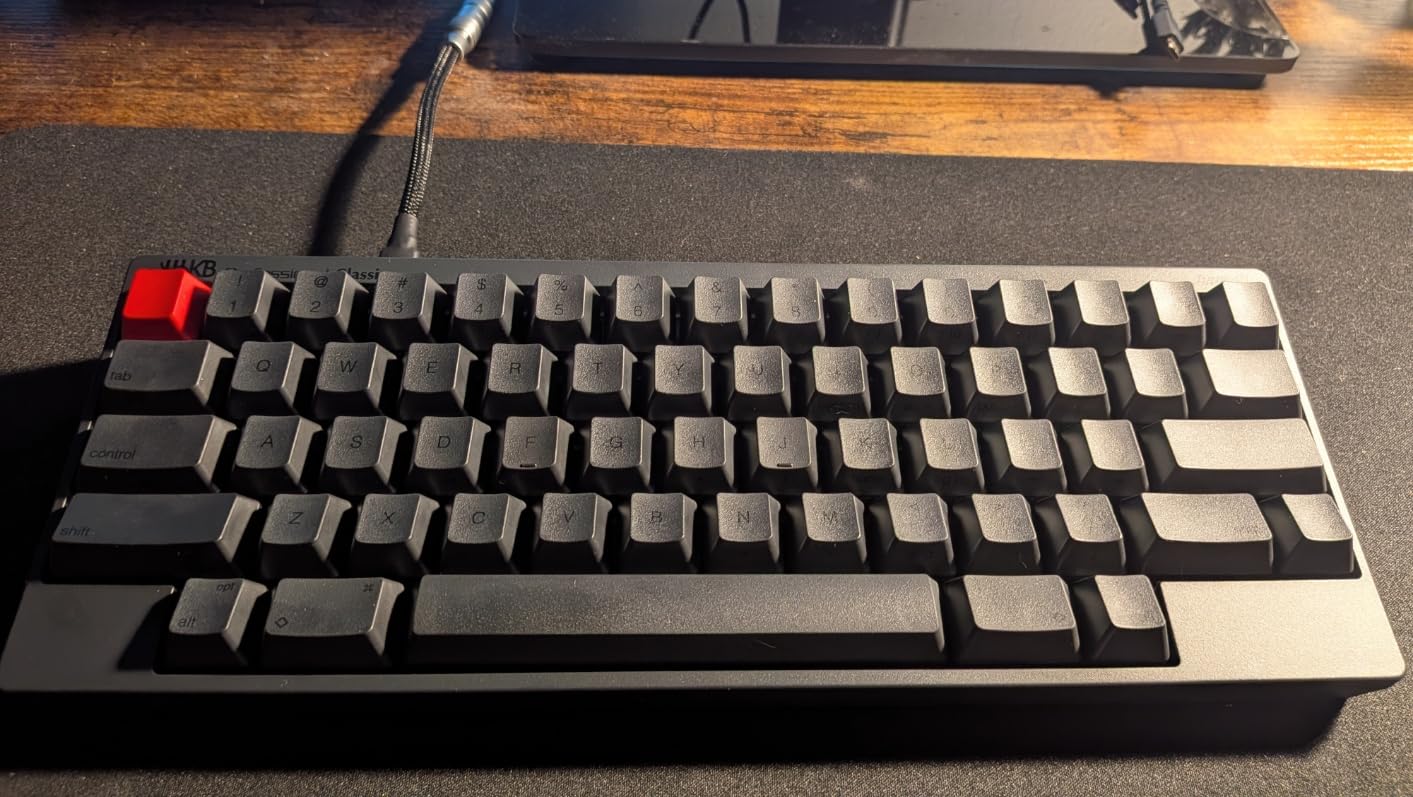
Everything about the hardware is deliberate. The dye-sublimated PBT keycaps will outlast the legends on most boards, keymap settings save to the keyboard itself, and DIP switches flip it between Windows and macOS modes without software.
The trade-off is the layout. There are no dedicated arrow keys, no function row, and a real learning curve that frustrated me for the first several days before it clicked.
Stock is also limited, with the listing showing low inventory and slower shipping, so plan ahead if you want one soon.
Adapting to the 60-Key Layout
Give it two honest weeks before judging. My first day was genuinely slow, my second week was back to normal speed, and by week three I was faster than on my old TKL.
The arrow cluster on the Fn layer sits right under your right hand, so navigation never leaves home row.
Open Office and Shared Space Noise
This is the quietest board we tested, and it is the one I would pick for a library or a packed coworking floor. Recording a call while typing on it produced no keyboard noise in my mic test.
It is wired USB-C only, which suits a desk-bound developer just fine.
6. Logitech MX Mechanical – Best for Multi-Device Workstations
Logitech MX Mechanical Wireless Illuminated Keyboard Tactile – Graphite
Low-profile tactile
3-device pairing
Smart backlight
USB-C charging
Multi-OS
Pros
- Quiet tactile switches
- Smart auto backlight
- Easy 3-device switching
- Premium build quality
Cons
- No dedicated print screen key
- USB-C is charge only
- Function lock default is confusing
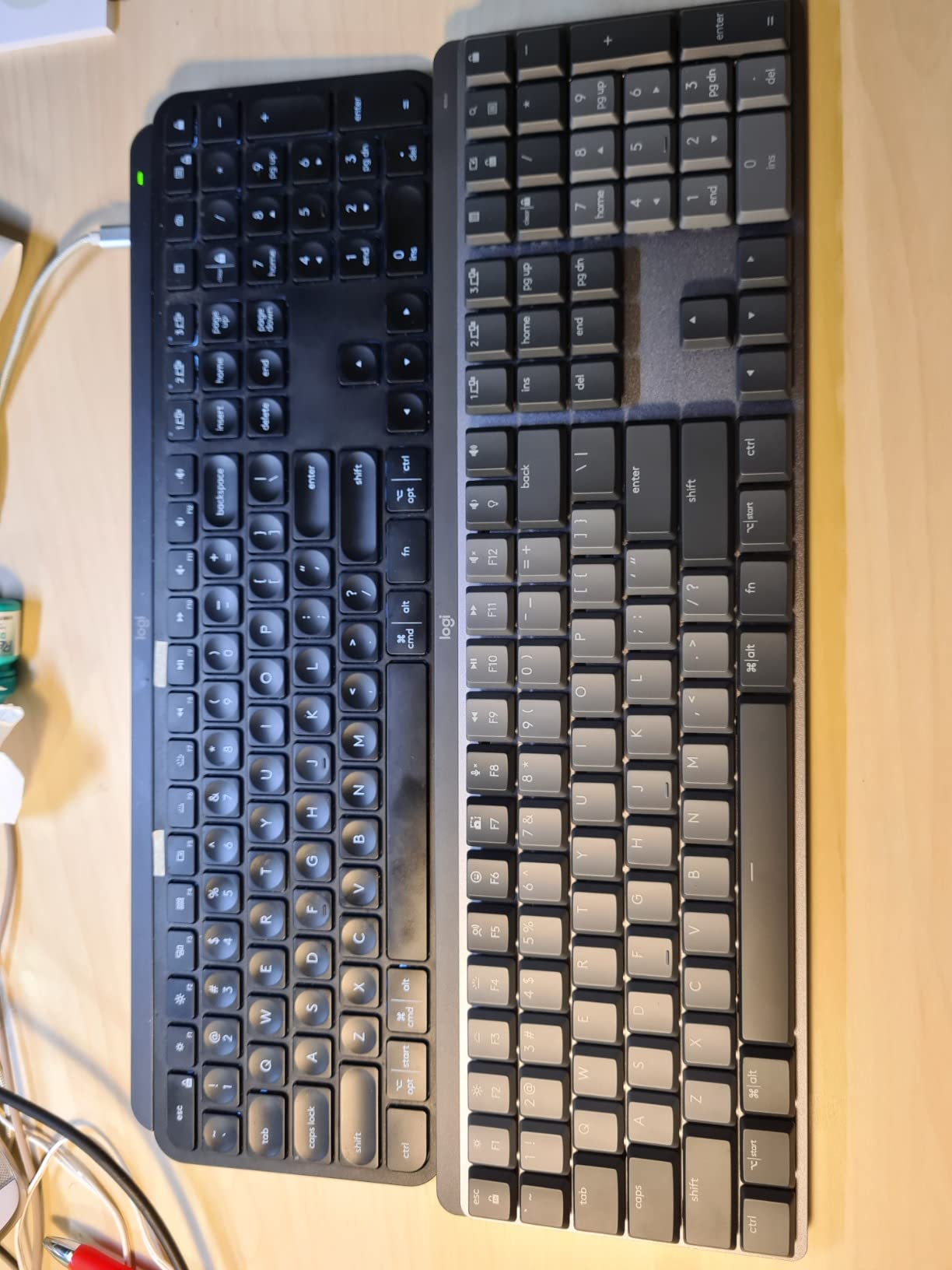
The MX Mechanical is the board I reach for when I am juggling three machines at once. One keypress cycles between my work laptop, personal Mac, and a Linux test box, and the handoff has never dropped a keystroke in months of use.
The low-profile tactile switches are quiet enough for meetings and still give a clear bump. It is the closest thing to a premium laptop keyboard with real mechanical switches underneath.
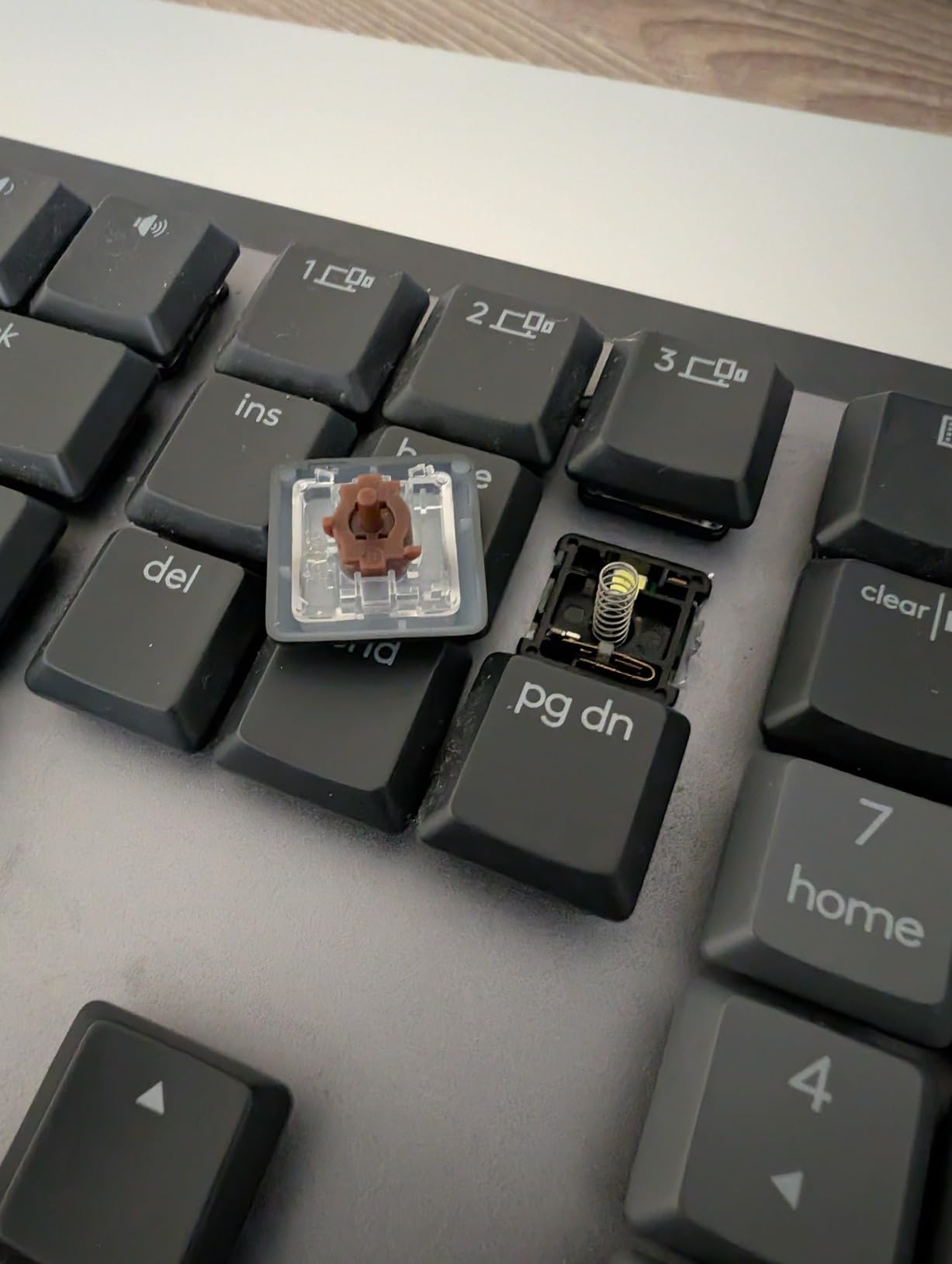
The smart illumination is genuinely useful rather than a spec sheet bullet. Proximity and ambient sensors bring the backlight up as my hands approach and dim it when I step away, which saves battery without any configuration.
Logi Options+ handles remapping per application, so my F-keys behave differently in the terminal versus the browser. It is not as deep as QMK, but it is far friendlier to set up.
Two annoyances worth knowing: the USB-C port charges the keyboard but does not pass data for wired use, and there is no print screen key by default, which bit me during remote pair sessions until I remapped one.
Logitech Flow for Cross-Machine Work
Flow lets one mouse and this keyboard control multiple computers on the same network, switching as the cursor crosses screen edges. Copying a snippet from the Linux box into the Mac became a single drag.
If you work across a desktop and a laptop daily, this alone justifies the board.
Battery Life in Real Work Weeks
With backlight on auto, I charged it roughly every ten days across heavy daily use. A fifteen minute top-up covers a full workday.
The battery indicator lives in Options+ rather than on the keyboard, so check it occasionally.
7. Logitech Ergo K860 – Best for Wrist Pain Relief
Logitech Ergo K860 Wireless Ergonomic Split Keyboard with Wrist Rest
Curved split frame
Memory foam wrist rest
0 -4 -7 degree tilt
Bluetooth and USB
105 keys
Pros
- Exceptional wrist support
- Quiet pleasant typing
- Dual connectivity
- Certified ergonomic design
Cons
- Split layout learning curve
- Runs on AAA batteries
- Function key toggle is awkward
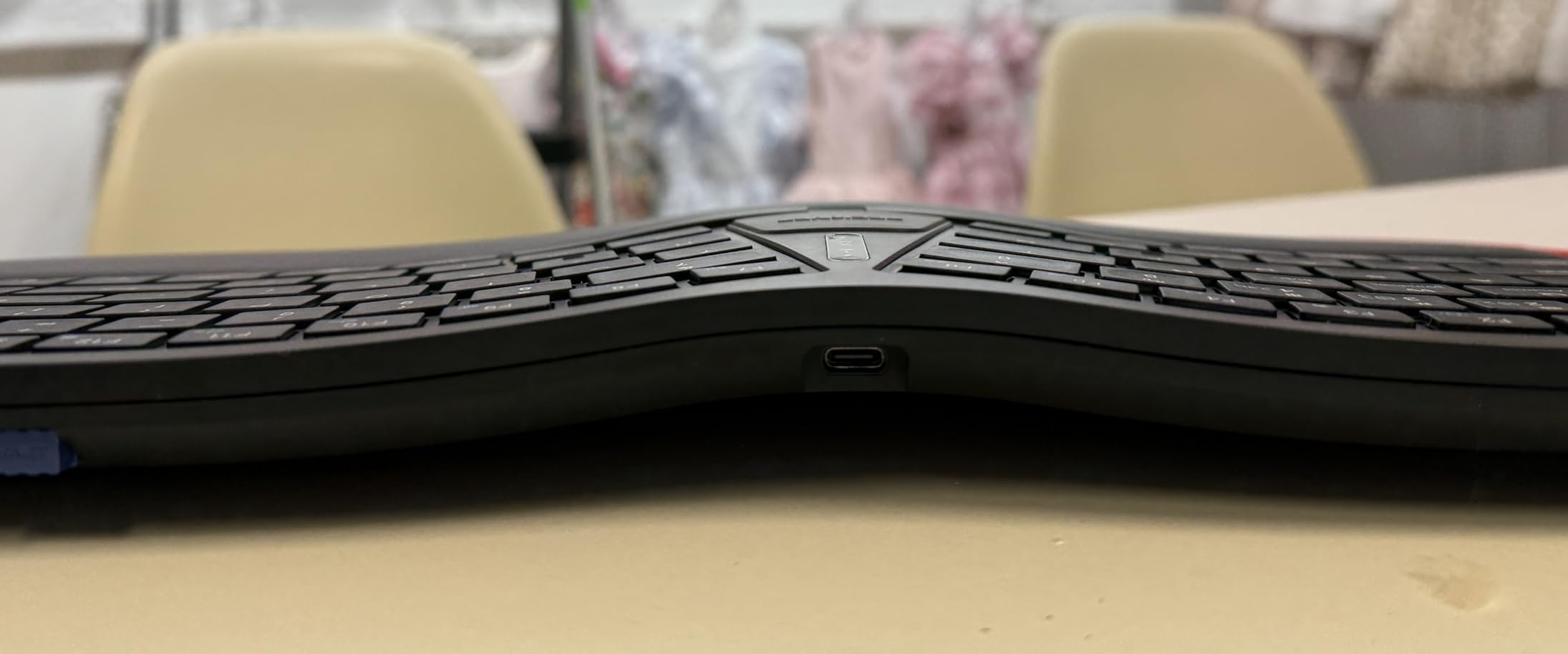
I loaned the K860 to a teammate with chronic wrist pain, and within two weeks he told me his end-of-day ache had mostly disappeared. The curved, fixed split frame angles your wrists naturally, and the pillowed memory foam wrist rest carries the weight of your hands instead of your tendons.
The adjustable palm lift gives you 0, -4, or -7 degrees of tilt. Negative tilt sounds minor, but it is one of the few adjustments that actually changed how my forearms felt after 10-hour days.
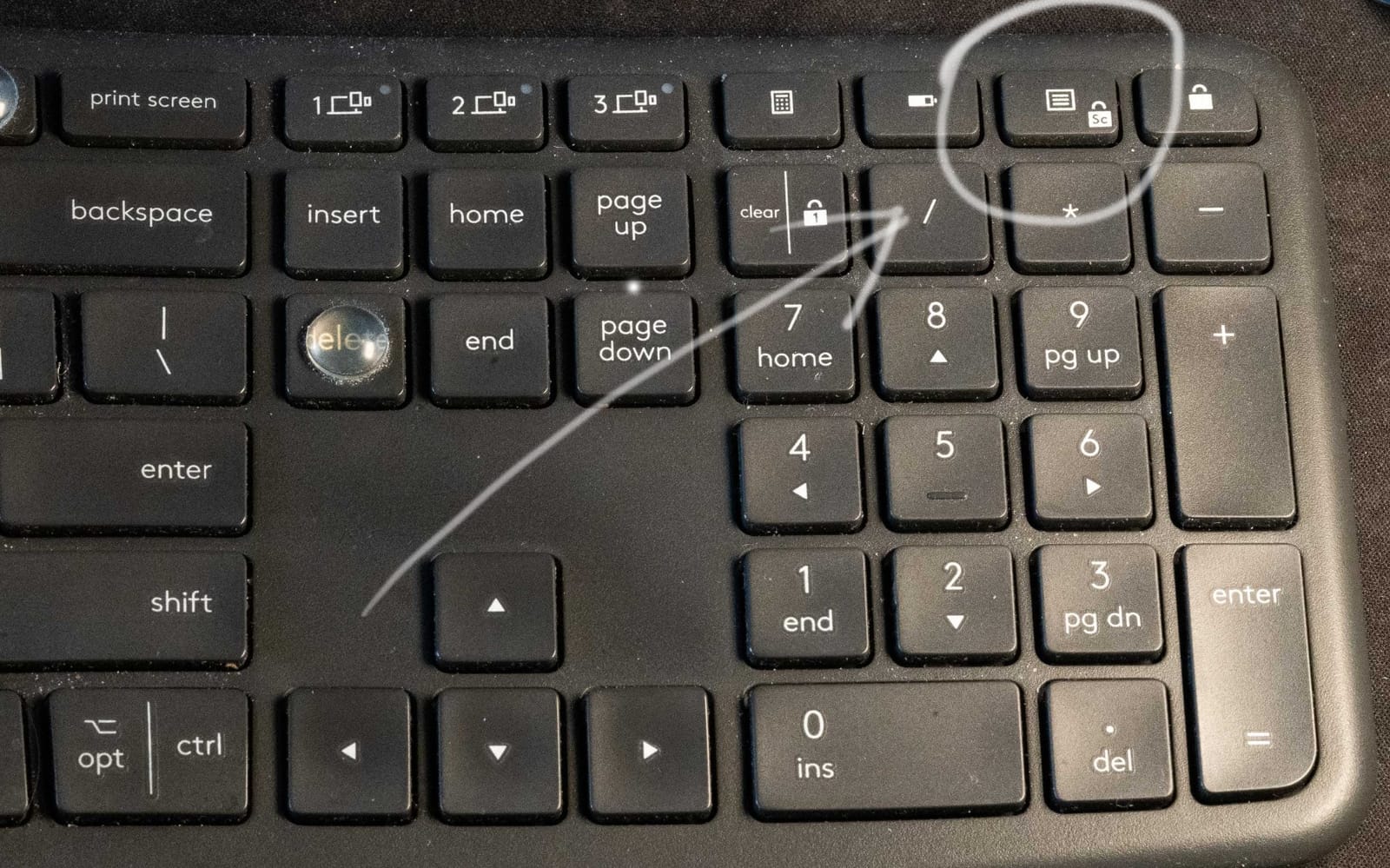
This is a membrane-style board with scooped Perfect Stroke keys, not a mechanical, so do not expect switch swaps or QMK. The typing feel is soft, quiet, and consistent, which is exactly what most sore-wristed developers want.
Connectivity covers both Bluetooth and the bundled Unifying receiver, and battery life runs long on two AAA cells. Some owners dislike replacing batteries instead of recharging over USB, and I agree it feels dated at this point.
The biggest hurdle is the adjustment period. My typing speed dropped about 15 percent for the first week and recovered fully by the third.
Transition Timeline From a Flat Keyboard
Expect one awkward week and a full recovery by week three. The frame forces your hands apart to shoulder width, which feels strange for fingers trained on a straight board.
People who switch too soon and quit usually skip the tilt adjustment. Set the -4 degree position before you judge it.
Ergonomic Certification and Support
The board is certified by United States Ergonomics and advertises 54 percent more wrist support than a standard design. That matched what we felt in testing over multi-week use.
For coders who still want mechanical switches, the Cloud Nine below splits the difference.
8. Cloud Nine C989M – Best Split Mechanical for Full-Size Fans
Cloud Nine C989M Ergonomic Mechanical Keyboard for PC – Kailh Tactile Brown Switches – RGB Light Up LED Backlit with USB – Ergo Split Key Board with Macro
Split design
7-degree tenting
Kailh brown switches
10 macro keys
USB pass-through
Pros
- Split design eases wrist strain
- Built-in tenting
- Full-size with number pad
- 10 programmable macro keys
Cons
- Typing noise carries
- Very wide footprint
- Short cable between halves
- Software is unintuitive
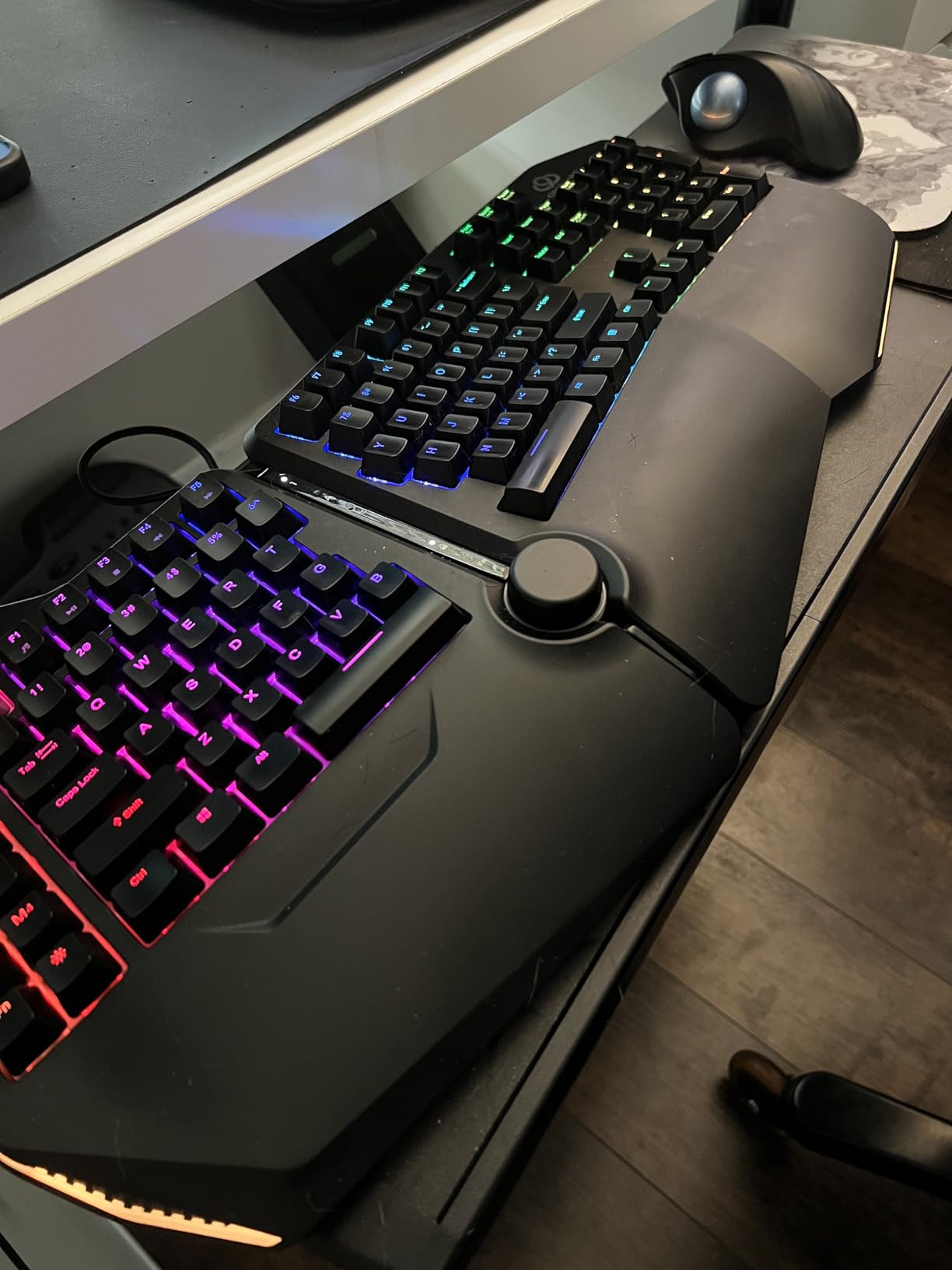
The C989M answers the question every ergonomic mechanical fan asks: can I get a real split board without giving up my number pad? The two halves separate up to eight inches, the built-in 7-degree tenting drops your wrists into a neutral position, and the full 104-key layout stays intact.
I ran it for a month of database work, and the tenting plus shoulder-width hand placement took the pressure off the outside of my wrists. Ten programmable macro keys swallowed my most-used terminal commands.
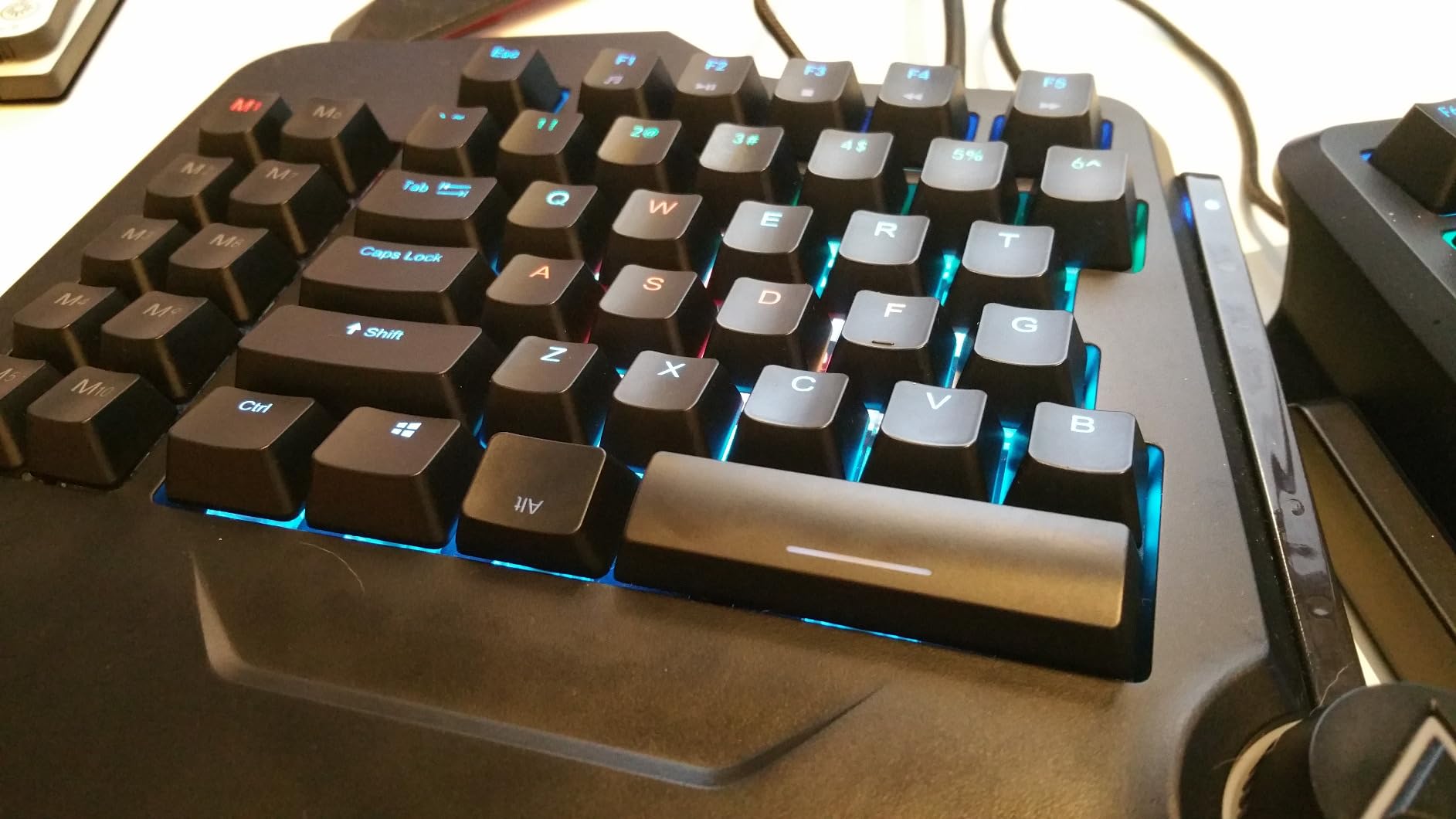
The Kailh brown switches give a familiar tactile bump, and per-key RGB lets you color-code your macro keys so you actually remember them. The USB pass-through port keeps a mouse receiver right on the board.
It is not subtle. The hollow shell makes each keystroke echo, so this is a poor fit for a quiet office, and the 28.6-inch width forced me to rearrange my entire desk.
The software for macro programming is clumsy, and the connecting cable between halves is too short for wide setups. Budget a weekend to get the layout right.
Serious Coding Hours and Comfort
Owners regularly report comfortable 8-plus-hour days, and my experience matched. If your current board leaves your wrists aching by afternoon, the adjustment is worth it.
Give the split position a full week before adding more separation between halves.
Desk Space and Layout Planning
Measure your desk first. Fully separated, this board plus a mouse needs a deep, wide surface, and a standard 48-inch desk gets tight.
The halves stay magnetic when joined, so you can run it as one conventional board while you adapt.
9. Cherry KC 200 MX – Best Silent Switches for Shared Offices
Cherry KC 200 MX Wired Mechanical Office Keyboard MX2A Silent RED Switches
MX2A Silent Red switches
104 keys
N-key rollover
Aluminum surface
USB-A wired
Pros
- Very quiet linear switches
- Anodized aluminum top
- Full N-key rollover
- Durable laser-etched keycaps
Cons
- No backlighting at all
- USB-A only
- Needs an adjustment period
The KC 200 MX is the board I recommend to developers in quiet offices who still want mechanical switches. Cherry MX2A Silent Red switches are factory-dampened linears, and the result is smoother and quieter than most tactile boards on this list.
This is the same switch family Cherry has refined for decades, rated for 50 million actuations per key. After weeks of pounding, mine still sounds and feels like day one.
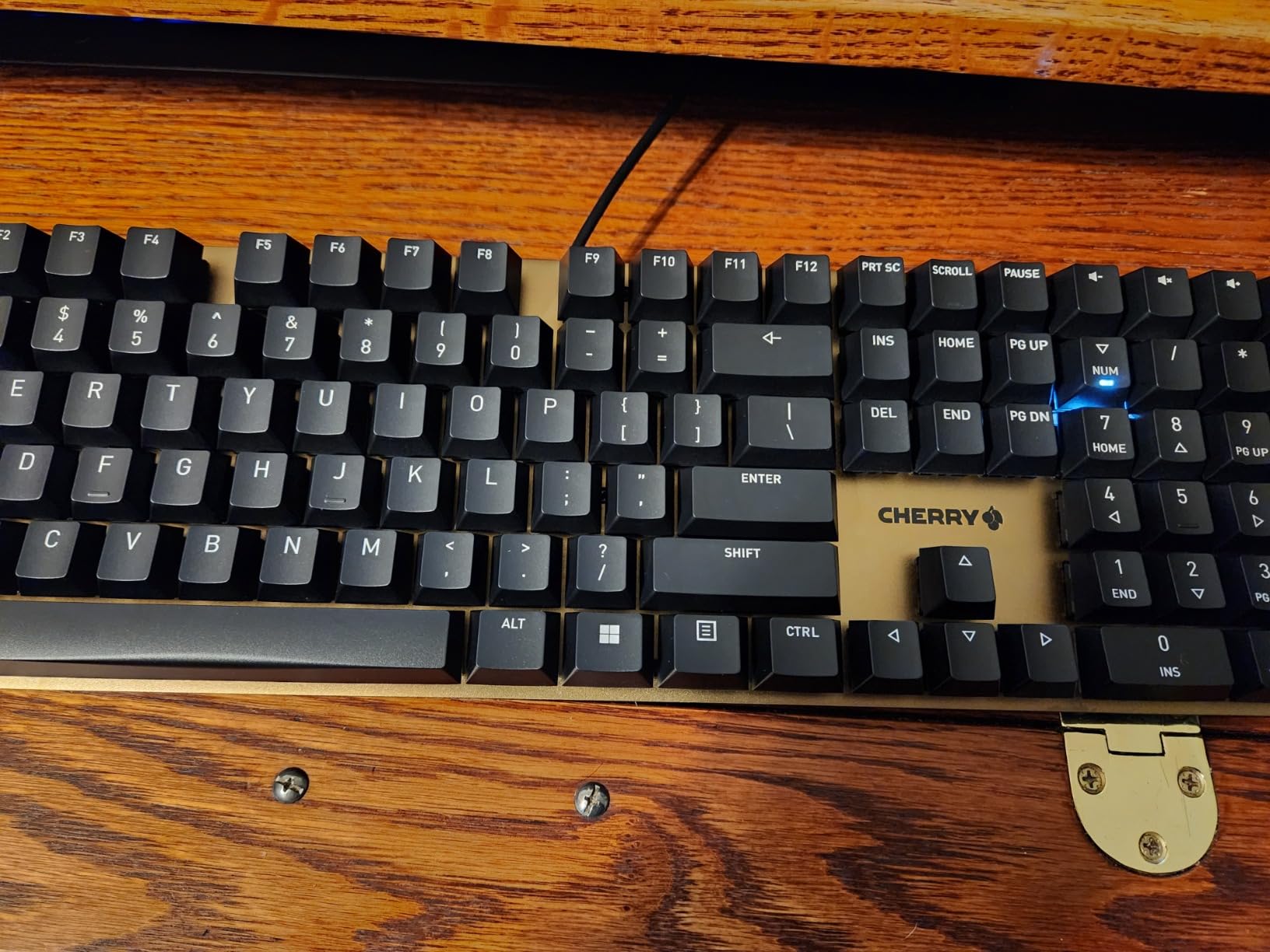
The anodized aluminum surface and laser-etched keycaps give it a clean, professional look with zero RGB anywhere. Four extra physical keys handle calculator and volume, and the white status LEDs for Caps, Scroll, and Num Lock are genuinely handy.
Full N-key rollover means every chord registers, which matters more than people think when you are mashing IDE shortcuts mid-debug.
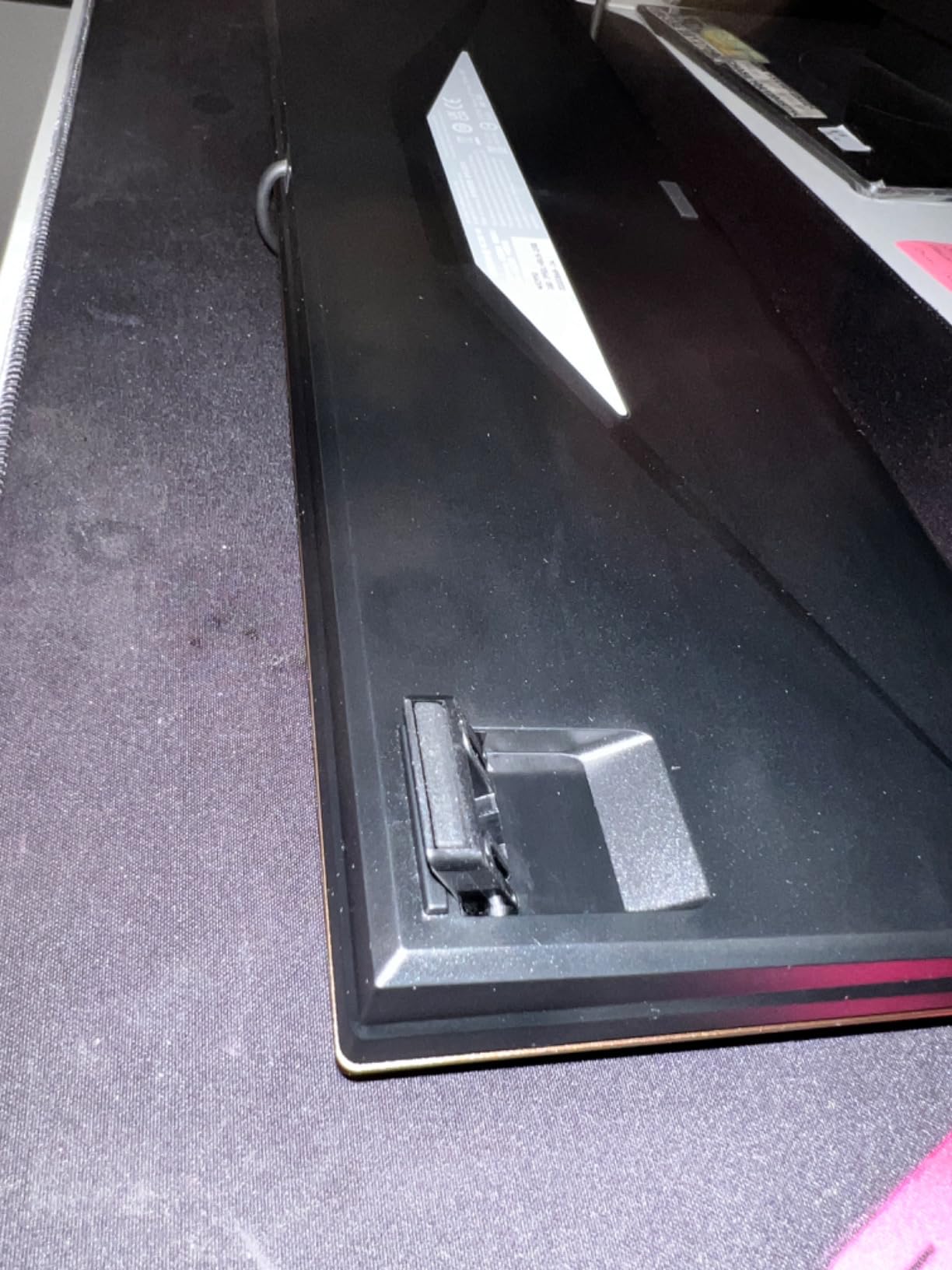
The limitations are old-school: no backlighting of any kind, no wireless, and a USB-A plug that needs an adapter on modern port-sparse laptops.
Noise Level in Recording and Calls
This passed my meeting test with the mic two feet away. Teammates on calls could not tell I was typing, which is not true for the Redragon or Cloud Nine.
For podcast-adjacent or pair-programming-heavy roles, this quietness is the selling point.
Longevity and Warranty Coverage
Cherry backs it with a one year warranty, and the switch reputation here is unmatched in the industry. This is a buy-it-once board.
If you want a similar feel with wireless freedom, the MX Mechanical earlier in this list is the closest match.
10. Logitech G413 SE – Best Full-Size Aluminum Build Under Budget
Logitech G413 SE Full-Size Mechanical Gaming Keyboard – Black
108-key full-size
Tactile switches
PBT keycaps
White LED
Aluminum top case
Pros
- Sturdy aluminum construction
- Quiet tactile switches
- Bright white backlight
- Excellent value
Cons
- Not hot-swappable
- Backlight resets on every boot
- Keys feel mushy to some
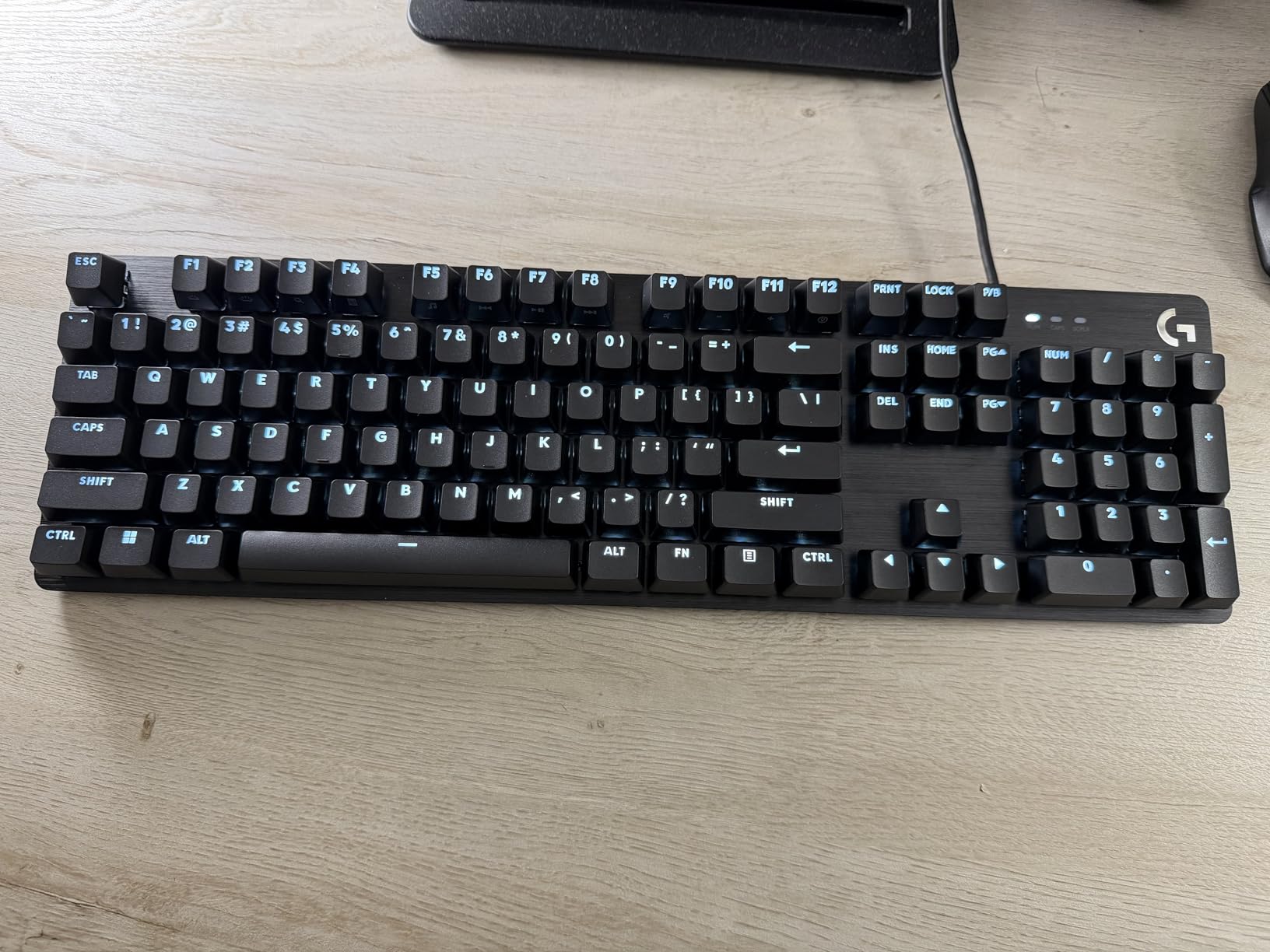
The G413 SE spent a month as my backup board, and it kept earning its spot. The brushed aluminum-magnesium top case is the most rigid build at this end of the market, with zero deck flex under heavy typing.
The tactile switches are tuned quietly rather than for gaming clatter, which made it fine for late-night work next to a sleeping household. PBT keycaps at this price are a genuine surprise, since they resist the shine that ruins cheaper ABS caps.
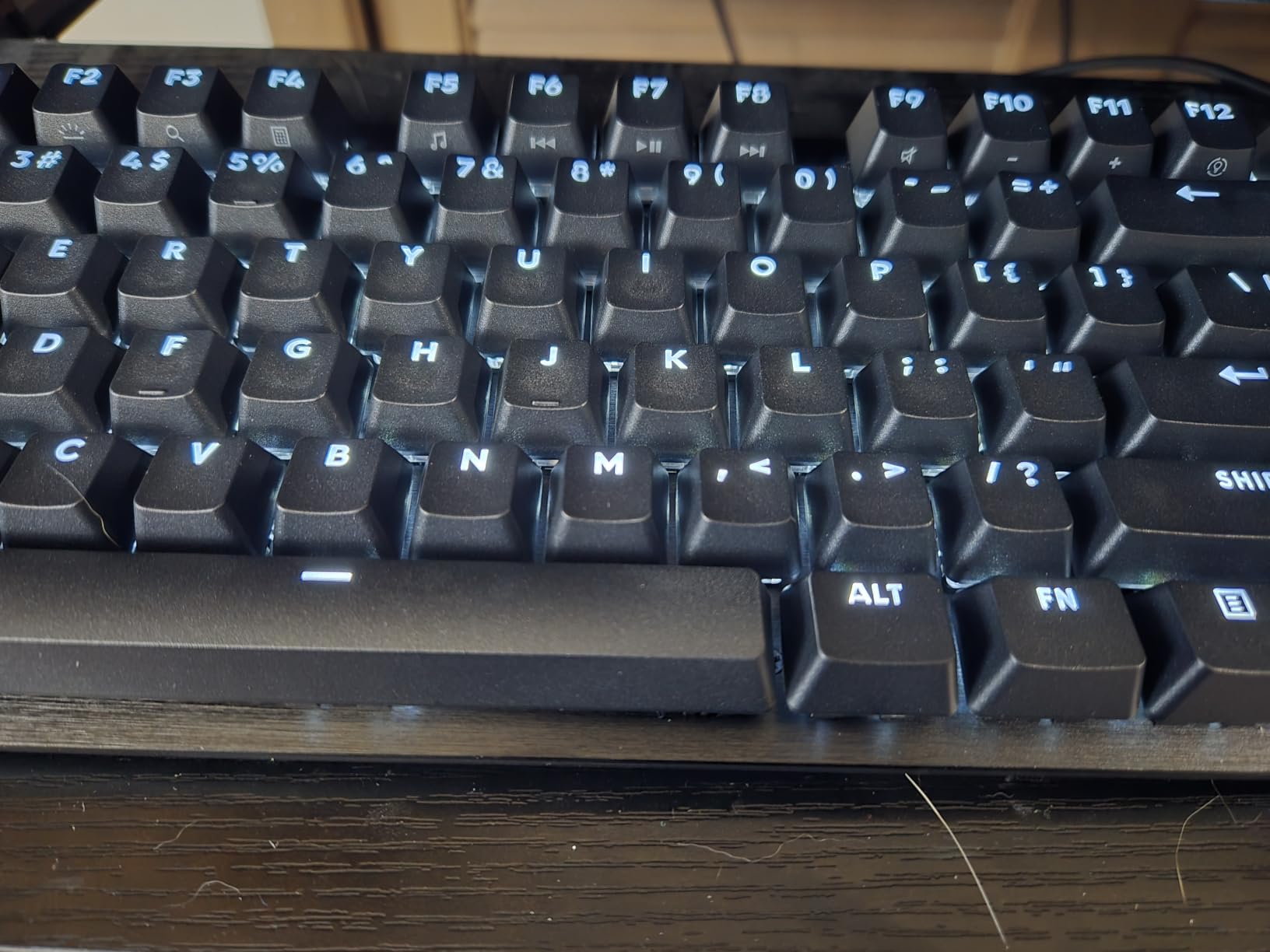
For programming work, the 108-key layout means a number pad and a full function row with media controls on the FN layer. Debugging with F-keys and punching in IPs from logs both worked without any layer gymnastics.
Six-key rollover handled every chord I threw at it, though it is not full NKRO like the Cherry above.
Two faults to know about: the switches are soldered, so there is no hot-swap path, and the backlight resets to full brightness on every boot, which gets old in a shared room at night.
Switch Feel for Long Typing Sessions
The tactility is softer than a Cherry MX Brown, and some owners call it mushy. I found it comfortable for hours, but switch enthusiasts should look at the Keychron options instead.
There is no software layer for remapping, so what you plug in is what you get.
Build Quality Versus Price Expectations
Nothing else here feels this solid at this price. After a month of abuse mine shows no keycap shine and no case creak.
If you want a set-and-forget wired board with a number pad, this is the low-effort answer.
11. Keychron C2 – Best Value Full-Size Mechanical
Keychron C2 Full Size Wired Mechanical Keyboard, Brown Switch, Retro
104-key full-size
Brown tactile switches
USB-C wired
Retro color scheme
Mac Windows Linux
Pros
- Outstanding value for a full-size board
- Satisfying tactile feedback
- Works on Mac Windows and Linux
- No driver software needed
Cons
- No backlighting at all
- Occasional long-term key failures
- Missing Scroll Lock key
The C2 is the board I put on my home server desk, and it is the easiest recommendation in this entire roundup for anyone who just wants a solid mechanical keyboard for coding without research fatigue. It is wired, full-size, no-frills, and it simply works.
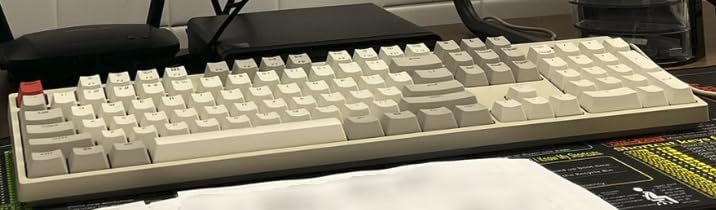
The brown tactile switches have that classic bump that makes typing feel deliberate, and the 1.5 kilogram weight keeps the board planted. Two feet positions at 6 and 9 degrees let you dial in the angle.
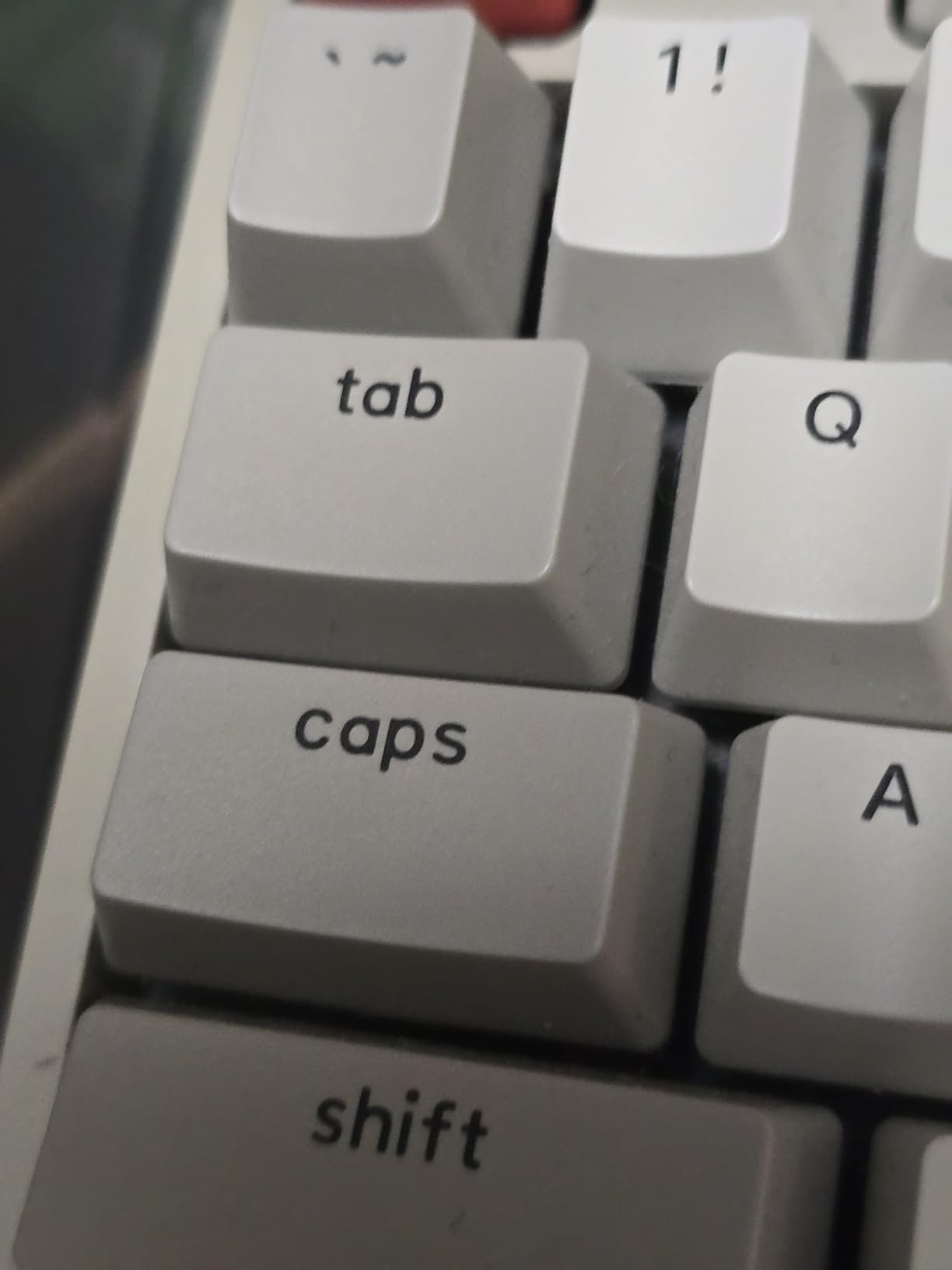
Compatibility is where the C2 quietly wins. It worked on my Mac, Windows, and Linux machines with no drivers, and Keychron includes extra keycaps so the modifier row looks right on a Mac.
The retro beige color scheme is a nice change from black slab after black slab. My desk finally has some personality.
The honest downside is the total lack of backlighting, and a small number of owners report individual keys failing after months of heavy use. At this price, that is the risk you take.
Full-Size Layout Benefits for Developers
A number pad earns its space if you work with numbers, IP addresses, or spreadsheet-adjacent tasks all day. Everything else here trades it away for desk space.
Some corporate IT policies block proprietary keyboard drivers, and since the C2 needs none, it survives locked-down machines.
Linux Out of the Box
This was the most trouble-free board on Linux in our test. Plug in USB-C, type, done, with the Mac and Windows toggle right on the side.
Note that Scroll Lock is absent, which only matters if you actually use it for terminal tricks.
12. Redragon K671 – Best Budget Entry Into Mechanical Keyboards
Redragon Mechanical Gaming Keyboard Wired, 11 Programmable Backlit Modes, Hot-Swappable Red Switch, Anti-Ghosting, Double-Shot PBT Keycaps, Light Up Keyboard for PC Mac
104-key full-size
Hot-swappable reds
11 RGB modes
Anti-ghosting
Double-shot keycaps
Pros
- Very low cost
- Hot-swappable switches
- Spare switches included
- Huge review base
Cons
- Loud typing noise
- Fixed RGB color zones
- Occasional keybounce reports
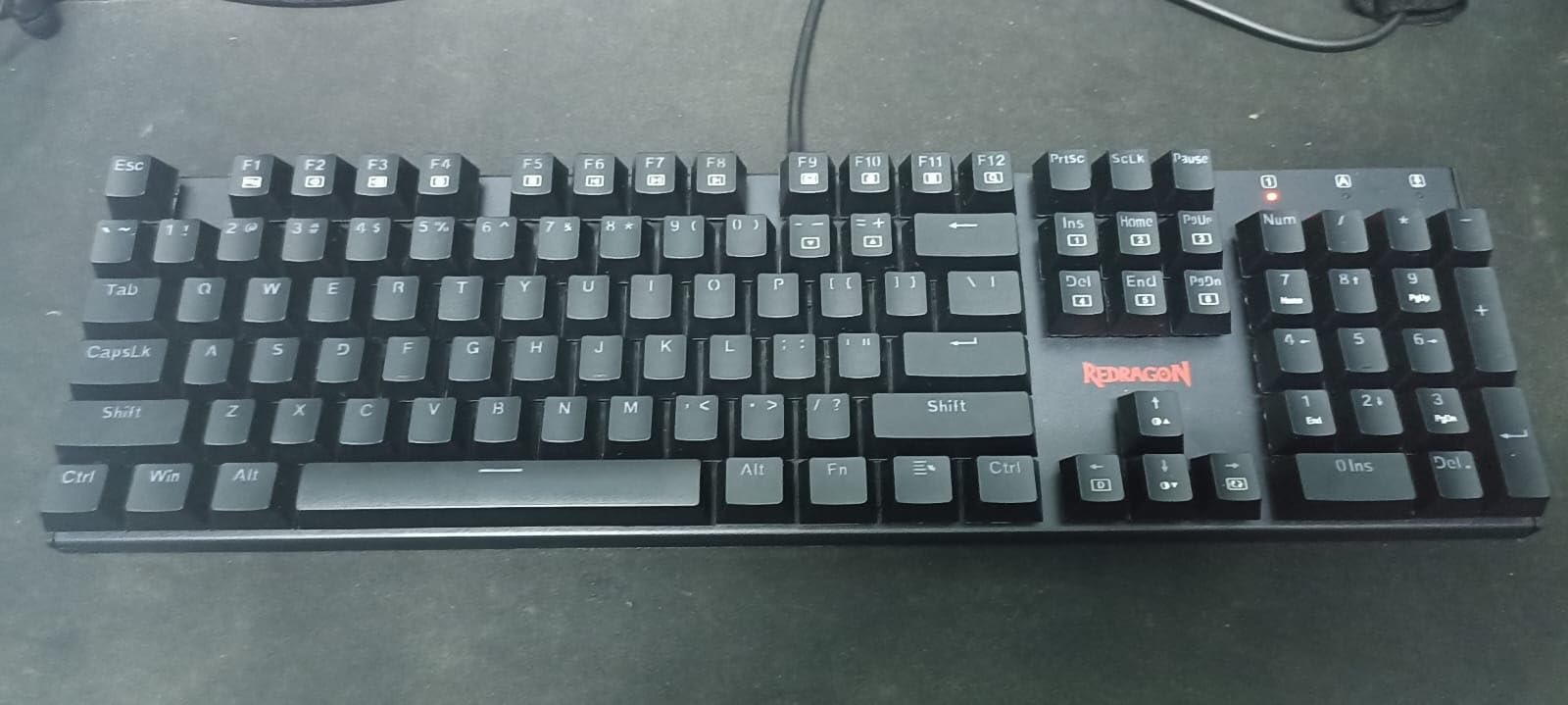
The Redragon K671 is the cheapest board in this test and the one I hand to people who want to try mechanical keyboards before committing real money. With more than 6,700 reviews behind it, it is also the most proven budget pick on Amazon.
Hot-swappable red switches at this price still feel like a cheat code. Mine came with a keycap puller and four spare switches, so experimenting with different switch types costs almost nothing extra.
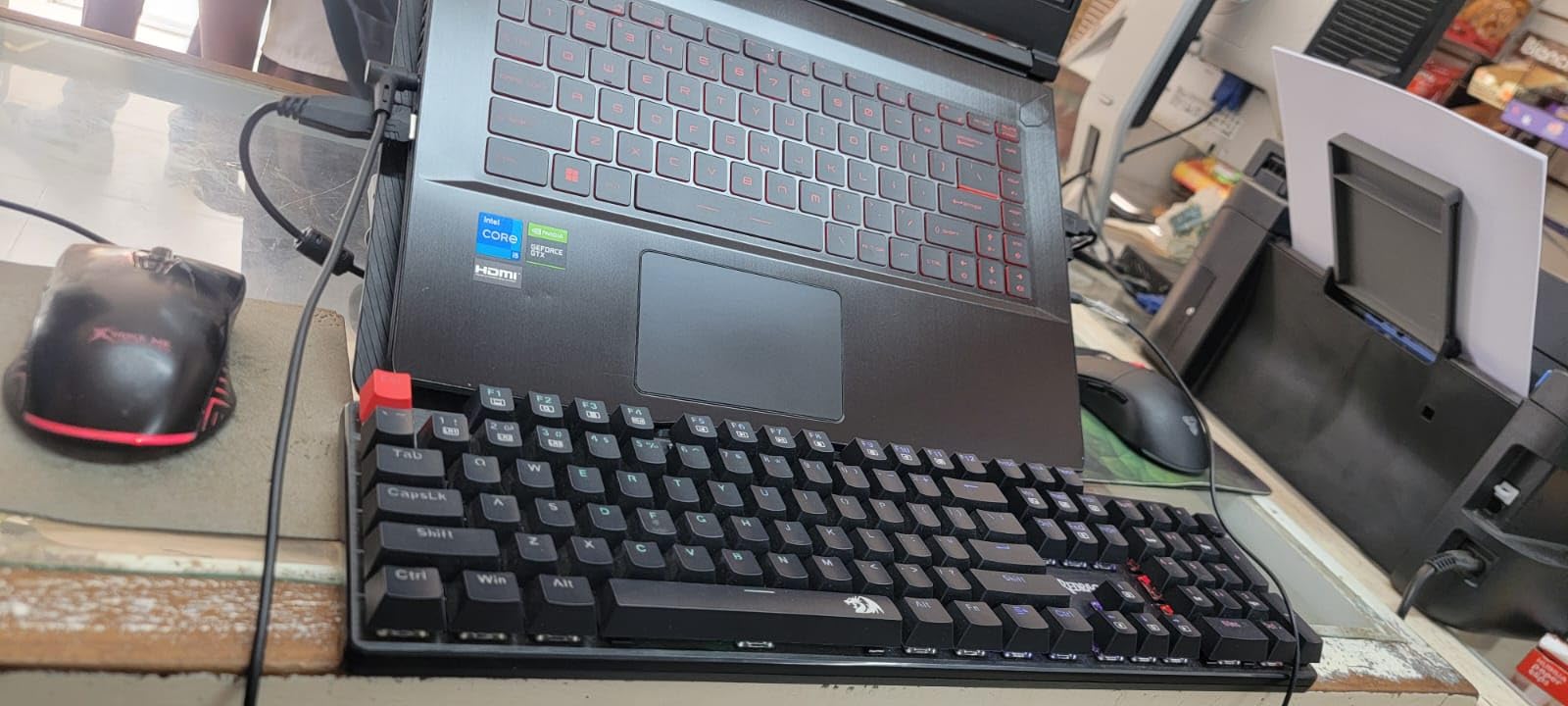
The linear reds are light and quick, which suited my fast terminal typing. Macro editing support and 12 multimedia shortcuts cover the basics, and the water-resistant design has survived at least one coffee incident in our office.
Do not expect refinement. The RGB is fixed to 11 preset patterns with no per-key coloring, the switches are loud compared to anything else here, and a few owners report keybounce that registers double characters.
It is wired only, which at this price is completely expected.
Is It Good Enough for Real Coding Work
Yes, with an asterisk. I wrote code on it for two weeks without any functional complaints, but the noise would not fly in a shared office or on calls.
For a home desk, a backup board, or a first mechanical keyboard, it does the job.
Upgrade Path and Switch Swapping
The hot-swap sockets accept standard MX-style switches, so you can quiet it down later with silent linears for a few dollars. That makes it the cheapest way to experiment with switch types.
Treat it as a starting point rather than a destination, and it will not disappoint.
How to Choose the Best Keyboard for Programming?
A developer keyboard is a long-term purchase, and the right choice depends less on spec sheets than on how you actually work. These are the five factors that mattered most across our three months of testing.
Switch Type: Tactile, Linear, or Silent
Tactile switches like the browns in the Keychron boards give a bump at the actuation point, which helps you type with confidence and reduces bottoming out. They are the community default for a reason.
Linear switches such as the reds in the V1 Max and Redragon are smoother and faster, ideal if you type lightly. Silent switches, like the Cherry MX2A Silent Reds or HHKB Topre, are the only real choice for shared offices and calls.
Avoid clicky switches for work. Every forum thread we read on noisy keyboards disturbing coworkers starts with a clicky board.
Layout: 60% vs 75% vs TKL vs Full-Size
The community consensus is that 75% or TKL is the sweet spot, and our testing backs that up. You keep the function row for debugging keys and the arrow cluster for code editing, while freeing desk space for your mouse.
Full-size boards win if you live in numbers. The C2, G413 SE, and KC 200 MX all keep the number pad.
60% layouts like the HHKB save the most space but demand layer use for arrows and function keys. They reward patience with speed.
QMK, VIA, and Programmability
Programmability is the single biggest productivity lever, and the developer community treats it as table stakes. QMK lets you define layers, home row mods, and macros in config files, while VIA gives you a live browser interface for the same thing.
A typical coding setup puts navigation keys, IDE shortcuts, and terminal commands on a layer under your home row. My own build cut thousands of daily hand movements per week.
Boards with only vendor software, like the Logitech and Cloud Nine options, still remap keys but do not travel with you across every OS as cleanly.
Ergonomics and Wrist Strain
If your wrists ache after long sessions, prioritize split and tented designs over switch flavor. The Ergo K860 and Cloud Nine C989M both earned their spots purely on comfort gains we measured in multi-week use.
Negative tilt, a real wrist rest, and keeping your mouse closer all matter more than marketing suggests. Budget for a wrist rest even on a flat board.
Multi-OS and Multi-Device Support
Developers rarely live on one operating system, so check for a physical Mac and Windows toggle plus Linux support before buying. Keychron boards handle this best, and the C2 needed zero configuration on Linux.
If you bounce between machines hourly, tri-mode wireless with multiple paired devices, like the MX Mechanical or K2 Ultra, saves real time every day.
Frequently Asked Questions
What keyboard do most programmers use?
Most programmers use compact mechanical keyboards with tactile or linear switches, with Keychron boards appearing most often in developer communities. The 75% and TKL layouts dominate because they keep function and arrow keys while freeing desk space for the mouse, and QMK or VIA programmability is widely considered standard equipment.
What is the best keyboard for coders?
The Keychron K2 Ultra is the best keyboard for coders overall, thanks to its 75% layout, hot-swappable tactile switches, tri-mode wireless, and 760-hour battery life. Coders who want deep customization should look at the Keychron V1 Max with full QMK and VIA support.
What is the No. 1 best keyboard?
The number one pick in our testing is the Keychron K2 Ultra, which combines a premium aluminum build, 8000Hz polling, and hot-swappable switches at a mid-range price. For silent premium typing, the HHKB Professional Classic Type-S is the top alternative.
Is a 100% keyboard good for coding?
Yes, a 100% or full-size keyboard is good for coding, especially if you work with numbers, IP addresses, or data regularly. The trade-off is desk width, since the number pad pushes your mouse further away, which is why many developers eventually move to a 75% or TKL layout.
Is a mechanical keyboard good for programming?
Yes, mechanical keyboards are good for programming because tactile and linear switches give consistent feedback that reduces typing fatigue over long sessions. They also tend to support hot-swap sockets and QMK or VIA programmability, which lets you build custom layers for IDE and terminal shortcuts.
Final Thoughts on the Best Keyboards for Programmers
The best keyboards for programmers in 2026 share three traits: switches that feel good at hour ten, layouts that keep essential keys close, and enough programmability to bend the board to your workflow. The Keychron K2 Ultra hits all three and is our overall winner.
Choose the Keychron C2 if you want maximum value in a full-size frame, or the HHKB Professional Classic Type-S if silence and a refined 60-key layout appeal to you. Anyone with wrist pain should start with the Ergo K860 before considering anything else on this list.
Pick the one that matches your actual day, not the loudest spec sheet. Your wrists, your coworkers, and your future self doing ten-hour debugging sessions will all thank you.