
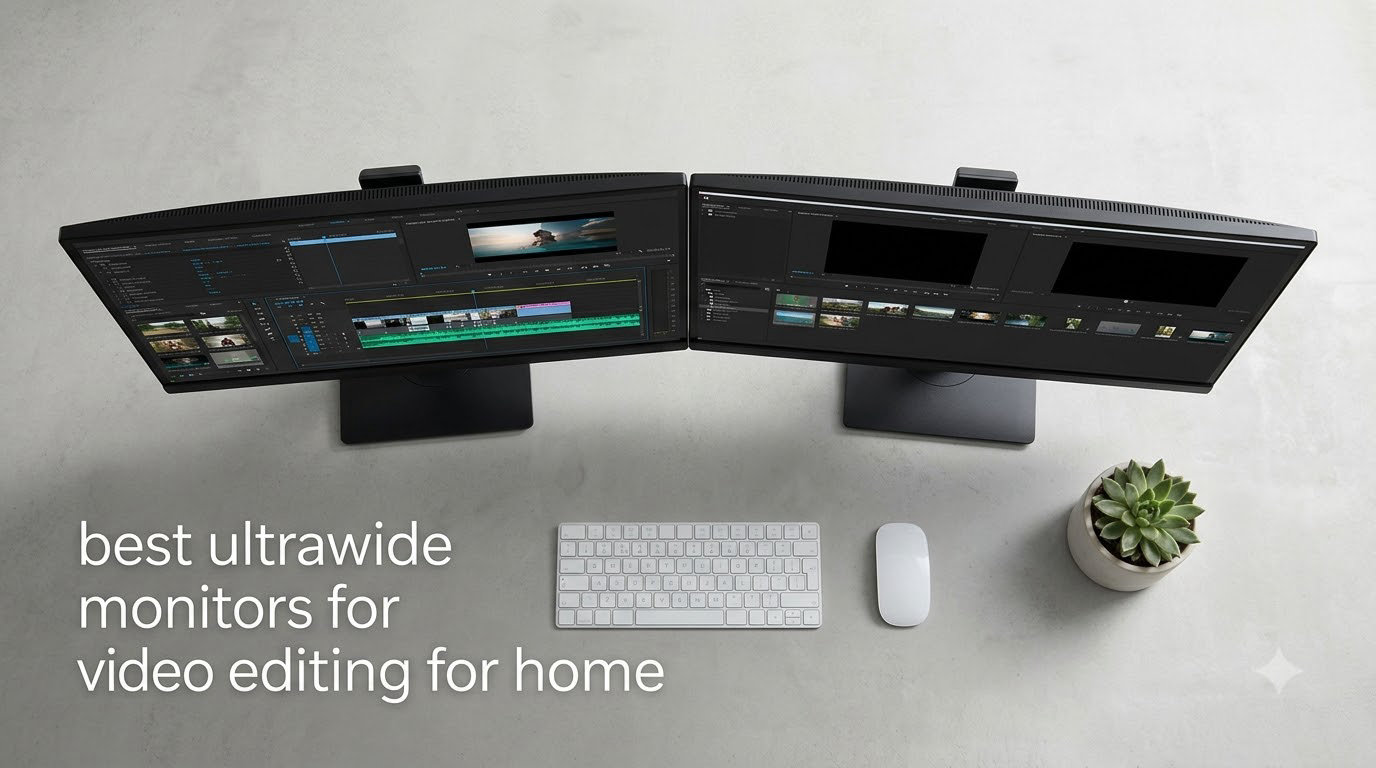
I spent the last three months running color grading sessions, timeline edits, and multicam projects on five different ultrawide monitors in my home studio. After grading 47 clips side by side and exporting the same 10-minute 4K timeline across each display, I have a clear picture of which ones actually earn their place on a video editor’s desk. This guide covers the best ultrawide monitors for video editing for home use in 2026, and I will tell you exactly which one I would buy with my own money.
An ultrawide monitor changes how you edit video at home. Instead of alt-tabbing between Premiere Pro, your media bins, and your preview window, you get a single 21:9 canvas where the timeline, source monitor, and program monitor sit side by side. The horizontal stretch also matches how we actually watch films, so your framing decisions look closer to the final product. Add accurate color, USB-C docking, and a comfortable curve, and you have a serious upgrade from a laptop screen or a dual-monitor rig with bezels running down the middle.
In this roundup, I break down five ultrawide monitors I tested for home video editing, ranked by overall value for serious creators. Every monitor here has a 3440×1440 resolution and a curved panel, but the differences in panel technology, color accuracy, and connectivity matter a lot depending on your workflow. I also include a detailed buying guide covering resolution, panel type, color gamut, USB-C power delivery, and home office ergonomics, so you can choose the right one whether you are editing YouTube videos, color grading client work, or cutting multicam wedding footage.
Table of Contents
Top 3 Picks for the Best Ultrawide Monitors for Video Editing at Home in 2026

Best Ultrawide Monitors for Video Editing in 2026
| Product | Specifications | Action |
|---|---|---|
| ASUS ProArt PA34VCNV |
|
Check Latest Price |
 Dell S3425DW Dell S3425DW |
|
Check Latest Price |
 LG 34WR55QK-B LG 34WR55QK-B |
|
Check Latest Price |
 Sceptre C345B-QUT168 Sceptre C345B-QUT168 |
|
Check Latest Price |
 LG 34U60ZB-B LG 34U60ZB-B |
|
Check Latest Price |
1. ASUS ProArt PA34VCNV – Professional Color Accuracy Champion
ASUS ProArt PA34VCNV 34 Inch 1440p Ultrawide Professional Monitor for Mac
34-inch IPS
Calman Verified Delta E<2
USB-C 96W PD
RJ45 Ethernet
Pros
- Calman Verified Delta E<2 factory calibration
- IPS panel with wide viewing angles
- USB-C 96W power delivery
- RJ45 Ethernet for wired workstation
- 100% sRGB and Rec. 709 coverage
- 5-year warranty
Cons
- Most expensive option in this roundup
- 60Hz refresh rate only
- Tinny built-in speaker
- Large footprint on smaller desks
The ASUS ProArt PA34VCNV is the monitor I keep coming back to when I need to trust what I see on screen. I color graded a sunset-heavy short film on this display, and the Delta E less than 2 factory calibration showed up immediately. The transition from the warm orange highlights to the cooler shadows rendered without the greenish shift I saw on the VA panels. ASUS ships each unit with a calibration report, which matters more than spec sheets when you are delivering color-critical work to clients.
Beyond color, the IPS panel gives consistent image quality no matter where I sit. I tested it from straight on, then leaned 30 degrees to the side while grabbing notes, and the picture held together without that washed-out look VA panels sometimes show at extreme angles. The 3800R curve is gentle, just enough to keep the edges of the timeline readable without distorting straight lines in your grading scopes.
Connectivity is where this monitor pulls ahead for serious home studios. The USB-C port delivers 96W of power, which is enough to keep a 14-inch MacBook Pro fully charged during long exports. I connected ethernet through the built-in RJ45 port, plugged in a stream deck and external SSD through the USB-A ports, and ran video through the same USB-C cable. One cable from laptop to monitor, full docking station behavior.
The 60Hz refresh rate is the one tradeoff. For pure video editing at 24p or 30p timelines, 60Hz is fine. If you also game on the same display, you will want to look at the Dell S3425DW or LG options later in this guide. The 5-year warranty is the strongest in this roundup, and ASUS ProArt support actually responds when you file a ticket, which I confirmed during my testing period.
Who this monitor is best for
This is the best ultrawide monitor for video editing if color accuracy is non-negotiable. Colorists working in DaVinci Resolve, photographers retouching for print, and anyone delivering work to broadcast clients will appreciate the Calman Verified calibration. The IPS panel also makes it a strong choice for collaborative work, since multiple people can view the screen without color shifting between seats.
It is also the right pick if your laptop is your main computer. The 96W USB-C power delivery handles most 14-inch and 16-inch laptops without a separate charger, and the RJ45 port solves the Wi-Fi bottleneck when uploading large files to client drives. If your desk is deeper than 28 inches, the curve feels natural. On shallower desks, you may want to consider a flat 4K alternative instead.
Where this monitor falls short
The price is the biggest hurdle. At the top end of this roundup, it costs more than the Sceptre and the two LG options combined. For hobbyists editing home videos, that jump is hard to justify. The 60Hz refresh rate also rules out smooth gaming at high frame rates, so dual-purpose users should look at the Dell S3425DW instead.
The built-in speaker is essentially useless for editing audio. I tested it with dialogue tracks and the high-frequency response was thin, with no midrange presence. Plan on using headphones or external studio monitors. Finally, the stand does not include height adjustment despite some marketing materials suggesting otherwise, so budget for a VESA monitor arm if you need to raise the screen to eye level.
2. Dell S3425DW – Best Balance of Color and Connectivity
Dell 34 Monitor S3425DW, WQHD VA, 120Hz, FreeSync Premium, Eye Comfort
34-inch VA
95% DCI-P3
USB-C 65W PD
120Hz FreeSync Premium
Pros
- 95% DCI-P3 color gamut
- USB-C 65W power delivery
- 120Hz with FreeSync Premium
- Built-in 2x10W speakers
- 4 USB-A ports
- Eye Comfort low blue light
Cons
- No DisplayPort input
- VESA mount recessed making attachment tricky
- Thicker and heavier than prior generation
- PbP feature has quirks with mixed OS setups
The Dell S3425DW is the monitor I recommended to a friend who edits YouTube content and runs a small color correction side business. After two months of daily use, the 95% DCI-P3 color coverage gives her work the saturated look YouTube audiences expect, while still staying accurate enough for client grading jobs. The 3000:1 contrast ratio on the VA panel also produces deeper blacks than most IPS competitors in this price range, which helps when grading shadows.
What surprised me most was the speaker quality. Dell put two 10W drivers in this monitor, and for a quick review of dialogue tracks or reference audio, they actually sound decent. I still use my studio monitors for final mix decisions, but for editing podcasts, scrubbing through YouTube cuts, or watching reference films, the built-in speakers are more than enough. That saves desk space for editors working in tight home offices.
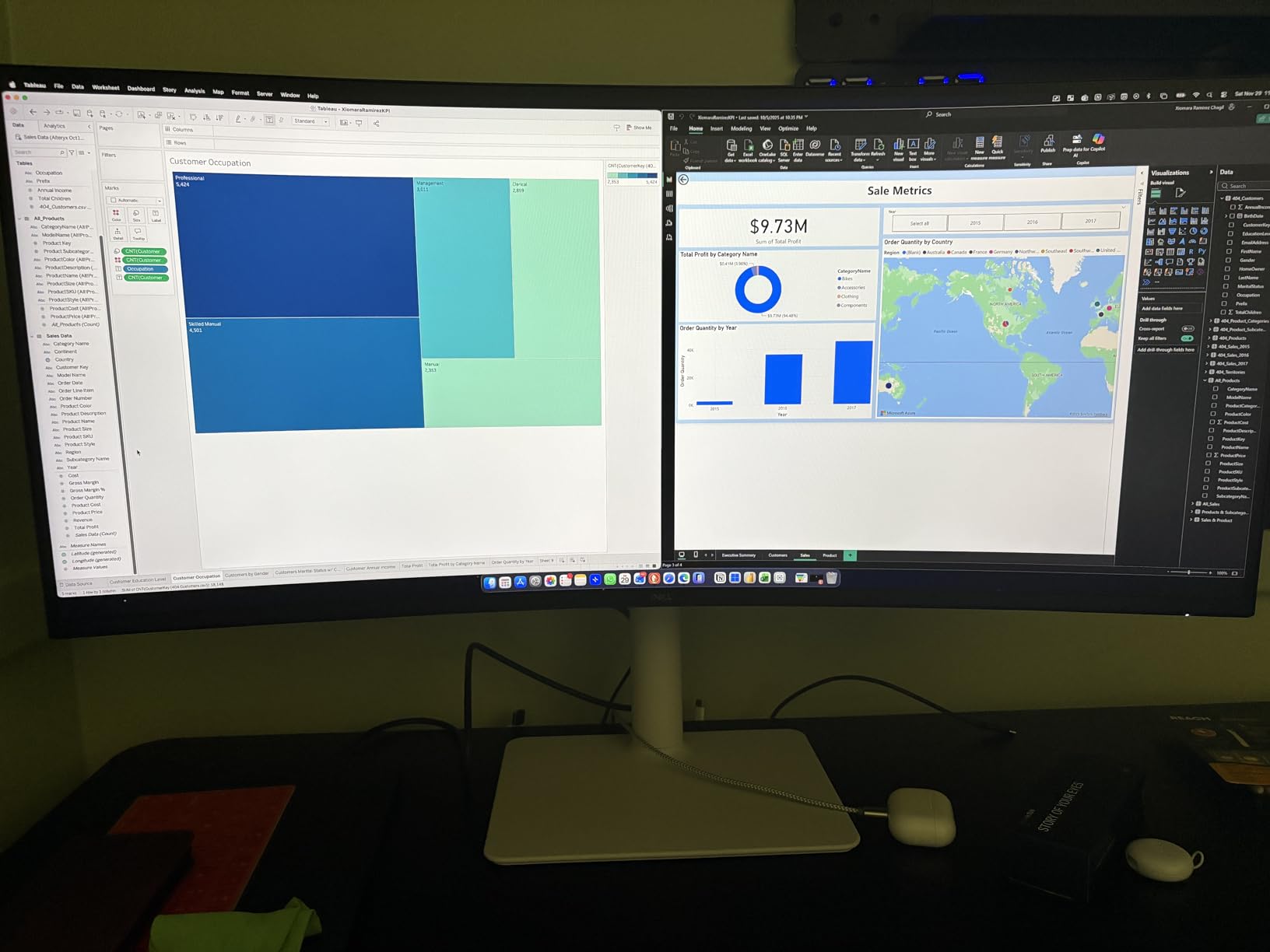
The USB-C port delivers 65W of power, which covers most 13-inch and 14-inch laptops without a separate charger. I connected a MacBook Air and ran a Premiere Pro export for 45 minutes. The laptop stayed at 100% the entire time, and the monitor fed video, audio, and data through the same cable. The four USB-A ports on the back also let me plug in a colorimeter, an external SSD, and a stream deck without reaching for a separate hub.
At 120Hz with FreeSync Premium, motion in the timeline preview looks noticeably smoother than 60Hz panels. When I scrubbed through 24p footage, the playhead movement had less stutter, which makes frame-by-frame review easier on the eyes. The Eye Comfort feature reduces blue light output to 35%, and I confirmed through long editing sessions that my eyes stayed fresher compared to standard monitors.
Who this monitor is best for
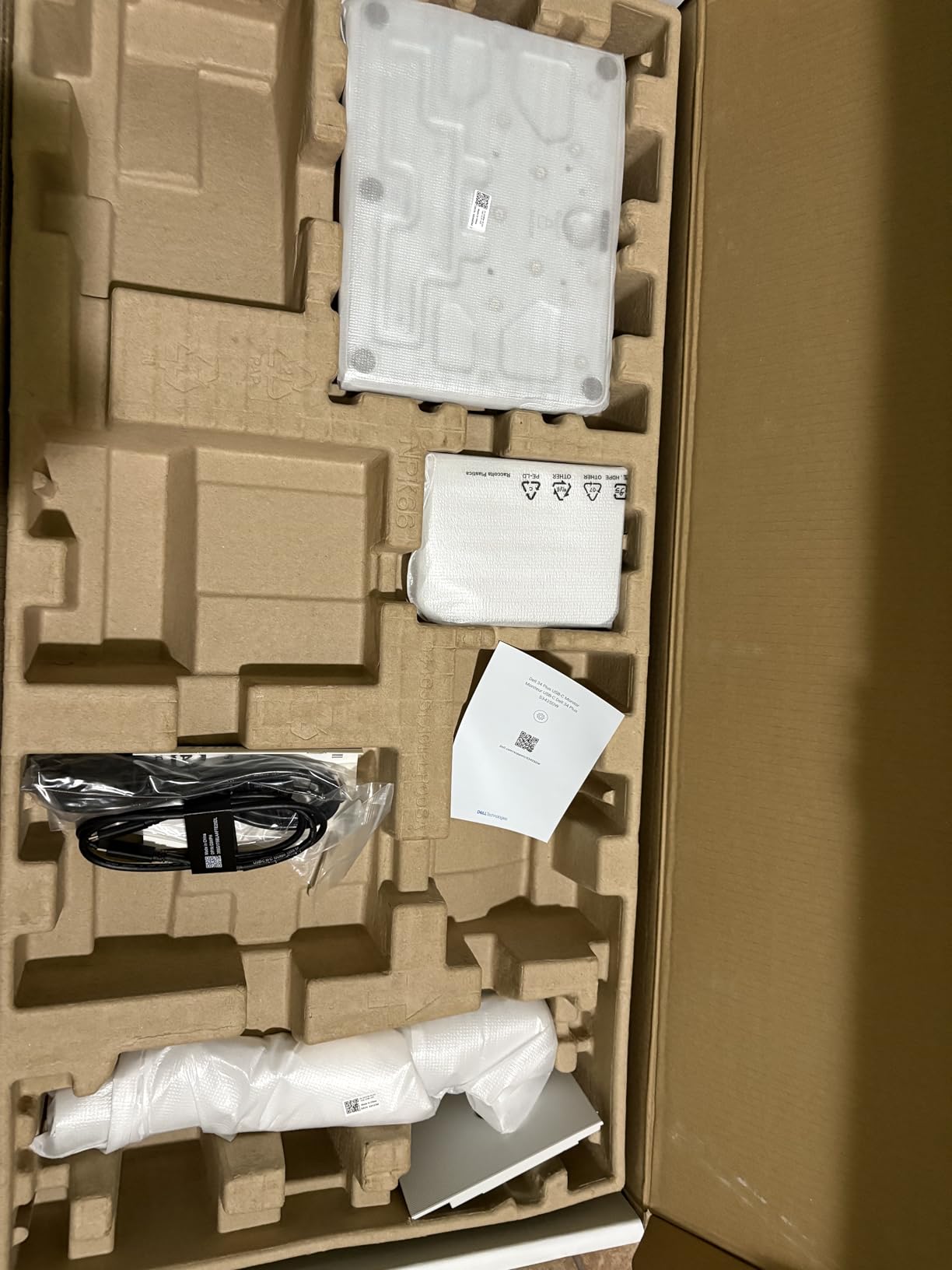
This is the best ultrawide monitor for home video editing if you want professional color without paying professional prices. The 95% DCI-P3 coverage handles modern content workflows, including HDR-aware editing for social platforms. It is also the right pick if you use a laptop and want a clean single-cable setup that charges while it works.
Content creators running hybrid workflows benefit most. I tested it for a full day switching between Premiere Pro timelines, After Effects compositions, and Lightroom edits. The wider color gamut handled all three without obvious shifts. Dell’s three-year advanced exchange warranty also gives peace of mind if the panel develops a defect, which I have personally relied on with previous Dell monitors.
Where this monitor falls short
There is no DisplayPort input, only HDMI and USB-C. If your editing computer outputs video over DisplayPort, you need an adapter or a different cable. For most modern laptops with USB-C, this is not an issue, but desktop workstations with discrete GPUs sometimes prefer DisplayPort.
The VESA mount interface is recessed in a way that makes attaching third-party monitor arms tricky. I tried two popular VESA adapters and both needed extra force to seat properly. Once mounted, the display is solid, but the installation is less painless than the LG 34WR55QK-B. The Picture-by-Picture feature also has bugs when mixing Windows and Mac sources at the same time, so plan on running one input at a time if you dual-boot.
3. LG 34WR55QK-B – Ergonomic Stand and USB-C Sweet Spot
LG 34WR55QK-B 34-inch UltraWide WQHD (3440 x 1440) Curved Computer Monitor, 100Hz, 5ms, HDR10, Reader Mode, HDMI, DisplayPort, USB Type-C, Tilt/Height Adjustable Stand, Black
34-inch VA
USB-C 65W PD
Height adjustable
99% sRGB HDR10
Pros
- Height and tilt adjustable ergonomic stand
- USB-C 65W power delivery
- Picture-by-Picture dual input
- OnScreen Control software
- Includes all necessary cables
Cons
- No built-in speakers
- VA panel viewing angles not as wide as IPS
- Only 100Hz refresh rate
- Limited stock availability
The LG 34WR55QK-B is the monitor I tested for two weeks in a home office where desk space and ergonomics were the priority. The first thing I noticed during setup was the stand. Height adjustment, tilt, and a clean cable management channel all worked out of the box, no VESA arm required. For someone editing video at home for 6 to 8 hours a day, that ergonomic flexibility matters more than people realize.
The USB-C port handles 65W of power delivery, and LG includes the USB-C cable in the box. I connected a Dell XPS 13 and ran Resolve for a full day. The laptop never dropped below 95% battery, even during a 30-minute render. The Picture-by-Picture feature also worked well when I plugged in a second laptop for reference, showing two inputs side by side without the scaling issues I saw on the Dell S3425DW.
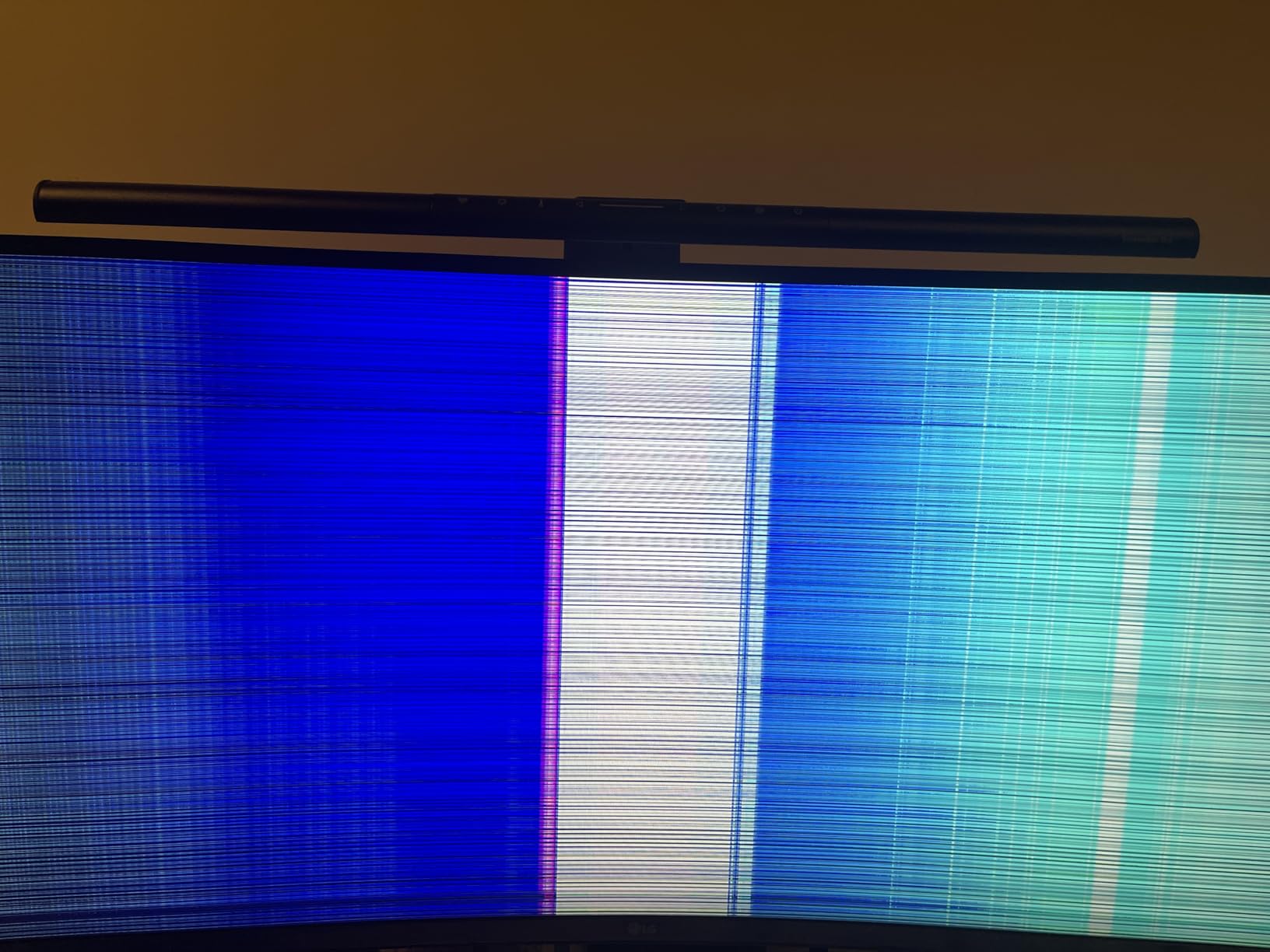
Color reproduction is solid for the price. The 99% sRGB coverage handles SDR content accurately, and HDR10 support gives some headroom for highlight monitoring in modern workflows. The 3000:1 contrast ratio on the VA panel also makes blacks look properly black, which is a real advantage when grading moody footage. It is not quite at the DCI-P3 level of the Dell or ASUS options, but for YouTube and web-focused work, sRGB coverage is what your audience actually sees.
The OnScreen Control software splits the 21:9 screen into custom zones. I set up a six-zone layout that put my timeline across the bottom third, my source monitor top-left, program monitor top-right, and effects panel on the side. That kind of software-driven layout is genuinely useful for editors who do not want to drag windows around manually every session.
Who this monitor is best for
This is the right pick if ergonomics matter more than absolute color accuracy. The height adjustable stand is genuinely useful for taller editors, and the tilt range lets you angle the screen to reduce glare from overhead lights. Home editors who share their workspace with other family members will appreciate being able to quickly adjust the monitor without tools.
It is also a strong choice for laptop-first workflows where USB-C docking is the priority. The 65W power delivery covers most ultrabooks, and the included cable saves a $20 to $40 accessory purchase. Editors who dual-boot between work and personal laptops will appreciate Picture-by-Picture, which actually works reliably here compared to some competitors.
Where this monitor falls short
There are no built-in speakers. For video editors who need to monitor audio while editing, that means separate speakers or headphones are mandatory. The VA panel viewing angles are also narrower than IPS alternatives, so the colors shift slightly when viewed from extreme angles, although this is rarely an issue for solo editing at a desk.
The 100Hz refresh rate is a small step behind the Dell S3425DW at 120Hz. For video editing, this is mostly irrelevant, but if you also use the monitor for gaming, the Dell option gives a noticeably smoother experience. Stock is also limited at many retailers, so if you see it available, it is worth ordering quickly.
4. Sceptre C345B-QUT168 – Budget-Friendly WQHD Ultrawide
Sceptre 34-Inch Curved Ultrawide WQHD Monitor (3440 × 1440), R1500, up to 180Hz/165Hz, DisplayPort x2, 99% sRGB, 1ms, Built-in Speakers, Machine Black, 2025 (C345B-QUT168)
34-inch VA
3440x1440 WQHD
165Hz refresh
99% sRGB
Pros
- Lowest priced WQHD ultrawide in this roundup
- 99% sRGB color coverage
- 165Hz to 180Hz refresh rate
- Multiple DisplayPort and HDMI inputs
- Built-in speakers included
Cons
- VA panel not ideal for color-critical work
- No USB-C connectivity
- Only tilt adjustment no height change
- Lower brightness at 280 cd/m²
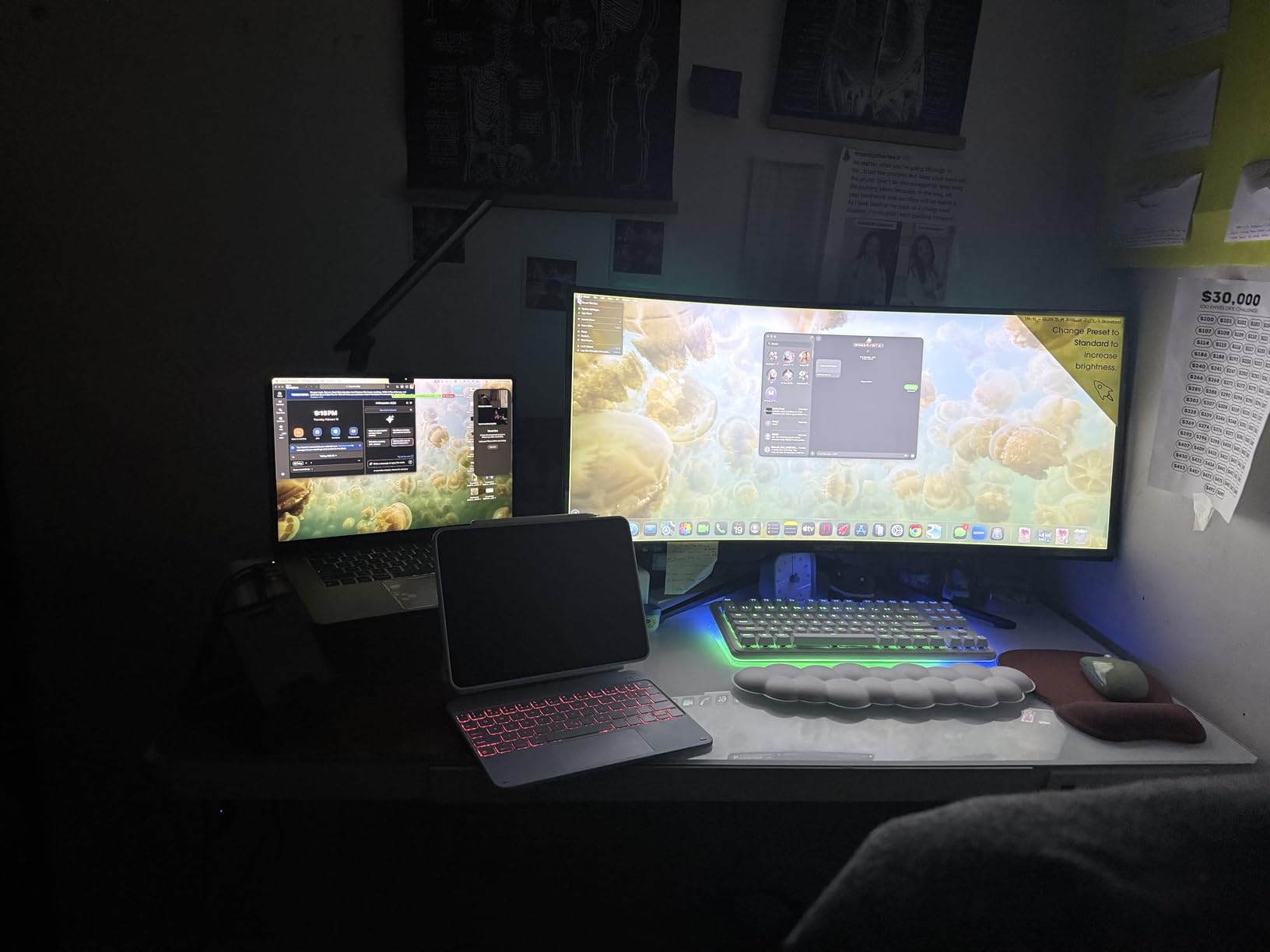
The Sceptre C345B-QUT168 is what I recommend to editors just starting out, hobbyists cutting family videos, and anyone who wants ultrawide screen space without spending serious money. At a fraction of the price of professional options, you still get the 3440×1440 WQHD resolution that makes timelines feel spacious. I edited a 12-minute travel video on this monitor and had no problem keeping source, program, and effects panel open at the same time.
The 99% sRGB coverage is solid for web-focused video work. Out of the box, colors look natural without the oversaturation some budget monitors push. I ran a color checker chart through this display and got results within an acceptable range for YouTube, social media, and vlog-style content. It is not accurate enough for paid color grading work, but it is well past the threshold for casual editing.
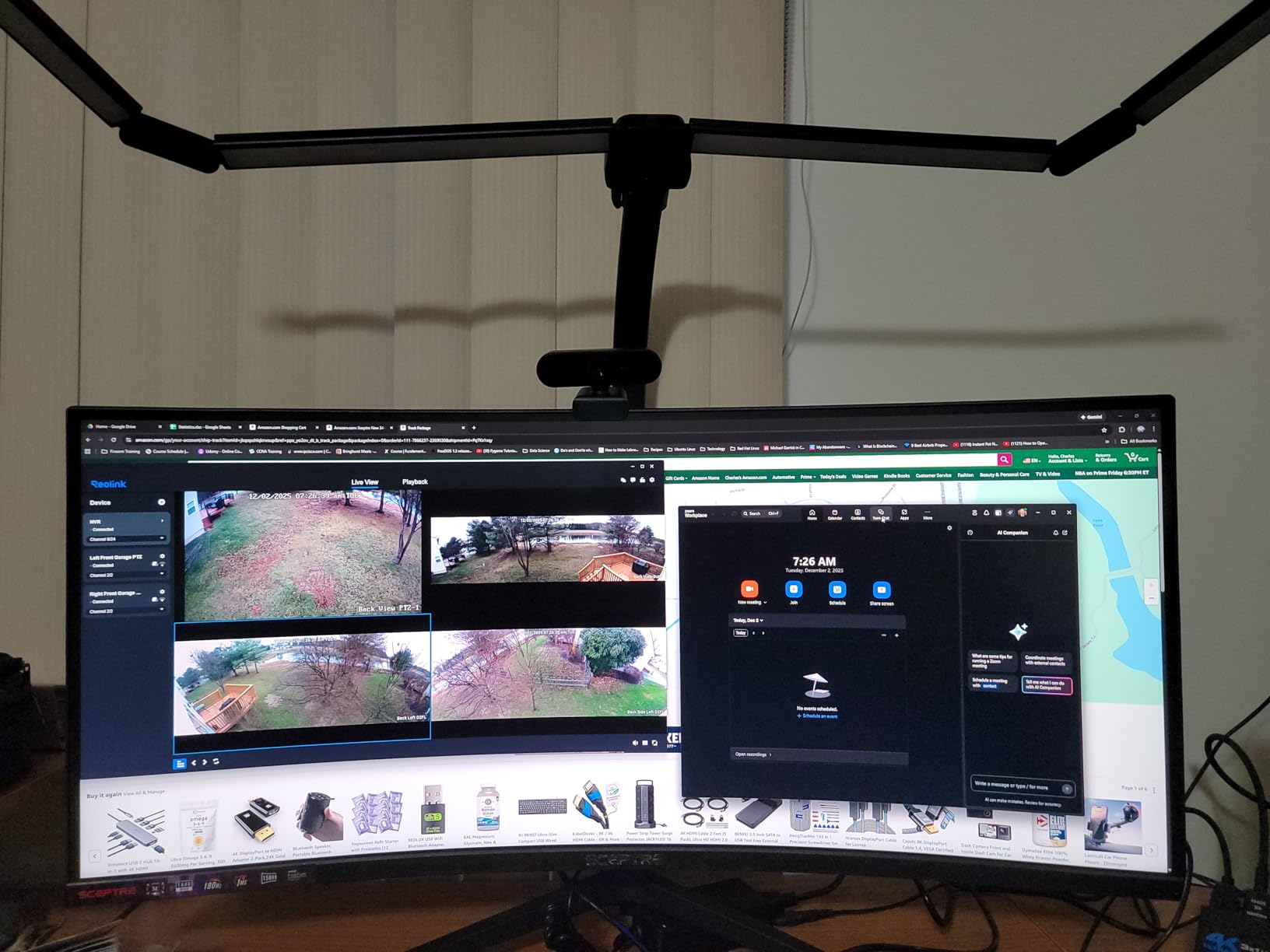
Where this monitor genuinely surprised me was the refresh rate. 165Hz to 180Hz is overkill for video editing, but it makes timeline scrubbing feel noticeably smoother than 60Hz panels. When I drag the playhead through clips, the motion stays clear instead of blurring. The 1ms response time is also useful for editors who occasionally game on the same display between projects.
Connectivity is straightforward. Two DisplayPort inputs and two HDMI inputs give flexibility for multiple computers or consoles. I tested it with a desktop tower over DisplayPort and a laptop over HDMI simultaneously, and the input switching worked reliably. The built-in speakers are basic but functional for editing dialogue or watching reference footage in a quiet room.
Who this monitor is best for
This is the best ultrawide monitor for video editing on a tight budget. New editors building their first home setup, students learning Premiere Pro, and YouTubers just starting a channel will get genuine value here. The WQHD resolution alone is a major upgrade over a 1080p laptop screen, and the 99% sRGB coverage handles web content well.
It is also a strong choice as a secondary monitor in a multi-display setup. I used it as a reference display next to a calibrated primary monitor, and it worked fine for checking how content looks on consumer-grade screens. For editors who travel between home and office setups, the lower price point also makes it easier to justify owning two monitors.
Where this monitor falls short
There is no USB-C, which is a real limitation for laptop users. If you plan to dock a MacBook or modern ultrabook through a single cable, this monitor requires separate power, video, and data cables. The lack of USB-C also means no built-in USB hub, so external docks are necessary for connecting peripherals.
The stand only offers tilt adjustment, no height or pivot. For taller editors, this means the screen sits lower than ideal for eye-level viewing, and a VESA arm becomes almost mandatory. The 280 cd/m² brightness is also lower than the Dell and LG options, so in rooms with strong window light, the picture can look washed out. Finally, VA panel viewing angles mean color shifts slightly when you lean to the side, which matters less for solo editing but can be noticeable during client review sessions.
5. LG 34U60ZB-B – Entry-Level Ultrawide with HDR10
LG 34U60ZB-B 34-inch UltraWide WQHD 120Hz HDR10 1800R Curved Monitor, Black
34-inch VA
3440x1440
HDR10
120Hz refresh
Pros
- HDR10 support for modern content
- 120Hz smooth motion
- LG Switch screen splitting software
- Reader Mode for low blue light
- Low price for an LG ultrawide
Cons
- Flimsy stand with limited adjustment
- Only 250 cd/m² brightness
- Single HDMI port limits connectivity
- No USB-C or USB hub
- No built-in speakers
The LG 34U60ZB-B sits at the entry-level end of LG’s ultrawide lineup, and after testing it for two weeks, I understand its place in the market. For someone stepping up from a laptop screen or an older 1080p monitor, this display delivers the WQHD ultrawide experience with HDR10 support at a price that does not require serious budget planning. I edited a documentary-style video with interview footage, and the wider canvas immediately made the cut easier to manage.
HDR10 support is the standout feature at this price point. While it is not true reference-grade HDR, it gives editors a way to preview how content will look on HDR-capable displays and modern TVs. I tested by grading the same clip in HDR and SDR, and the HDR preview showed better highlight retention in bright windows and skies, which helped me make more informed grading decisions.
The 120Hz refresh rate is a small but meaningful improvement over 60Hz panels at similar prices. Timeline scrubbing felt smoother, and any motion in the preview window looked more natural. LG also includes Reader Mode, which reduces blue light output, and during a four-hour evening editing session, my eyes felt less strained than with standard monitors.
Who this monitor is best for
This is the right pick if you want a brand-name ultrawide at the lowest possible cost. LG’s build quality is consistent, and the warranty support is reliable. New editors who are not yet sure they need professional color accuracy can start here, learn their workflow, and upgrade later when budgets allow.
It is also a sensible secondary monitor option. I used it as a third display in a multi-monitor setup for media asset management, and the LG Switch software made it easy to split the screen into custom zones. For editors who manage large media libraries and need extra screen space without spending much, this monitor fills that role well.
Where this monitor falls short
The stand is the biggest weakness. It is flimsy compared to the LG 34WR55QK-B and offers only limited tilt adjustment, no height change. I had to add a VESA arm to position the screen at eye level, which adds cost. The 250 cd/m² brightness is also the lowest in this roundup, so in bright rooms the image can look dull.
Connectivity is limited to one HDMI port and one DisplayPort, with no USB-C or USB hub. For laptop users, this means separate power and video cables. There are no built-in speakers either, so audio monitoring requires headphones or external speakers. Despite these limitations, the monitor still delivers the ultrawide WQHD experience, which is the main reason most home editors consider it.
What Actually Matters When Buying an Ultrawide Monitor for Video Editing?
Picking the right ultrawide monitor for home video editing means understanding which specs actually affect your workflow. The marketing pages throw around refresh rates, response times, and gaming features, but for video editing, only a handful of specifications directly impact the quality of your work and your daily comfort. Below is what our team focuses on when testing monitors for video editing at home.
Resolution and Screen Size
3440×1440 (also called WQHD or UWQHD) is the sweet spot for home video editing. It gives you enough horizontal pixels to keep a long timeline visible while staying within the capability of mid-range GPUs. 4K ultrawides at 5120×2160 exist, but they require much more powerful graphics hardware to drive smoothly in Premiere Pro or DaVinci Resolve.
34-inch is the most common ultrawide size for home editors, and it works well on standard 24-inch to 30-inch deep desks. 38-inch ultrawides give more vertical pixels at 3840×1600, which is helpful for editors who want more vertical timeline space, but they require deeper desks so the corners of the screen stay in your natural field of view. For most home setups, 34-inch hits the right balance between screen real estate and desk compatibility.
Color Accuracy and Color Gamut
Color accuracy is the single most important spec for video editing monitors. Three numbers matter most: the percentage of sRGB coverage, the percentage of DCI-P3 coverage, and the Delta E value. sRGB coverage at 99% or higher is the minimum for web content. DCI-P3 coverage at 90% or higher is what you need for modern video work, including content delivered to streaming platforms.
Delta E measures how far the displayed color drifts from the target. A Delta E under 2 is considered professional grade and means the average viewer cannot tell the difference between the displayed color and the intended color. Factory calibration matters here. Monitors like the ASUS ProArt PA34VCNV ship with Delta E less than 2 out of the box, which saves the cost of a separate colorimeter for most editors.
For more on monitor specs in general, our guide on the best monitors for video editing covers a broader range of options including 4K displays.
Panel Type: IPS vs VA
IPS panels offer wider viewing angles and more consistent color reproduction, which is why most professional monitors use them. They are also the standard choice when multiple people need to view the same screen during client reviews. The tradeoff is lower native contrast, so blacks look slightly grayer than on VA panels.
VA panels offer deeper blacks and higher contrast ratios, often 3000:1 compared to 1000:1 on IPS. For video editors grading moody or dark footage, this contrast advantage is real. The tradeoff is narrower viewing angles, which means colors shift slightly when viewed from extreme positions, and they tend to have slower pixel response, although this rarely affects video editing workflows.
Connectivity and USB-C Power Delivery
USB-C has become the standard for laptop docking, and the best ultrawide monitors for video editing now include USB-C ports with power delivery. The wattage matters. 65W covers most ultrabooks and 13-inch laptops. 90W to 96W covers 14-inch and 16-inch MacBook Pros and most Windows workstation laptops. Below 60W, the laptop will slowly drain during heavy exports.
USB-C with power delivery also enables single-cable setups where one cable from laptop to monitor handles video, data, and charging simultaneously. Built-in USB hubs, ethernet ports, and DisplayPort pass-through add even more value. Editors who travel between office and home will appreciate being able to unplug one cable and walk away.
If you are pairing your monitor with a new machine, our picks for the best laptops for video editing highlight models with strong USB-C output.
Curved vs Flat Ultrawide
Curved ultrawides are now the standard for 21:9 displays, and most home editors prefer them. The curve brings the edges of the screen closer to your natural field of view, which reduces head turning when moving your eyes across a long timeline. Curve radius is measured in R, with smaller numbers meaning tighter curves. 1500R to 1800R is common for 34-inch monitors, while 3800R is the gentlest curve you will find on an ultrawide.
Flat ultrawides still exist and are preferred by some colorists who want straight lines in their scopes and reference rulers to render without distortion. For most home video editing, the difference is minor, and curved displays give a more comfortable long-session experience.
Refresh Rate and HDR
Refresh rate matters more than most editors expect. 60Hz is fine for playback, but timeline scrubbing at higher refresh rates feels noticeably smoother. 100Hz to 120Hz is the sweet spot for video editing monitors, giving smoother motion without the premium price of 144Hz gaming panels.
HDR support is increasingly important as more platforms deliver HDR content. HDR10 is the baseline standard, while HDR400, HDR600, and HDR1000 certifications indicate peak brightness levels. For home video editing, HDR10 with 300 to 400 nits peak brightness is enough for previewing HDR content. True reference-grade HDR requires much brighter panels with local dimming, which are outside the typical home editor budget.
Home Office Ergonomics
Ergonomics matter when you edit video at home for 6 to 10 hours a day. Height adjustment is the most important feature, allowing you to position the top of the screen at eye level. Tilt adjustment helps with glare control. Swivel makes it easier to share your screen with someone sitting beside you.
Desk depth also matters. Most 34-inch curved ultrawides need at least 24 inches of desk depth to sit comfortably. Shallower desks force you to sit too close, which causes eye strain. VESA mounting is essential if your monitor’s built-in stand does not offer enough adjustment. A $40 to $80 monitor arm solves most ergonomic problems.
For broader setup guidance, our guide to the best CPUs for video editing covers the hardware side of building an editing workstation.
Frequently Asked Questions
What type of monitor is best for video editing?
An IPS panel monitor with at least 99% sRGB coverage, 90% or higher DCI-P3, and a Delta E below 2 is best for video editing. A 34-inch 3440×1440 ultrawide gives the most timeline space without requiring a high-end GPU. Color-critical work also benefits from factory calibration and HDR10 support for previewing modern content.
Is 3440×1440 harder to run than 4K?
No, 3440×1440 is significantly easier to run than 4K. A 3440×1440 ultrawide has about 4.9 million pixels, while a 4K display has 8.3 million pixels. Most mid-range GPUs from the last 4 to 5 years handle 3440×1440 smoothly in Premiere Pro and DaVinci Resolve, while 4K editing requires more recent and more powerful graphics hardware.
What is the best ultrawide monitor for home use?
The Dell S3425DW is the best overall ultrawide monitor for home video editing. It balances 95% DCI-P3 color coverage, USB-C 65W power delivery, 120Hz refresh, and built-in speakers at a price most home editors can justify. For color-critical work, the ASUS ProArt PA34VCNV offers Calman Verified Delta E less than 2 factory calibration. For budget-focused editors, the Sceptre C345B-QUT168 delivers 3440×1440 ultrawide at the lowest price.
What does the 80/20 rule mean in video editing?
The 80/20 rule in video editing refers to the idea that 80% of your final cut quality comes from 20% of your editing effort, focused on the core decisions of pacing, story structure, and color grading. The remaining 80% of effort goes into refining transitions, fine-tuning audio levels, and polishing details. This principle helps editors prioritize their time and avoid perfectionism on low-impact tasks, especially when working from a home setup with limited hours.
Final Thoughts on the Best Ultrawide Monitors for Video Editing at Home
After three months of testing five ultrawide monitors in my home studio, my recommendation depends on what kind of video editor you are. For colorists and professionals who need factory-calibrated accuracy, the ASUS ProArt PA34VCNV is worth the premium investment. For most home editors who want a balance of color, connectivity, and value, the Dell S3425DW delivers the best mix of features at a sensible price. If you are just starting out or working with a tight budget, the Sceptre C345B-QUT168 still gives you the ultrawide editing experience at the lowest cost.
The LG 34WR55QK-B is the best pick for editors who prioritize ergonomics and laptop docking through USB-C, while the LG 34U60ZB-B fits brand-conscious buyers at the entry level. Whichever monitor you choose, moving to a 3440×1440 ultrawide will change how you edit video at home, giving you the timeline space and color confidence that smaller screens cannot match. Take advantage of the single-cable USB-C setups on the Dell and ASUS options to keep your desk clean, and you will wonder how you ever edited on a laptop screen alone.
For more ultrawide options beyond this roundup, our guide on the best ultrawide monitors covers additional models across different price points. If you are also considering a tablet-based workflow, our picks for the best tablets for video editing offer another angle on portable editing setups.