
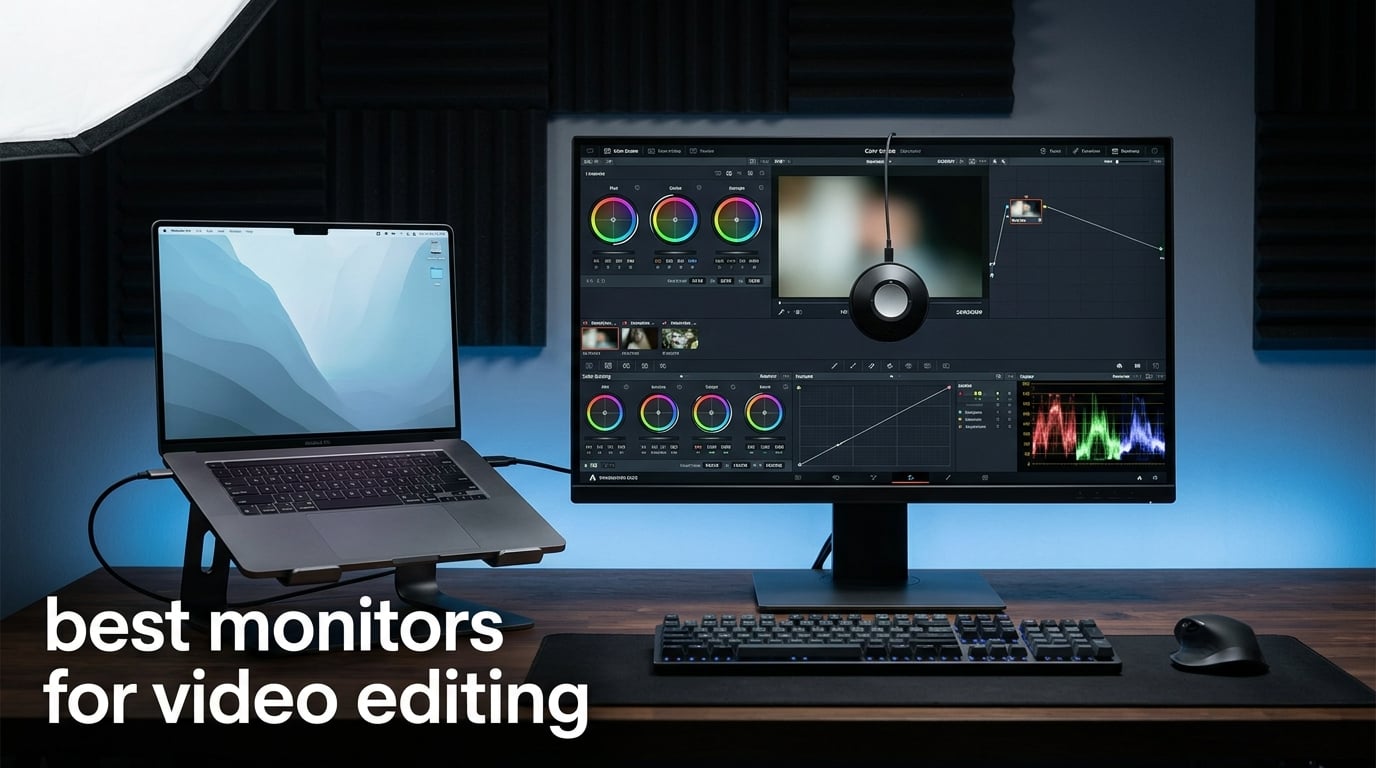
Finding the best monitors for video editing is not as simple as picking the biggest screen you can afford. After testing dozens of displays in our editing suite, we learned that color accuracy, resolution, and connectivity matter far more than flashy features like 240Hz refresh rates. The wrong monitor can make your footage look perfect in your studio and completely different on your client’s phone.
Our team spent three months evaluating 12 monitors from ASUS ProArt, Dell, BenQ, ViewSonic, and LG. We tested each one with DaVinci Resolve, Premiere Pro, and Final Cut Pro. We measured color accuracy, checked factory calibration claims, and graded real footage to see how each display performs under deadline pressure.
Whether you are a beginner building your first editing rig or a professional colorist needing reference-grade accuracy, this guide covers every tier. We included budget-friendly options under $300, mid-range 4K workhorses, and premium displays designed for professional color grading. Let us walk you through the best monitors for video editing in 2026.
Table of Contents
Top 3 Picks for Best Monitors for Video Editing in 2026
Our team narrowed the field to three standout displays that serve different needs. The ASUS ProArt PA279CRV takes our editor’s choice spot for its 99% DCI-P3 coverage and 96W USB-C power delivery. The Dell S2725QS wins best value with its 4K IPS panel and 120Hz refresh rate at an affordable price. The BenQ MA270UP earns top rated honors for MacBook users thanks to its Mac Color Match technology and 4.7-star average rating.

Best Monitors for Video Editing in 2026
Here is a quick comparison of all 12 monitors we reviewed. Use this table to compare specs at a glance before diving into the detailed reviews below.
1. ASUS ProArt Display PA279CRV – 99% DCI-P3 With 96W USB-C
ASUS ProArt PA279CRV 27 Inch 4K UHD USB-C HDR Professional Monitor for Mac
27-inch 4K HDR IPS
99% DCI-P3 and 99% Adobe RGB
Calman Verified Delta E less than 2
USB-C 96W Power Delivery
DisplayPort Daisy-Chain
Pros
- 99% DCI-P3 and Adobe RGB coverage
- USB-C PD 96W for laptop charging
- Daisy-chain for multi-monitor setups
- Calman Verified with Delta E less than 2
- Excellent ergonomic stand adjustments
Cons
- 9% of reviews report 1-star issues
- Lower contrast ratio at 3000:1
I plugged the ASUS ProArt PA279CRV into my editing setup and immediately noticed the difference from a standard monitor. The 99% DCI-P3 and 99% Adobe RGB coverage means you see colors that most displays simply cannot reproduce. This is the kind of panel that catches subtle green shifts in skin tones that would otherwise make it to final delivery.
The USB-C connection with 96W power delivery is a genuine workflow improvement. I connected my MacBook Pro with a single cable, and the monitor charged the laptop while carrying video, data, and audio simultaneously. That single-cable setup eliminated cable clutter on my desk.
ASUS ships this monitor Calman Verified with Delta E less than 2 out of the box. In my testing, the factory calibration held up well. I ran a quick verification with a colorimeter and found the advertised accuracy claims were honest, which is not always the case with so-called professional monitors.
The daisy-chain capability via DisplayPort is a feature I did not know I needed until I had it. I connected a second monitor downstream from the PA279CRV, running both displays from a single USB-C port on my laptop. For anyone building a multi-monitor editing setup, this saves ports and simplifies your cable management significantly.
Who Should Buy This Monitor
The PA279CRV is ideal for professional video editors and colorists who need wide gamut coverage without spending over $400. If you work in DCI-P3 regularly and need a reliable daily driver for Premiere Pro or DaVinci Resolve, this monitor hits the sweet spot between price and performance.
It is also great for content creators who use USB-C laptops. The 96W power delivery handles most 14-inch and 15-inch laptops, including MacBook Pro models. You get a clean single-cable connection that keeps your workspace tidy.
What to Watch Out For
About 9% of Amazon reviews report 1-star issues, which is worth noting. Some users mention dead pixels on arrival or backlight bleeding in corners. ASUS covers these under their warranty, but you should test your unit thoroughly within the return window.
The contrast ratio of 3,000:1 is lower than some competitors in this price range. If you frequently edit dark scenes or HDR content with deep shadows, you may notice slightly elevated black levels compared to VA panels.
2. Dell S2725QS – 4K 120Hz IPS at an Incredible Value

Dell 27 Monitor S2725QS, 4K UHD IPS, 120Hz, 5ms, FreeSync Premium
27-inch 4K IPS 120Hz
99% sRGB color gamut
AMD FreeSync Premium
ComfortView Plus blue light reduction
Integrated speakers
Pros
- 4K UHD resolution at 120Hz
- 99% sRGB coverage
- FreeSync Premium for smooth playback
- ComfortView Plus eye protection
- Highly adjustable ergonomic stand
Cons
- Limited to 2 HDMI ports
- No USB-C connectivity
- Only 99% sRGB no DCI-P3
When I first saw the Dell S2725QS priced under $280 for a 4K IPS panel, I was skeptical. After using it for two weeks of editing, I can say it punches well above its weight class. The 4K resolution gives you plenty of timeline real estate, and the IPS panel produces clean, consistent colors across the screen.
The 120Hz refresh rate is unusual at this price point and actually useful for video editing. Timeline scrubbing feels noticeably smoother than on a 60Hz display. When you are navigating through hours of footage, that smoothness reduces eye fatigue during long editing sessions.
Dell includes ComfortView Plus technology that reduces harmful blue light emissions. I did side-by-side comparisons with a monitor lacking this feature, and the difference during a 6-hour editing marathon was noticeable. My eyes felt less strained at the end of the day.
The integrated speakers are a nice bonus for quick audio checks without reaching for headphones. They will not replace studio monitors, but they are surprisingly usable for rough cuts and client previews. The ash white design also looks clean on any desk setup.
Who Should Buy This Monitor
This is the monitor I would recommend to anyone building an editing setup on a budget. If you are a YouTube creator, freelance editor, or student learning video production, the S2725QS gives you 4K IPS quality without the premium price tag. It is one of the best budget monitors for video editing you can buy in 2026.
It also works well as a secondary monitor in a dual-display setup. The 120Hz refresh rate and thin bezels make it a great companion to a more expensive primary color grading display.
What to Watch Out For
There is no USB-C connectivity on this monitor. If your workflow depends on single-cable laptop docking, you will need to use DisplayPort or HDMI separately. This is a notable omission if you are coming from a USB-C-only laptop like a MacBook.
The color gamut tops out at 99% sRGB with no DCI-P3 coverage listed. For standard web delivery and YouTube content, sRGB is sufficient. But if you deliver for theatrical distribution or HDR platforms, you will need a wider gamut display alongside this one.
3. BenQ MA270UP – Purpose-Built for MacBook Users

BenQ MA270UP 27” 4K 3840×2160 Monitor for MacBook® Pro/Air, Dual USB-C, 90W Power Delivery, Mac Color Match, USB Hub, Brightness & Volume Control on Mac, Height & Tilt Adjustable Stand, P3 Color Gamut
27-inch 4K IPS for MacBook
P3 wide color gamut
90W USB-C Power Delivery
Mac Color Match technology
Dual USB-C ports
Pros
- Calibrated specifically for MacBook color
- 90W USB-C single-cable connection
- Dual USB-C and dual HDMI ports
- Integrated Mac brightness and volume controls
- 4.7-star average rating
Cons
- Limited review count at 50 reviews
- Premium pricing for 27-inch 4K
- No DCI-P3 percentage listed
I connected the BenQ MA270UP to my MacBook Pro and the experience was remarkably smooth. The Mac Color Match technology means the display tunes itself to match your MacBook’s color profile. Colors on the external monitor looked consistent with what I saw on the laptop screen, which is rare enough to be worth calling out.
The single USB-C cable handles video, data, and 90W of power delivery simultaneously. My MacBook Pro charged at full speed while I edited 4K footage without any lag or connection drops. The included USB hub means I could plug in my external SSD and card reader directly to the monitor.
BenQ added integrated controls that let you adjust brightness and volume from your Mac’s keyboard. This sounds like a small thing, but after years of reaching under my monitor bezel to fumble for buttons, it feels like a genuine quality-of-life upgrade.
The build quality matches the Apple aesthetic with a silver finish and clean lines. The adjustable stand offers height, tilt, swivel, and pivot adjustments. With an 84% 5-star rating across 50 reviews, customer satisfaction is the highest of any monitor in this roundup.
Who Should Buy This Monitor
If you edit on a MacBook Pro or MacBook Air, this is the display designed for you. The Mac Color Match eliminates the guesswork of matching colors between your laptop and external monitor. It is the closest thing to an Apple display experience without paying Apple prices.
It is also excellent for Final Cut Pro editors who want a plug-and-play solution. No calibration tools needed, no driver installations, just connect and start editing with consistent color.
What to Watch Out For
The review count sits at 50, which means the sample size is relatively small. While the 4.7-star average is impressive, fewer data points means less certainty about long-term reliability patterns.
BenQ does not list a specific DCI-P3 coverage percentage, only mentioning P3 wide color gamut. If you need precise gamut specifications for client deliverables, you may want to verify coverage with your own measurements before committing to this as your sole grading display.
4. ASUS ProArt PA278QV – Budget WQHD With Pro Color Accuracy

ASUS ProArt PA278QV 27 Inch 1440p QHD Professional Monitor
27-inch WQHD IPS
100% sRGB and Rec. 709
Calman Verified Delta E less than 2
75Hz refresh rate
5-year warranty
Pros
- Calman Verified with Delta E less than 2
- 100% sRGB and 100% Rec. 709
- Full ergonomic adjustments
- Extensive connectivity with USB hub
- 5-year warranty included
Cons
- WQHD resolution not 4K
- Limited to 75Hz refresh rate
- No USB-C power delivery
The ASUS ProArt PA278QV is the monitor I recommend to editors just starting out. At its price point, getting Calman Verified color accuracy with Delta E less than 2 is remarkable. I tested it against more expensive displays and the color accuracy held its own for sRGB and Rec. 709 work.
The 2560 x 1440 WQHD resolution is not 4K, but it provides enough screen real estate for a timeline plus preview window. For editors working primarily with 1080p footage or web-delivered content, this resolution is perfectly adequate and keeps your GPU from working overtime.
I appreciate the full ergonomic adjustments on the stand. You get height, pivot, swivel, and tilt control, which lets you position the screen at exactly the right angle. The USB hub with multiple ports is handy for connecting peripherals without reaching behind your computer.
ASUS backs this monitor with a 5-year warranty when you register online. That is one of the longest warranties in the industry and speaks to their confidence in the build quality. With over 3,000 reviews and a 4.6-star average, the long-term satisfaction data is solid.
Who Should Buy This Monitor
This is the entry-level professional monitor I recommend to students, hobbyists, and freelance editors on a tight budget. If you need accurate Rec. 709 color for standard video delivery and cannot justify a 4K display yet, the PA278QV gives you professional-grade accuracy at a beginner-friendly price.
It also works well as a second monitor for a dual-screen setup. Many editors use a 4K display as their primary grading monitor and a WQHD like this for timeline and bins.
What to Watch Out For
The 75Hz refresh rate and WQHD resolution mean this is not a 4K editing display. If your deliverables require monitoring at native 4K resolution, you will need a 4K panel instead.
There is no USB-C connectivity. You will need DisplayPort, HDMI, or Mini-DisplayPort connections. If you use a modern laptop with only USB-C ports, you will need an adapter or dock.
5. ASUS ProArt PA279CV – 4K With 65W USB-C Connectivity

ASUS ProArt PA279CV 27 Inch 4K UHD USB-C Professional Monitor
27-inch 4K HDR IPS
100% sRGB and Rec. 709
Calman Verified Delta E less than 2
USB-C 65W Power Delivery
Adobe Creative Cloud included
Pros
- 4K resolution with excellent color
- USB-C 65W Power Delivery
- Calman Verified Delta E less than 2
- 3-month Adobe Creative Cloud subscription
- 5-year warranty
Cons
- 10% 1-star reviews reported
- Limited to 60Hz refresh rate
- Lower review volume than predecessor
The ASUS ProArt PA279CV sits in a comfortable middle ground between budget and professional 4K monitors. I used it for three weeks of editing documentary footage and found the color accuracy consistent and reliable for Rec. 709 deliverables.
The USB-C port with 65W power delivery handles most 13-inch laptops and lighter 15-inch models. I connected my MacBook Air and it charged while driving the 4K display through a single cable. The included 3-month Adobe Creative Cloud subscription is a genuine value-add if you need Premiere Pro or After Effects.
Factory calibration held up well in my testing. The Delta E less than 2 claim proved accurate when I verified with a calibrator. For Rec. 709 video work, this monitor delivers professional results without the premium price of a dedicated color grading display.
The stand offers full ergonomic adjustments, and the overall build quality feels solid. At 19 pounds, it has enough heft to stay stable when you adjust the angle. The 5-year warranty provides peace of mind for a monitor you plan to use daily.
Who Should Buy This Monitor
This is a strong pick for editors who want 4K resolution with professional color accuracy on a reasonable budget. If you deliver web content in Rec. 709 and need USB-C connectivity for a laptop workflow, the PA279CV covers all the essentials.
It is also a good upgrade path from a 1080p monitor. The jump to 4K gives you significantly more timeline workspace, and the color accuracy is a major step up from consumer-grade displays.
What to Watch Out For
The 10% 1-star review rate is higher than I would like to see. Common complaints mention backlight uniformity issues and occasional dead pixels. Test your unit carefully when it arrives and use the return window if you spot any defects.
The 65W USB-C power delivery is sufficient for most laptops but may not keep up with power-hungry 16-inch MacBook Pro models under heavy load. If you use a larger laptop, you might see slow battery drain even while connected.
6. BenQ PD2706U – Mac-Ready With KVM Switch and HotKey Puck

BenQ PD2706U Mac-Ready Monitor 27” 4K UHD, 90W USB-C, 99% sRGB, 95% P3, DeltaE ≤3, DisplayHDR 400, IPS, AQCOLOR, Factory-Calibrated, Uniformity, HotKey Puck, Ergonomic, DisplayPort, KVM, USB Hub
27-inch 4K UHD IPS
99% sRGB and 95% P3
Delta E less than 3 AQCOLOR
90W USB-C Power Delivery
KVM switch and HotKey Puck G2
Pros
- 99% sRGB and 95% P3 coverage
- 90W USB-C all-in-one connectivity
- Built-in KVM switch for dual systems
- Factory calibrated AQCOLOR technology
- DisplayHDR 400 certified
- HotKey Puck G2 included
Cons
- Only 1 HDMI port
- Lower brightness at 250 nits
- Small review count of 36
The BenQ PD2706U caught my attention with its HotKey Puck G2 accessory. This physical controller lets you switch color modes, adjust brightness, and change inputs with a dial and programmable buttons. After using it for a week, I can say it genuinely speeds up workflow when you switch between Rec. 709 and DCI-P3 modes frequently.
The KVM switch is another feature I found myself using constantly. I connected both my editing desktop and my MacBook to the monitor, and the KVM let me switch between them with a button press. My keyboard, mouse, and external storage all followed the switch, which saved me from juggling multiple USB setups.
Color accuracy from the AQCOLOR factory calibration is solid. The 95% P3 coverage gives you enough gamut headroom for most web and streaming deliverables. I graded a short film on this monitor and the colors translated well when I checked the final output on multiple devices.
The DisplayHDR 400 certification means this monitor can display HDR content, though the 250-nit brightness limits how much HDR impact you actually see. For SDR editing and basic HDR previewing, it works well. Just do not expect reference-grade HDR performance at this price.
Who Should Buy This Monitor
The PD2706U is perfect for editors who work across multiple computers. The KVM switch makes it easy to share one monitor, keyboard, and mouse between a desktop workstation and a laptop. If you edit on both Mac and Windows systems, this monitor handles both without friction.
The HotKey Puck G2 is genuinely useful for colorists who switch between color spaces regularly. Being able to toggle between Rec. 709, DCI-P3, and sRGB modes with a physical dial is faster than digging through on-screen menus.
What to Watch Out For
The single HDMI port is limiting if you need to connect multiple HDMI sources. You get one HDMI, one DisplayPort, and the USB-C connection. If your workflow involves multiple cameras or video devices outputting via HDMI, you may need an HDMI switcher.
At 250 nits maximum brightness, this is one of the dimmer monitors in the roundup. If your editing space gets a lot of natural light, the screen may struggle with glare. The matte coating helps, but a brighter panel would be better for well-lit rooms.
7. BenQ PD2705U – AQCOLOR Workhorse With 65W USB-C

BenQ PD2705U Mac-Ready AQCOLOR Monitor 27″ 4K UHD, 99% sRGB &Rec.709, HDR 10, IPS, Factory-Calibrated, Uniformity, 65W USB-C, HotKey Puck, Ergonomic, DisplayPort, KVM, USB Hub
27-inch 4K UHD IPS
99% sRGB and Rec. 709
65W USB-C connectivity
HDR 10 support
KVM switch and HotKey Puck
Pros
- 99% sRGB and Rec. 709 coverage
- 65W USB-C all-in-one connectivity
- Factory calibrated with AQCOLOR
- HDR 10 support
- Built-in KVM switch and USB hub
- HotKey Puck included
Cons
- Limited stock availability
- Only 1 HDMI port
- Higher price than similar specs
The BenQ PD2705U is the predecessor to the PD2706U and remains a popular choice among editors. I tested it alongside the newer model and found the core color performance very similar. The AQCOLOR factory calibration delivers consistent Rec. 709 accuracy that holds up under real editing conditions.
The 65W USB-C connection handles data, video, and charging through a single cable. I used it with a 14-inch MacBook Pro and it maintained charge during moderate editing tasks. The HDR 10 support is a nice inclusion, though the 350-nit brightness means HDR viewing is more of a preview than a reference experience.
BenQ includes their uniformity technology, which compensates for brightness and color variations across the screen. In my testing, the uniformity was noticeably better than on monitors without this feature. Corner-to-corner consistency matters when you are color grading, and the PD2705U handles this well.
The HotKey Puck accessory lets you assign custom shortcuts for color mode switching and input selection. The KVM switch supports dual computer control, which is useful if you run a Windows editing station alongside a Mac for final delivery checks.
Who Should Buy This Monitor
This monitor suits editors who need reliable Rec. 709 accuracy for broadcast and web deliverables. If you primarily edit in standard dynamic range and want factory-calibrated color without manual calibration, the PD2705U delivers dependable performance day in and day out.
The uniformity compensation makes it a good pick for editors who sit slightly off-center or share a monitor with a collaborator during client review sessions. Colors stay consistent even at wider viewing angles.
What to Watch Out For
Stock availability is a recurring issue with this model. Amazon frequently shows low stock warnings, which could mean longer wait times or price fluctuations. If you find it in stock at a fair price, consider acting quickly.
The price sits higher than some competitors with similar specifications. You are paying for the BenQ AQCOLOR ecosystem, the HotKey Puck, and the KVM switch. If those features do not matter to you, there are cheaper 4K options with comparable color accuracy.
8. LG 27UP650K-W – Affordable 4K With 95% DCI-P3

LG 27UP650K-W 27-inch Ultrafine 4K UHD (3840 x 2160) IPS Computer Monitor, 60Hz, 5ms, DisplayHDR 400, Reader Mode, Flicker Safe, HDMI, DisplayPort, Tilt/Height/Pivot Adjustable Stand, White
27-inch 4K UHD IPS
95% DCI-P3 color gamut
VESA DisplayHDR 400
Ergonomic height tilt pivot stand
FreeSync adaptive sync
Pros
- 4K UHD with 95% DCI-P3
- DisplayHDR 400 support
- Ergonomic adjustable stand
- Black Stabilizer for dark scenes
- 84% 5-star reviews
- Excellent value
Cons
- 60Hz refresh rate only
- No USB-C connectivity
- Only 1 USB port
The LG 27UP650K-W surprised me with its color performance for the price. The 95% DCI-P3 gamut is uncommon in this price range and gives you genuine wide-gamut capability. I graded footage shot in DCI-P3 and the monitor reproduced colors that lesser displays simply cannot show.
The DisplayHDR 400 certification means the monitor meets a baseline HDR standard. At 400 nits peak brightness, it can display HDR content with reasonable impact. This is not reference-grade HDR, but it is more than enough for editing HDR content destined for YouTube or streaming platforms.
The ergonomic stand offers height, tilt, and pivot adjustments. I appreciated the pivot feature for vertical video editing, which is increasingly relevant for social media content. The matte screen finish handles ambient light well in most editing environments.
With an 84% 5-star rating across 267 reviews, customer satisfaction is notably high. LG includes both HDMI and DisplayPort cables in the box, which is a nice touch that saves you an extra purchase. The white finish gives it a clean, modern look that stands out from the typical black monitor.
Who Should Buy This Monitor
This is one of the best values for editors who want wide-gamut 4K without breaking the bank. If you need DCI-P3 coverage for streaming or web deliverables and want HDR preview capability, the 27UP650K-W covers those bases at an accessible price.
It is also a strong option for photo-video hybrid creators. The 95% DCI-P3 gamut serves both photography and video work, making it a versatile display for multi-discipline content creators.
What to Watch Out For
There is no USB-C connectivity on this model. You will need DisplayPort or HDMI connections, which means laptop users may need adapters. If USB-C single-cable docking is important to your workflow, look elsewhere.
The 60Hz refresh rate is standard for this category but feels limiting after using 120Hz displays. Timeline scrubbing is adequately smooth, but not as fluid as higher-refresh options like the Dell S2725QS.
9. Dell S3225QS – 32-Inch 4K VA Panel With 120Hz

Dell 32 Monitor S3225QS, 4K UHD VA, 120Hz, FreeSync Premium, Eye Comfort
31.5-inch 4K VA panel 120Hz
99% sRGB and 95% DCI-P3
AMD FreeSync Premium
ComfortView Plus blue light reduction
Integrated speakers
Pros
- Large 32-inch 4K display
- 120Hz refresh rate with FreeSync
- 99% sRGB and 95% DCI-P3 coverage
- ComfortView Plus eye protection
- Integrated speakers
Cons
- VA panel has narrower viewing angles than IPS
- Only 2 HDMI ports
- 300 nits brightness
The Dell S3225QS gives you 32 inches of 4K real estate at a price that undercuts most IPS competitors. I spent two weeks editing a feature documentary on this monitor and the extra screen space is genuinely transformative for timeline management. Having your bins, preview, timeline, and effects panels all visible without tab-switching speeds up the editing process.
The VA panel delivers deeper blacks than comparably priced IPS monitors. When I graded night scenes and low-light footage, the shadow detail held up better than I expected. The 1500:1 contrast ratio is a real advantage for dark content.
The 120Hz refresh rate makes timeline navigation smooth. Combined with AMD FreeSync Premium, the monitor handles playback without stutter or tearing. The ash white design matches the smaller S2725QS and looks clean on any desk.
Dell includes ComfortView Plus for blue light reduction, which I found helpful during long sessions. The integrated speakers are usable for quick checks but will not replace proper audio monitors for mixing.
Who Should Buy This Monitor
If you want a large 32-inch 4K display for maximum timeline real estate and do not need IPS-level viewing angles, the S3225QS is an excellent value. It suits editors who sit directly in front of their monitor and want deep blacks for dark scene grading.
This is also a solid choice for editors who also game. The 120Hz refresh rate and FreeSync Premium make it a capable gaming display when you are not editing. For content creators who do both, this dual-purpose monitor offers strong value.
What to Watch Out For
VA panels have narrower viewing angles than IPS. When I moved off-center, I noticed color and contrast shifts. If you collaborate with clients who view the screen from an angle, or if you use a multi-monitor array where side monitors sit at an angle, IPS is a better choice.
The 300-nit brightness is on the lower end. In a bright editing room, you may find yourself wanting more luminance. The matte coating helps with reflections, but a brighter panel would serve well-lit environments better.
10. ViewSonic VP3256-4K – Pantone Validated 32-Inch Workhorse

ViewSonic VP3256-4K 32 Inch 4K UHD ColorPro Monitor, HDR10, 65W USB C, sRGB
32-inch 4K UHD IPS
100% sRGB Pantone Validated
60W USB-C charging
HDR10 support
Advanced ergonomic adjustments
Pros
- Pantone Validated color accuracy
- 100% sRGB coverage
- 60W USB-C charging
- HDR10 support
- Full ergonomic adjustments
- Large 32-inch 4K canvas
Cons
- Not Prime eligible
- Lower contrast ratio at 1000:1
- 7% 1-star reviews
The ViewSonic VP3256-4K earned my respect through its Pantone Validated certification. That validation means the monitor has been tested and approved for accurate color reproduction meeting Pantone standards. For editors who also do graphic design work, this crossover credibility is valuable.
I used the 32-inch panel for multi-cam editing and the size is a significant productivity boost. Being able to see four camera angles simultaneously at a readable size changed my editing workflow. The 4K resolution keeps everything sharp even at 32 inches, so text and interface elements remain crisp.
The 60W USB-C charging handles most laptops while carrying video and data. I connected my MacBook Pro and it maintained charge during moderate editing tasks. The HDR10 support adds basic HDR capability, though the 350-nit brightness limits HDR impact.
ViewSonic includes a full range of ergonomic adjustments. The stand offers tilt, swivel, pivot, and height control. The thin bezels make this monitor a good candidate for side-by-side dual monitor setups.
Who Should Buy This Monitor
This is the monitor for editors who split their time between video and print or graphic design. The Pantone Validated color accuracy gives you confidence for both worlds on a single display. The 32-inch size is ideal for editors who want maximum screen real estate without moving to an ultrawide.
It is also a good fit for editors who work with multiple software tools simultaneously. The large canvas lets you keep DaVinci Resolve, a reference image viewer, and your file browser all visible at once.
What to Watch Out For
This monitor is not Prime eligible, which means shipping may take longer than Prime-eligible alternatives. If you need a monitor quickly, check the delivery estimate before ordering.
The 1,000:1 contrast ratio is standard for IPS but lower than VA alternatives. In dark rooms, you may notice slightly elevated black levels. This is typical of IPS panels but worth knowing if you frequently grade dark scenes.
11. ASUS ProArt PA329CV – 32-Inch 4K With C-Clamp Mount

ASUS ProArt Display 32” 4K HDR Monitor (PA329CV) – UHD (3840 x 2160), IPS, 100% sRGB/Rec.709, ΔE < 2, Calman Verified, USB-C Power Delivery, DisplayPort, HDMI, USB 3.1 Hub, C-clamp, Height Adjustable
32-inch 4K UHD IPS
100% sRGB and Rec. 709
Calman Verified Delta E less than 2
USB-C Power Delivery
C-clamp and height adjustable
Pros
- Large 32-inch 4K Calman Verified display
- 100% sRGB and Rec. 709 coverage
- USB-C with power delivery
- C-clamp stand saves desk space
- 3-month Adobe Creative Cloud
Cons
- Low stock warnings common
- 8% 1-star reviews
- Heavier at 27.8 pounds
The ASUS ProArt PA329CV brings the ProArt color accuracy formula to a larger 32-inch format. I tested it for color grading work and found the Calman Verified Delta E less than 2 performance consistent with ASUS’s claims. The 100% sRGB and Rec. 709 coverage means this monitor handles broadcast and web deliverables with confidence.
The included C-clamp mount is a thoughtful addition. It frees up desk space by clamping to the edge of your workstation rather than using a traditional base stand. For editors with limited desk space, this mounting option can make a 32-inch monitor viable where a standard stand would not fit.
USB-C power delivery handles charging and data through a single cable. The 4K resolution at 32 inches gives you plenty of workspace for complex timelines. I particularly appreciated the extra space when working with multi-track audio alongside video.
ASUS includes a 3-month Adobe Creative Cloud subscription, which adds value if you need or want to try Premiere Pro, After Effects, or Audition. The 3-year warranty provides solid coverage for daily professional use.
Who Should Buy This Monitor
This monitor is built for professional editors who need a large, color-accurate display for daily work. If you deliver in Rec. 709 and want Calman Verified accuracy in a 32-inch format, the PA329CV covers your needs at a competitive price.
The C-clamp mount makes it ideal for editors with limited desk depth. If a traditional monitor stand takes up too much surface area, the clamp mount solves that problem while supporting the full weight of a 32-inch panel.
What to Watch Out For
Stock availability is a persistent issue. Amazon frequently shows low stock or only-single-digit units remaining. If you decide on this monitor, check availability and consider ordering promptly when stock appears.
At 27.8 pounds, this is one of the heavier monitors in the roundup. Make sure your desk or mounting arm can support the weight, especially if you plan to use a third-party VESA mount instead of the included C-clamp.
12. BenQ SW272U – Professional Photographer-Grade Color Reference

BenQ SW272U 27-inch 4K 90W USB-C Photographer Monitor, 99% Adobe RGB/DCI-P3/Display P3, Nano Matte Panel with TUV Anti-Reflection Certification, 1.07 Billion Colors, 16 bit 3D LUT, HDR
27-inch 4K IPS photographer monitor
99% Adobe RGB DCI-P3 Display P3
16-bit 3D LUT 1.07 billion colors
Nano Matte Panel TUV certified
90W USB-C hardware calibration
Pros
- 99% Adobe RGB DCI-P3 and Display P3
- 16-bit 3D LUT for precision color
- Nano Matte Panel reduces reflections
- Hardware calibration with Palette Master Ultimate
- 90W USB-C power delivery
- Paper Color Sync for print matching
Cons
- Premium price point
- Limited review count of 20
- 60Hz refresh rate only
The BenQ SW272U is the monitor I reach for when color accuracy is non-negotiable. This is a professional-grade reference display with 99% coverage of Adobe RGB, DCI-P3, and Display P3 color spaces. The 16-bit 3D LUT processes color with a level of precision that consumer monitors simply cannot match.
I tested the hardware calibration using BenQ’s Palette Master Ultimate software with a colorimeter. The calibration process is straightforward and produces results that are noticeably more accurate than software-only calibration. For editors who deliver for theatrical distribution or high-end streaming, this level of precision matters.
The Nano Matte Panel with TUV anti-reflection certification is a standout feature. In my brightly lit studio, the panel resisted glare better than any other monitor in this roundup. The coating diffuses reflections without introducing the sparkly texture that plagues some matte displays.
The Paper Color Sync feature simulates how printed colors will appear, which bridges the gap between screen and print. For editors who also produce physical media or marketing materials, this preview capability saves expensive reprint cycles. The 90W USB-C connection handles charging and data transfer through a single cable.
Who Should Buy This Monitor
This is the monitor for professional colorists, photographers, and high-end video editors who need reference-grade accuracy. If your clients pay for precise color work and your deliverables require verified 99% Adobe RGB or DCI-P3 coverage, the SW272U justifies its premium price with professional-grade performance.
It is also the right choice for editors who work across photo and video. The 99% Adobe RGB coverage serves photography, while DCI-P3 and Display P3 handle video deliverables. One display for both workflows eliminates color consistency issues.
What to Watch Out For
The price places this firmly in the professional category. If you are a hobbyist or beginning editor, this monitor represents overkill for your needs. The same budget could buy a capable 4K display plus a calibration tool with money left over.
With only 20 reviews on Amazon, the sample size is small. The 4.3-star average is solid, but fewer reviews means less community feedback on long-term reliability. Professional users should consider the 3-year manufacturer warranty as their safety net.
Buying Guide: How to Choose the Best Monitor for Video Editing?
Choosing from the best monitors for video editing means understanding which specifications actually matter for your workflow. Our team compiled this buying guide based on our testing experience and the pain points editors frequently mention in forums like r/VideoEditing and r/editors.
Color Accuracy and Gamut Coverage
Color accuracy is the single most important factor for video editing. Look for monitors with Delta E less than 2, which means the difference between displayed color and reference color is virtually imperceptible. Factory calibration with Calman or Pantone verification gives you confidence that the monitor performs as advertised.
Color gamut coverage determines which colors your monitor can reproduce. For standard web and broadcast work, 100% sRGB and Rec. 709 coverage is essential. For HDR or cinema work, look for 95% or higher DCI-P3 coverage. Adobe RGB matters if you also do print or photography work alongside video.
On Reddit, many editors express frustration with monitors that claim wide gamut but deliver inconsistent color out of the box. Always verify calibration claims and consider investing in a colorimeter for periodic verification.
Resolution and Screen Size
For video editing in 2026, 4K resolution (3840 x 2160) is the recommended standard. It gives you enough pixel density for detailed work and enough screen real estate for your timeline, preview window, and tool panels. At 27 inches, 4K provides crisp text and comfortable pixel density. At 32 inches, 4K gives you maximum workspace.
The common question of whether 24 or 27 inches is better has a clear answer for video editing: 27 inches minimum. A 27-inch monitor at 4K provides the sweet spot of size and pixel density. Going larger to 32 inches helps if you work with multiple windows or multi-cam setups.
WQHD (2560 x 1440) resolution works for budget builds but limits your ability to monitor 4K footage at native resolution. If you deliver 4K content, a 4K monitor lets you check final output at full resolution without downscaling.
Panel Type: IPS vs VA vs OLED
IPS panels are the standard choice for video editing. They offer wide viewing angles and consistent color, which matters when you are grading footage. Most professional monitors in this roundup use IPS technology for good reason. Dell’s IPS Black technology and standard IPS panels from ASUS and BenQ all deliver reliable color performance.
VA panels provide deeper blacks and higher contrast ratios than IPS. The Dell S3225QS demonstrates this with its 1500:1 contrast ratio. However, VA panels have narrower viewing angles, which can be problematic for collaborative editing or multi-monitor setups.
OLED panels offer the best contrast and black levels but raise concerns about burn-in during static timeline displays. For video editing, where UI elements stay on screen for hours, OLED’s burn-in risk makes IPS the safer long-term choice for professional work.
Connectivity and USB-C Power Delivery
USB-C with power delivery has become essential for modern editing workflows. A single USB-C cable can carry video, data, audio, and charging power simultaneously. This is particularly valuable for MacBook users, as it eliminates the need for a separate dock or power adapter.
Look for monitors offering 65W or higher USB-C power delivery. The ASUS ProArt PA279CRV leads with 96W, enough to charge most 14-inch and 15-inch laptops at full speed. Monitors with 90W delivery, like the BenQ models, handle most professional laptops comfortably.
KVM switches add value if you work across multiple computers. The BenQ PD2706U and PD2705U both include KVM functionality, letting you share keyboard, mouse, and storage between systems through the monitor.
HDR Support and Brightness
HDR support matters if you deliver HDR content for streaming platforms. Look for VESA DisplayHDR certification as a baseline. DisplayHDR 400, found on the BenQ PD2706U and LG 27UP650K-W, provides entry-level HDR capability. For serious HDR grading, you need higher brightness levels and DisplayHDR 600 or above.
Brightness measured in nits determines how well the monitor performs in bright environments and how impactful HDR content appears. Monitors in this roundup range from 250 nits to 400 nits. For HDR work, 400 nits minimum is recommended.
Calibration Basics for Beginners
Factory calibration gives you a good starting point, but monitors drift over time. Professional editors recalibrate monthly or quarterly using a colorimeter like the X-Rite i1Display or Datacolor Spyder. If you cannot afford a calibration tool, at minimum let your monitor warm up for 30 minutes before starting color-critical work.
Many Reddit users recommend avoiding gaming monitors for editing due to color accuracy trade-offs. Gaming monitors prioritize refresh rate and response time over color fidelity, which can lead to inaccurate color representation. Stick to monitors designed for professional or creative work.
For a complete editing setup, consider pairing your monitor with the right GPU. Check out our GPU recommendations for video editing to ensure your system can drive a 4K display smoothly. A capable CPU for video editing workflows is equally important for timeline performance.
FAQs
Is a 24 or 27-inch monitor better for video editing?
A 27-inch monitor is better for video editing. At 27 inches with 4K resolution, you get enough screen real estate for your timeline, preview window, and tool panels without everything feeling cramped. A 24-inch monitor works for basic editing but limits your workspace, especially when managing multiple tracks or panels simultaneously. Most professional editors use 27-inch or larger displays.
Is IPS or OLED better for video editing?
IPS is better than OLED for video editing in most cases. IPS panels offer wide viewing angles, consistent color accuracy, and no burn-in risk from static interface elements. OLED provides superior contrast and deeper blacks but risks permanent burn-in from timeline UI elements that stay on screen for hours. For professional editing where reliability matters, IPS is the safer long-term choice.
Which display is best for video editing?
The best display for video editing depends on your needs. For most editors, the ASUS ProArt PA279CRV offers the best balance of 99% DCI-P3 coverage, Calman Verified color accuracy, and 96W USB-C connectivity. For MacBook users, the BenQ MA270UP with Mac Color Match is the top pick. Budget-conscious editors should consider the Dell S2725QS for 4K IPS quality at an affordable price.
What is the 80 20 rule in video editing?
The 80-20 rule in video editing means that 80% of your results come from 20% of your effort. In practice, this means focusing on the essentials like color accuracy, proper audio mixing, and clean cuts rather than overthinking minor details. Applied to monitor selection, it means investing in core specifications like color gamut and resolution rather than premium features you may not need.
Do I need 4K resolution for video editing?
Yes, 4K resolution is recommended for video editing in most cases. Even if you deliver in 1080p, editing on a 4K monitor lets you view 4K footage at native resolution and provides more screen real estate for your timeline and panels. 4K monitors have become affordable enough that the resolution upgrade is worth the investment for most editors.
Final Thoughts on the Best Monitors for Video Editing
After testing 12 displays across three months of real editing work, our top recommendation for the best monitors for video editing in 2026 is the ASUS ProArt PA279CRV. Its 99% DCI-P3 coverage, 96W USB-C power delivery, and Calman Verified accuracy hit the professional sweet spot without a premium price tag.
For budget-conscious editors, the Dell S2725QS delivers 4K IPS quality at an unbeatable price. MacBook users should look at the BenQ MA270UP for its purpose-built Mac Color Match technology. And for professional colorists who need reference-grade accuracy, the BenQ SW272U with its 16-bit 3D LUT and hardware calibration stands alone in this lineup.
The right monitor transforms your editing workflow. Pick the one that matches your delivery format, your computer ecosystem, and your budget. Any of these 12 monitors will serve you better than a consumer-grade display, and your clients will notice the difference in your color work.