
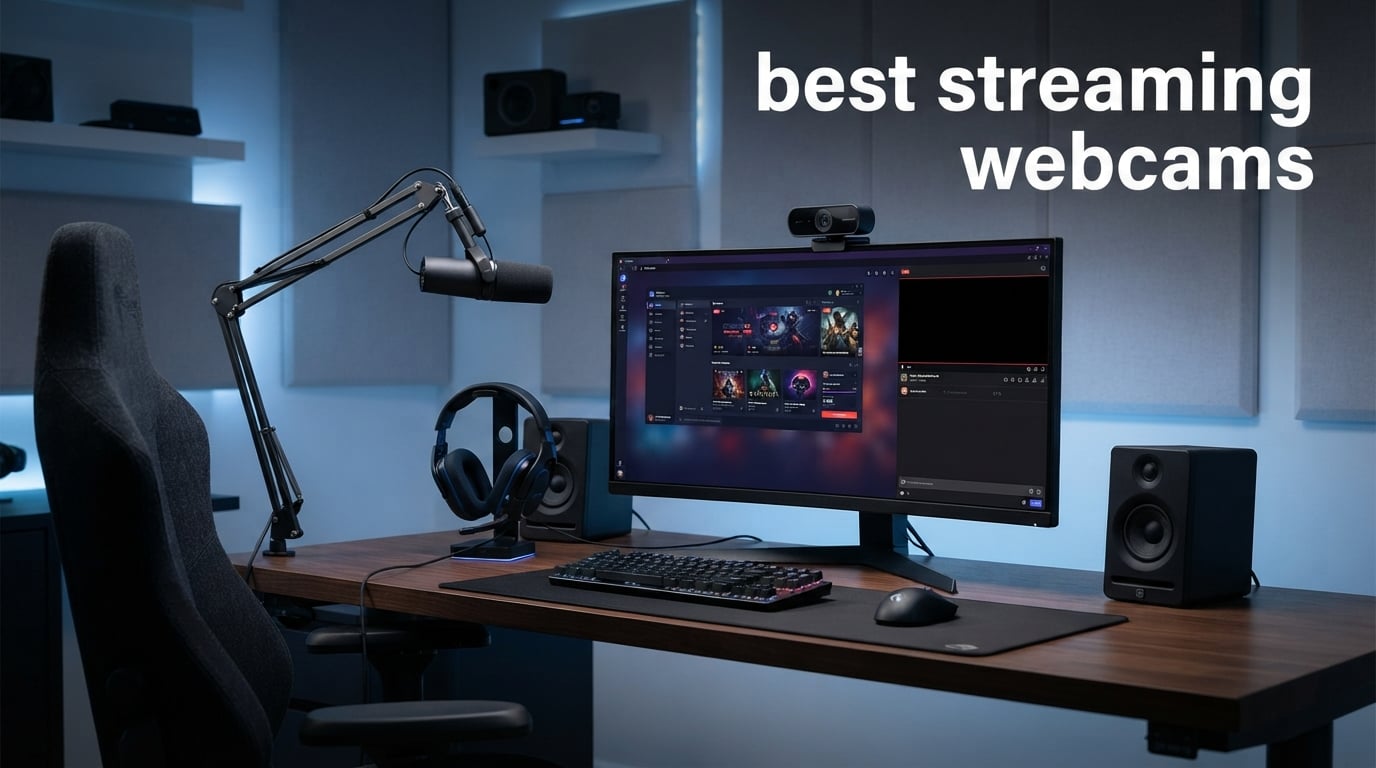
The best streaming webcams make a viewer focus on your voice, gameplay, or tutorial instead of a soft, noisy picture. For Twitch, YouTube, podcasts, and live classes, I would put dependable focus and usable exposure ahead of a huge spec list, because a camera that hunts for focus during a live moment is more distracting than one that records a larger file.
This guide compares eight current options using their listed sensors, resolution modes, focus systems, microphones, framing tools, connection types, warranties, ratings, and review volume. I have not treated a high resolution label as an automatic win: the sensor, lens, lighting in your room, and the way OBS or Streamlabs receives the signal all change what your audience sees.
A streaming webcam is a USB camera made for live video, usually with 1080p or 4K capture, automatic exposure, and a monitor clip or tripod mount. It sends that video to your computer, where OBS, Streamlabs, or a meeting app can crop it, add a scene, and send it to a platform; it does not replace the need for a stable computer connection or sensible lighting.
For a typical gaming desk, 1080p at 60fps can look more natural in motion than 4K at 30fps, while a 4K source gives you room to crop a face cam inside a 1080p scene. Forum discussions repeatedly point to the same practical lesson: reliable autofocus and decent low-light behavior count more than chasing resolution alone, particularly when RGB panels are the main light in a dark room.
I also would not buy a webcam mainly for its microphone if streaming is the goal. The cameras here include useful built-in mics in several cases, but a separate USB or XLR microphone gives you much more control over placement and background noise; the webcam’s job is to frame you clearly and consistently.
Here is the short answer for 2026: choose the Acer 4K Webcam for a well-rounded 4K, USB-C, PDAF package; choose the Insta360 Link 2 Pro when physical AI tracking matters; and choose the Elgato Facecam 4K when your desk already has a dedicated microphone and you want 4K at 60fps with creator-focused control. The rest of the list fills more specific needs, including a small travel camera, a ring-light solution, and dual-camera zoom.
Table of Contents
The top three picks answer most streaming needs in 2026
These are the fastest routes to a sensible choice. The editor’s choice concentrates on image quality, fast autofocus, a compact metal body, and USB-C; the value choice adds strong 4K and 1080p at 60fps credentials with a privacy cover; the premium pick is for creators who move within the frame and need the camera to follow them.
Ratings describe marketplace feedback rather than a promise that every setup will behave alike. A camera with tracking needs a little open space to pan, while a fixed webcam benefits from a deliberate monitor position and a key light placed in front of you.
These eight streaming webcams cover the main creator setups in 2026
The comparison below keeps the decision focused on the parts that affect a live shot: capture mode, sensor or framing approach, focus, and connection. Read the individual sections before choosing, since crop needs, desk depth, lighting, and audio gear can change the better match.
| Product | Specifications | Action |
|---|---|---|
 Acer 4K Webcam Acer 4K Webcam |
|
View on Amazon |
 Insta360 Link 2 Pro Insta360 Link 2 Pro |
|
View on Amazon |
 AOC AC410 4K Webcam AOC AC410 4K Webcam |
|
View on Amazon |
 OBSBOT Meet 2 OBSBOT Meet 2 |
|
View on Amazon |
 EMEET S600 EMEET S600 |
|
View on Amazon |
 EMEET C60E Dual EMEET C60E Dual |
|
View on Amazon |
 Elgato Facecam 4K Elgato Facecam 4K |
|
View on Amazon |
 NexiGo N680E Pro NexiGo N680E Pro |
|
View on Amazon |
The Acer 4K Webcam is the best overall balance for most streamers
Acer 4K Webcam for PC/Mac with All-Metal Unibody Sculpted, Sony 1/2″ Sensor, PDAF, 2 Noise Reduction Mics, Privacy Cover for Switch 2/Zoom/Teams/Facetime/YouTube/Google Meet
4K HDR
Sony 1/2 inch sensor
PDAF
USB-C
Pros
- Sony 1/2 inch sensor
- Fast PDAF autofocus
- Metal body
- USB-C
- Privacy cover
Cons
- No wireless connection
- Smaller review sample
The Acer is the straightforward pick when you want a 4K webcam for streaming without building a complicated camera rig. Its stated Sony 1/2-inch CMOS sensor, HDR support, and 83-degree view give it the right basics for a face cam that can stay reasonably tight while leaving room for a small crop in OBS.
I like the listed Phase Detection Autofocus here because focus reliability is where inexpensive cameras can lose a live stream. Acer also lists dual high-sensitivity noise-reduction microphones, though I would regard those as backup audio for a call rather than the main sound path for a channel.
The physical design has a real practical advantage: it is an all-metal unibody and weighs 57 grams. That combination should be easy on a monitor clip, and the magnetic privacy cover is simpler to use than covering the lens with tape after a stream.
USB-C plug-and-play operation is helpful for a modern desktop or laptop, and the listed compatibility covers Windows, Mac, and ChromeOS. Before going live, I would still select the intended resolution and frame rate inside OBS, then record a short local clip, because an application can choose a lower mode by default.
The Acer is right for a fixed, well-lit face-cam position
This is the choice for a creator who sits at one desk and wants sharp 4K capture, fast autofocus, and a restrained black-metal look beside a gaming monitor. The 83-degree field of view is broad enough for a face and shoulders without turning a normal desk shot into a wide room view.
The product has a 4.8 rating from 98 reviews, with the supplied review summary highlighting the build and autofocus. That is encouraging feedback, but the review count is smaller than several established alternatives in this guide, so I would test it during your return window with your own lighting and USB ports.
The Acer is less suited to roaming or cable-free scenes
There is no wireless connection, so it belongs at a computer rather than in a moving room setup. A streamer who teaches from a whiteboard, swaps between standing and seated shots, or needs automatic reframing will get more from a PTZ model.
It also makes sense to plan separate audio for gameplay commentary. The two integrated microphones can get you online quickly, but their location on the monitor means keyboard noise and room echo can remain part of the signal.
The Insta360 Link 2 Pro is the best choice when the camera must follow you
Insta360 Link 2 Pro – 4K PTZ Webcam for PC/Mac, 1/1.3” Sensor, Low-Light, AI Tracking, HDR, Directional Noise-Canceling Mics, Supports Stream Deck, Zoom, Teams, Twitch for Streaming or Meetings
4K
1/1.3 inch sensor
AI pan and tilt
HDR
Pros
- Large 1/1.3 inch sensor
- Physical AI tracking
- DeskView and Whiteboard modes
- Stream Deck support
- Directional mics
Cons
- No ARM Windows support
- No Windows Hello support
- Requires room to pan
The Link 2 Pro is built for the stream where the person is not glued to one spot. Its AI tracking uses physical pan and tilt, so the frame can follow a presenter as they move rather than just applying a digital crop to a stationary image.
The listed 1/1.3-inch sensor is the largest sensor size stated among these eight products, and Insta360 pairs it with 4K, HDR, low-light claims, and a natural bokeh effect. Those specifications make it the most compelling option here for a mixed schedule of streams, tutorials, interviews, and professional video calls.
DeskView, Whiteboard, and 4K Portrait modes create useful scene options without moving the camera by hand. I would find the Stream Deck integration especially handy for a creator who already switches scenes, audio, and effects from one control surface.
Gesture control and smartphone control provide extra ways to change the shot without reaching behind a display. Its directional, noise-canceling dual microphones are a thoughtful addition, although the same separate-microphone advice applies if your stream includes a mechanical keyboard or a loud PC.
The Link 2 Pro is right for demos, standing streams, and shared desks
Choose this auto tracking webcam for streaming if you demonstrate art supplies, build hardware, teach, or simply do not stay centered all night. The physical movement can preserve a more natural framing than a fixed wide camera that forces viewers to watch empty space around you.
Its 4x digital zoom can help with a closer composition, but framing the camera physically near the desired shot is still the cleaner approach. Start with a clear travel path around the camera, since a shelf or tall monitor beside it could limit how far it can pan.
The Link 2 Pro is not the simple pick for every computer
Insta360 states that this model is not compatible with ARM-based Windows systems and does not support Windows Hello face recognition. Check those two requirements before you treat it as a laptop upgrade, especially if you rely on face sign-in.
There is also more mechanism and software behavior to consider than with a fixed webcam. If every stream is a centered gaming face cam, a solid fixed model may be easier to position once and leave alone.
The AOC AC410 is the practical starter kit for smooth 1080p streaming
AOC 4K Webcam for PC, Sony Sensor, 1080P 60FPS Streaming Camera with PDAF
4K
1080p at 60fps
PDAF
75 degree FOV
Pros
- 4K capture
- 1080p at 60fps
- PDAF autofocus
- Tripod and adapter included
- Privacy shutter
Cons
- Lower review count
- Limited sensor detail listed
The AOC AC410 makes a strong case for a first webcam because its listed package covers the basics that otherwise become separate errands. It offers 4K capture, 1080p at 60fps, a 75-degree field of view, a privacy shutter, a desktop tripod, and a USB-A-to-C adapter.
For gameplay, 1080p at 60fps is the more relevant listing. Fast hand gestures, a head turn to a second monitor, and animated reactions generally look smoother at 60fps than at 30fps, assuming your streaming software and computer can accept that mode.
AOC lists an IMX363 sensor and PDAF autofocus, the latter being particularly welcome at this level. The fixed 75-degree view is also sensible for a desk, since it keeps the room edge and unmade background out of frame more readily than an ultra-wide lens.
It is driver-free plug and play, with a built-in noise-canceling microphone. I would use the included tripod for a first test if the monitor clip places the lens too high; the camera should sit close to eye level and just above it, not pointed upward from the desk.
The AOC AC410 is right for new creators who need accessories included
This camera suits a streamer setting up a console capture desk, a laptop broadcast station, or a simple 1080p webcam for YouTube. The adapter lowers one compatibility worry, and the tripod gives you a second placement option for a side angle or a more flattering lens height.
Its 4.6 rating is based on 48 reviews, which is useful but limited evidence compared with cameras that have hundreds or thousands of reviews. I would treat the 2-year stated warranty as a reassuring part of the package, while still checking focus and exposure in your own room early.
The AOC AC410 is less suited to a heavily customized studio workflow
The supplied details do not present the app controls, advanced tracking, or specialty modes offered by some higher-end models. If your channel depends on automatic framing or frequent camera-position changes, the included accessories will not substitute for those functions.
Its specified 75-degree angle also favors a solo shot rather than two people sitting apart at a wide desk. For co-hosts, measure your seat spacing first rather than assuming a 4K label means a camera can capture the whole room well.
The OBSBOT Meet 2 is the compact 4K option for flexible framing
OBSBOT Meet 2-4K Webcam for PC with 1/2″ Sensor, AI Framing & Autofocus
4K
1/2 inch sensor
AI framing
HDR
Pros
- AI framing and autofocus
- Gesture controls
- Compact 40.5 gram body
- HDR
- 60fps listing
Cons
- May get warm in long sessions
- Monitor heat over extended use
The OBSBOT Meet 2 puts AI framing and autofocus in an unusually small 40.5-gram body. That makes it attractive for a laptop streamer, a creator carrying gear between rooms, or anyone who wants a less conspicuous webcam on a compact monitor.
Its listed 1/2-inch CMOS sensor, 4K capture, HDR, and 60fps support create a capable technical foundation. The important live feature is AI framing: it can adjust the composition around the subject, which helps when you lean toward a drawing tablet or sit at different positions during a co-op stream.
OBSBOT also lists gesture control for changing AI framing and zoom, plus Beauty Mode and the OBSBOT Center software for customization. I would keep Beauty Mode light or off for most gaming and tutorial channels, since a natural image is often more useful than an aggressive effect that alters fine detail.
Two omnidirectional noise-canceling microphones supply basic audio, and the camera supports landscape, portrait, and upside-down shooting modes. That orientation flexibility is helpful if you record short vertical clips from the same desk as your usual wide stream.
The Meet 2 is right for travel, laptop, and compact gaming setups
Use it when the camera must take little space but still offer more than a fixed, basic face cam. Its small size works well with a minimal desk aesthetic, and AI framing can save a solo creator from repeatedly nudging a monitor clip after changing posture.
The 4.5 rating comes from more than 2k reviews, the largest review count in this roundup. That volume gives its feedback more context than a newer listing with only a few dozen ratings, though individual computer hardware and room lighting still decide day-to-day behavior.
The Meet 2 is less suited to unattended all-day capture
The manufacturer notes that it may get hot during extended use. That does not predict failure, but I would give it airflow, avoid placing it against a hot monitor vent, and run a full-length private stream before relying on it for a marathon broadcast.
AI framing also changes the composition for you, which some creators may not want. A fixed shot can be better when your overlays, green screen crop, and camera box are designed around an exact, unchanged frame.
The EMEET S600 is the best all-purpose 4K and 1080p 60fps balance
EMEET S600 4K Webcam for Streaming, Sony 1/2.55” Sensor, PDAF Autofocus
4K at 30fps
1080p at 60fps
Sony sensor
PDAF
Pros
- Sony 1/2.55 inch sensor
- 4K or 1080p 60fps
- PDAF
- Adjustable 40 to 73 degree view
- 2-year warranty
Cons
- 4K view fixed at 73 degrees
- Not the widest default frame
The EMEET S600 covers the two modes most live creators actually compare: 4K at 30fps for a crop-friendly image and 1080p at 60fps for a smoother broadcast. It uses a listed Sony 1/2.55-inch sensor and Phase Detection Autofocus, a combination that fits a streamer who wants a dependable fixed camera with room to adjust later.
The 73-degree field of view keeps the shot focused on one person, but it is adjustable from 40 to 73 degrees at 1080p. That range is a meaningful advantage for a desk that is close to the wall: narrow the view for a clean head-and-shoulders shot or open it for a little more of your microphone arm and background art.
EMEET lists automatic light-balance adjustment, two noise-canceling microphones, a built-in privacy cover, and EMEETLINK software support. I would still create the image with one soft front light; automatic adjustment can correct exposure, but it cannot create the facial detail that a real key light supplies.
This is a webcam for Twitch streaming that stays practical when you also record tutorials or attend calls. Its stated operating-system support includes Windows, macOS, Linux, and Android TV versions, so it may suit a less standard streaming machine better than models with narrower compatibility notes.
The S600 is right for creators switching between crisp crops and smooth motion
The cleanest reason to choose it is flexibility between 4K at 30fps and 1080p at 60fps. Record a few identical samples at both settings, watch them at the size of your actual face-cam box, and choose the one that looks best after OBS processing instead of deciding from the spec sheet alone.
Marketplace feedback totals 1,960 reviews at a 4.5 rating, and the product lists a 2-year warranty. That is a stronger longevity signal than a brief claim about durability, although no webcam can compensate for a loose cable or an overloaded USB hub.
The S600 is less suited to a wide co-host shot in 4K
At 4K, the listed field of view is fixed at 73 degrees. That framing is intentional and useful for a solo broadcaster, but a wide room, an instrument performance, or two widely spaced guests may need a different camera position or a broader lens.
For a green screen, leave enough of the backdrop around your shoulders before narrowing the field of view. Good keying needs even material behind you; the tightest possible crop can make a green screen edge harder to clean up.
The EMEET C60E Dual is the best choice for close-ups and flexible desk shots
EMEET C60E Dual-Camera 4K Webcam for Streaming, Wide-Angle & Telephoto
Dual 4K cameras
11x hybrid zoom
PDAF
Remote control
Pros
- Wide and telephoto cameras
- 11x hybrid zoom
- PDAF autofocus
- Remote and software control
- RGB lighting
Cons
- Zoom unavailable in some modes
- No Windows Hello
- USB Type-A connection
The EMEET C60E Dual is different from the standard webcam because it combines wide-angle and telephoto cameras. That two-camera design speaks directly to creators who need a normal face shot most of the time but occasionally want a closer look at a craft, collectible, controller, or small product without moving the camera.
It lists 4K at 30fps, 2K at 30fps, and 1080p at either 30 or 60fps, along with PDAF autofocus and up to 11x hybrid zoom. A remote and EMEET STUDIO control are useful when the camera is mounted out of reach, and the RGB lighting adds a visual accent to a gaming setup rather than lighting your face.
The 73-degree field of view is in the same solo-streamer zone as the S600. I would make a dedicated scene for the close-up rather than zooming live without a plan, because a sudden framing change can look accidental even when the camera makes it easy.
EMEET lists two omnidirectional microphones with coverage out to 9.8 feet and a 1/4-inch tripod mount. The mount matters: putting this camera on a small desk tripod lets you move it closer to the item you are showing, which is usually better than relying only on hybrid zoom.
The C60E Dual is right for product demos and multi-scene streams
This option fits a maker, artist, unboxer, or presenter who switches from face cam to detail shots in the same broadcast. It can also support a compact multi-camera workflow: use the wide view for your primary scene and reserve the telephoto capability for a close-up scene controlled from the remote.
The 4.6 rating from 366 reviews gives it a decent feedback base for a specialized product. Its privacy cover and broad Windows/macOS streaming-platform compatibility are practical extras, but plan the camera’s scene and zoom points before you press Go Live.
The C60E Dual is less suited to every capture mode at maximum zoom
EMEET states that zoom is not supported in 4K, 60fps, or YUY2 modes. That limitation is important: choose between the highest stated resolution, the smoothest motion, and zoom based on the shot you need rather than expecting all three at once.
It also does not support Windows Hello and uses USB 2.0 Type-A. A busy streaming desk with a capture card, external storage, and multiple USB cameras should spread high-bandwidth gear across suitable ports instead of crowding a single hub.
The Elgato Facecam 4K is the studio pick for creators with separate audio
Elgato Facecam 4K, 4K60 Studio Webcam, DSLR-Like Control
4K at 60fps
STARVIS 2 sensor
HDR
USB-C
Pros
- 4K at 60fps
- STARVIS 2 sensor
- Uncompressed video
- 49mm filter support
- Camera Hub controls
Cons
- No built-in microphone
- No optical zoom
- Needs dedicated audio
The Elgato Facecam 4K is aimed squarely at the creator who wants a studio-style webcam rather than a catch-all meeting camera. Its stated 4K at 60fps capture, Sony STARVIS 2 CMOS sensor, HDR, USB-C connection, and uncompressed video output are the headline specifications for a sharp, motion-friendly face cam.
The notable creative feature is 49mm lens-filter support. A compatible filter can support a deliberate look in front of the lens, and the ability is rare in a webcam; still, I would get exposure, white balance, and key lighting right in Camera Hub before adding a filter.
Elgato says the camera includes built-in flash memory to save settings, which is useful when several people share a computer or you need the same look every time. Its automatic and manual focus options also offer more control to a streamer who prefers to lock focus and prevent visible refocusing mid-broadcast.
This model has no built-in microphone, and that is not a drawback for the right setup. For a desk that already has a dedicated mic, it prevents the webcam from paying attention to an audio feature you would never use; for a first-time streamer, it means you must plan audio separately.
The Facecam 4K is right for controlled lighting and creator-level controls
Pick it when the face cam is part of the visual identity of your channel and you can control your room with a front light, stable monitor mount, and separate microphone. The 1/1.8-inch sensor and 4K at 60fps specification give you a strong base for an active gaming or tutorial shot.
Uncompressed video can be attractive for image quality, but it also makes connection planning matter. Use a capable USB-C port as specified by your system, avoid weak adapters, and do a recording test alongside your capture card before a major stream.
The Facecam 4K is less suited to all-in-one, audio-first setups
There is no built-in microphone and no optical zoom. That means it is not the one-device answer for a laptop call, nor is it designed to replace a movable PTZ camera for a presenter who ranges around a room.
Its 4.4 rating across 454 reviews remains solid, but it is lower than some picks here. Consider it for its specific production tools and image path, not just the brand name or a higher resolution number.
The NexiGo N680E Pro is the best answer for a dim desk without extra lighting gear
NexiGo N680E Pro 4K Webcam with Ring Light, PDAF Autofocus, 1080p 60FPS, Dual Noise-Canceling Mics, Privacy Shutter, USB Plug-and-Play for Zoom, Teams, Twitch, Google Meet
4K
1080p at 60fps
PDAF
Tri-tone ring light
Pros
- Built-in tri-tone ring light
- PDAF autofocus
- 4K and 1080p 60fps
- Privacy shutter
- Tripod mount
Cons
- Resolution depends on software
- Adapter needed for Switch 2
The NexiGo N680E Pro solves a common first-stream obstacle by putting a tri-tone adjustable ring light around the webcam. A small on-camera light is not the same as a large soft key light, but it is far better than relying on a monitor or RGB strip when your face is otherwise in shadow.
Its listed Sony sensor, 4K mode, 1080p at 60fps, PDAF autofocus, dual noise-reducing microphones, and 80-degree field of view give it a versatile feature set. The 80-degree frame is a little wider than the 73- and 75-degree options above, which can be useful if you lean toward instruments, controllers, or a co-host beside you.
The light uses touch control and three color tones, allowing you to match a warmer lamp or a cooler room source more closely. I would choose the light color that makes your skin tone look natural, then reduce intensity until you do not see bright rings in glasses.
It also has a privacy shutter, a 1/4-inch tripod mount, flexible clip rotation, and USB-A plug-and-play operation. These small physical details make it an approachable webcam for video calls during the day and streams at night.
The N680E Pro is right for darker rooms and beginner lighting plans
Choose this model if you have a dim gaming room and need a visible starting point for your face cam. The ring light can reduce the noise and exposure struggle that many budget webcam users report in low light, while the 1080p at 60fps option keeps gameplay reactions smooth.
It has a 4.4 rating from 160 reviews. I would use the ring light as a supplement, not the entire lighting plan: a soft lamp or LED panel off to one side will add depth and look more natural than direct light alone.
The N680E Pro is less suited to software-agnostic resolution assumptions
NexiGo says output resolution depends on camera software. In practice, open OBS or Streamlabs, inspect the device properties, select the desired mode, and run a test recording; do not assume that a platform has selected 4K merely because the webcam offers it.
A Switch 2 connection needs a separate USB-C-to-USB-A adapter according to the listing. This remains a computer-focused webcam, so console streamers will normally route their game through a capture setup and use the webcam on the streaming computer.
The right streaming webcam comes from matching your room to your broadcast
Start with your delivery resolution, not the camera’s maximum. Twitch and many live scenes are commonly built around 1080p, so a 1080p at 60fps feed can be the sensible choice for a fast face cam, while a 4K source is useful when you plan to crop, record locally, or repurpose clips for YouTube.
Resolution does not fix a dark room. A larger stated sensor can help, and HDR can handle mixed bright and dark areas, but a soft light in front of you is the simplest way to improve a low light webcam streaming image; place it slightly above eye level and off to one side rather than directly behind the monitor.
The best resolution is the one your scene can carry consistently
Use 4K at 30fps when you want extra pixels for a crop, a clean tutorial recording, or a static talking shot. Use 1080p at 60fps when your camera box shows a lot of motion, and when the rest of the PC needs bandwidth for gameplay capture, overlays, alerts, and a stream encoder.
Record a one-minute local sample at each intended setting with your normal game or application running. Watch it at the actual size viewers see in your scene, not fullscreen only; a tiny face-cam box may show no useful difference between modes, while dropped frames or soft focus will be obvious.
The best field of view is the frame that hides what viewers do not need
For a solo streaming desk, a 73- to 83-degree field of view usually gives a workable head-and-shoulders image. A tighter field reduces background clutter and makes a green screen easier to frame, while a wider view is better for co-hosts, instruments, standing tutorials, or a room-based show.
Mount the lens near eye level. A monitor clip is convenient, but a small tripod may produce a better shot if your screen is very tall, very low, or angled; put the lens a little above your eye line and tilt it down slightly for a natural perspective.
Reliable autofocus matters more than a long feature list
Phase Detection Autofocus appears on the Acer, AOC, EMEET S600, EMEET C60E Dual, and NexiGo models. That matters when you show an item close to the lens or shift between a screen and camera, because live focus hunting makes an otherwise good feed feel amateurish.
Lock focus manually when the shot never changes and your camera permits it, as with the Elgato’s stated manual option. For tracking cameras, leave room around the subject and test your actual gestures, chair movement, and desk layout so an automated frame does not fight your overlays.
USB planning prevents avoidable stream interruptions
A webcam shares a computer with capture cards, storage, microphones, controllers, and charging cables. Put high-demand devices on suitable ports, avoid stacking everything on an unpowered hub, and test the full scene before broadcast; forum users specifically flag USB bandwidth conflicts as a real source of camera trouble.
USB-C on the Acer and Elgato can be convenient, while USB-A devices may need an adapter on a newer laptop. The connector shape is only part of the story, so follow the webcam and computer documentation for the mode you intend to use.
Separate audio and lighting turn a decent webcam into a stronger show
Built-in webcam microphones are useful for a meeting, a quick backup, or the first setup check. For regular streaming, move to a dedicated microphone close to your mouth, then use the webcam’s listed noise reduction as a fallback rather than expecting it to remove keyboard clicks, fans, and room reflections.
For a green screen, light the screen separately and evenly, then light your face from the front. For a multi-camera workflow, set one camera as the reliable main face cam and add a second input only when it has a clear job, such as a desk view or product close-up; extra cameras need extra USB and scene management.
These answers settle the most common streaming webcam questions
What webcam do most streamers use?
Most streamers use a 1080p or 4K USB webcam that works reliably with OBS or Streamlabs. The common priorities are dependable autofocus, usable low-light performance, a face-friendly field of view, and 60fps support when smooth movement matters more than a 4K crop.
Which webcam is best for live streaming?
The Acer 4K Webcam is the best overall choice in this group for a fixed streaming desk because it combines a listed Sony 1/2-inch sensor, 4K HDR, PDAF autofocus, USB-C, and a privacy cover. Choose the Insta360 Link 2 Pro instead when physical AI tracking is central to your broadcast.
What are the best cameras for live streaming?
The strongest webcam choices depend on the shot: Acer 4K Webcam for a balanced 4K face cam, EMEET S600 for 4K or 1080p at 60fps, Insta360 Link 2 Pro for tracking, Elgato Facecam 4K for a controlled studio, and NexiGo N680E Pro for an integrated ring light.
Do I need a special webcam for streaming?
You do not need a special webcam to start streaming, but a webcam with dependable focus, a suitable resolution and frame rate, and good exposure control makes a visible difference. A basic USB webcam can work, while a separate microphone and front light often improve a stream more than resolution alone.
The best streaming webcams in 2026 are the ones that suit your actual scene
For the most balanced fixed-camera setup, I would begin with the Acer 4K Webcam. The Insta360 Link 2 Pro is the clearer fit for movement and demonstrations, the EMEET S600 serves creators who want 4K and 1080p at 60fps flexibility, and the Elgato Facecam 4K suits a carefully lit desk with dedicated audio.
Do one full private broadcast before committing to any camera: check focus, exposure, USB stability, the size of the camera box in OBS, and how your voice sounds through your actual microphone. That small rehearsal will tell you more about the right choice than a resolution label alone.