
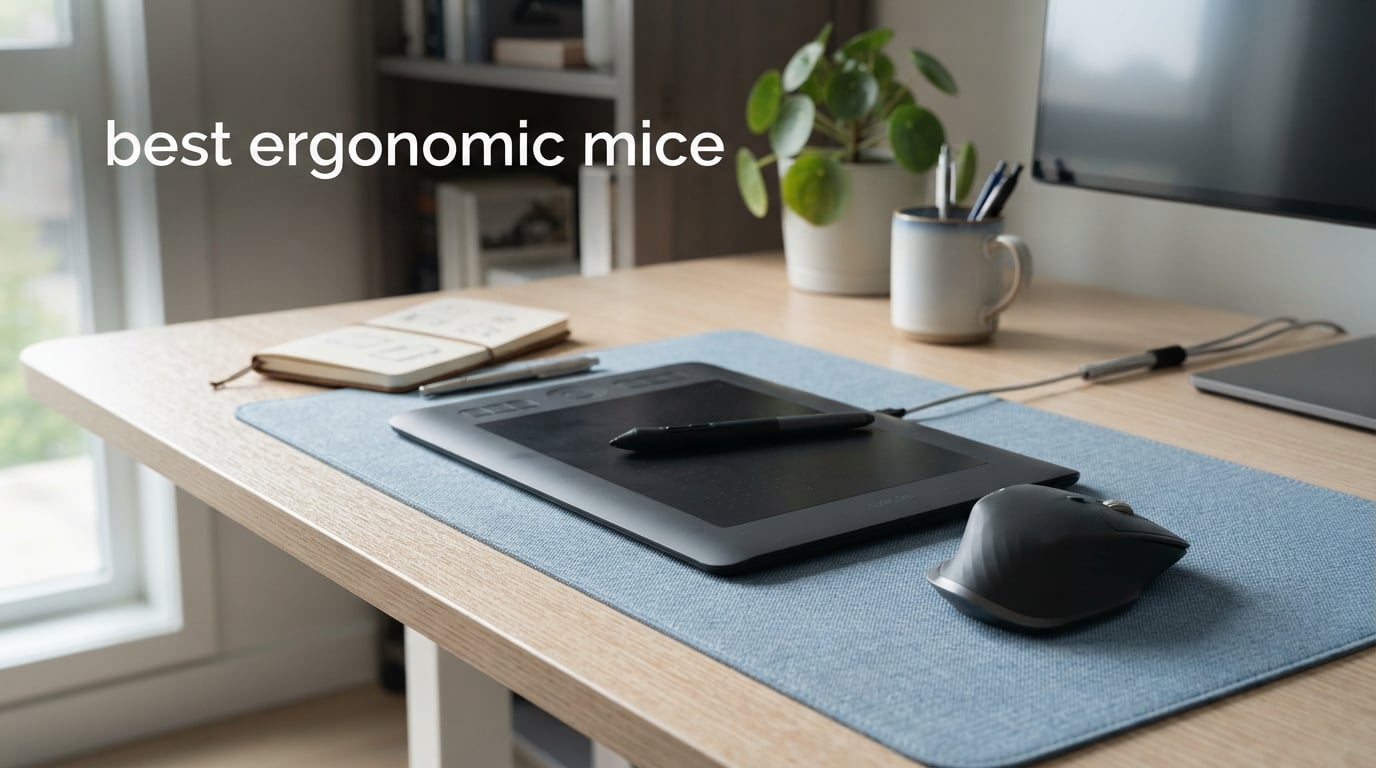
The best ergonomic mice change the way your hand meets a demanding workday. A well-matched mouse places your palm, fingers, and forearm in a less strained position, whether that means a gentle vertical handshake angle, a sculpted body with a thumb rest, or a trackball that stays put while the cursor moves.
For illustrators, photo editors, 3D artists, and anyone who spends more than four hours at a computer, comfort is part of the workflow rather than an afterthought. Repetitive clicks, wide cursor travel between displays, and long detail passes can leave a flat mouse feeling tiring even when its sensor is accurate.
I compared the seven supplied product listings for shape, stated ergonomic features, connection options, controls, sensitivity, battery design, and operating-system notes. The short version is simple: choose the Logitech MX Master 4 for deep shortcut-driven creative work, the Logitech Lift for a friendlier first vertical mouse, and a Logitech trackball when preserving desk space and reducing whole-arm movement matters most.
An ergonomic mouse is designed to support a more natural hand and wrist position during computer use. Vertical models turn the hand toward a handshake posture, sculpted conventional models spread support across the palm and thumb, and trackballs let the device remain stationary; none is a medical treatment, but a better fit can reduce the awkward positions that make long sessions feel harder.
People in r/WFH and r/MouseReview repeatedly bring up the same practical issues: hand size, an adjustment period with vertical shapes, and the need to keep productive controls without giving up comfort. If gaming is also part of your routine, pair this guidance with our guide to gaming mice before deciding how much speed-focused hardware you need.
Table of Contents
The top three picks answer most creative-work needs in 2026
These three cover the most common paths: a sculpted shortcut mouse for application-heavy projects, a quiet vertical option for smaller right hands, and a vertical choice that can move between devices. The cards below list the supplied ratings and review totals, rather than treating one shape as right for everyone.
The best ergonomic mice in 2026 are easy to compare at a glance
Use this overview to narrow the field by design first. A vertical mouse is usually the clearest change from a flat mouse, a trackball reduces desk travel, and the MX Master 4 keeps a familiar silhouette while adding extensive productivity controls.
| Product | Specifications | Action |
|---|---|---|
 Logitech MX Master 4 Logitech MX Master 4 |
|
See Details |
 Logitech Lift Vertical Logitech Lift Vertical |
|
See Details |
 Logitech MX Ergo S Logitech MX Ergo S |
|
See Details |
 Logitech Ergo M575S Logitech Ergo M575S |
|
See Details |
 Lekvey Vertical Wireless Lekvey Vertical Wireless |
|
See Details |
 TECKNET Vertical Mouse TECKNET Vertical Mouse |
|
See Details |
 UGREEN Vertical Mouse UGREEN Vertical Mouse |
|
See Details |
1. Logitech MX Master 4 is the best ergonomic mouse for shortcut-heavy creative work
Logitech MX Master 4 Ergonomic Wireless Mouse with Haptics – Graphite
8,000 DPI
70-day battery
Haptic panel
Pros
- Haptic shortcut feedback
- MagSpeed scrolling
- Quiet clicks
- Natural tilt
Cons
- Right-hand only
- No smart-home support
The Logitech MX Master 4 is the strongest fit here when the mouse has to do more than point and click. Its natural tilt and thumb-supported, right-handed shape address hand stress without asking you to relearn cursor control as a vertical design can.
For digital art, its appeal is the supplied Haptic Sense Panel and Actions Ring. They provide customizable feedback and an app-specific overlay for shortcuts, which can put frequently used tools closer to the hand during editing, compositing, or timeline work.
The MagSpeed wheel is another practical distinction: Logitech states that it can scroll 1,000 lines per second and describes it as quiet and precise. That matters when a project has a long asset browser, a dense layer list, or a lengthy code and reference document beside the canvas.
The listing also states 8,000 DPI optical tracking, Bluetooth, radio-frequency, and USB connectivity, plus a USB-C dongle with an optimized antenna. That range of connection choices makes this the supplied option I would examine first for a desktop-and-laptop setup, provided its right-hand shape fits you.
The MX Master 4 fits creators who work through many application shortcuts
Seven buttons, the Actions Ring, and the haptic panel make more sense for someone who regularly changes brushes, zoom levels, tools, and panels than for a person who only clicks through basic documents. The included one-month Adobe Creative Cloud subscription is directly relevant to an Adobe-based workflow, though it should not decide the purchase by itself.
Quiet Clicks, which Logitech says reduce click noise by 90%, are helpful when you share a studio, take calls, or make a large volume of selections. The wheel is also a better match for long vertical documents than a basic wheel.
The MX Master 4 is less suitable when a fully neutral vertical grip is the priority
This is a sculpted ergonomic mouse, not a vertical mouse, so it does not rotate the hand into the handshake position. People trying to stop a wrist-flat habit may prefer the Lift, the Lekvey, TECKNET, or UGREEN vertical designs instead.
The product is right-hand only, and its extra controls can be more than a simple single-device setup requires. Its supplied review data shows a 4.3 rating from 1.6k reviews, so I would treat the feature set and hand fit as more useful decision points than a headline score alone.
2. Logitech Lift is the best vertical choice for small to medium right hands
Logitech Lift Vertical Ergonomic Wireless Mouse – Graphite
57-degree angle
4,000 DPI
Up to 2 years
Pros
- Textured thumb rest
- Quiet clicks
- Bluetooth or Logi Bolt
- Long battery life
Cons
- Small to medium hands
- macOS side-button limit
The Logitech Lift makes the vertical-mouse idea approachable because it pairs a 57-degree angle with a soft textured grip and a snug thumb rest. The point is not to force the hand upright; it is to support a more natural forearm posture while keeping common controls within easy reach.
This is the best ergonomic mouse for small hands among the supplied choices because Logitech specifically designs this right-handed version for small to medium right hands. That sizing detail matters more than many buyers expect: a vertical shape that is too large can make the fingers stretch and turn a comfort purchase into another source of fatigue.
The Lift has six buttons, a 4,000 DPI optical sensor, a SmartWheel, and whisper-quiet clicks. Its connection options are Bluetooth Low Energy or the Logi Bolt USB receiver, so it can serve a laptop, PC, or supported tablet without a permanently tethered cable.
Battery claims are unusually straightforward here: Logitech lists up to two years of battery life. That helps a quiet office or home workstation stay uncluttered, but it also means buyers should be comfortable with the supplied battery arrangement rather than expecting USB-C recharging.
The Lift makes sense when hand fit and quiet work are non-negotiable
This mouse suits a designer, writer, or student who wants a clear move away from a flat mouse without a big hardware learning curve. The soft grip, thumb rest, and muted click sound all support long, focused sessions in a shared room.
A forum observation from r/WFH called the Lift the most accessible vertical mouse and praised its smaller textured grip for avoiding pinky pinching. That is a useful real-world cue, although individual hand shape still decides comfort.
The Lift needs a macOS button check before it becomes your main mouse
The supplied listing says its side buttons are not compatible with macOS, so Mac users should not buy it solely for back-and-forward control. Core pointer use, Bluetooth connectivity, and the vertical hand position remain relevant, but the control plan needs to be realistic.
Large right hands should also pause before choosing it. A mouse can be ergonomically designed and still be wrong for the person gripping it, which is why the fit note in the listing carries real weight.
3. Logitech MX Ergo S is the best rechargeable trackball for forearm posture
Logitech MX Ergo S Advanced Wireless Trackball Mouse USB C – Graphite
20-degree tilt
2,048 DPI
USB-C rechargeable
Pros
- Adjustable tilt
- Speed precision toggle
- Six programmable buttons
- Fast charging
Cons
- USB-C cable absent
- Right-hand design
The Logitech MX Ergo S takes a different route from a vertical mouse: it keeps the mouse body in place and puts thumb control at the center of cursor movement. That can reduce the sweep across the desk that some people find tiring when moving between a large display, a tablet, and reference materials.
Its defining ergonomic feature is a 20-degree tilt, which Logitech says reduces muscle strain by 27% and improves forearm posture. The soft rubber grip and ergonomic certification support its position as the supplied trackball choice for people who know they prefer a fixed device.
For precision work, it has a speed and high-precision tracking toggle plus maximum sensitivity of 2,048 DPI. That pairing is useful in principle because broad movements and close retouching ask for different cursor behavior, although any artist who relies on a pen tablet should still judge the mouse as a companion tool rather than a replacement for pen pressure.
The six customizable buttons and Smart Actions work through Logi Options+, while Bluetooth and Logi Bolt provide dual wireless paths. It is USB-C rechargeable, with Logitech claiming one minute of charge can supply 24 hours of use and a full charge can last 120 days.
The MX Ergo S works when desk space and arm travel are the main concerns
Because the trackball moves the cursor rather than the entire device, it can work on a compact desk and on surfaces where a conventional mousepad is inconvenient. The supplied listing says its Bluetooth and USB connection options support PC, Mac, and tablets.
Community feedback in r/WFH specifically linked the MX Ergo family with help for wrist and shoulder pain. That is a personal report rather than a health promise, but it explains why trackballs remain worth comparing alongside vertical mice.
The MX Ergo S requires a different cursor-control habit than a conventional mouse
Thumb tracking feels different from moving a full mouse with the arm and wrist. Give it a deliberate adjustment window before deciding whether its precision toggle and fixed-position design support your own illustration or editing rhythm.
The USB-C cable is not included according to the supplied listing, so the rechargeable design does not mean every charging accessory is in the box. It is also a right-hand product, which limits its audience from the start.
4. Logitech Ergo M575S is the best long-battery trackball for stationary workspaces
Logitech Ergo M575S Wireless Bluetooth Trackball Mouse – Graphite Blue Ball
Thumb trackball
2,000 DPI
18-month battery
Pros
- Sculpted relaxed shape
- Works on any surface
- Bluetooth and USB
- Three customizable buttons
Cons
- AA battery required
- Two-button base layout
The Logitech Ergo M575S is the more straightforward trackball alternative in this list. Its sculpted shape is built around thumb control, allowing the mouse to stay in one place while the optical tracking system handles cursor movement.
Logitech reports 25% less forearm muscle strain and improved forearm posture for this design. Those supplied claims describe the product’s ergonomic intent, not a guaranteed outcome, but the approach is sensible for a workstation where a tablet, keyboard, external drive, and drawing references already consume the desk.
The maximum sensitivity is 2,000 DPI, and three customizable buttons can be assigned through Logi Options+ Smart Actions. Bluetooth and the Logi Bolt USB receiver offer the same basic choice between a receiver-based setup and a wireless pairing path.
Battery life is its headline practical feature: the listing states up to 18 months from the included AA battery. That is excellent for low-maintenance use, though the battery is replaceable rather than rechargeable.
The Ergo M575S is a strong match for compact desks and varied surfaces
Thumb control saves desk space because there is no need to slide the device across the surface, and Logitech says it works on any surface. That can be useful for a laptop station, a small studio desk, or a travel setup where a proper mousepad is not always available.
The graphite version also uses 52% certified post-consumer recycled plastic, while the off-white version is listed at 21%. Material content may not affect fit, but it gives buyers a stated construction detail to weigh.
The Ergo M575S is not the answer for people who dislike thumb-driven tracking
The central trade-off is the same as with every thumb trackball: accurate movements come from the thumb rather than from moving the whole mouse. Some people find that preserves arm motion, while others prefer the familiar feel of a conventional sensor under the palm.
Its listed button quantity is two, despite the three customizable-button feature claim, so shoppers who need a large set of physical controls should compare that layout closely with the six programmable buttons on the MX Ergo S. Its supplied rating is 4.6 from 2.1k reviews.
5. Lekvey Vertical Wireless Mouse is the best simple rechargeable vertical mouse
Lekvey Ergonomic Mouse, Rechargeable Vertical Wireless Mouse, Comfort Grip
Rechargeable
800 to 1,600 DPI
Six buttons
Pros
- Neutral vertical grip
- 150-hour battery
- Plug and play
- 36-month warranty
Cons
- No Bluetooth
- Adjustment period
The Lekvey Vertical Wireless Mouse is the uncomplicated choice for someone who wants to try a handshake position without adding software-dependent extras. Its vertical design is intended to reduce wrist strain, and its 2.4G USB nano receiver offers a direct plug-and-play connection.
There are three selectable DPI levels: 800, 1,200, and 1,600. That is a modest range compared with the higher-sensitivity options above, but it covers common office work, browsing, and broad timeline or canvas navigation when a pen tablet handles the most detailed art input.
The rechargeable battery is listed for 150 hours of continuous use per charge. It also has six buttons, including page back and page forward controls, and the supplied package details name a Type-C cable, receiver, and manual.
Compatibility is broad in the supplied listing, covering Windows, Linux, and Mac OS, although the connection itself is radio frequency rather than Bluetooth. It weighs 3.36 ounces and has listed dimensions of 5 by 3 inches, useful numbers for comparing it with a crowded portable setup.
The Lekvey fits people who want a direct first step into a vertical grip
A basic receiver, adjustable sensitivity, and rechargeable power make this a sensible route for a desktop or laptop that has an available USB port. Its stated 36-month manufacturer warranty adds a useful durability signal for a device intended for daily use.
The large review base is another data point: the supplied listing shows a 4.4 rating from 15k reviews, with 70% five-star ratings. Volume does not replace hand-fit testing, but it indicates that this design has reached many users.
The Lekvey is less convenient for Bluetooth-first and device-switching workflows
This mouse relies on its 2.4G receiver, so it is not the better choice when you want to alternate between a tablet, laptop, and desktop by Bluetooth. TECKNET, UGREEN, Lift, and the two Logitech trackballs offer more flexible wireless paths.
The listing also warns that some users need three to five days to adjust. Start with short work blocks and slow cursor settings rather than expecting an unfamiliar vertical grip to feel natural in the first hour.
6. TECKNET Vertical Mouse is the best multi-device vertical option for mixed systems
TECKNET Ergonomic Mouse, 4800 DPI Wireless Bluetooth Vertical, 3-Device
Three-device connection
4,800 DPI
Quiet clicks
Pros
- Bluetooth and 2.4G
- Six DPI levels
- Silent buttons
- Three-year warranty
Cons
- AAA batteries required
- macOS side-button limit
The TECKNET Ergonomic Mouse adds a feature that is especially useful in a mixed creative setup: Bluetooth can connect to two devices simultaneously, with 2.4GHz USB A available as another connection. That makes it one of the more practical choices when a Windows desktop sits beside a Mac, Chromebook, or secondary computer.
Its vertical body is built to reduce wrist pressure and encourage a less rotated hand position. Silent left and right click buttons are a welcome detail for shared studios, lectures, client calls, or late-night work where repetitive clicking becomes distracting.
This model has six adjustable sensitivity levels, from 800 to 4,800 DPI. The wider range gives a designer more room to match pointer speed to a high-resolution display, a small laptop screen, or a dual-monitor layout without treating maximum sensitivity as automatically better.
TECKNET lists compatibility with Windows, Mac, Chrome, and Linux, plus a three-year warranty. It uses two AAA batteries, has a low-battery warning LED, and enters sleep mode after 10 to 30 minutes of inactivity to conserve battery power.
The TECKNET suits creators who switch between computers during the day
Its Bluetooth 5.0 and 3.0 support plus 2.4GHz receiver make the connection design more flexible than a receiver-only mouse. That can reduce the friction of moving from a work machine to a personal laptop, provided each device is compatible with the chosen connection method.
The six DPI stages also make it easier to begin at a controlled pointer speed while learning a vertical grip. For photo editing and general productivity, predictable tracking is usually more helpful than chasing the highest number.
The TECKNET needs battery and macOS-button expectations set in advance
Two AAA batteries are required and are not included according to the supplied listing. The listed battery duration varies between the technical details and feature text, so it is wiser to view sleep mode and the low-battery indicator as the dependable practical information.
Its side buttons are not compatible with macOS. Mac users can still consider the vertical shape and main clicks, but should not plan a shortcut workflow around those side controls.
7. UGREEN Vertical Mouse is the best quiet dual-mode option for everyday navigation
UGREEN Ergonomic Wireless Mouse, Bluetooth & 2.4G Wireless, Quiet Clicks
Bluetooth and 2.4G
1,000 to 4,000 DPI
Quiet clicks
Pros
- Dual wireless mode
- PTFE glide feet
- Wide OS support
- Four DPI levels
Cons
- AA battery required
- Vertical adjustment period
The UGREEN Vertical Mouse combines a conventional vertical body with Bluetooth 5.4 and a 2.4G USB connection. It is a straightforward option for people who want quiet operation, flexible pairing, and compatibility across Windows, macOS, Linux, ChromeOS, and Android.
Four DPI settings—1,000, 1,600, 2,000, and 4,000—cover common cursor-speed needs without filling the control scheme with too many stages. PTFE glide feet are listed for smoother, quieter tracking, while the vertical shape is intended to reduce wrist rotation and muscle strain.
The product information specifies a five-button layout for productivity, while the technical details list six buttons. As with any listing that has a count mismatch, I would check the current product photos and documentation for the exact control layout you expect to use.
This model needs one AA battery, and the stated battery life is 12 months with smart sleep mode. Its 170-gram listed weight makes it heavier than the Lekvey on paper, a difference worth considering for people who prefer a lighter device even when the body is not constantly moved far.
The UGREEN works for quiet, cross-platform laptop and desktop use
The wide operating-system list makes it a notable option for a creative household or studio where devices do not all run the same platform. Silent click buttons and a 10-meter wireless range round out a practical everyday specification.
Its supplied rating is 4.4 from 1.6k reviews, with a reported distribution of 75% five-star ratings. That is encouraging context, but the deciding question remains whether its hand angle and dimensions feel comfortable in your own grip.
The UGREEN is best approached as a simple vertical mouse rather than a shortcut hub
Buy it for vertical comfort, quiet clicks, and dual-mode connectivity, not for an elaborate programmable control system. The Logitech MX Master 4 and MX Ergo S are more clearly specified for app actions and customizable buttons.
Like the other vertical models, it may require an adjustment period. Keep your wrist relaxed, lower pointer speed if you are overshooting targets, and give the unfamiliar orientation time before making a final judgment.
The right ergonomic mouse depends on hand fit, shape, and daily workflow
Choosing well starts with your body and work pattern, not with the longest feature list. Use the five checks below to move from a broad category to a mouse that makes sense at your desk.
Your hand size should match the mouse before any other feature
Rest your hand in the position you normally use and notice whether your fingers can reach the main buttons without stretching or curling tightly. Logitech explicitly describes the Lift version reviewed here as for small to medium right hands, while the other listings provide either dimensions, weight, or a more general right-hand orientation.
When a vertical mouse is too tall or wide, the thumb and pinky can brace against it rather than relax. When a sculpted mouse is too small, the palm loses support; when it is too large, the hand reaches for the scroll wheel and side controls.
If you are left-handed, pause at the orientation field before considering the rest of the specifications. Six products in this group are listed as right-handed, and UGREEN’s product details say ambidextrous even though the vertical design is not a mirror-image left-hand model; confirm the current physical shape rather than assuming the label means equal comfort on both sides.
The right shape is vertical, sculpted, or trackball based on how you move
A vertical mouse, such as the Lift, Lekvey, TECKNET, or UGREEN, turns the hand toward a handshake position. This can be appealing when a flat mouse leaves the forearm feeling rotated, but it asks the user to learn a new direction of motion.
A sculpted conventional design, represented here by the MX Master 4, preserves the familiar mouse movement while supporting the thumb and palm. This is often the easier transition for a creator who needs to make accurate selections immediately and wants extra controls near the thumb.
A trackball, represented by the M575S and MX Ergo S, remains stationary while the thumb moves the ball. It is worth a serious look for compact desks, multiple displays, or anyone who wants to reduce the distance the whole arm moves, but not everyone enjoys thumb-led cursor control.
Your connection plan should match every computer and tablet you use
List the devices that will share the mouse before selecting a wireless model. The M575S and MX Ergo S offer Bluetooth or Logi Bolt USB connections, the Lift offers Bluetooth Low Energy or Logi Bolt, and the TECKNET can pair via Bluetooth with two devices while also offering 2.4GHz USB A.
UGREEN supplies Bluetooth 5.4 plus 2.4G USB, while Lekvey is a receiver-based 2.4G model. A receiver can be simple and dependable for a desktop, but Bluetooth is often more convenient for a tablet or a laptop with limited ports.
Operating-system notes deserve the same attention. The Lift and TECKNET listings say their side buttons are not compatible with macOS, and the product listings vary in the versions of Windows, macOS, ChromeOS, Android, or iPadOS they name; match those claims to your actual devices before you build a shortcut routine.
Your cursor sensitivity should favor control rather than a high number
DPI describes the sensitivity of the optical sensor. A high maximum can help move across a large or high-resolution display, but a lower, steadier setting is often more comfortable when retouching images, placing vector nodes, or controlling a cursor in a small interface.
The MX Master 4 reaches 8,000 DPI, TECKNET reaches 4,800, and Lift and UGREEN reach 4,000. The trackballs top out near 2,000 DPI, while Lekvey offers 800, 1,200, and 1,600 settings; these numbers describe available sensitivity, not a ranking of artistic accuracy.
Start at a setting where you can cross the screen without lifting or squeezing the mouse, then lower it if you overshoot controls. A pen tablet can still be the better tool for pressure-sensitive drawing, while an ergonomic mouse handles menus, layers, timelines, web research, and file management.
Your daily controls and battery preference should be decided before checkout
Buttons matter when you can assign them to actions you repeat often. The MX Master 4 has seven buttons plus its haptic panel and Actions Ring, while the MX Ergo S offers six customizable buttons and Smart Actions; both aim at people who work through software tools rather than only web navigation.
For a quieter shared space, Lift, TECKNET, UGREEN, and MX Master 4 all list quiet or silent click behavior. For scrolling through long creative documents, the Lift’s SmartWheel and the MX Master 4’s MagSpeed wheel are the more distinctive supplied features.
Battery approach is equally personal. MX Ergo S is USB-C rechargeable, Lekvey includes a Type-C cable for its rechargeable battery, and the other models in this group list AA or AAA battery use; the stated life spans range from 150 hours to two years, but your connection habits and sleep settings affect the real maintenance rhythm.
Your adjustment period should be gradual and should not replace medical advice
Vertical mice commonly need a short learning period because the arm no longer moves from a flat grip. Lekvey’s supplied review notes mention three to five days for some customers, and UGREEN also warns that new vertical-mouse users may need time to adapt.
Begin with shorter blocks, keep the forearm supported, and reduce pointer speed if the cursor feels jumpy. Do not grip harder to compensate; discomfort during the first transition can come from tension as much as from the shape itself.
An ergonomic mouse can support a more neutral posture, but it cannot prevent or cure carpal tunnel syndrome by itself. Persistent pain, numbness, or weakness calls for advice from a qualified healthcare professional, along with a wider look at desk height, keyboard position, breaks, and workload.
Answers to common ergonomic mouse questions
What is the most ergonomic mouse for long term use?
The most ergonomic mouse for long-term use is the one that fits your hand and keeps your wrist and forearm in a comfortable position. In this group, the Logitech MX Master 4 suits people who want a sculpted, shortcut-focused shape, the Logitech Lift suits small to medium right hands seeking a vertical angle, and the MX Ergo S suits people who prefer a stationary tilted trackball.
Are ergonomic mice worth it?
Ergonomic mice are worth considering if a flat mouse feels tiring during long work sessions or if you want a shape that better supports your palm, thumb, and forearm. They do not cure an injury, and the wrong size can feel worse, so match the design to your hand, connection needs, and preferred cursor movement before committing.
What ergonomic mouse is best for wrist pain?
For wrist pain concerns, a vertical mouse can reduce the wrist rotation associated with a flat grip, while a stationary trackball can reduce whole-arm movement. The Logitech Lift is a sensible vertical option for small to medium right hands, and the MX Ergo S adds a 20-degree tilt. Persistent symptoms need guidance from a qualified healthcare professional.
How do I choose an ergonomic mouse?
Choose an ergonomic mouse by checking hand size first, then choosing a shape: vertical for a handshake-like angle, sculpted for familiar pointer movement with palm support, or trackball for stationary cursor control. Next, confirm connection and operating-system compatibility, decide which buttons you need, and allow several short sessions to adapt to a new shape.
Can ergonomic mice prevent carpal tunnel?
An ergonomic mouse cannot guarantee prevention of carpal tunnel syndrome. A better-fitting shape may reduce awkward wrist positions and fatigue for some people, but it works best as part of a wider workstation approach that includes keyboard placement, desk setup, breaks, and professional medical guidance when symptoms persist.
The best ergonomic mouse is the one that fits your work and hand
The Logitech MX Master 4 is my top supplied pick for artists and other shortcut-heavy creative professionals who want a familiar sculpted shape, fast scrolling, and extra controls. Choose the Logitech Lift for a quiet, smaller-hand vertical option, the MX Ergo S for a rechargeable tilted trackball, or TECKNET and UGREEN when dual wireless connections are the priority.
The best ergonomic mice in 2026 are not a one-shape category. Match the mouse to your hand, your software, the devices on your desk, and the kind of movement that feels easiest after a full day of work, then give a new grip enough time to become familiar.