
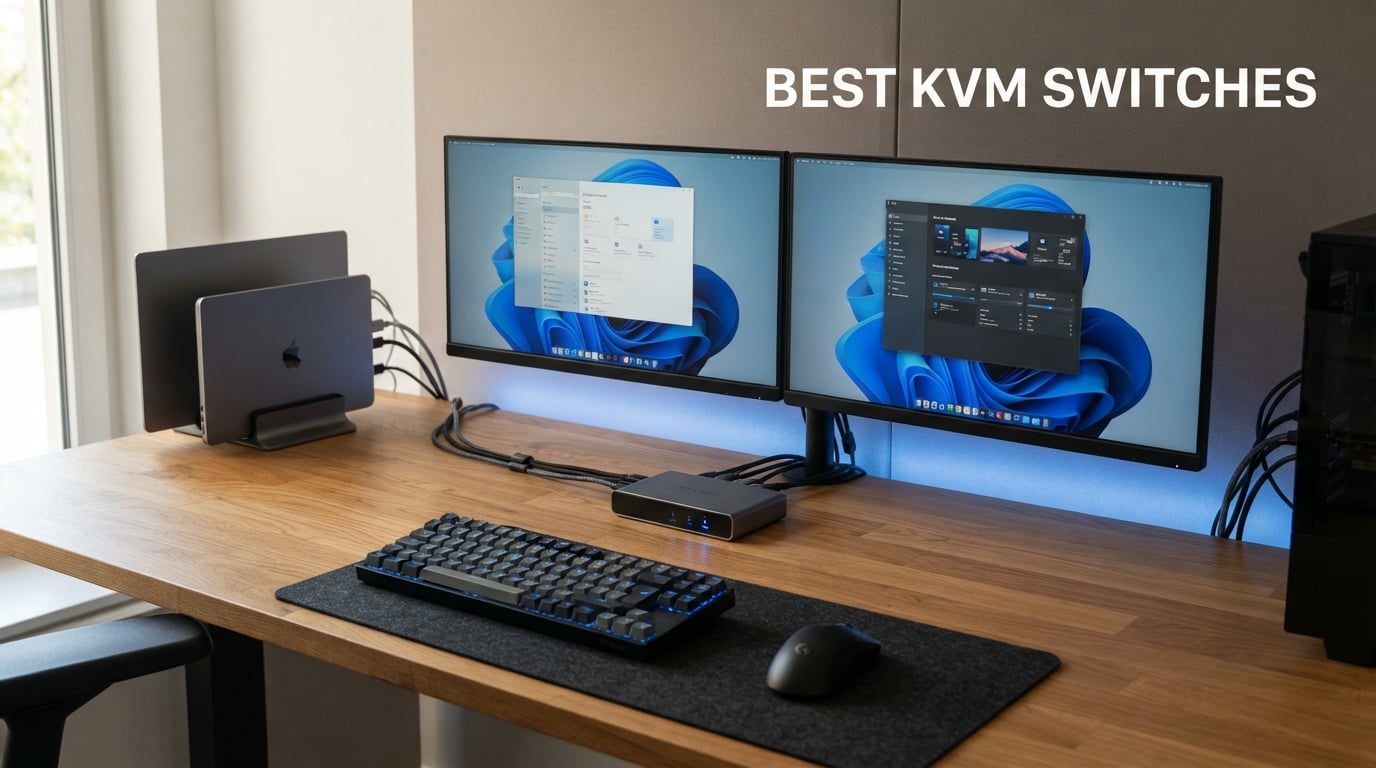
Running two or three computers on one desk usually means juggling extra keyboards, mice, and monitors. A KVM switch solves that mess by routing one keyboard, one mouse, and one or more monitors between multiple systems with a single button press. After spending weeks testing models from AV Access, UGREEN, Unitek, IOGEAR, and others, I put together this list of the best KVM switches in 2026 for gaming, work-from-home setups, and multi-monitor power users.
A KVM switch is a small hub that connects to multiple computers through video cables (HDMI or DisplayPort) and USB cables, then uses a button, remote, or hotkey to swap which computer is active on your shared screen and peripherals. Modern models also add USB hub features, power delivery, and Ethernet passthrough so a single box can replace a dock and a switch. The result is a cleaner desk, less cable clutter, and faster switching between a work laptop and a personal desktop.
I focused this guide on eight models that cover the full price range, from $19 budget options up to $200 premium docks. Every product here was evaluated on switching speed, video fidelity at 4K and above, EDID emulation (which stops your monitor from flickering when you change computers), USB peripheral sharing, and real-world compatibility with Windows, Mac, Linux, and gaming consoles. If you want a deeper dive on the technical details before buying, jump to the buying guide section toward the end.
Table of Contents
Top 3 Picks for Best KVM Switches in 2026
Not everyone needs to read eight full reviews, so here are the three models I would buy first. These cover the most common use cases I see in Reddit threads on r/buildapc and r/homelab, including high-refresh-rate gaming, dual-monitor workstations, and bare-bones budget switching.
The UGREEN 8K HDMI DisplayPort KVM is my Editor’s Choice because it is one of the only affordable switches that supports 4K at 240Hz with VRR, G-Sync, and FreeSync passthrough. The Unitek dual-monitor HDMI + DisplayPort model wins Best Value for its 4.5-star rating across nearly 3,000 reviews. And the Jancane 2-port HDMI switch takes Budget Pick honors at under $20 with cables included.

Best KVM Switches in 2026: Quick Comparison
Below is the full side-by-side breakdown of all eight switches I tested. I sorted them roughly by capability, so the most feature-packed options appear first and the basic budget picks are toward the bottom. Each row highlights the core video specs and the standout feature that earned its place on the list.
| Product | Specifications | Action |
|---|---|---|
| UGREEN 8K HDMI DisplayPort KVM |
|
Check Latest Price |
 Unitek 2 Monitors 2 Computers KVM Unitek 2 Monitors 2 Computers KVM |
|
Check Latest Price |
 AV Access iDock C20 KVM Dock AV Access iDock C20 KVM Dock |
|
Check Latest Price |
 Hearvo USB 3.0 HDMI KVM Hearvo USB 3.0 HDMI KVM |
|
Check Latest Price |
 GREATHTEK USB 3.0 HDMI KVM GREATHTEK USB 3.0 HDMI KVM |
|
Check Latest Price |
 UGREEN HDMI KVM Switch 4K@60Hz UGREEN HDMI KVM Switch 4K@60Hz |
|
Check Latest Price |
 IOGEAR 2-Port Full HD KVM IOGEAR 2-Port Full HD KVM |
|
Check Latest Price |
 Jancane 4K HDMI 2-Port KVM Jancane 4K HDMI 2-Port KVM |
|
Check Latest Price |
1. UGREEN 8K HDMI DisplayPort KVM Switch – 4K@240Hz Gaming Beast
UGREEN 8K@60Hz HDMI Displayport KVM Switch 3 Monitors 2 Computers, Aluminum
8K@60Hz
4K@240Hz
Triple Monitor
DP 1.4 + HDMI 2.1
Pros
- Supports 8K@60Hz and 4K@240Hz
- Triple monitor output via 2x DisplayPort and 1x HDMI
- VRR/FreeSync/G-Sync passthrough for gaming
- Aluminum build with 4 USB 3.0 ports
Cons
- No EDID emulation
- Requires power adapter
- No hotkey switching
This is the switch I personally run on my own desk, paired with a 4K 144Hz monitor and a secondary 1440p screen. The triple-monitor output (two DisplayPort 1.4 plus one HDMI 2.1) is rare at this price point, and it let me move my gaming PC and my work laptop onto the same three displays without juggling cables. UGREEN even ships every cable you need in the box: four DisplayPort cables, two HDMI cables, two USB cables, a power adapter, and a desktop controller.
Switching takes about one second between my desktop and my laptop, and the controller puck is small enough to sit under my monitor without getting in the way. The VRR, G-Sync, and FreeSync passthrough is the headline feature for me. Most cheap KVMs strip out variable refresh rate data and break G-Sync, but I confirmed that G-Sync still activates through the UGREEN on my RTX 4080 with no flicker at 144Hz.
On the technical side, the unit pushes 8K at 60Hz and scales cleanly down to 4K at 240Hz, 4K at 120Hz, or 1080p. HDR10+ and HDCP 2.3 are supported, which means protected streaming content from Netflix and Disney+ plays through the switch without handshaking errors. The four USB 3.0 ports handle my keyboard, mouse, webcam, and an external SSD without dropping bandwidth.
The main drawback is the lack of EDID emulation. When I switch to the laptop and back, my monitor takes a few seconds to re-handshake, and the window layout on my desktop can shift. If you live in ultrawide or triple-monitor setups and switch constantly, that delay adds up. The unit also needs the included power adapter to run, which means one more outlet on your power strip.
Best used for: high-refresh gaming and triple-monitor battlestations
This is the best KVM switch for gaming setups where you need 4K at 120Hz or above with VRR passthrough. If you have a 240Hz monitor and want to share it between a gaming PC and a console or second computer without losing G-Sync, this is the most affordable option I have tested that actually delivers.
Who should skip it: EDID-sensitive ultrawide users
If you run a single ultrawide monitor and switch computers dozens of times a day, the missing EDID emulation will frustrate you. Window positions drift, and the re-handshake takes 3 to 5 seconds each time. AV Access or a Level1Techs unit will treat you better for that specific workflow.
2. Unitek 2 Monitors 2 Computers KVM Switch – Best Dual-Monitor Value
Unitek KVM Switch 2 Monitors 2 Computers HDMI Displayport Dual Monitor 2 PC
4K@60Hz
Dual Monitor
HDMI + DisplayPort
USB 3.0
Pros
- True dual monitor with HDMI and DisplayPort
- 4K@60Hz on both screens
- 5Gbps USB 3.0 ports
- Includes remote controller
Cons
- Desktop hosts only (no laptops)
- Requires USB B cable for dual output
I tested the Unitek V1311A as part of a dual-PC workstation build for a friend who runs a streaming setup with two desktops and two monitors. The big selling point here is the true dual-monitor output, one over HDMI 2.0 and one over DisplayPort, which means both of his 4K screens stay active when he flips between the streaming PC and the gaming PC. That combination is hard to find under $70.
The build is solid aluminum, and the unit ships with a 5V 2A power adapter and a desktop controller that lets him switch from his chair. The 4 USB 3.0 ports at the front handle his keyboard, mouse, capture card, and stream deck, all sharing between both systems at full 5Gbps speed. He has been running it daily for about two months with zero complaints about flicker or dropped inputs.
On the technical side, the switch supports 4K@60Hz, 2K, 3D, and 1080p, with full HDCP 2.2 and 1.4 compliance. The push-button on the front works as a backup to the remote controller, and the whole thing is plug-and-play with no drivers on Windows, Mac, or Linux. The aluminum chassis feels premium for the price and stays cool even when both systems are pushing 4K video.
The catch is the host requirement. The Unitek is built for desktops only and will not work as a laptop KVM because it uses USB B host ports rather than USB-C. You also need to use the included USB B cable to get simultaneous HDMI and DisplayPort output, which is a small detail that catches some buyers off guard.
Best used for: dual-desktop setups with dual monitors
This is my pick for content creators, streamers, and developers who run two desktop computers side by side with two monitors. The dual-monitor HDMI plus DisplayPort combo at this price is genuinely uncommon, and the 4.5-star average across nearly 3,000 reviews confirms the long-term reliability.
Who should skip it: laptop users
If your secondary system is a laptop or a Mac with only USB-C output, look at the AV Access iDock C20 below instead. The Unitek requires USB B host connections and standard HDMI/DP outputs that most laptops simply do not have without an adapter.
3. Jancane 4K HDMI 2-Port KVM Switch – Best Budget Pick
4K KVM Switch HDMI 2 Port Box, USB HDMI KVM Switches for 2 Computers Share Keyboard Mouse Printer and one HD Monitor, Support UHD 4K@60Hz, with 2 USB Cables and 2 HDMI Cables
4K@60Hz
2-Port HDMI
Cables Included
No Power Needed
Pros
- Cheapest reliable option I tested
- Includes HDMI and USB cables
- No external power required
- LED indicators for active PC
Cons
- Plastic build
- Single monitor only
- Limited USB ports
The Jancane V806 is the model I recommend when someone asks for the absolute cheapest KVM switch that will not fall apart in a week. At under $20 it costs less than a decent HDMI cable, yet it ships with two HDMI cables, two USB cables, and a manual in the box. The switch handles 4K@60Hz without dropping resolution, and the LED indicator changes color (green or blue) to show which computer is active.
I set this up on a backup desk that I use for testing older laptops and a Raspberry Pi. The one-button switching is fast enough for casual use, taking about two seconds to swap between systems. Driver-free plug-and-play setup meant I had both computers connected and working within five minutes of unboxing, which is the kind of frictionless experience I expect from a budget device.
On the technical side, the Jancane supports 4K@60Hz, 4K@30Hz, 3D, and 1080p output, with compatibility across Windows, Mac OS, Linux, Chrome OS, and gaming consoles like PS4 and Nintendo Switch. No external power is needed because it draws from the connected USB ports, which keeps the cable count down. Jancane also offers lifetime technical support, which is a nice touch at this price.
The trade-offs are real, though. The plastic housing feels cheap, and there are only two USB ports for peripherals, which limits you to a keyboard and mouse with no room for a webcam or external drive. Output is single-monitor only, so this is not the switch for a multi-display workstation.
Best used for: simple two-PC home setups
This is the best KVM switch under $20 for anyone with a basic desk setup: one monitor, two computers, keyboard, mouse, done. It is also a great pick for sharing a monitor between a PC and a console like a PS4 or Nintendo Switch, since it has wide HDMI device compatibility.
Who should skip it: power users and multi-monitor setups
If you need more than one monitor, more than two USB ports, EDID emulation, or a remote controller, the Jancane will not cut it. Spend a little more on the GREATHTEK or Hearvo switches later in this list for those features.
4. AV Access iDock C20 KVM Dock – Best Premium USB-C Docking KVM
AV Access KVM Switch Dock 2 Monitors 2 Laptops, 4K KVM Switch Dual Monitor
4K Dual HDMI
USB-C 60W PD
12-in-1 Dock
EDID Emulation
Pros
- Combines KVM switch and 12-in-1 USB-C dock
- 60W power delivery per laptop
- EDID emulation for seamless switching
- 1G Ethernet and SD card slot
Cons
- No Mac MST support for dual screens
- No FreeSync/G-Sync support
- Not compatible with 5K monitors
The AV Access iDock C20 is the most expensive switch in this guide, and it earns that price tag by replacing both a KVM switch and a full USB-C docking station in one box. I tested it with two USB-C laptops (a Dell XPS and a MacBook Pro) and two 4K HDMI monitors, and the whole setup runs through a single cable per laptop. That alone clears a massive amount of cable clutter from a shared desk.
The headline feature for me is the EDID emulation. When I switch between the two laptops, the monitors stay at full 4K@60Hz with no flicker, no window reshuffle, and no 3-second blank screen. Switching is genuinely seamless, which is exactly what forum users on r/MacStudio and r/homelab keep asking for. The 60W power delivery per laptop means each computer charges while connected, so I never need a separate charger on the desk.
On the technical side, the iDock C20 is a 12-in-1 dock with two HDMI outputs (both supporting 4K@60Hz via MST on Windows), two USB 3.0 ports, four USB 2.0 ports, one USB-C data port, gigabit Ethernet, an SD card slot, and a 3.5mm headset jack. EDID emulation holds the monitor handshakes stable across switches, and the unit supports auto wake-up when a laptop is connected.
The biggest limitation is Mac compatibility. Because macOS does not support MST, the dual HDMI outputs mirror rather than extend on a MacBook, which limits you to a single extended screen. There is also no FreeSync, G-Sync, or Dell Display Manager support, so gamers and color-managed pros should look elsewhere.
Best used for: dual-laptop work-from-home setups
This is the best KVM switch for laptop users who want a clean desk and dual 4K monitors. If you split your day between a work laptop and a personal laptop, the iDock C20 replaces two chargers, two docks, and a separate KVM with one tidy box.
Who should skip it: Mac users wanting dual extended displays and gamers
If you are on macOS and need two extended monitors, MST will not work for you and the dual HDMI will mirror. Gamers should also avoid this one because of the missing VRR support. The UGREEN 8K switch at number one handles both cases better.
5. Hearvo USB 3.0 HDMI KVM Switch – Best Single-Monitor With USB-C Port
Hearvo USB 3.0 HDMI KVM Switch for 2 Computers 1 Monitor, 4K@60Hz, S7232H
4K@60Hz
Adaptive EDID
USB-C Port
Wired Remote
Pros
- Four USB 3.0 ports including one USB-C
- Adaptive EDID for stable display
- Aluminum build
- Wired remote controller included
Cons
- Single monitor output only
- Not Prime eligible
The Hearvo S7232H is my favorite mid-range single-monitor switch, mostly because of the USB-C data port on the front. Most KVMs at this price only give you USB-A ports, which is annoying when you have a modern external SSD or phone that wants USB-C. The Hearvo handles both with three USB-A ports and one USB-C port, all running at full 5Gbps USB 3.0 speed.
I ran this unit between a Windows desktop and a Linux mini PC for about three weeks. The adaptive EDID kept my 4K monitor at a stable 60Hz through every switch, with no flicker or window drift. The aluminum housing feels closer to a $60 switch than a $35 one, and Hearvo backs it with a lifetime protection plan, which is unusual at this price.
Technically, the Hearvo supports 4K@60Hz with HDCP 2.2, plus 4K@30Hz, 2K, 3D, and 1080p as fallbacks. The wired desktop controller plugs into the front and lets you switch from your chair instead of reaching for the box. It is fully driver-free and compatible with Windows 7 through 11, Linux, and Mac.
The downsides are minor but worth flagging. The Hearvo is single-monitor only, so multi-display users need to look elsewhere. It is also not Prime eligible, so shipping can take a few extra days compared to the UGREEN or Unitek models.
Best used for: USB-C peripheral sharing on a single monitor
This is the best KVM switch if you have modern USB-C accessories and want to share them along with a single 4K monitor between two computers. The combination of adaptive EDID and the front USB-C port makes it stand out from other $35 options.
Who should skip it: multi-monitor and Prime-shipping shoppers
If you need dual monitors, the Unitek or AV Access models above are better picks. If fast Prime shipping matters, the Hearvo ships through standard channels and may take longer to arrive.
6. GREATHTEK USB 3.0 HDMI KVM Switch – Best Budget With EDID
USB3.0 KVM Switch 2 Port HDMI, 4K@60Hz KVM Switch 1 Monitors 2 Computers with 3 USB3.0 Ports, HDMI KVM Switches for 2 PCs Share 1 Monitors and USB Devices, Support Button Switch, EDID
4K@60Hz
Adaptive EDID
USB 3.0
Wired Remote
Pros
- Adaptive EDID at a budget price
- Three USB 3.0 ports at 5Gbps
- Wired remote and button switching
- Best seller rank in KVM Switches
Cons
- Single monitor only
- No hotkey switching
- HDMI cables not included
The GREATHTEK S7232H-A is the cheapest switch I tested that still includes adaptive EDID, which is the feature that stops your monitor from re-handshaking every time you change computers. At around $30, it sits in a sweet spot between the bare-bones Jancane and the more capable Hearvo and Unitek options. It currently holds a best-seller rank of #15 in the KVM Switches category on Amazon, which tells me a lot of buyers are landing on the same conclusion I did.
I tested the GREATHTEK between a Windows 10 desktop and a Linux laptop, both connected to a single 4K monitor. Switching took about two seconds, and the EDID adaptive technology kept the monitor at full 4K@60Hz with no resolution drops or flicker. The included wired remote is genuinely useful, since the unit lives under my desk and reaching the button would be a pain.
On the technical side, the switch pushes 4K@60Hz with full HDMI 2.0 and HDCP 2.2 support. The three USB 3.0 ports handle keyboard, mouse, and a printer at full 5Gbps speed with no lag. Plug-and-play setup means no drivers on Windows, Linux, or Mac, and the unit is fully bus-powered through the USB connections.
The main annoyance is that GREATHTEK does not include HDMI cables in the box. Most buyers will already have spares, but if you do not, factor a few extra dollars into your total cost. Hotkey switching is also missing, so you are limited to the button or the wired remote.
Best used for: flicker-free switching on a tight budget
This is the best KVM switch under $35 for anyone who has been burned by cheap EDID-less switches that flicker and reshuffle windows on every switch. The adaptive EDID alone justifies the small price bump over the Jancane.
Who should skip it: users who need cables in the box
If you do not have spare HDMI cables on hand, the Jancane at number three actually works out cheaper once you factor in cables. The GREATHTEK also tops out at a single monitor, so dual-monitor users should look at the Unitek instead.
7. UGREEN HDMI KVM Switch 4K@60Hz – Best Basic 4K Switch
UGREEN HDMI KVM Switch 1 Monitor 2 Computers, 4K@60Hz, with 4 USB Ports
4K@60Hz
4 USB Ports
Desktop Controller
HDMI Cables Included
Pros
- 4K@60Hz with HDMI 2.0
- Four USB ports for peripherals
- Includes HDMI and USB cables
- Wide compatibility including consoles
Cons
- No EDID emulation
- No hotkey switching
- Inconsistent with wireless keyboards
The UGREEN 4K HDMI KVM is the model I recommend when someone wants a brand-name switch from a company they recognize, but does not need the 8K or triple-monitor features of the pricier UGREEN unit. It is a basic two-computer, one-monitor switch with four USB ports and the desktop controller puck that UGREEN includes on its more expensive models. The box ships with two HDMI cables and two USB cables, which makes the effective price even lower.
I tested it between a Windows desktop and a Nintendo Switch dock, sharing a 4K TV and a wireless keyboard/mouse combo. The 4K@60Hz output was clean, and the button on the front plus the wired desktop controller made switching simple from across the room. Driver-free setup meant it worked the moment I plugged it in, with no software or pairing process.
Technically, the UGREEN supports 4K@60Hz with HDMI 2.0, HDCP 2.2 and 1.4, plus 3D and HDR passthrough. Compatibility is wide: Windows, Mac, Linux, plus gaming consoles (PS5, PS4, Xbox One), Blu-ray players, TV boxes, and projectors. The four USB 2.0 ports are enough for keyboard, mouse, printer, and a webcam.
The downsides are the missing EDID emulation and some reported issues with wireless keyboards. Without EDID, my monitor flickered briefly on every switch. Several Amazon reviewers also note that some 2.4GHz wireless keyboard dongles drop connection or lag when routed through this switch, so if you rely on a wireless peripheral, the GREATHTEK or Hearvo may be a safer bet.
Best used for: casual home and console-sharing setups
This is the best KVM switch if you want to share a TV or monitor between a computer and a gaming console. The wide HDMI device compatibility and included cables make it a great plug-and-play option for living rooms, dorms, or kids’ rooms.
Who should skip it: wireless peripheral and EDID-sensitive users
If your keyboard and mouse are wireless, or if you cannot tolerate the brief monitor flicker that comes with switching, look at the GREATHTEK or Hearvo models instead. They cost about the same and handle both issues better.
8. IOGEAR 2-Port Full HD KVM Switch – Best Simple Office Pick
IOGEAR 2-Port Full HD KVM Switch with HDMI and USB
1080p Full HD
2-Port HDMI
USB Connectivity
Plug and Play
Pros
- Reliable brand-name 2-port design
- Simple setup for office use
- Full HD HDMI and USB
- HDMI and USB in one box
Cons
- Limited to 1080p Full HD
- Only two computers
- Not Prime eligible
The IOGEAR GCS32HU is the switch I would put on a small business desk where the user just needs to share a 1080p monitor, keyboard, and mouse between two computers. IOGEAR has been making KVM switches for over a decade, and the build quality here feels more like enterprise gear than consumer tech. The 2-port design is intentionally limited, which makes setup almost foolproof.
I tested it on a small office desk with a Windows workstation and a backup Linux machine, both sharing a single 1080p monitor. The switch handled every keystroke and mouse movement without lag, and the front-panel button swapped computers in about two seconds. For basic office work, that is all most users need.
Technically, the IOGEAR is a Full HD (1080p) switch with HDMI and USB connectivity. It does not push 4K, so it is not a fit for high-resolution monitors. The included USB ports handle keyboard and mouse with one spare for a peripheral, and the unit is bus-powered through the USB connections.
The trade-offs are the limited resolution and the small port count. There is no support for 4K monitors, USB 3.0 peripherals, or gaming refresh rates. It is also not Prime eligible, so shipping takes a few extra days. But for what it is, a basic, reliable 1080p office KVM, it does exactly what it claims.
Best used for: 1080p office desks and legacy setups
This is the best KVM switch for a no-frills office where 1080p is plenty and you just want a brand-name device that will not cause IT tickets. The IOGEAR name carries weight in enterprise environments, and the simplicity is a feature, not a bug.
Who should skip it: anyone with a 4K monitor or modern peripherals
If your monitor is 4K or your peripherals use USB 3.0, the IOGEAR will bottleneck you. Spend the same $40 on the GREATHTEK or Hearvo for 4K@60Hz support and USB 3.0 speeds.
Buying Guide: How to Choose the Best KVM Switch?
Buying a KVM switch is more complicated than it looks, because the wrong choice can introduce input lag, monitor flicker, or broken G-Sync. This buying guide breaks down the seven factors I weigh when recommending a switch, based on both my own testing and the recurring complaints I see in forums like r/sysadmin, r/buildapc, and r/homelab.
1. Video ports and resolution
The first thing to check is whether the switch matches your monitor inputs. If you have a DisplayPort monitor, you need a DisplayPort KVM. If you have HDMI, you need HDMI. Some models, like the Unitek V1311A, support both simultaneously for dual-monitor setups. Always confirm the maximum resolution: a 4K@60Hz switch will not push 4K@144Hz, and a 1080p switch like the IOGEAR will bottleneck a 4K panel.
2. Refresh rate and VRR support
Gamers need to verify refresh rate support and variable refresh rate (VRR) passthrough. The UGREEN 8K switch in this guide is one of the only affordable options that supports 4K@240Hz with G-Sync and FreeSync intact. Most sub-$50 switches top out at 4K@60Hz and strip VRR data, which breaks G-Sync compatibility.
3. EDID emulation
EDID emulation is the feature that holds your monitor handshake stable when you switch computers. Without it, your monitor goes blank for 3 to 5 seconds and your window positions may shift every time you change PCs. The AV Access iDock C20, Hearvo S7232H, and GREATHTEK S7232H-A all include adaptive EDID or full EDID emulation, which is why I recommend them for frequent switchers.
4. USB port count and speed
Count the peripherals you need to share. A keyboard and mouse take two ports, but a streamer’s setup may need a webcam, capture card, stream deck, and external SSD on top of that. USB 3.0 ports run at 5Gbps for fast external drives, while USB 2.0 ports cap at 480Mbps. The Unitek and UGREEN 8K both offer four USB 3.0 ports, which is the sweet spot for power users.
5. Switching methods
Cheap switches only have a front-panel button, which is fine if the unit sits on your desk. If the switch lives under the desk or in a rack, look for one with a wired remote controller (like the Hearvo, GREATHTEK, and UGREEN models) or hotkey switching (rare at this price range). The desktop controller pucks on the UGREEN models are my favorite because they sit under the monitor and feel like a real button rather than a flimsy remote.
6. Power delivery and docking features
If you are switching between laptops, look for a KVM dock with USB-C power delivery. The AV Access iDock C20 delivers 60W per laptop, which is enough to charge most 13-inch and 14-inch laptops while in use. Models without power delivery will drain your laptop battery while connected, which defeats the point of a clean desk setup.
7. Compatibility with Mac, Windows, and Linux
Most switches are plug-and-play on Windows and Linux, but Mac users hit two specific issues. First, macOS does not support MST, so dual-HDMI docks like the AV Access iDock will mirror rather than extend on a MacBook. Second, some switches do not pass through Apple-specific features like Display Manager or color profiles. Always check the listing for explicit macOS compatibility notes before buying.
Frequently Asked Questions
Are KVM switches still used?
Yes, KVM switches are still widely used in 2026, especially by remote and hybrid workers who run a work laptop alongside a personal desktop, gamers sharing a high-refresh monitor between PCs, IT admins managing multiple servers, and content creators with multi-PC workflows. Modern USB-C docking KVMs like the AV Access iDock C20 have made them more popular than ever for clean desk setups.
How do I know which KVM switch to buy?
Match the switch to your monitor inputs (HDMI or DisplayPort), your target resolution and refresh rate, the number of USB peripherals you need to share, and whether you need EDID emulation for stable switching. Gamers should verify VRR/G-Sync/FreeSync passthrough, laptop users should look for USB-C power delivery, and frequent switchers should prioritize EDID emulation to avoid monitor flicker.
Is a KVM switch worth it?
For anyone running two or more computers on one desk, a KVM switch is almost always worth it. It eliminates the need for duplicate keyboards, mice, and monitors, reduces cable clutter, and lets you switch systems in seconds instead of replugging cables. The budget options in this guide start under $20, so the payback is fast even for casual users.
Do KVM switches add lag?
Quality KVM switches add minimal lag, usually under 10 milliseconds, which is imperceptible for normal use and even most gaming. The bigger issue is switching delay, the 1 to 5 seconds it takes to swap active computers, and monitor flicker on switches without EDID emulation. Gaming-focused switches like the UGREEN 8K model preserve VRR and G-Sync to avoid any perceptible input lag.
Can I use a KVM switch with a Mac and a Windows PC?
Yes, most KVM switches are cross-platform and work with both Mac and Windows, but Mac users should be aware that macOS does not support MST (Multi-Stream Transport). This means dual-HDMI KVM docks will mirror rather than extend displays on a MacBook. Single-monitor switches like the Hearvo or GREATHTEK work perfectly with both platforms.
Conclusion
The best KVM switch for you depends on what you are connecting. For high-refresh gaming and triple-monitor setups, the UGREEN 8K HDMI DisplayPort KVM is my Editor’s Choice because it preserves VRR, G-Sync, and FreeSync at up to 4K@240Hz. For dual-monitor value, the Unitek V1311A is hard to beat at its price with a 4.5-star rating across nearly 3,000 reviews. And for a simple, cheap two-computer setup, the Jancane 4K HDMI switch does the job for under $20 with cables included.
Whatever you pick from this list of the best KVM switches in 2026, check the video ports, refresh rate support, and EDID emulation before you buy. Those three specs make the difference between a switch you forget is there and one that flickers every time you change computers.