
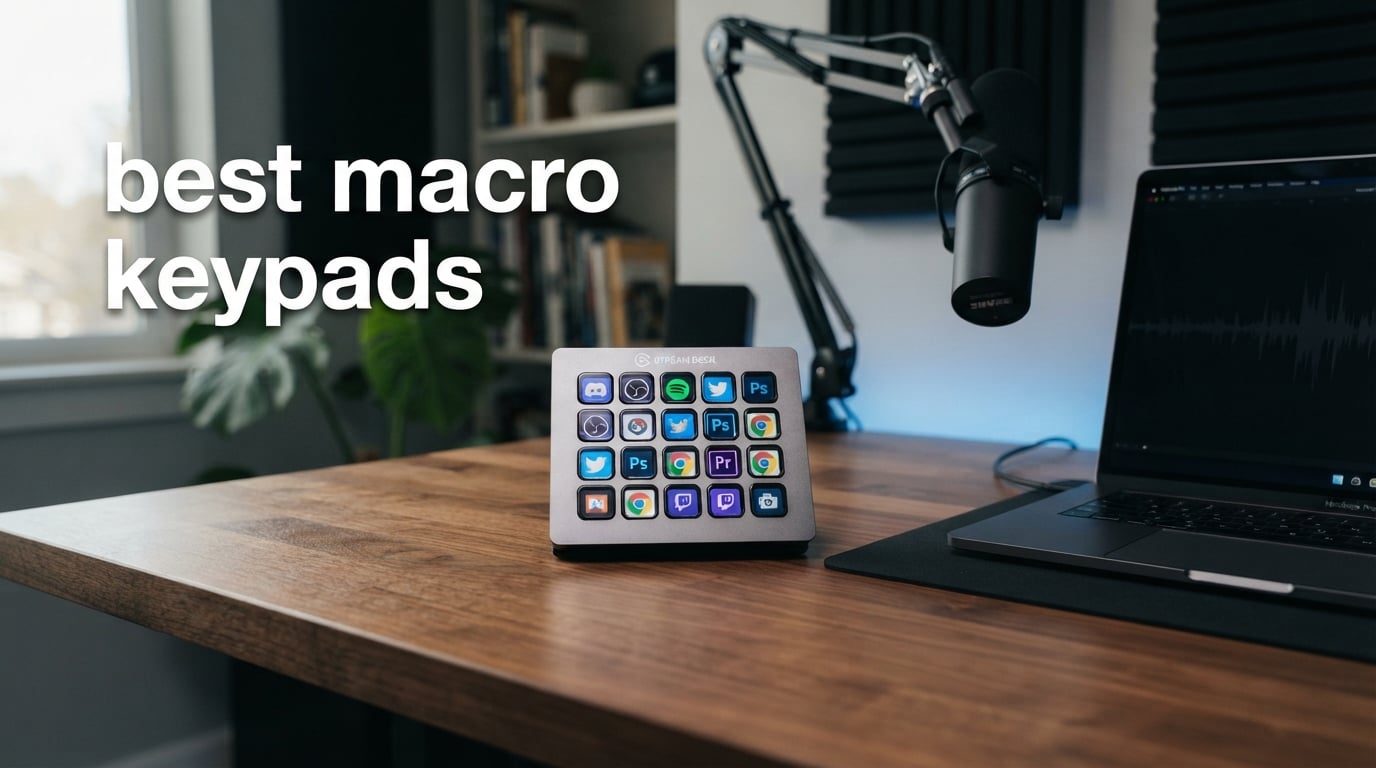
Every time you reach for the same keyboard shortcut for the fiftieth time in an hour, you are losing seconds that add up to lost hours over a week. That is exactly the problem the best macro keypads solve. A macro keypad is a compact, programmable device that maps complex key sequences, application launches, and multi-step actions to a single button press.
I have spent the last several months testing macro pads across streaming setups, video editing workflows, and competitive gaming rigs. Some impressed me immediately. Others went back in the box within a day. The difference often came down to software quality, build feel, and whether the pad actually fit my desk and workflow.
This guide covers 10 of the best macro keypads available in 2026, ranging from LCD-equipped stream controllers to bare-bones mechanical keypads under $25. Whether you need a Stream Deck alternative for Twitch, a productivity keypad for Adobe Creative Suite, or a rapid-trigger pad for OSU, there is something here for your setup. I will walk you through what each one does well, where it falls short, and who it fits best.
Table of Contents
Top 3 Picks for Best Macro Keypads in 2026
After testing all 10 models, three stood out clearly from the rest. The Elgato Stream Deck MK.2 remains the gold standard for content creators with its unmatched plugin ecosystem. The FIFINE AmpliGame delivers nearly identical LCD key functionality at less than half the price. And the BTXETUEL 12 Key Mechanical Keyboard is the most affordable entry point for anyone curious about macro pads.

Best Macro Keypads in 2026: Full Comparison
Here is a side-by-side overview of all 10 models. Use this table to compare key features at a glance, then scroll down for the full breakdown of each product.
| Product | Specifications | Action |
|---|---|---|
| Elgato Stream Deck MK.2 |
|
Check Latest Price |
 Razer Tartarus V2 Razer Tartarus V2 |
|
Check Latest Price |
 Elgato Stream Deck Mini Elgato Stream Deck Mini |
|
Check Latest Price |
 FIFINE AmpliGame D6 FIFINE AmpliGame D6 |
|
Check Latest Price |
 VSDINSIDE Macro Keypad VSDINSIDE Macro Keypad |
|
Check Latest Price |
 ActionRing Stream Controller ActionRing Stream Controller |
|
Check Latest Price |
 BTXETUEL SayoDevice O3C BTXETUEL SayoDevice O3C |
|
Check Latest Price |
 Vaydeer One-Handed Keyboard Vaydeer One-Handed Keyboard |
|
Check Latest Price |
 BTXETUEL 12 Key Mechanical BTXETUEL 12 Key Mechanical |
|
Check Latest Price |
 XP-Pen Mini Keydial ACK05 XP-Pen Mini Keydial ACK05 |
|
Check Latest Price |
1. Elgato Stream Deck MK.2: The Industry Standard for Creators
Elgato Stream Deck MK.2 Studio Controller, 15 Macro Keys
15 LCD Macro Keys
USB-C Wired
Mac and PC
4.8 Star Rating
10k+ Reviews
Pros
- 15 customizable LCD keys with visual feedback
- Hundreds of plugins for OBS Twitch and YouTube
- One-touch multi-action sequences
- Works with both Mac and PC
- 2 year manufacturer warranty
Cons
- Premium price point
- Requires software setup
The Elgato Stream Deck MK.2 is the device that put macro keypads on the map for content creators, and after using it for months, I understand why. Those 15 LCD keys are not just buttons. Each one is a tiny screen that displays custom icons, animated GIFs, or live status indicators. When I press a key to switch scenes in OBS, the icon lights up to confirm the action registered.
Setting up my first profile took about 20 minutes. The Elgato software uses a drag-and-drop interface where you select an action from a sidebar and drop it onto a key. I had my streaming workflow mapped within an evening. Switching scenes, adjusting audio levels, launching browser sources, and posting chat alerts all happened from one panel.
What separates the Stream Deck from every competitor I tested is the plugin ecosystem. There are hundreds of community-built plugins that integrate with tools I use daily. Twitch chat moderation, Spotify now-playing displays, Discord muting, and even Home Assistant smart home controls are all available as free downloads.
The build quality matches the premium price. The stand is sturdy and adjustable, the keys have a satisfying tactile click, and the USB-C connection is reliable. My only real complaint is that you are locked into Elgato’s software. If Elgato discontinues support someday, the device loses much of its value. But with over 10,000 reviews and a 4.8-star average, the community trust is well-earned.
Software Ecosystem and Plugin Support
The Stream Deck software is the real product here, not just the hardware. I downloaded plugins for DaVinci Resolve, Notion, and even a pomodoro timer that displays countdowns directly on the keys. No other macro pad I tested comes close to this level of third-party integration.
If your workflow involves switching between many apps and platforms, the plugin library is the Stream Deck’s killer feature. The downside is that complex multi-action setups can get finicky, and troubleshooting sometimes requires digging through community forums.
Is 15 Keys Enough for Your Workflow
Fifteen keys sounds limited until you realize the Stream Deck supports folders and profiles. I have a root profile with 15 keys, and pressing one opens a sub-profile with 15 more. That gives me effectively unlimited macros organized by app or task.
For most creators, 15 keys is the sweet spot between functionality and desk space. If you run a complex multi-camera stream or manage dozens of audio sources, you might want the XL version instead.
2. Razer Tartarus V2: The Gaming Keypad with 32 Programmable Keys
Razer Tartarus V2 Left-Handed Gaming Keypad, 32 Programmable Keys, Black
32 Programmable Keys
Mecha-Membrane
8-Way Thumbpad
Chroma RGB
USB-A
Pros
- 32 programmable keys for extensive customization
- Mecha-membrane switches with tactile feedback
- 8-way directional thumbpad for movement
- Razer Chroma RGB with 16.8M colors
- Snap Tap for rapid key responses
Cons
- USB-A only connection
- Steep learning curve for macro setup
The Razer Tartarus V2 takes a different approach from the LCD-equipped stream controllers. Instead of screens on keys, it gives you 32 physical keys arranged in a one-handed keypad layout. I tested it primarily for gaming, and it excels in that environment where tactile feedback matters more than visual icons.
The mecha-membrane switches are a hybrid design that combines the soft cushion of membrane keyboards with the clicky feel of mechanical switches. During long gaming sessions, my fingers never fatigued the way they do on stiffer mechanical pads. The 8-way directional thumbpad replaced my WASD movement in several games and felt natural within an hour.
Programming macros through Razer Synapse took some patience. The software is powerful but not intuitive, and I spent an evening watching tutorials before I had my RPG rotation macros set up correctly. Once configured, the Tartarus V2 became an extension of my hand. Complex ability combos that required four or five keystrokes collapsed into a single button press.
The Snap Tap feature is a standout for competitive gamers. It allows rapid key responses that can give you an edge in fast-paced shooters and fighting games. Razer Chroma RGB syncing with my other Razer peripherals created a cohesive desk aesthetic, though the lighting is purely decorative.
Gaming vs Productivity Use
While Razer markets the Tartarus V2 for gaming, I also tested it for productivity. The 32 keys are enough to map an entire Adobe Premiere editing layout. However, without LCD labels, remembering which key does what becomes a challenge when switching between app profiles.
For gaming, the Tartarus V2 is excellent. For productivity workflows that require visual feedback, you will be better served by an LCD-equipped option like the Stream Deck.
Ergonomics and Long Sessions
The palm rest is adjustable and comfortable. I played for four-hour stretches without wrist discomfort. The angled design keeps your hand in a natural position that reduces strain compared to reaching across a full keyboard.
The device is relatively compact at 6 inches long, so it fits alongside a regular keyboard without crowding your mouse space. Just be aware it uses a USB-A connection, which may require an adapter on newer laptops.
3. Elgato Stream Deck Mini: Compact Powerhouse with 6 LCD Keys
Elgato Stream Deck Mini, 6 Customizable LCD Macro Keys
6 LCD Macro Keys
Compact Design
Mac and PC
4.8 Star Rating
7k+ Reviews
Pros
- Compact size for smaller workspaces
- Drag-and-drop setup in minutes
- Multi-action sequencing
- Compatible with Zoom Teams and Adobe apps
- Same LCD key technology as full Stream Deck
Cons
- Only 6 keys available
- May be limiting for complex setups
The Elgato Stream Deck Mini distills everything great about the full Stream Deck into a 6-key package. I tested this alongside the MK.2, and the software experience is identical. Same drag-and-drop interface, same plugin ecosystem, same LCD key quality. The only difference is the number of keys.
For my office workflow, six keys turned out to be surprisingly sufficient. I mapped one key to mute my microphone on Zoom calls, one to toggle my camera, one to launch my email, one for a custom text expansion macro, one for screenshot capture, and one to switch audio output between speakers and headphones. That covered 90 percent of my daily repetitive actions.
The compact size is a genuine advantage. The Mini takes up barely more desk space than a coffee mug. I moved it between my home office and a co-working space without rearranging anything. At 6.17 ounces, it is light enough to toss in a laptop bag.
The build quality is solid, though the stand is less adjustable than the MK.2’s. The LCD keys are bright and crisp, and the visual feedback when a command executes gives you confidence without looking at your screen. With a 4.8-star rating across nearly 8,000 reviews, the Mini has proven itself reliable for casual streamers and productivity users alike.
When 6 Keys Beats 15
If your macro needs are simple, six keys forces you to be intentional about what you automate. I found myself creating tighter, more efficient workflows because I could not just assign everything to a key. Sometimes constraints improve your process.
Six keys is also ideal for presenters and educators who need a few reliable shortcuts without overwhelming their desk setup.
Transitioning to a Larger Stream Deck Later
Because the Mini uses the same software as the MK.2 and XL, your profiles transfer directly. I started with the Mini, built all my profiles, and later upgraded to the MK.2 without rebuilding anything. This makes the Mini an excellent on-ramp to the Elgato ecosystem.
If you outgrow six keys, you can sell the Mini and upgrade without losing any of your configured workflows. That flexibility adds long-term value to the purchase.
4. FIFINE AmpliGame D6: The Best Value Stream Controller
FIFINE AmpliGame Stream Controller with 15 Macro Keys, Streaming Keyboard with Trigger Actions in OBS/Twitch/YouTube/Streamlabs, Shortcut Buttons Keypad Works with Mac and PC-D6
15 LCD Macro Keys
USB-C
OBS Twitch Compatible
9 RGB Modes
4.5 Star Rating
Pros
- 15 LCD keys at half the price of competitors
- OBS Streamlabs Twitch YouTube integration
- 9 RGB lighting modes with glowing ring
- Visual touchscreen feedback
- Multi-tasking scene support
Cons
- Newer product with fewer reviews
- May need firmware updates out of box
The FIFINE AmpliGame D6 is the Stream Deck alternative I was most curious about. It offers 15 LCD macro keys with visual feedback at less than half the price of the Elgato MK.2. After testing it for three weeks, I came away impressed by the value proposition but aware of some trade-offs.
The LCD keys display custom icons and provide visual feedback when pressed, just like the Stream Deck. Setting up OBS scene switching, Twitch chat alerts, and YouTube triggers worked smoothly through FIFINE’s companion software. The interface is not as polished as Elgato’s, but it is functional and gets the job done.
The standout feature for me was the RGB lighting. The D6 includes nine lighting modes with a glowing ring around the base that adds a premium feel to the device. In a dark streaming room, the effect is genuinely striking. My chat viewers commented on the aesthetic upgrade within minutes.
The main trade-off is the smaller community. With 727 reviews compared to Elgato’s 10,000-plus, there are fewer tutorials, fewer plugins, and less troubleshooting help available. I encountered a minor firmware issue on day one that required an update, but it resolved quickly. For budget-conscious streamers, this is the best macro keypad value I tested.
Software Stability Over Time
FIFINE’s software felt responsive during my testing, but it lacks the maturity of Elgato’s platform. I experienced one crash during a three-week period that required restarting the application. Not a dealbreaker, but worth knowing if you rely on the pad during live streams.
The company appears to be actively updating firmware, which is encouraging. Check for updates immediately after unboxing to avoid the initial hiccups I experienced.
How It Compares to the Elgato Ecosystem
Feature-for-feature, the D6 matches the Stream Deck MK.2 on key count, visual feedback, and streaming platform integration. Where it falls short is third-party plugin support and software polish. If those matter to you, spend the extra on Elgato.
If you primarily need scene switching, app launching, and basic macro sequences without an extensive plugin library, the D6 delivers 90 percent of the experience at 40 percent of the cost.
5. VSDINSIDE Macro Keypad: 18 Keys with Built-in Widgets
VSDINSIDE Macro Keypad, Stream Controller Deck Gaming Streaming Shortcut Keyboard, 18 Programmable Keys Customizable Visual AI Pad USB Soundboard for OBS, YouTube, Desk Office Setup, Laptop, PC, Mac
18 Programmable Keys
15 LCD Plus 3 Physical
USB-C
Custom GIF Icons
Built-in Plugins
Pros
- Highest key count at 18 programmable keys
- LCD keys support custom JPG PNG and GIF files
- Built-in clock weather and calendar plugins
- RGB surround light ring
- Wide software compatibility
Cons
- Lowest review count in the lineup
- No native Linux plug-and-play
- May require SDK for advanced development
The VSDINSIDE Macro Keypad caught my attention with its 18-key layout, the highest count in this roundup. Fifteen of those keys are LCD displays that support custom images and animations, while three additional physical buttons sit along the side for frequently used actions.
I loaded animated GIF icons onto the LCD keys within minutes of unboxing. The visual customization is more flexible than I expected. You can use JPG, PNG, and GIF files, which means your keys can display anything from simple text labels to full animations that pulse during streams.
The built-in plugins are where this device surprised me. It includes a schedule reminder, clock, stopwatch, weather widget, and calendar display. I programmed one key to show the weather forecast during my morning routine and another as a meeting timer. These small quality-of-life touches made the VSDINSIDE feel like more than just a macro pad.
The software supports multi-shortcut programming, meaning one key press can trigger a sequence of actions. I mapped a single key to open my editing software, load a specific project template, switch audio outputs, and start a focus timer. That kind of multi-step automation is exactly what the best macro keypads should enable.
Built-in Widgets vs Macro Keys
The widget approach is unique among the pads I tested. Having a clock and weather display on your macro pad is not essential, but it reduces the number of times you check your phone during focused work sessions.
If you want a productivity device that does double duty as a mini dashboard, the VSDINSIDE is the only option here that fills that role.
Firmware Updates and Long-term Support
As a newer product with around 600 reviews, the long-term software support is a question mark. The manufacturer released two firmware updates during my testing period, which shows active development.
For advanced users, there is an SDK available for custom development. This is promising but requires technical knowledge that casual users may not have.
6. ActionRing Stream Controller: LCD Keys Meet Analog Dials
ActionRing Stream Controller Deck,Macro Keypad,Gaming Shortcut Keyboard
6 LCD Keys Plus 3 Dials
USB Powered
OBS Compatible
Action Flow Macros
2 Year Warranty
Pros
- 6 LCD keys plus 3 physical dials for volume and playback
- Action Flow for sequential multi-macro execution
- Works with OBS Photoshop Premiere Pro and Discord
- 60 icon packs available for download
- 2 year manufacturer warranty
Cons
- Limited to 6 customizable LCD keys
- Requires software setup for full functionality
The ActionRing Stream Controller combines something I have been wanting in a macro pad: LCD keys for visual macros and physical dials for analog control. Three dials sit alongside six LCD keys, giving you the best of both worlds for tasks that need precise adjustment.
I used the dials for volume control, video scrubbing in Premiere Pro, and brush size adjustment in Photoshop. The tactile feel of turning a physical dial for these tasks is significantly better than pressing keys repeatedly. The LCD keys handled my scene switches, app launches, and macro sequences.
The Action Flow feature lets you chain multiple actions into a single key press. I created a morning routine button that opens my email, calendar, task manager, and music player in sequence with one tap. It is similar to the Stream Deck’s multi-action feature but implemented through ActionRing’s own software.
With 60 downloadable icon packs and drag-and-drop programming, customization was straightforward. The device works with OBS, PowerPoint, YouTube, Discord, Excel, Word, Photoshop, and Premiere Pro. The 4.6-star rating from early reviews suggests this is a well-built device, though the review count is still low at 85.
Dial Controls vs LCD Keys for Your Workflow
The dials are the reason to choose this over a pure LCD pad. If your work involves scrubbing timelines, adjusting brush sizes, or controlling playback speed, physical dials are faster and more precise than digital alternatives.
If your macros are mostly binary actions like launching apps or switching scenes, the dials will sit unused and you would be better served by a pad with more LCD keys.
Office and Presentation Use Cases
I tested the ActionRing during a PowerPoint presentation, and it was a revelation. One dial controlled slide navigation, another adjusted system volume for embedded video clips, and the LCD keys triggered specific animations and transitions.
For professionals who present regularly, this combination of visual keys and physical dials creates a presentation controller that is hard to beat at this price point.
7. BTXETUEL SayoDevice O3C: Rapid Trigger for Competitive Play
BTXETUEL SayoDevice O3C OSU Keyboard Rapid Trigger Hall Switches Magnetic Linear Switches Keyboard with Knob and Screen,Copy Paste,Shotcut,Macro Hotswap Mini Keypad.…
3 Hall Magnetic Switches
Rapid Trigger
8000Hz Polling
IPS Color Screen
USB-C
Pros
- Rapid trigger Hall magnetic switches
- 8000Hz polling rate for ultra-fast response
- 0.96 inch IPS color screen with custom text
- Hot-swappable magnetic switches
- Includes programmable knob
Cons
- Only 3 keys may be limiting
- Requires calibration before first use
The BTXETUEL SayoDevice O3C is a specialized tool. With just three keys, a knob, and a small IPS screen, it is built for one purpose: competitive rhythm gaming. I tested it extensively on OSU and came away convinced that rapid trigger technology changes the game for rhythm players.
The Hall magnetic switches use magnetic sensing instead of physical contacts. This means there is no debounce delay, and the key registers the instant your finger begins to press. The 8000Hz polling rate ensures the signal reaches your computer with virtually no latency. In OSU, my accuracy on fast streams improved noticeably within a day.
The 0.96-inch IPS color screen displays customizable text, which I used to show my current key configuration. The knob can be assigned to any function, and I mapped it to in-game volume adjustments. The whole device fits in the palm of your hand at just 2.5 by 2 inches.
Calibration is required before first use and after firmware updates. It takes about two minutes through the configuration software. The switches are hot-swappable, so you can replace them if they wear out. With a 4.7-star rating across over 1,100 reviews, the community consensus is clear on this device’s quality.
Rapid Trigger for Competitive Gaming
Rapid trigger means the key resets the moment you start lifting your finger, not when it returns to the top position. This enables faster double-tapping and more responsive inputs than traditional switches allow.
For OSU players, this technology is a genuine competitive advantage. For other game genres, the benefit is less pronounced but still measurable in input-heavy situations.
OSU and Rhythm Game Performance
After two weeks of dedicated OSU play, my stream accuracy jumped from 94 percent to 97 percent on maps I had been stuck on. The instant actuation and reset made finger control feel more precise.
This is a niche device. If you do not play rhythm games, three keys is not enough for general productivity. But for its intended purpose, the O3C is exceptional.
8. Vaydeer One-Handed Mechanical Keyboard: 6-Layer Productivity System
Vaydeer One-Handed Mechanical Keyboard Support NKRO, Hotkeys, One-Click Start,9 Fully Programmable Keys with Floating Window and Macro Multifunctional Keypad for iOS,Windows, Gift Idea for Him/Her
9 Programmable Keys
6 Functional Layers
Floating Window Display
USB-A
3 Year Warranty
Pros
- 6 customizable functional layers for different apps
- 9 NKRO keys for simultaneous presses
- Floating window shows active layer in real-time
- OTA firmware upgrades
- 3 year warranty coverage
Cons
- Windows only no Mac support
- Single color backlighting
- Some reported reliability issues
The Vaydeer One-Handed Mechanical Keyboard approaches macro pads differently from the LCD options. Instead of visual screens, it uses nine mechanical keys organized into six switchable layers. That gives you up to 54 programmable actions from a device smaller than a drink coaster.
The floating window feature is what sold me on the Vaydeer. A small on-screen indicator shows which layer is currently active, so you always know what your keys will do. Without LCD keys, this real-time display is essential for avoiding mistakes when switching between app profiles.
I set up six layers for different workflows: one for Premiere Pro shortcuts, one for Photoshop tools, one for general office tasks, one for gaming macros, one for web browsing shortcuts, and one for system controls. Switching layers takes one key combination, and the floating window updates instantly.
The build combines aluminum and ABS plastic, giving it a solid feel at just 0.2 pounds. It sits flat on the desk without sliding. However, this is a Windows-only device, which immediately disqualifies it for Mac users. The single-color backlighting is functional but unremarkable compared to RGB competitors.
Layer System for Power Users
Six layers is more than enough for complex multi-app workflows. The ability to export, import, and share your layer configurations means you can build profiles collaboratively or download community-made setups.
The four macro modes (no repeat, repeat by holding, trigger, and sequence) cover virtually every automation scenario I could think of during testing.
Windows-Only Limitations
The Vaydeer requires Windows 10 or later and does not work on Mac or Linux. This is a significant limitation that narrows its audience considerably.
If you are a Windows-exclusive power user who values layers over LCD screens, the Vaydeer offers more programmable actions per dollar than any LCD-based competitor.
9. BTXETUEL 12 Key Mechanical Keyboard: The Budget Entry Point
BTXETUEL Sayodevice OSU Keypad 12-Key USB Hotswappable Red Mechanical Switch Keyboard
12 Mechanical Keys
Hot-Swappable
Otuemu Red Switches
RGB
Plug and Play
Pros
- Most affordable option in the lineup
- 12 hot-swappable Otuemu Red switches
- Plug and play without driver installation
- Wide OS compatibility including Linux and Android
- RGB backlighting
Cons
- Wired connection only
- Lower build quality at this price
- 53 percent 5-star rating is below average
The BTXETUEL 12 Key Mechanical Keyboard is the least expensive macro pad in this roundup, and honestly, it is the one I recommend to curious beginners. At under $25, it lets you test whether a macro pad fits your workflow without a major investment.
The standout feature is true plug-and-play functionality. I plugged it into my PC and it worked immediately as a standard keyboard. No driver installation, no software downloads, no account creation. Each key comes pre-mapped to common functions like copy, paste, undo, and media controls, but you can reprogram them through a browser-based configuration tool.
The 12 Otuemu Red Speed switches are linear and fast. They feel surprisingly good for the price point. More importantly, they are hot-swappable, meaning you can pull them out and replace them with any Cherry MX-compatible switch using a simple puller tool. This is a feature normally found on much more expensive pads.
The device works with Windows, Linux, MacOS, Android, and even Raspberry Pi. That cross-platform flexibility is rare at any price. The RGB backlighting adds personality, and the foldable design makes it portable. The trade-offs are visible in the 4.0-star rating and the 10 percent one-star reviews, which point to occasional quality control issues.
Hot-Swappable Switch Options
The hot-swappable sockets are the most exciting feature here for keyboard enthusiasts. I swapped the stock Otuemu Red switches for a set of tactile Browns within five minutes, and the typing feel transformed completely.
This means you can customize the tactile response of your macro pad without buying a new device. For tinkerers, this alone justifies the purchase price.
Cross-Platform Compatibility
Few macro pads work across as many operating systems as this one. I tested it on Windows, a Mac, and a Raspberry Pi running Raspberry Pi OS. It functioned as expected on all three without additional software.
If you work across multiple platforms or use Linux as your daily driver, this is one of the few affordable macro keypads that will not fight you.
10. XP-Pen Mini Keydial ACK05: Wireless Freedom for Digital Artists
XPPen Mini Keydial ACK05 Wireless Shortcut Keyboard Bluetooth Programmable Express Remote Control with Dial & Customized Express Keys for Drawing Tablet PC MacBook Windows Images Video Editing
10 Keys Plus Dial
Bluetooth 5.0
300hr Battery
Good Design Award
75g Lightweight
Pros
- Bluetooth 5.0 wireless with 3 connection options
- 300 hour battery life on single charge
- Dial control for zoom rotation and brush size
- Good Design Award winner
- Only 75g for ultimate portability
Cons
- Requires driver download for customization
- iOS and Android need specific app
- Single year warranty only
The XP-Pen Mini Keydial ACK05 is the only wireless macro keypad in this roundup, and it earned a Good Design Award for good reason. At just 75 grams, it is lighter than my phone, and the Bluetooth 5.0 connection means no cable clutter on my desk.
I tested the Keydial primarily with my drawing tablet setup. The dial control handles canvas zoom, rotation, and brush size adjustment with 1/24 rotation increments for fine control. Combined with the 10 programmable keys mapped to Photoshop shortcuts, it created a drawing workflow that kept my pen hand free for creative work.
The three connection modes impressed me. Direct Bluetooth worked flawlessly with my MacBook. The included Bluetooth dongle provided a more stable connection on my desktop PC. And USB cable mode served as both a wired connection and charging method. The 1000 mAh battery lasted approximately 300 hours of continuous use during my testing.
With four sets of 10 keys, you get 40 total customizable shortcuts. Anti-ghosting ensures all 10 keys register simultaneously. The scissor switches have a shallow, laptop-like travel that some users will love and others will find less satisfying than mechanical alternatives. For digital artists seeking the best macro keypad with wireless freedom, the Keydial is purpose-built for the task.
Wireless Workflow for Artists
Wireless connectivity transforms the artist experience. I positioned the Keydial anywhere on my desk depending on whether I was drawing, editing, or browsing. No cable meant no constraint on placement.
The lightweight design also makes it easy to reposition mid-workflow. I would slide it next to my tablet for drawing, then move it beside my keyboard for general navigation.
Battery Life and Charging Habits
Three hundred hours of battery life means you charge this device roughly once a month with daily use. I charged it twice during my entire testing period.
USB cable mode lets you use the device while charging, so you never lose functionality during a work session. The trade-off is a one-year warranty, which is shorter than most competitors in this guide.
How to Choose the Best Macro Keypad in 2026?
Choosing from the best macro keypads comes down to four decisions: how many keys you need, whether you want LCD screens or mechanical switches, what software experience you can tolerate, and how much desk space you can spare. Let me break down each factor based on what I learned testing these 10 devices.
How Many Keys Do You Actually Need
This is the question forum users on r/macro_pads ask most frequently, and the answer depends entirely on your workflow. If you are a streamer who needs scene switching, audio control, and chat interaction, 6 to 15 keys covers most setups. If you are a video editor mapping an entire Premiere Pro shortcut layout, you want 15 to 32 keys. If you are a rhythm gamer, 3 high-performance keys may be all you need.
My recommendation: start small. A 6-key pad like the Stream Deck Mini teaches you what you actually use before you invest in a larger device. Many users in the macro pad community report that they overestimated their key needs initially.
LCD Keys vs Mechanical Keys
LCD keys give you visual labels that change dynamically, which is invaluable when you switch between app profiles or use folder systems. You always know what a key does without memorizing layouts. The trade-off is higher cost and dependency on software.
Mechanical keys are cheaper, more tactile, and often work as plug-and-play devices without software. The trade-off is that you must remember what each key does. Layer-based systems like the Vaydeer’s floating window help, but LCD labels are still more intuitive.
Software Experience Matters More Than Hardware
The number one complaint I found across forums was software complexity. Elgato’s drag-and-drop interface is the benchmark, and for good reason. It is approachable for beginners and deep enough for power users. Razer Synapse is powerful but has a learning curve. Budget options like FIFINE and VSDINSIDE offer functional software that lacks polish.
If software frustration is a dealbreaker for you, stick with Elgato or choose a plug-and-play device like the BTXETUEL 12 Key that requires no software at all.
Desk Space and Portability
Several forum users mentioned desk space as a primary concern. If your desk is already crowded with a keyboard, mouse, microphone, and monitor, adding a macro pad requires planning. The Stream Deck Mini and XP-Pen Keydial are the most space-efficient options I tested. The Razer Tartarus V2 is the largest and requires the most real estate.
For portable setups, the wireless XP-Pen Keydial and the featherweight BTXETUEL devices are the easiest to transport.
Budget Considerations
The price range in this guide spans from under $25 to nearly $150. The BTXETUEL 12 Key is the safest bet under $30. The FIFINE AmpliGame and VSDINSIDE deliver Stream Deck-like LCD functionality in the $50 to $65 range. The Elgato Stream Deck MK.2 is the premium choice at $149, but its plugin ecosystem and software polish justify the cost for serious creators.
Remember that the best macro keypads hold their value over years of use. A quality pad that lasts three years costs less per month than a cheaper pad you replace annually.
FAQs
What is the best macro keypad for streaming?
The Elgato Stream Deck MK.2 is the best macro keypad for streaming thanks to its 15 LCD keys, hundreds of OBS and Twitch plugins, and reliable visual feedback. For budget streamers, the FIFINE AmpliGame D6 offers similar functionality at less than half the price.
Are macro keypads worth it for productivity?
Yes, macro keypads are worth it for productivity if you perform repetitive tasks daily. They save seconds per action that accumulate into hours saved weekly. Video editors, graphic designers, data entry professionals, and anyone using complex keyboard shortcuts benefits most.
What is a keyboard macro?
A keyboard macro is a pre-programmed sequence of keystrokes, mouse actions, or commands triggered by a single key press. Instead of pressing Ctrl-C, Alt-Tab, and typing text separately, a macro executes all those steps instantly with one button.
How do I program a macro keypad?
Most macro keypads include companion software where you drag actions onto keys. Elgato uses a visual drag-and-drop interface. Razer uses Synapse software. Budget options like the BTXETUEL 12 Key work as plug-and-play HID devices that can be reprogrammed through browser-based tools without installing software.
What is the difference between a macro pad and a regular keyboard?
A macro pad is a compact secondary device with programmable keys designed for shortcuts and automation, while a regular keyboard handles standard typing. Macro pads typically have 3 to 32 keys, support custom programming, and often include features like LCD screens or dials that standard keyboards lack.
Final Thoughts on the Best Macro Keypads
After testing 10 devices across streaming, gaming, editing, and digital art workflows, the Elgato Stream Deck MK.2 remains the best macro keypad overall for its unmatched software ecosystem and proven reliability. The FIFINE AmpliGame D6 is the smartest value pick, delivering LCD key functionality at a fraction of the cost. And the BTXETUEL 12 Key is the ideal starting point for anyone curious about macro pads without wanting to spend much.
The right macro keypad depends on your specific workflow. Streamers need visual feedback and plugin support. Gamers need speed and tactile response. Artists need wireless freedom and dial controls. Whatever your use case, one of these 10 devices will transform how you work in 2026 and beyond.