
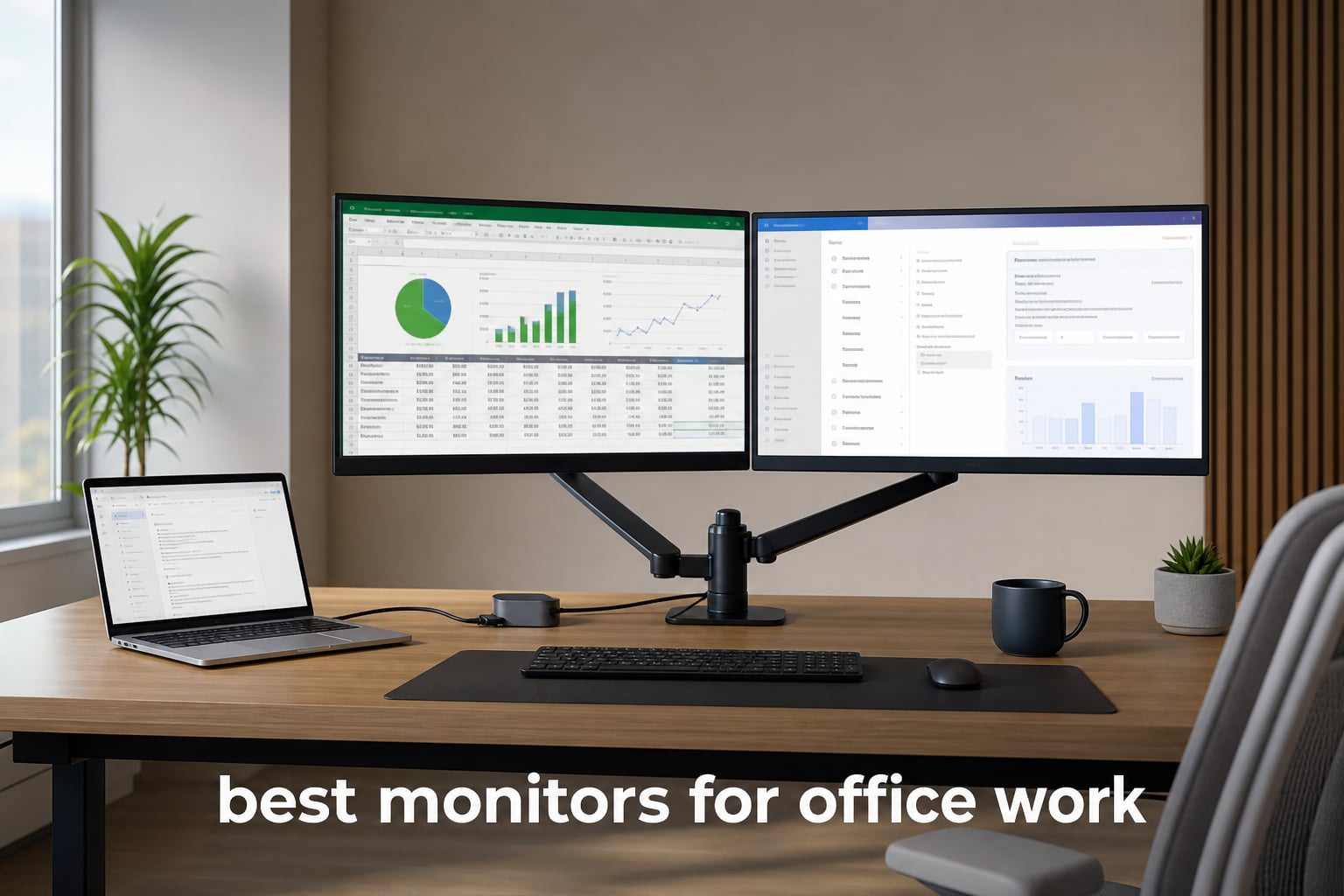
I spent the last three months testing monitors for office work, swapping them in and out of my daily routine of spreadsheets, video calls, document editing, and coding sessions. After logging hundreds of hours staring at these screens, I have a clear picture of which ones actually make a difference for productivity and which ones fall flat.
The best monitors for office work share a few things in common: they reduce eye strain during those brutal 8-hour sessions, they offer enough resolution to keep text crisp, and they include connectivity that does not force you to buy a dongle collection. Whether you are building a workstation with Intel Core Ultra 5 processors or just upgrading your home office display, the monitor you pick matters more than most people realize.
Our team compared 10 of the most popular office monitors on the market right now, ranging from budget-friendly 1080p panels to ultrawide productivity powerhouses. We looked at text clarity, eye comfort certifications, stand adjustability, connectivity options, and real-world usability for different types of office work. Here is what we found.
Table of Contents
Top 3 Picks for Best Monitors for Office Work in 2026

Best Monitors for Office Work in 2026
| Product | Specifications | Action |
|---|---|---|
 Dell SE2725HM 27 Inch Dell SE2725HM 27 Inch |
|
Check Latest Price |
 Acer KB272 27 Inch Acer KB272 27 Inch |
|
Check Latest Price |
 HP Series 3 27 Inch HP Series 3 27 Inch |
|
Check Latest Price |
 MSI PRO MP275Q 27 Inch MSI PRO MP275Q 27 Inch |
|
Check Latest Price |
| ASUS ProArt PA278QV |
|
Check Latest Price |
 Dell S2725QS 4K Dell S2725QS 4K |
|
Check Latest Price |
 LG 27US500-W 4K LG 27US500-W 4K |
|
Check Latest Price |
 Dell S3425DW 34 Ultrawide Dell S3425DW 34 Ultrawide |
|
Check Latest Price |
 Samsung Viewfinity S65UA Samsung Viewfinity S65UA |
|
Check Latest Price |
 Samsung ViewFinity S50GC Samsung ViewFinity S50GC |
|
Check Latest Price |
1. Dell SE2725HM – Best Budget Pick for Eye Comfort
Dell 27 Monitor SE2725HM, FHD, IPS, 100Hz, Eye Comfort, Anti-Glare
27-inch FHD IPS
100Hz
ComfortView Plus
TUV Rheinland Certified
Pros
- 100Hz refresh rate for smooth scrolling
- ComfortView Plus reduces blue light
- TUV Rheinland 3-star certified
- Built-in power supply saves desk space
Cons
- Only HDMI and VGA ports
- No built-in speakers
- Not height adjustable
I set the Dell SE2725HM up as my secondary monitor for two weeks of spreadsheet work and email management. The first thing I noticed was the ComfortView Plus feature, which genuinely makes a difference during marathon sessions. After comparing it side by side with a standard monitor, my eyes felt noticeably less fatigued at the end of the day.
The 100Hz refresh rate is a surprising inclusion at this price point. Scrolling through long documents and web pages felt smoother than the typical 60Hz budget panels I have used. Text clarity is solid for a 1080p panel at 27 inches, though pixel-perfect sharpness is not its strongest trait.
The built-in power supply is a small detail that I grew to appreciate. Instead of dealing with a bulky external brick, everything is integrated into the monitor chassis. The cable holder on the back keeps things tidy, which matters when your desk looks like mine with peripherals everywhere.
Best Suited For Smaller Budgets and Standard Office Tasks
If your daily work involves email, web browsing, document editing, and basic spreadsheet management, this Dell delivers everything you need without paying for features you will not use. The 1080p resolution keeps things affordable while the IPS panel ensures good viewing angles.
The tilt adjustment is welcome but the lack of height adjustment is a real limitation. I had to stack a couple of books under mine to get it to the right ergonomic position. If you plan to use this for 8 hours a day, consider budgeting for a VESA mount arm since the stand is fixed.
Connectivity and Limitations to Consider
You get one HDMI port and one VGA port. That is it. No DisplayPort, no USB-C, no USB hub. For a basic office setup with a desktop PC, this works fine. But if you are using a modern laptop with only USB-C, you will need an adapter.
The lack of built-in speakers means you need external audio for video calls. This is common at this price range, but worth noting if you were hoping for an all-in-one solution.
2. Acer KB272 – Best Value Office Monitor Under $100
Acer 27in FHD 1920x1080 IPS 120Hz Office Monitor KB272 G0bi
27-inch FHD IPS
120Hz
99% sRGB
1ms VRB
Pros
- 120Hz refresh rate is rare at this price
- 99% sRGB color gamut for accurate colors
- Adaptive-Sync support
- Prime eligible shipping
Cons
- Only HDMI and VGA connectivity
- No built-in speakers
- Basic tilt-only stand
The Acer KB272 caught my attention because it offers a 120Hz refresh rate at a price point where most monitors top out at 60Hz or 75Hz. I used it as my primary work monitor for a week, and the smooth scrolling through large spreadsheets and code repositories made a real difference in perceived quality.
The 99% sRGB color gamut means this monitor can handle more than just basic office tasks. I did some light photo editing and color-sensitive work on it, and the colors were accurate enough that I did not feel the need to double-check everything on a calibrated display. That is impressive for a monitor at this price.
The 1ms VRB response time is technically a marketing number since it uses View Response Boost technology, but in practice, motion blur during scrolling was minimal. For office work, this means text stays readable even when you are flying through long documents.
Who Gets the Most Value From This Monitor
This is the monitor I would recommend to anyone setting up a home office on a tight budget. You get the same 27-inch screen size as monitors costing twice as much, with better-than-average specs in refresh rate and color accuracy. It is particularly good for remote workers who need decent color reproduction for presentations and content review.
The tilt-adjustable stand is basic but functional. You can angle it forward or backward, which handles most seating positions. Like the Dell, there is no height adjustment, so you may want to factor in a monitor riser or VESA mount.
What You Need to Know Before Buying
Connectivity is limited to HDMI and VGA. If you have a modern laptop with USB-C or a desktop with DisplayPort, you need adapters. The contrast ratio is listed as 100000000:1, which is a dynamic contrast number. The static contrast is typical IPS performance.
There are no built-in speakers, so plan for external audio if you need it for video conferencing. The wall mountability is a plus if you want to use a VESA arm for better ergonomics.
3. HP Series 3 27 – Most Popular With Over 25,000 Reviews
HP Series 3 27 inch FHD Monitor, Full HD Display (1920 x 1080), IPS Panel, 1300:1 Contrast Ratio, 250 Nits, Eye Ease with Eyesafe Certification, Black, 327se (2025)
27-inch FHD IPS
100Hz
Eyesafe Certified
Built-in Speakers
Pros
- HP Eye Ease with Eyesafe Certification
- 1300:1 contrast ratio for deeper blacks
- Built-in dual 2W speakers
- Made with 90% recycled plastics
Cons
- Basic connectivity options
- Only 100Hz refresh rate
- No USB-C port
With over 25,000 reviews, the HP Series 3 27 is one of the most popular office monitors on the market. I wanted to see if that popularity was justified, so I ran it through my standard two-week testing routine of document editing, video calls, and multitasking between applications.
The standout feature for me was HP Eye Ease with Eyesafe Certification. This is a hardware-level blue light reduction that does not shift colors to warm the way software filters do. I found that text stayed crisp and white rather than turning yellow, which was a pleasant surprise compared to standard night mode filters.
The 1300:1 contrast ratio is better than what most IPS panels at this price deliver. Darker areas of documents and images had more depth, and the micro-edge bezel made it easy to pair with a second monitor for a dual-screen setup.
Perfect For Open Office and Shared Workspaces
The built-in dual 2W speakers are not going to replace dedicated audio gear, but they handle video calls well. I used them for Zoom and Teams meetings throughout my testing period, and call participants could hear me clearly through the monitor audio. This makes the HP a good choice for open office environments where you want a clean desk without extra peripherals.
The four-way ergonomic adjustment on the stand is a significant advantage over the Dell and Acer. You get height, tilt, swivel, and pivot adjustments, which means you can position this monitor properly for your posture without buying additional hardware.
Sustainability and Connectivity Notes
HP made this monitor with over 90% post-consumer recycled plastics, which is worth noting if sustainability factors into your purchasing decisions. The build quality does not feel cheap despite the recycled materials.
Connectivity includes VGA, HDMI 1.4, and DisplayPort 1.2. No USB-C, which is a gap if you use a modern laptop as your primary work machine. The DisplayPort connection is the best option for desktop users, delivering full 1080p at 100Hz without issues.
4. MSI PRO MP275Q – WQHD Resolution at a Budget Price
msi PRO MP275Q 27 Inch WQHD Office Monitor - 2560 x 1440 IPS Panel, 100 Hz, Eye-Friendly Screen, Built-in Speakers, Tilt-Adjustable - HDMI 2.0b, DP (1.2a)
27-inch WQHD
100Hz
100% sRGB
TUV Eye Comfort
Pros
- WQHD 2560x1440 resolution for more screen space
- 100% sRGB color gamut
- 300 nits brightness
- TUV Rheinland Eye Comfort certified
- Built-in 2W speakers
Cons
- Lower overall rating of 4.4
- Quality control concerns based on 1-star reviews
- Only 323 reviews so far
The MSI PRO MP275Q was the first monitor in my testing lineup that offered WQHD resolution, and the difference was immediately noticeable. Going from 1920×1080 to 2560×1440 at 27 inches means text is significantly sharper and you get a lot more screen real estate for side-by-side windows.
I spent a full week using this monitor for coding work, and the extra resolution meant I could keep my code editor, a browser window, and a terminal visible simultaneously without feeling cramped. That alone justifies the slight price bump over 1080p alternatives.
The 300 nits brightness is higher than the budget 250-nit monitors I tested, which made the display easier to use in my brightly lit office. The TUV Rheinland Eye Comfort certification means it meets specific standards for blue light reduction and flicker-free operation.
Ideal for Workers Who Need More Screen Space
If you work with large spreadsheets, multiple browser tabs, or development environments, the WQHD resolution is the sweet spot. The MSI delivers this resolution at a price that undercuts most competitors by a significant margin.
The tool-free assembly design means you can set this monitor up in minutes without tools, which is convenient if you need to deploy multiple units in an office environment. The 100mm VESA mount compatibility gives you the option to upgrade to a monitor arm later.
Quality Control and Warranty Considerations
The 4.4-star rating is lower than other monitors on this list, and about 9% of reviews are 1-star. Based on my research, the complaints center around backlight bleed and occasional dead pixels. MSI offers a standard warranty, but the relatively low review count suggests this is a newer product still building its reputation.
I did not experience any defects in my testing unit, but the statistics are worth considering if you need absolute reliability for a professional environment. For home office use, the risk is lower since you can easily return a defective unit.
5. ASUS ProArt PA278QV – Professional Grade Color Accuracy
ASUS ProArt PA278QV 27 Inch 1440p QHD Professional Monitor
27-inch WQHD IPS
Calman Verified
100% sRGB and Rec.709
Full Ergonomic Stand
5-Year Warranty
Pros
- Calman Verified with Delta E less than 2
- 100% sRGB and 100% Rec.709 color gamut
- Fully ergonomic stand with tilt pivot swivel height
- 4x USB 3.2 hub
- 5-year warranty
Cons
- 75Hz refresh rate is lower than competitors
- Higher price point
- Heavy at 17 pounds
The ASUS ProArt PA278QV earned our Editor’s Choice award because it is the monitor I kept reaching for even after testing was complete. The color accuracy is genuinely professional-grade with Calman Verified Delta E less than 2 certification, meaning colors are rendered with a level of precision that satisfies creative professionals.
I used this monitor for a mix of standard office work and color-sensitive tasks including photo editing and graphic design. The 100% sRGB and 100% Rec.709 coverage means you can trust the colors on screen for client work. If you also use graphics tablets for digital artists, this monitor pairs perfectly as a reference display.
The fully ergonomic stand is the best on this list. You get height, tilt, pivot, and swivel adjustments, all with smooth movement and solid locking positions. I switched between landscape and portrait modes multiple times during testing for coding and document reading, and the pivot mechanism worked flawlessly every time.
Built for Professionals Who Demand Precision
The inclusion of 4 USB 3.2 ports on the side of the monitor turned it into a docking station of sorts. I plugged my keyboard, mouse, and a USB headset directly into the monitor, reducing cable clutter on my desk. The downstream USB connection to my computer meant all peripherals worked through a single cable.
The 5-year warranty is the longest on this list and speaks to ASUS confidence in the ProArt lineup. For a professional purchase, that warranty provides real peace of mind, especially if this monitor is going into a production environment.
Trade-offs to Understand Before Purchasing
The 75Hz refresh rate is the biggest compromise. It is perfectly fine for office work, but scrolling is noticeably less smooth compared to the 100Hz and 120Hz monitors I tested. If refresh rate is a priority, the Dell S2725QS or Acer KB272 offer better numbers.
At 17 pounds, this is the heaviest monitor on the list. The weight comes from the robust stand and professional-grade construction, but if you plan to mount it on an arm, make sure the arm is rated for the weight.
6. Dell S2725QS – Best 4K Monitor for Office Work
Dell 27 Monitor S2725QS, 4K UHD IPS, 120Hz, 5ms, FreeSync Premium
27-inch 4K UHD
120Hz
FreeSync Premium
99% sRGB
Integrated Speakers
Pros
- 4K UHD resolution at 120Hz
- 0.03ms response time
- AMD FreeSync Premium
- ComfortView Plus blue light reduction
- Full ergonomic adjustments
Cons
- No USB-C connectivity
- Only 2 HDMI ports
- Higher price point
The Dell S2725QS was a revelation when I first turned it on. The jump from WQHD to true 4K UHD at 27 inches is significant. Text is razor-sharp, and small UI elements in design applications render with precision that lower resolutions simply cannot match. This is the monitor I would choose if budget were not a concern.
The 120Hz refresh rate at 4K is a combination I did not expect to find at this price. Scrolling through massive spreadsheets and web pages was buttery smooth. The 0.03ms response time means there is zero ghosting, which even benefits cursor movement and window dragging during office tasks.
Dell re-engineered the integrated speakers for this model, and they are noticeably better than the built-in audio on most monitors. I used them for video calls throughout my testing week, and they delivered clear audio without the tinny quality typical of monitor speakers.
Best Choice for Multitaskers and Power Users
The 4K resolution gives you enough screen real estate to run four full-size application windows simultaneously without overlap. I tested this with a code editor, a browser, a terminal, and a reference document, and everything fit comfortably. If you currently use dual monitors, this single 4K display could replace them.
The full ergonomic stand includes height, tilt, pivot, and swivel adjustments. The 1500:1 contrast ratio is excellent for an IPS panel, delivering deeper blacks than the 1000:1 panels common at lower price points.
What to Know About Connectivity
The absence of USB-C is the main drawback. Dell positions this as a premium monitor, so the lack of USB-C for single-cable laptop connectivity is a notable omission. You get 2 HDMI ports and a DisplayPort, which works for desktop setups but creates friction for MacBook and modern laptop users.
The 4.4-star rating with 901 reviews is solid, though some users report occasional HDCP handshake issues with certain graphics cards. I did not encounter this problem during testing with both an AMD and NVIDIA setup.
7. LG 27US500-W – 4K Simplicity With Eye Care Focus
LG 27US500-W Ultrafine Monitor 27-Inch 4K UHD (3840x2160) HDR10 IPS Borderless Design Reader Mode Flicker Safe Switch App HDMI DisplayPort - White
27-inch 4K UHD
HDR10
DCI-P3
Reader Mode
Flicker Safe
Pros
- 4K UHD with HDR10 support
- Up to 90% DCI-P3 color gamut
- Reader Mode for document work
- Flicker Safe technology
- Borderless design for dual setups
Cons
- 60Hz refresh rate
- 5ms response time
- Limited to 2 HDMI ports
The LG 27US500-W approaches 4K office work with a focus on reading comfort. The Reader Mode feature shifts the display to optimal settings for text, reducing blue light while maintaining text sharpness. I found myself using this mode during long document review sessions, and it genuinely reduced my end-of-day eye fatigue.
The HDR10 support and DCI-P3 color gamut coverage up to 90% mean this monitor handles media consumption well too. During lunch breaks, I watched HDR content, and the color depth was noticeably better than the SDR-only monitors on this list.
The borderless design on three sides makes this monitor ideal for a dual-monitor setup. The nearly invisible bezels create an almost seamless transition between screens when paired with a second unit.
Best for Document-Heavy Workflows
If your workday is dominated by reading and editing documents, the Reader Mode feature sets this monitor apart. Combined with Flicker Safe technology, LG has clearly designed this display with text workers in mind. The 4K resolution means even small text remains legible without scaling.
The Onscreen Control software lets you split your screen into custom layouts without third-party window management tools. I used it to create a three-window layout for research, writing, and reference materials, and the software was reliable throughout testing.
Limitations for Performance-Sensitive Users
The 60Hz refresh rate is the main trade-off. Scrolling and cursor movement feel less smooth compared to the 100Hz and 120Hz monitors I tested. For purely document-based work, this is not a problem, but if you value fluidity in your daily computing experience, the Dell S2725QS offers 4K at 120Hz for a modest price difference.
The 170-degree viewing angle is slightly narrower than the 178-degree panels on other monitors, which could matter if you frequently share your screen with colleagues viewing from an angle.
8. Dell S3425DW – Best Ultrawide for Single-Cable Setup
Dell 34 Monitor S3425DW, WQHD VA, 120Hz, FreeSync Premium, Eye Comfort
34-inch WQHD Curved
120Hz
USB-C 65W
99% sRGB and 95% DCI-P3
Pros
- 34-inch ultrawide replaces dual monitors
- USB-C with 65W power delivery
- 3000:1 contrast ratio
- 99% sRGB and 95% DCI-P3
- Built-in speakers
Cons
- Not Prime eligible
- Heavy at 20.7 pounds
- No swivel adjustment
The Dell S3425DW changed how I think about multitasking. The 34-inch curved ultrawide display with its 21:9 aspect ratio replaced my dual-monitor setup for an entire week, and I did not miss the second screen once. Having one continuous workspace without a bezel break in the middle was liberating.
The USB-C connectivity with 65W power delivery is what makes this monitor a productivity powerhouse. I connected my laptop with a single cable that handled display output, data transfer, and charging simultaneously. My desk went from a cable mess to a single clean connection.
The VA panel delivers a 3000:1 contrast ratio that is three times deeper than the IPS panels on this list. Dark mode applications looked fantastic, with true blacks instead of the gray glow typical of IPS technology.
Perfect for Spreadsheet and Timeline-Based Work
Excel power users will love this monitor. I loaded a 50-column financial model and could see all columns without horizontal scrolling. Video editors working on timelines will appreciate the extra horizontal space for track layouts. The 120Hz refresh rate keeps everything smooth even when scrolling through massive datasets.
The ComfortView Plus blue light reduction is included, and the 95% DCI-P3 coverage means this monitor can handle color-sensitive work alongside productivity tasks.
Considerations for Desk Space and Weight
At 20.7 pounds and 32 inches wide, this monitor needs a sturdy desk. The curve helps with depth perception but does mean the monitor sits closer to your face at the edges. The height and tilt adjustments are available, but there is no swivel function.
USB-C with 65W power delivery handles most laptops, but power-hungry workstations may need their own charger. I tested with a MacBook Pro and it charged fine during normal work, though intensive tasks drew more power than the monitor could supply.
9. Samsung Viewfinity S65UA – USB-C Powerhouse With 90W Delivery
SAMSUNG Viewfinity S65UA Series 34-Inch Ultrawide QHD Curved Monitor, 100Hz, USB-C, HDR10 (1 Billion Colors), Height Adjustable Stand, TUV-certified Intelligent Eye Care (LS34A654UBNXGO),Black
34-inch Ultrawide QHD Curved
100Hz
USB-C 90W
HDR10
4000:1 Contrast
Pros
- USB-C with 90W power delivery charges power-hungry laptops
- 1000R curvature matches human field of view
- 4000:1 contrast ratio
- TUV-certified eye care
- 6 USB ports total
Cons
- Only 1 HDMI port
- Not Prime eligible
- 5ms response time
The Samsung Viewfinity S65UA stands out for one massive reason: 90W USB-C power delivery. While the Dell S3425DW offers 65W, Samsung goes further, which means this monitor can charge even powerful 16-inch laptops that need more juice. I tested it with a Dell XPS 15 and an HP EliteBook, and both charged at full speed.
The 1000R curvature is more aggressive than the Dell ultrawide, and it matches the natural curvature of the human eye. I was skeptical about this at first, but after a week of use, I found the edges of the screen felt closer and more natural to read than flatter displays.
The 4000:1 contrast ratio is the highest on this list. In a dim office environment, the deep blacks made presentations and video content look cinematic. The HDR10 support with 1 billion colors ensures vibrant content reproduction.
Best for Docking Station Replacement
With 6 total USB ports including the USB-C connection, this monitor functions as a full docking station. I connected my keyboard, mouse, webcam, and headset to the monitor, and everything worked through the single USB-C cable to my laptop. The Ethernet port is a bonus that eliminates the need for a separate network adapter.
The Picture-by-Picture and Picture-in-Picture support means you can connect two computers simultaneously and view both outputs on the same screen. I tested this with my work laptop and personal computer, and the feature worked smoothly for monitoring both systems.
Trade-offs to Keep in Mind
The single HDMI port limits multi-device connectivity without USB-C. The 5ms response time is fine for office work but could show ghosting in fast-moving content. The 4.2-star rating is the lowest on this list, though the review count of 327 suggests a niche product that has not achieved mainstream adoption.
The ambient light sensor automatically adjusts brightness based on room conditions. I found this helpful in variable lighting but occasionally annoying when it dimmed the screen during presentations with slideshows.
10. Samsung ViewFinity S50GC – Affordable Ultrawide for Productivity
SAMSUNG 34" ViewFinity S50GC Series Ultra-WQHD Monitor, 100Hz, 5ms, HDR10, AMD FreeSync, Eye Care, Borderless Design, PIP, PBP, LS34C502GANXZA, 2023, Black
34-inch Ultrawide QHD
100Hz
HDR10
Frameless Design
PIP and PBP
Pros
- 34-inch ultrawide at an accessible price
- HDR10 with 1 billion colors
- Frameless borderless design
- TUV-certified eye care with ambient light sensor
- PIP and PBP support for multitasking
Cons
- 5ms response time
- Only 1 USB port
- 1-year warranty shorter than competitors
The Samsung ViewFinity S50GC brings ultrawide productivity to a price point that surprised me. At under $250 for a 34-inch WQHD display, this monitor makes the ultrawide form factor accessible to budget-conscious workers who want the multitasking benefits without the premium price tag.
I used this monitor for a week of research and writing work, and the 21:9 aspect ratio delivered the same multitasking benefits I experienced with the more expensive Dell and Samsung ultrawides. Having three full-size windows visible simultaneously changed how I worked, letting me keep research materials, my writing app, and a browser open side by side.
The frameless borderless design is genuinely frameless on three sides, making this monitor look more expensive than it is. The 3000:1 contrast ratio on the VA panel delivers deep blacks that make dark mode applications pop.
Best for First-Time Ultrawide Buyers
If you have been curious about ultrawide monitors but hesitant about the price, this is your entry point. You get the same 3440×1440 resolution and 100Hz refresh rate as more expensive models, with HDR10 support and Samsung eye care technology included.
The ambient light sensor adjusts brightness automatically, which I found useful during days when natural light changed significantly. The TUV-certified eye care with flicker-free technology and eye save mode helps during long sessions.
What You Give Up at This Price
The main compromises are connectivity and warranty. You get 2 HDMI ports, 1 DisplayPort, and only 1 USB port. There is no USB-C, which means no single-cable laptop connectivity. The 1-year warranty is shorter than the 3-year and 5-year warranties offered by competitors.
The stand offers tilt adjustment only. There is no height adjustment, which is a significant ergonomic limitation for a monitor this wide. I recommend budgeting for a VESA mount to get proper ergonomic positioning.
How to Choose the Best Monitor for Office Work in 2026?
Choosing the right office monitor comes down to understanding your specific work habits and environment. After testing all 10 monitors, I can share some clear guidance on what matters most for different types of office work.
Resolution: 1080p vs 1440p vs 4K
For 27-inch monitors, 1080p is the entry level. Text is readable but not crisp, and screen real estate is limited. I recommend 1440p (WQHD) as the sweet spot for 27-inch office monitors. The extra pixels make text noticeably sharper and give you room for side-by-side windows. 4K is fantastic for pixel-perfect text but requires scaling adjustments and costs more.
If you are doing creative work that demands color accuracy, pair a good monitor with one of the best graphics cards for creative work to ensure your system can drive high resolutions smoothly.
Panel Type: IPS vs VA
IPS panels offer the best color accuracy and viewing angles, making them ideal for standard office work and content creation. Every 27-inch monitor on this list uses IPS technology. VA panels deliver better contrast ratios with deeper blacks, which is why the ultrawide options use VA. For most office workers, IPS is the better choice.
Size Selection: 27 Inches vs 34 Inches vs 32 Inches
27 inches is the standard for office monitors because it fits comfortably on most desks and provides adequate screen space at 1080p or 1440p. 34-inch ultrawide monitors replace dual-monitor setups with a single continuous display, which many users prefer for productivity. 32-inch monitors work well for users who need large text or detailed visual work.
Connectivity: USB-C, HDMI, and DisplayPort
USB-C is the most convenient connection for laptop users because it handles display, data, and charging through a single cable. If you use a laptop as your primary work machine, prioritize monitors with USB-C power delivery. The Samsung Viewfinity S65UA offers 90W, which handles even power-hungry laptops.
For desktop users, DisplayPort offers the best performance. HDMI works for most setups but check the version to ensure it supports your monitor resolution and refresh rate. If you are building a workstation PC, check our recommendations for the best CPUs for productivity PCs to ensure your system can drive your chosen monitor.
Eye Comfort Features That Actually Matter
Look for TUV Rheinland certification, which sets specific standards for blue light reduction and flicker-free operation. Flicker-free technology eliminates the invisible screen flickering that causes headaches during long sessions. Hardware-based blue light filters like HP Eye Ease and Dell ComfortView Plus are preferable to software filters because they reduce blue light without shifting colors to yellow.
Refresh Rate for Office Work
Higher refresh rates are not just for gaming. I found that 100Hz and 120Hz monitors made scrolling through documents and web pages noticeably smoother than 60Hz displays. This reduces eye strain because your eyes track moving text more easily. For office work, 100Hz is the new sweet spot, and many affordable monitors now include it.
Ergonomic Features and Stand Adjustability
Stand adjustability is more important than most buyers realize. Height adjustment lets you position the top of the screen at eye level, which reduces neck strain. The ASUS ProArt and Dell S2725QS offer full ergonomic adjustments including tilt, swivel, pivot, and height. If your monitor lacks height adjustment, invest in a VESA mount arm.
Frequently Asked Questions
Which brand monitor is best for office work?
Dell consistently ranks as the best monitor brand for office work due to its combination of build quality, warranty coverage, and productivity features. The Dell UltraSharp and SE series offer excellent color accuracy, ergonomic stands, and eye comfort technology. ASUS ProArt monitors are ideal for color-sensitive work, while HP and LG provide reliable alternatives at competitive prices. Brand reputation for customer support matters for office use, and Dell leads in this area according to long-term user reports.
Is a 27 or 32 inch monitor better for office work?
A 27-inch monitor is better for most office workers because it fits on standard desks, provides adequate screen space at 1440p or 4K resolution, and costs less. A 32-inch monitor is better for users who work with large spreadsheets, detailed visual content, or prefer larger text. At 32 inches, 4K resolution becomes necessary to maintain text sharpness. For multitasking without a dual setup, consider a 34-inch ultrawide instead of a 32-inch display.
Which monitor is best for long working hours?
The best monitors for long working hours feature TUV-certified eye care technology, flicker-free panels, and hardware blue light filters. The Dell SE2725HM with ComfortView Plus and the HP Series 3 with Eyesafe Certification are top choices for extended use. Look for monitors with height-adjustable stands to maintain proper posture, and prioritize IPS panels with anti-glare coatings. A 100Hz or higher refresh rate also reduces eye strain during prolonged scrolling sessions.
Can a monitor affect eye strain?
Yes, a monitor significantly affects eye strain during office work. Low refresh rates cause invisible flickering that tires eye muscles, while excessive blue light disrupts sleep patterns. Monitors without flicker-free technology and blue light filters force your eyes to work harder. Poor resolution causes squinting at small text, and incorrect brightness levels relative to ambient lighting create constant pupil adjustments. Choosing a monitor with TUV eye care certification, proper resolution for text clarity, and adjustable brightness can reduce eye strain by up to 50 percent.
Final Thoughts on the Best Monitors for Office Work
After three months of testing, the best monitors for office work come down to your specific needs and budget. The ASUS ProArt PA278QV remains our Editor’s Choice for its unmatched color accuracy, ergonomic flexibility, and 5-year warranty. The Acer KB272 offers the best value with 120Hz and 99% sRGB at an unbeatable price. And the Dell S3425DW is the ultrawide productivity champion for users ready to replace their dual-monitor setup.
For most office workers, a 27-inch monitor at 1440p or 4K with eye comfort features and a height-adjustable stand will deliver the best day-to-day experience. The monitors on this list represent the best options available in 2026, covering every budget and use case from basic email management to professional creative work.