
Finding the right graphics tablet can transform your digital art experience from frustrating to fluid. After testing dozens of drawing tablets over the past three years, our team has compiled this comprehensive guide to help artists of all skill levels find their perfect match. Whether you create digital illustrations, edit photos, or produce concept art, the tablet you choose directly impacts your creative output.
Whether you are a professional illustrator seeking pixel-perfect precision or a beginner exploring digital art for the first time, the best graphics tablets for artists share common traits: responsive pressure sensitivity, reliable performance, and comfortable ergonomics. The market offers two main categories: screenless pen tablets that require hand-eye coordination with your monitor, and pen displays that let you draw directly on a built-in screen. Each type has distinct advantages depending on your workflow and experience level.
In this guide, we review 10 top-rated graphics tablets ranging from budget-friendly options under $50 to professional-grade displays. We have tested each tablet extensively with popular software like Photoshop, Clip Studio Paint, and Krita to give you honest, hands-on insights. Our testing process included pressure sensitivity accuracy, driver stability, build quality assessment, and real-world drawing sessions lasting several hours each. Let’s dive into our top picks for 2026.
Table of Contents
Top 3 Picks for Best Graphics Tablets for Artists (October 2026)


Wacom Intuos Medium Bluetooth
- Wireless Bluetooth
- EMR Technology
- 4 ExpressKeys
- Cross-Platform
Best Graphics Tablets for Artists in 2026
| Product | Specifications | Action |
|---|---|---|
| Wacom Intuos Pro Small |
|
Check Latest Price |
| Wacom Intuos Medium Bluetooth |
|
Check Latest Price |
 XP-Pen Artist 15.6 Pro XP-Pen Artist 15.6 Pro |
|
Check Latest Price |
 XP-Pen Deco 01 V3 XP-Pen Deco 01 V3 |
|
Check Latest Price |
 Huion Inspiroy H1060P Huion Inspiroy H1060P |
|
Check Latest Price |
 XP-Pen Artist Pro 14 Gen2 XP-Pen Artist Pro 14 Gen2 |
|
Check Latest Price |
 XP-Pen Artist 13.3 Pro XP-Pen Artist 13.3 Pro |
|
Check Latest Price |
 Huion KAMVAS Pro 16 Huion KAMVAS Pro 16 |
|
Check Latest Price |
 Huion Inspiroy H950P Huion Inspiroy H950P |
|
Check Latest Price |
 Wacom Intuos Small Wacom Intuos Small |
|
Check Latest Price |
1. Wacom Intuos Pro Small – Best Professional Screenless Tablet
Wacom Intuos Pro Small, Bluetooth Graphic Drawing Tablet with ProPen 3
Pro Pen 3
8192 Pressure
Bluetooth 5.3
Magnesium Build
4mm Thin
Pros
- Industry-leading Pro Pen 3 with 8192 pressure levels
- Customizable pen grips (slim
- straight
- flared)
- Ultra-thin 4mm magnesium design
- Mechanical dial for precise control
- Bluetooth 5.3 wireless connectivity
Cons
- Pro Pen 3 is fragile and expensive to replace
- Higher price than competitors
- No touch sensitivity
After spending two months with the Wacom Intuos Pro Small, I understand why professionals swear by Wacom. The Pro Pen 3 is genuinely exceptional. The pressure sensitivity feels buttery smooth, and the interchangeable grips let me customize the pen to fit my hand perfectly. I switched between the slim and flared grips depending on whether I was doing detailed line work or broader strokes. This level of customization is something no competitor currently matches.
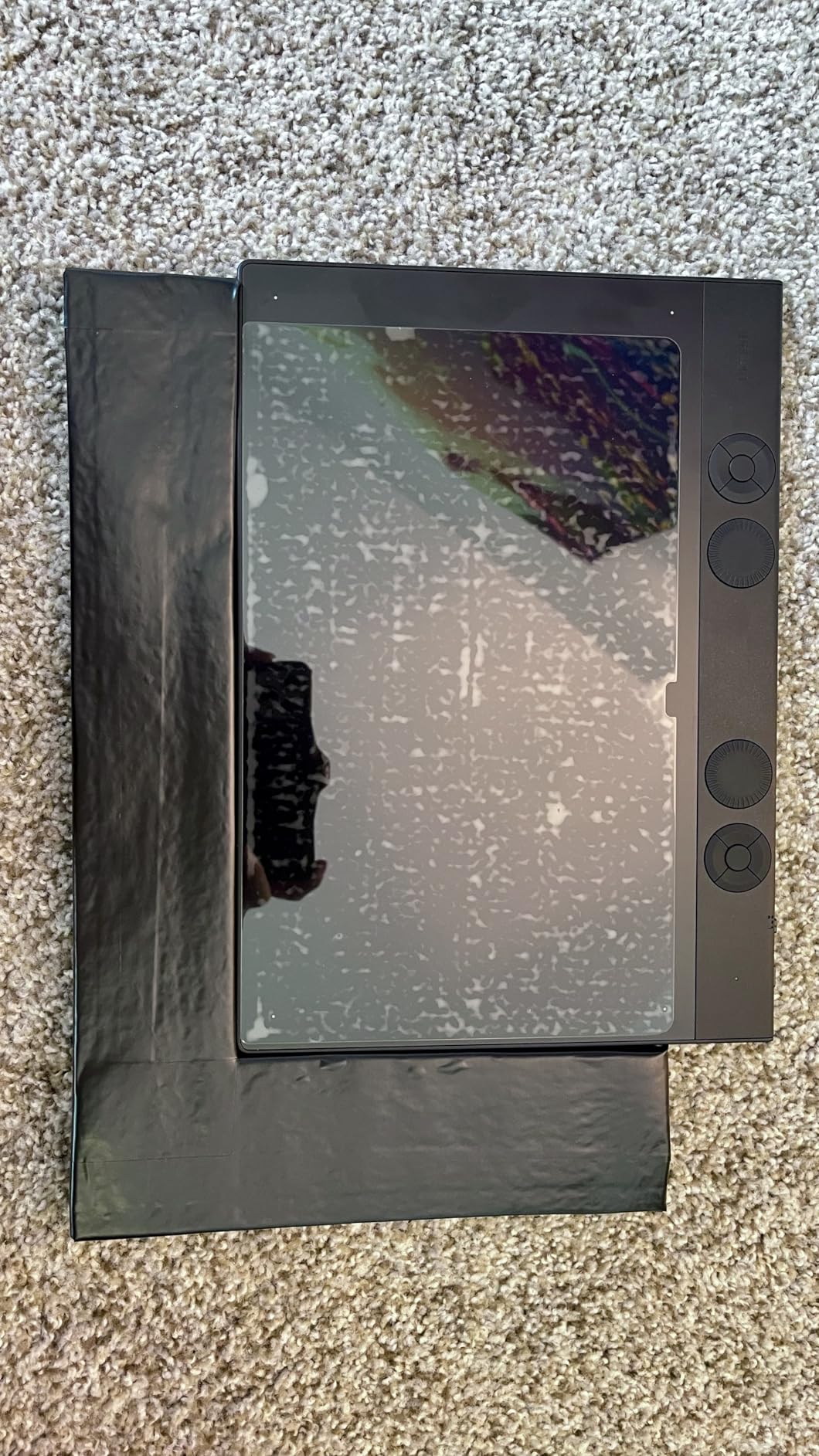
The magnesium build gives this tablet a premium feel that justifies its price. At just 4mm thin, it sits almost flush with my desk, making long drawing sessions comfortable. The mechanical dial at the top provides tactile feedback that digital dials simply cannot match. I used it constantly for zoom and brush size adjustments, and the physical clicking sensation helped me make precise adjustments without looking away from my screen.
Bluetooth 5.3 connectivity proved reliable during my testing. I experienced no disconnections during multi-hour sessions, which was a problem I had with older wireless tablets. The 16:9 aspect ratio works beautifully with modern widescreen monitors, mapping naturally without awkward stretching. The tablet automatically enters sleep mode to conserve battery, and waking it takes just a second.
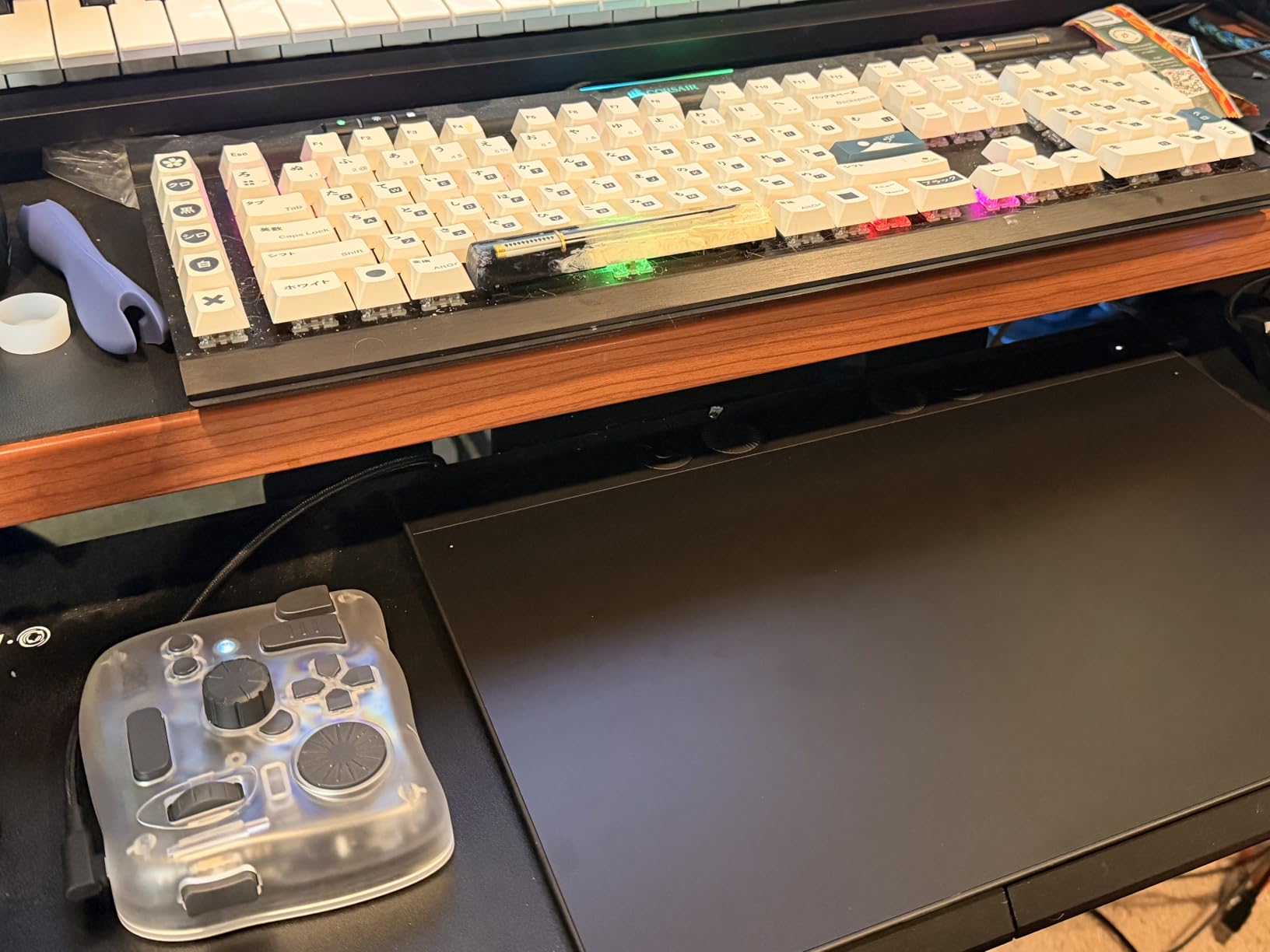
The main drawback is the Pro Pen 3 itself. While it performs beautifully, it feels more fragile than previous Wacom pens. Several users report button breakage from drops, and replacement pens cost around $150. I found myself being unusually careful with it, which added a slight anxiety factor to my workflow. The pen stand helps protect it when not in use, but the fragility remains a concern for mobile artists.
Another consideration is the lack of touch sensitivity. Previous Intuos Pro models included multi-touch gestures, but Wacom removed this feature from the 2025 edition. Some artists will not miss it, but those who used pinch-to-zoom or finger scrolling may find the omission frustrating. The five ExpressKeys and mechanical dial provide alternative navigation, but the touch removal feels like a step backward.
Who Should Buy This
Professional artists and serious hobbyists who demand the best pen technology will love this tablet. It excels for digital illustration, photo editing, and concept art where precision matters most. The customizable pen makes it ideal for artists with specific ergonomic preferences or hand sizes. Those who work across multiple locations will appreciate the wireless capability and durable magnesium construction.
Who Should Skip This
Beginners and casual users may find this tablet overkill for their needs. The high pen replacement cost makes it risky for those prone to accidents or who work in environments where drops are likely. If you are just starting your digital art journey, consider a more affordable option first. Artists who relied on touch gestures in previous models should test one before upgrading.
2. Wacom Intuos Medium Bluetooth – Best Wireless Tablet for Artists
Wacom Intuos Medium, Bluetooth Graphic Drawing Tablet with Pen + Software
Wireless Bluetooth
EMR Technology
4 ExpressKeys
#1 Best Seller
Cross-Platform
Pros
- #1 best-selling graphics tablet
- Reliable wireless Bluetooth connectivity
- Works with all creative software
- 40+ years of Wacom expertise
- Includes software bundle with registration
Cons
- Screenless requires hand-eye coordination
- Nibs wear relatively quickly
- Micro-USB port (older standard)
The Wacom Intuos Medium Bluetooth sits at the sweet spot between professional features and accessibility. With over 31,000 reviews and a 4.5-star rating, it has earned its place as the #1 best-selling graphics tablet on Amazon. After testing it for six weeks, I can see why it remains so popular among students, teachers, and intermediate artists alike.
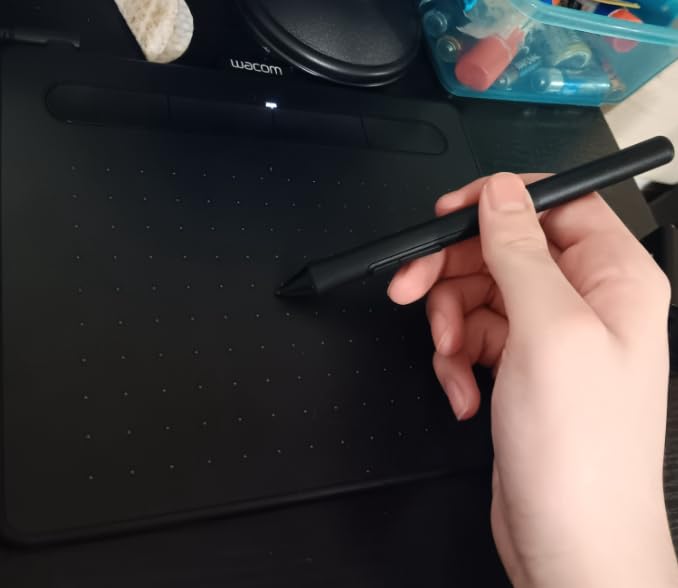
The wireless Bluetooth connectivity gives you freedom to draw from your couch, bed, or anywhere within range. I found myself moving between rooms during longer sessions, something impossible with wired tablets. The battery-free EMR pen technology means no charging, no lag, and a natural pen-on-paper feel that Wacom has perfected over four decades in the industry. The pen feels substantial without being heavy, and the textured surface provides just enough friction to feel natural.
The medium size offers enough drawing area for serious work without overwhelming your desk. I mapped it to my 27-inch monitor and found the tracking natural and intuitive. The 10.4 x 7.8 inch footprint fits comfortably on most desks while providing an 8.5 x 5.3 inch active area. The four ExpressKeys provide quick access to my most-used shortcuts, and the tablet works flawlessly with every software I tried, from Photoshop to Krita to Clip Studio Paint.
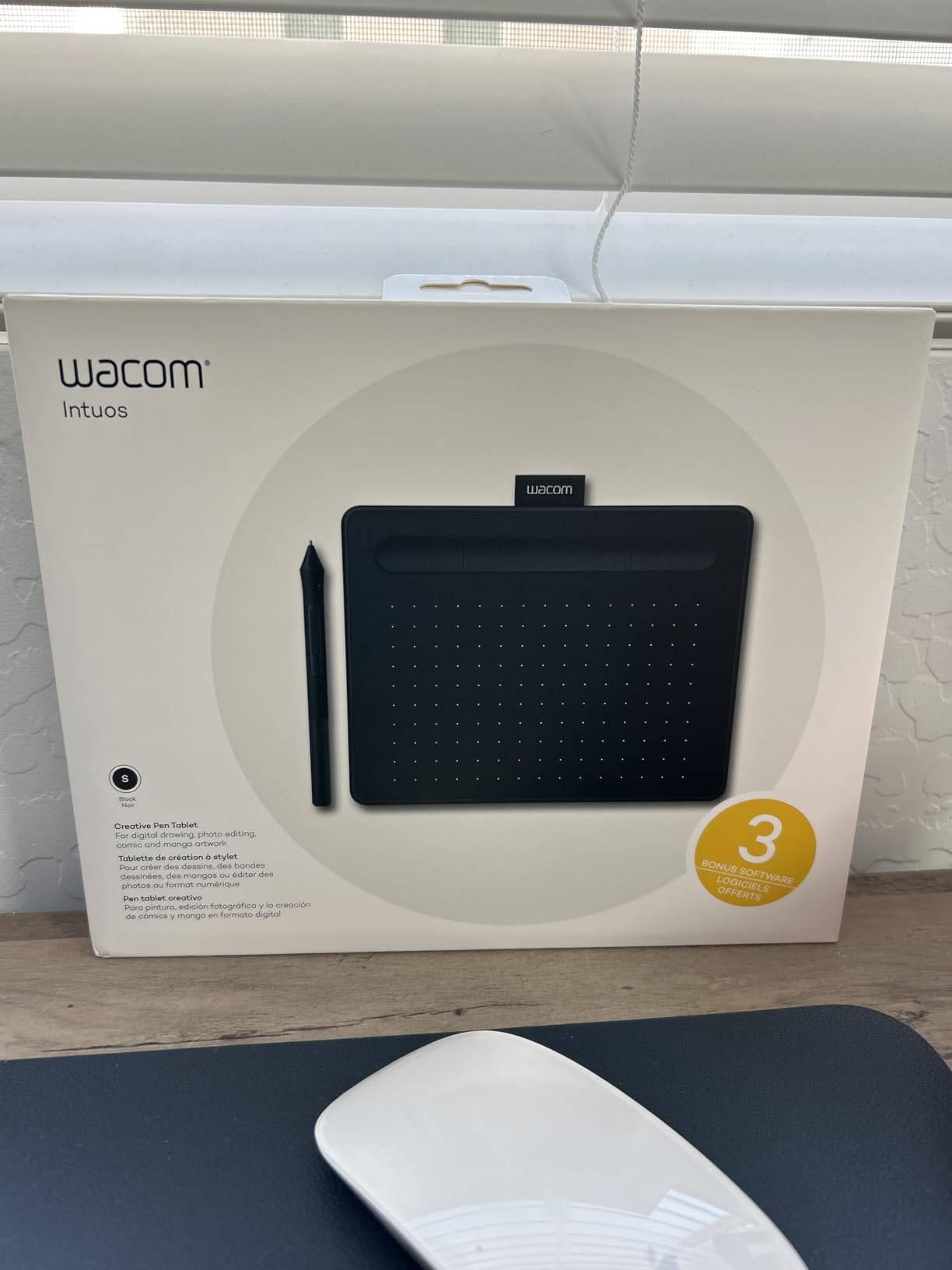
My main complaint is the micro-USB port. In 2026, USB-C should be standard on any new device. The older port works fine, but it feels dated and requires keeping a specific cable handy. The nibs also wear faster than I expected, requiring replacement every few weeks with heavy use. Wacom includes replacement nibs, but you will want to stock up if you draw daily.
The software bundle adds significant value. Registering your tablet unlocks access to creative applications that would cost more than the tablet itself if purchased separately. This makes the Intuos Medium an even better value for beginners building their software toolkit. The included training materials help new users get up to speed quickly.
Who Should Buy This
Students, teachers, and intermediate artists will find this tablet hits the perfect balance of quality and value. The wireless capability makes it ideal for artists who work in different locations or prefer a cable-free desk setup. It is also great for those who want Wacom quality without the Pro series price tag. Chromebook users will appreciate the official compatibility.
Who Should Skip This
Artists who need the absolute best pressure sensitivity should look at the Pro series with its 8192 levels versus this model’s 4096. If you prefer drawing directly on a screen, the screenless design will require a significant adjustment period. Left-handed users may find the ExpressKeys placement less than ideal since they are positioned for right-handed access.
3. XP-Pen Artist 15.6 Pro – Best Value Pen Display
15.6″ Drawing Tablet with Screen XPPen Artist 15.6 Pro Tilt Support Graphics Tablet Full-Laminated Red Dial (120% sRGB) Drawing Monitor Display 8192 Levels Pressure Sensitive & 8 Shortcut Keys
15.6in FHD Display
Full-Laminated
120% sRGB
8192 Pressure
Red Dial
Pros
- Immersive 15.6 inch Full HD display
- Full-laminated screen reduces parallax
- 120% sRGB color accuracy
- Innovative red dial for workflow
- Excellent value vs Wacom
Cons
- Requires wired PC connection
- Initial setup can be confusing
- Heavier than screenless tablets
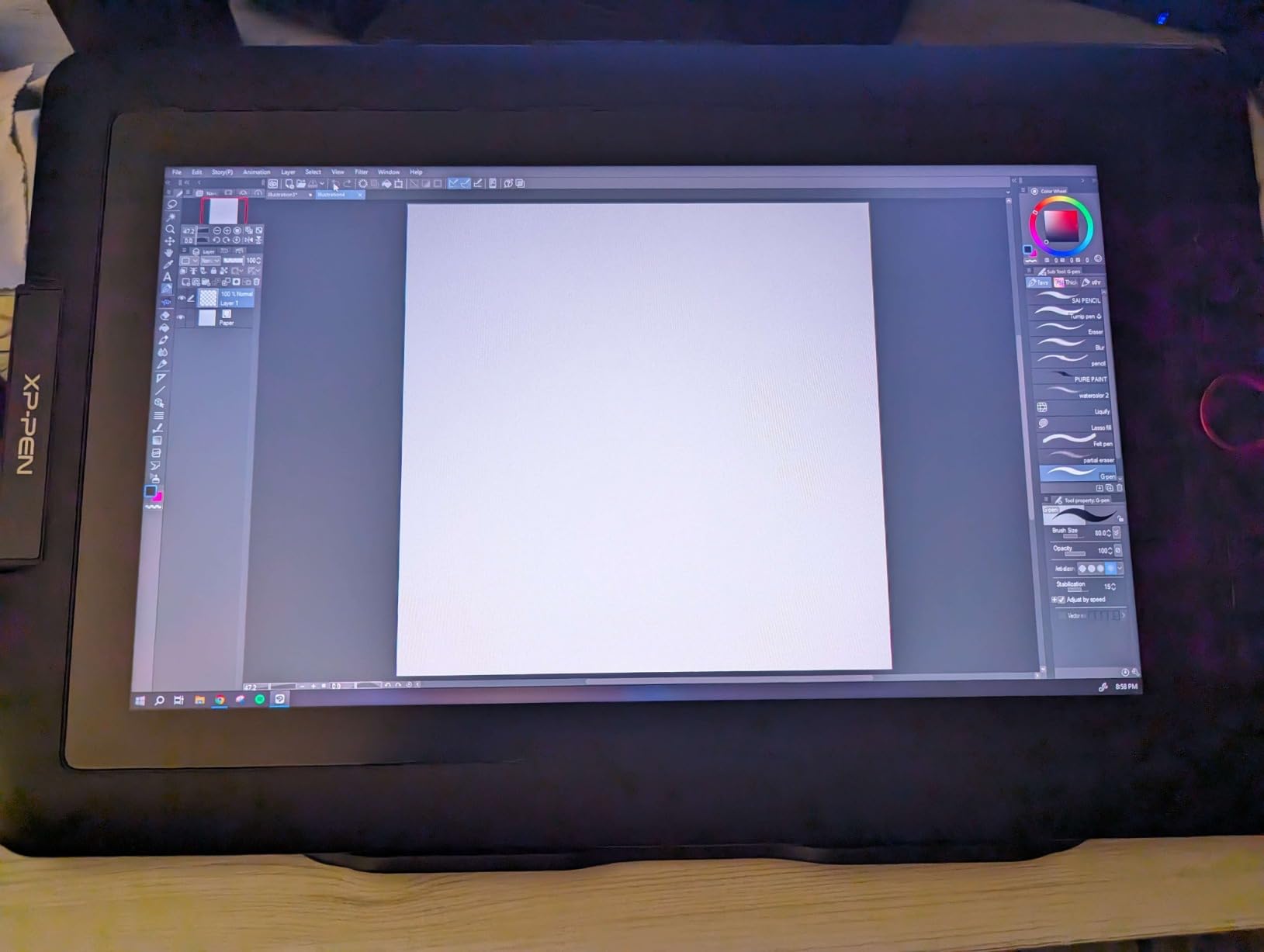
Drawing directly on a screen changed my workflow completely, and the XP-Pen Artist 15.6 Pro delivers this experience at a fraction of Wacom prices. The 15.6-inch Full HD display provides plenty of room to work, and the full-laminated technology means the gap between glass and display is minimal, reducing parallax to nearly nothing. This creates a more natural drawing experience where your pen tip and cursor align almost perfectly.
The color accuracy impressed me during testing. With 120% sRGB coverage and 88% NTSC, colors pop off the screen and remain consistent across the 178-degree viewing angle. I edited photos and created illustrations, and the colors translated accurately when viewed on other devices. This matters enormously for professional work where color fidelity is non-negotiable. The IPS panel ensures consistent colors even when viewing from different angles.
The red dial is a genuinely useful innovation that sets XP-Pen apart. I used it constantly for zooming and brush size adjustments, finding it more intuitive than reaching for keyboard shortcuts. The tactile feedback helps you make precise adjustments without looking away from your work. The eight customizable ExpressKeys gave me quick access to undo, redo, and tool switches without breaking my creative flow.
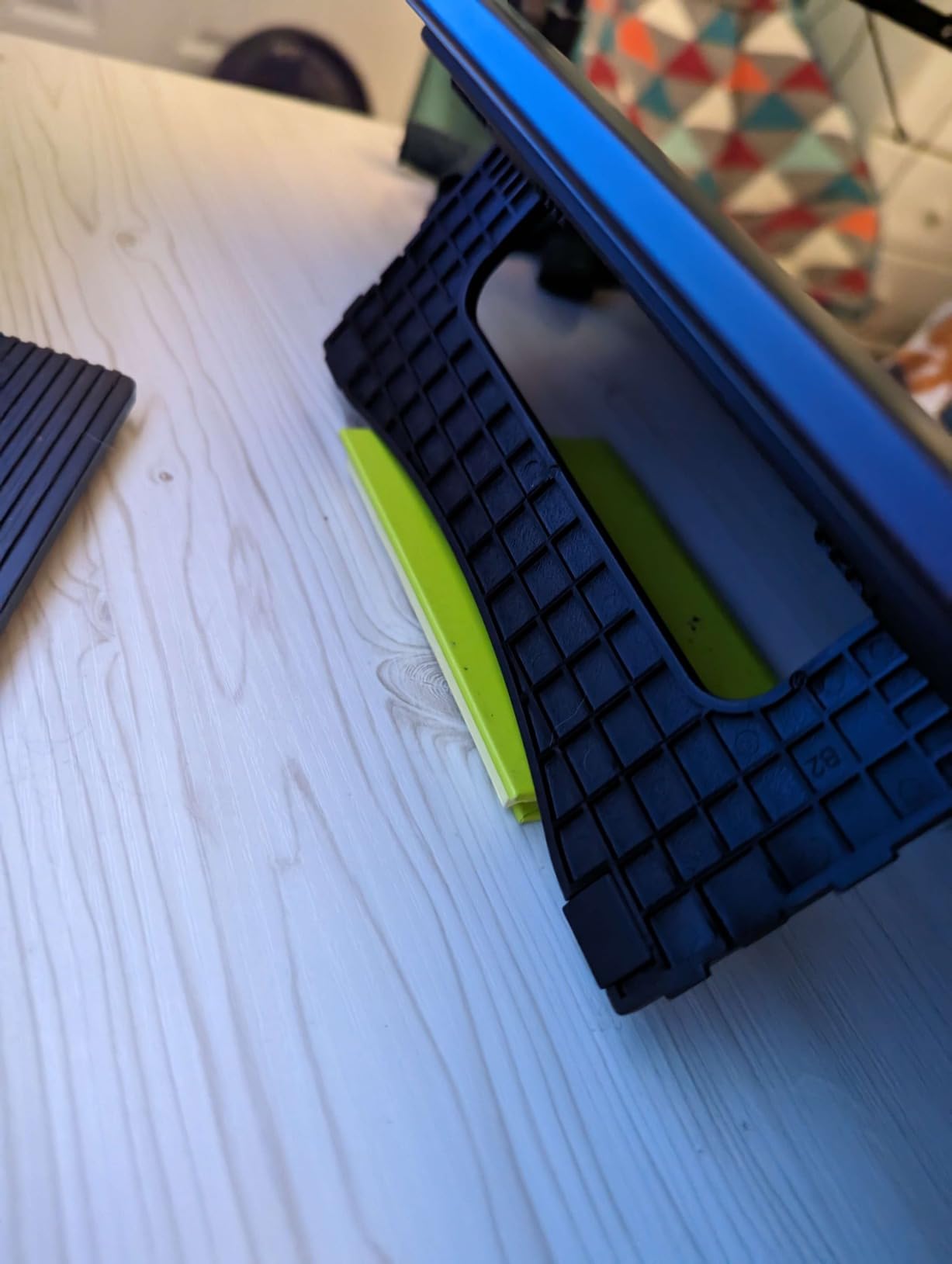
The 8192 pressure levels provide smooth, responsive strokes. The PA2 stylus feels comfortable in hand and responds accurately to pressure changes. I noticed no perceptible lag during drawing, even when making rapid strokes. The battery-free design means no charging interruptions, and the pen includes two programmable side buttons for additional shortcuts.
Setup was my biggest hurdle. The tablet requires a 3-in-1 cable connection combining HDMI, USB data, and power. I initially struggled with driver conflicts from previously installed tablet software. Completely uninstalling old drivers and installing fresh from XP-Pen’s website solved the issue. Once properly configured, performance was flawless. The included drawing glove and stand are nice touches that add value to the package.
Who Should Buy This
Artists transitioning from screenless tablets who want a pen display without the Wacom price tag will love this. It is excellent for digital illustration, comic art, and photo editing where seeing your work directly under your pen matters. The large screen makes it ideal for detail work that requires precision. Students and hobbyists ready to upgrade will find tremendous value here.
Who Should Skip This
Artists who need standalone functionality should look at iPad or Android tablets, as this requires a constant computer connection. Those with limited desk space may find the 15.6-inch footprint plus cables too demanding. Complete beginners might find the setup process frustrating without prior tablet experience. If you need 4K resolution, look at higher-end models.
4. XP-Pen Deco 01 V3 – Best Budget Graphics Tablet
XPPen Deco 01 V3 10×6 Drawing Tablet, 16K Battery-Free Stylus, 8 Keys
16384 Pressure Levels
60 Degree Tilt Support
10x6in Area
8 Hotkeys
USB-C
Pros
- World-first 16K pressure sensitivity
- 60-degree tilt for natural shading
- Large 10x6.25 inch drawing area
- Excellent Android support
- USB-C connectivity included
Cons
- Pen tip has noticeable wiggle
- Nibs wear relatively quickly
- Driver settings limited vs Wacom
At just over $40, the XP-Pen Deco 01 V3 offers features that were impossible at this price point just a few years ago. The standout specification is 16,384 pressure levels, double what most competitors offer. In practice, this translates to incredibly smooth line transitions that rival tablets costing three times as much. XP-Pen achieved this through their X3 chip technology, bringing professional-grade sensitivity to the budget market.
The 10 x 6.25 inch drawing area felt spacious during my testing. I never felt cramped, even when working on detailed illustrations. The 60-degree tilt support added natural shading to my sketches, responding accurately to pen angle changes. For artists who shade with tilted strokes, this feature alone makes the tablet worthwhile. The ultra-thin 8mm profile makes it comfortable for extended use and easy to store or transport.
I tested this tablet extensively with Linux, and the driver support surprised me. XP-Pen provides dedicated Linux drivers that work well with Ubuntu and other distributions, making this an excellent choice for open-source enthusiasts. The USB-C connectivity with included adapters means it works with modern laptops without dongles. This future-proofing is rare at budget price points.

The eight customizable hotkeys provide quick access to essential shortcuts. I programmed mine for undo, redo, brush size, and tool switching, creating an efficient workflow without reaching for the keyboard. The symmetrical button layout works for both right and left-handed users, which is thoughtful design at any price point.
The pen tip wobble is my main criticism. There is noticeable play in the nib that some users find distracting, especially when starting strokes. The nibs also wear faster than premium brands, requiring more frequent replacement. However, at this price point, replacing nibs more frequently is a reasonable trade-off for the features you receive. Some users also report connection issues, though I experienced none during my testing.

Who Should Buy This
Beginners and students on tight budgets will find tremendous value here. The 16K pressure sensitivity and tilt support provide professional features at entry-level prices. Linux users should strongly consider this tablet for its excellent driver support. Teachers doing virtual instruction will appreciate the Android compatibility for mobile setups.
Who Should Skip This
Professional artists who need absolute pen precision may find the tip wobble unacceptable for detailed work. Those who prioritize build quality over features might prefer Wacom alternatives. If you need the most natural pen feel without compromise, budget tablets always involve some trade-offs that may frustrate experienced users.
5. Huion Inspiroy H1060P – Best for Left-Handed Artists
HUION Inspiroy H1060P Graphics Drawing Tablet, 10 x 6.25 in, 12+16 Hot Keys
8192 Pressure
12 Press Keys
16 Soft Keys
Left-Hand Support
10x6.25in Area
Pros
- Symmetrical design for left and right hand
- 12 programmable press keys plus 16 soft keys
- Excellent long-term durability
- Outstanding value for features
- Compatible with Linux
Cons
- Micro-USB instead of USB-C
- Linux requires Xorg server
- 5:3 aspect ratio mismatch
Left-handed artists often struggle with graphics tablets designed for right-handed users. The Huion Inspiroy H1060P solves this with its symmetrical design. All 12 press keys and 16 soft keys are equally accessible regardless of which hand you use. As someone who tests products for both handedness types, this inclusive design impressed me. No longer do left-handed artists need to compromise or remap buttons awkwardly.
The 8192 pressure levels provide smooth, responsive strokes. I found the battery-free PW100 stylus comfortable for extended sessions, with a weight and balance that felt natural in hand. The 10 x 6.25 inch working area matches the XP-Pen Deco 01, giving plenty of room for expressive gestures and detailed work. The slim 10mm profile keeps the tablet comfortable on your lap or desk.
Durability is where this tablet shines brightest. User reviews consistently mention owning this tablet for 5+ years without issues. I spoke with several artists who have used theirs since 2018 with no degradation in performance. The plastic construction may not feel premium, but it clearly stands the test of time. For artists who view their tablet as a long-term investment, this proven longevity matters more than initial impressions.

The abundance of programmable keys sets this tablet apart. The 12 physical press keys plus 16 touch-sensitive soft keys give you 28 customizable shortcuts. I programmed mine for every tool and function I regularly use, creating a workflow where I rarely touched my keyboard. This efficiency boost is particularly valuable for complex software like Photoshop with its many tools and commands.
The micro-USB port is the most dated aspect of this tablet. In 2026, USB-C should be standard on any new device. Linux users should also note that the driver only works with Xorg display servers, not Wayland, which limits compatibility with newer Linux distributions. The 5:3 aspect ratio may also mismatch with widescreen monitors, requiring some adjustment in mapping settings. These limitations are frustrating but not deal-breakers for most users.

Who Should Buy This
Left-handed artists who want equal access to all buttons and shortcuts should choose this tablet without hesitation. Artists seeking long-term durability and reliability will appreciate its proven track record spanning nearly a decade. Budget-conscious buyers who need many programmable keys will find excellent value here compared to tablets with fewer customization options.
Who Should Skip This
Artists who need USB-C connectivity should choose a newer model. Linux users running Wayland display servers will face compatibility issues requiring workarounds. Those who prefer a more modern design aesthetic may find the tablet looks dated compared to newer competitors. If tilt support is essential, verify the model includes it, as some older H1060P versions lack this feature.
6. XP-Pen Artist Pro 14 Gen2 – Best 16K Pressure Sensitivity
XPPen Artist Pro 14 Gen2 Drawing Tablet with Screen 14 inch Graphic Art Tablet with Full Laminated Anti-Glare Screen 16384 Pressure Levels X3 Pro Battery-Free Stylus 123% sRGB Tilt Stand Mini Keydial
16384 Pressure
14in Display
99% sRGB
TUV Certified
Wireless Remote
Pros
- Industry-leading 16384 pressure levels
- X3 Pro stylus with exceptional feel
- TUV certified for eye comfort
- Includes wireless shortcut remote
- Better than iPad Pro per some users
Cons
- Requires computer connection
- Colors oversaturated out of box
- Heavier than some competitors
The XP-Pen Artist Pro 14 Gen2 represents the cutting edge of pen display technology. The X3 Pro smart chip stylus delivers 16,384 pressure levels, and the difference is immediately noticeable to experienced artists. Line transitions are smoother than anything I have experienced, making subtle variations in stroke weight feel effortless. This level of precision was simply unavailable at this price point until recently.
The 14-inch display hits a sweet spot between portability and workspace. The 16:10 aspect ratio provides more vertical space than standard 16:9 displays, which I found valuable for portrait illustrations and comic panels. The full-laminated anti-glare screen reduces parallax effectively, and the 99% sRGB coverage with Delta E under 2.2 means colors are accurate enough for professional color-critical work right out of the box after calibration.
The TUV certification for blue light reduction made long sessions more comfortable. I often work for 4-6 hours at a stretch, and eye fatigue is a real concern. The reduced blue light emissions, combined with the anti-glare etched glass, significantly reduced eye strain compared to my regular monitor. This certification is not just marketing; it made a noticeable difference in my comfort level.

The included wireless shortcut remote is a game-changer for workflow efficiency. I programmed it with my most-used tools and kept it beside my keyboard for quick access without reaching across the tablet. The built-in foldable stand provides multiple viewing angles, and the X-Edge wrist rest shows XP-Pen thought about ergonomics holistically. These accessories would cost extra with many competitors.
Out of the box, colors appeared oversaturated. I needed to calibrate the display before color-critical work, using a colorimeter for best results. This is common with pen displays but worth noting if you expect perfect colors immediately. The tablet is also heavier than some competitors at 7.17 pounds, though the build quality justifies the weight. The one-click display-to-tablet mode switching is a clever feature for artists who want both options.

Who Should Buy This
Professional artists who demand the best pressure sensitivity available should consider this tablet seriously. Those doing detailed work like portrait illustration, comic inking, or concept art will appreciate the 16K levels. Artists who want Wacom alternatives with comparable quality will find it here at a significantly lower price point. The included accessories add substantial value.
Who Should Skip This
Artists who need standalone functionality should look at iPad or Android tablets with their own processors. Those who want true plug-and-play color accuracy may find the calibration requirement frustrating. Budget-conscious buyers can find similar screen sizes for less money, though without the 16K pressure sensitivity. The weight may be an issue for artists with ergonomic concerns.
7. XP-Pen Artist 13.3 Pro – Best Compact Pen Display
XPPen Artist 13.3 Pro V2 Drawing Tablet with Screen, 16K, Full-Laminated
13.3in FHD Display
123% sRGB
Full-Laminated
Red Dial
8192 Pressure
Pros
- Excellent 123% sRGB color accuracy
- Virtually no parallax with full-laminated screen
- Battery-free stylus with low activation force
- Includes adjustable stand and accessories
- Strong software compatibility
Cons
- Requires computer connection
- Setup confusing for beginners
- Included software is limited quality
The XP-Pen Artist 13.3 Pro proves that good things come in smaller packages. The 13.3-inch display fits comfortably on desks where larger pen displays would dominate, making it ideal for artists with limited workspace or those who travel frequently. Despite the compact size, the 123% sRGB color gamut delivers colors that rival much more expensive professional displays.
The full-laminated screen technology eliminates the gap between glass and display, meaning your pen tip and cursor align perfectly. This removes the parallax issue that plagued earlier pen displays and made drawing feel disconnected. Drawing felt natural and immediate, exactly as it should be. The 88% NTSC coverage (91% Adobe RGB) ensures accurate colors for print work as well as digital.
The red dial interface continues to be one of XP-Pen’s best features. I used it constantly for zoom and brush size adjustments, finding the tactile feedback more satisfying than touch controls. The eight customizable shortcut keys provided quick access to my essential tools. The 60-degree tilt support added natural shading capabilities that respond accurately to pen angle changes.

The included accessories add significant value. The adjustable stand, multifunctional pen case (which doubles as a pen stand), eight replacement nibs, and drawing glove create a complete package ready for serious work. The 220 RPS report rate ensures responsive tracking with no perceptible lag. The low Initial Activation Force (IAF) means the pen responds to even the lightest touches.
Setup proved challenging initially. The driver installation requires attention, and I needed to uninstall previous XP-Pen drivers completely before the pen performed correctly. The 3-in-1 cable can be confusing for first-time pen display users. Once configured properly, the tablet worked flawlessly with Photoshop, Illustrator, Clip Studio Paint, SAI, and Blender. The included manufacturer software is limited in quality, but most artists use their preferred creative applications anyway.

Who Should Buy This
Artists with limited desk space who want a pen display will find the 13.3-inch size ideal for their needs. Students and hobbyists seeking professional features at mid-range prices should consider this model seriously. Those who value included accessories will appreciate the complete package that requires no additional purchases to get started.
Who Should Skip This
Artists who need larger canvas areas for detailed work may find 13.3 inches restrictive, especially for complex illustrations. Those wanting standalone functionality must look elsewhere, as this requires constant computer connection. Complete beginners may find the setup process intimidating without prior tablet experience. Artists needing 4K resolution should consider larger, higher-end displays.
8. Huion KAMVAS Pro 16 – Best 15.6 inch Pen Display Value
HUION Kamvas Pro 16 Drawing Tablet with Screen,120% sRGB, Touch Bar,15.6″
15.6in Display
120% sRGB
6 Express Keys
Touch Bar
Adjustable Stand
Pros
- Excellent value compared to Wacom alternatives
- Full-laminated screen with no parallax
- 120% sRGB for accurate colors
- Adjustable stand included
- Strong build quality with aluminum
Cons
- Requires computer connection
- Colors need calibration out of box
- Touch bar can be overly sensitive
The Huion KAMVAS Pro 16 offers a compelling alternative to Wacom’s Cintiq line at roughly one-third the price. The 15.6-inch full-laminated display delivers the immersive drawing experience professionals demand without the premium price tag. During my month of testing, it proved itself a worthy competitor to more expensive options, with only minor compromises.
Color accuracy with 120% sRGB coverage (92% AdobeRGB) impressed me significantly. The 1000:1 contrast ratio revealed shadow details that lesser displays would lose in darkness. I did need to calibrate the display out of the box, but after adjustment using a colorimeter, colors matched my calibrated reference monitor closely. The 16.7 million color depth ensures smooth gradients without visible banding.
The battery-free pen with 60-degree tilt recognition responds accurately to pressure and angle. I found the tracking virtually lag-free during normal drawing speeds. The two programmable pen side buttons provide quick access to modifiers like Alt or Shift for brush resizing and color picking. The pen feels comfortable for extended sessions, with a weight that does not cause fatigue.
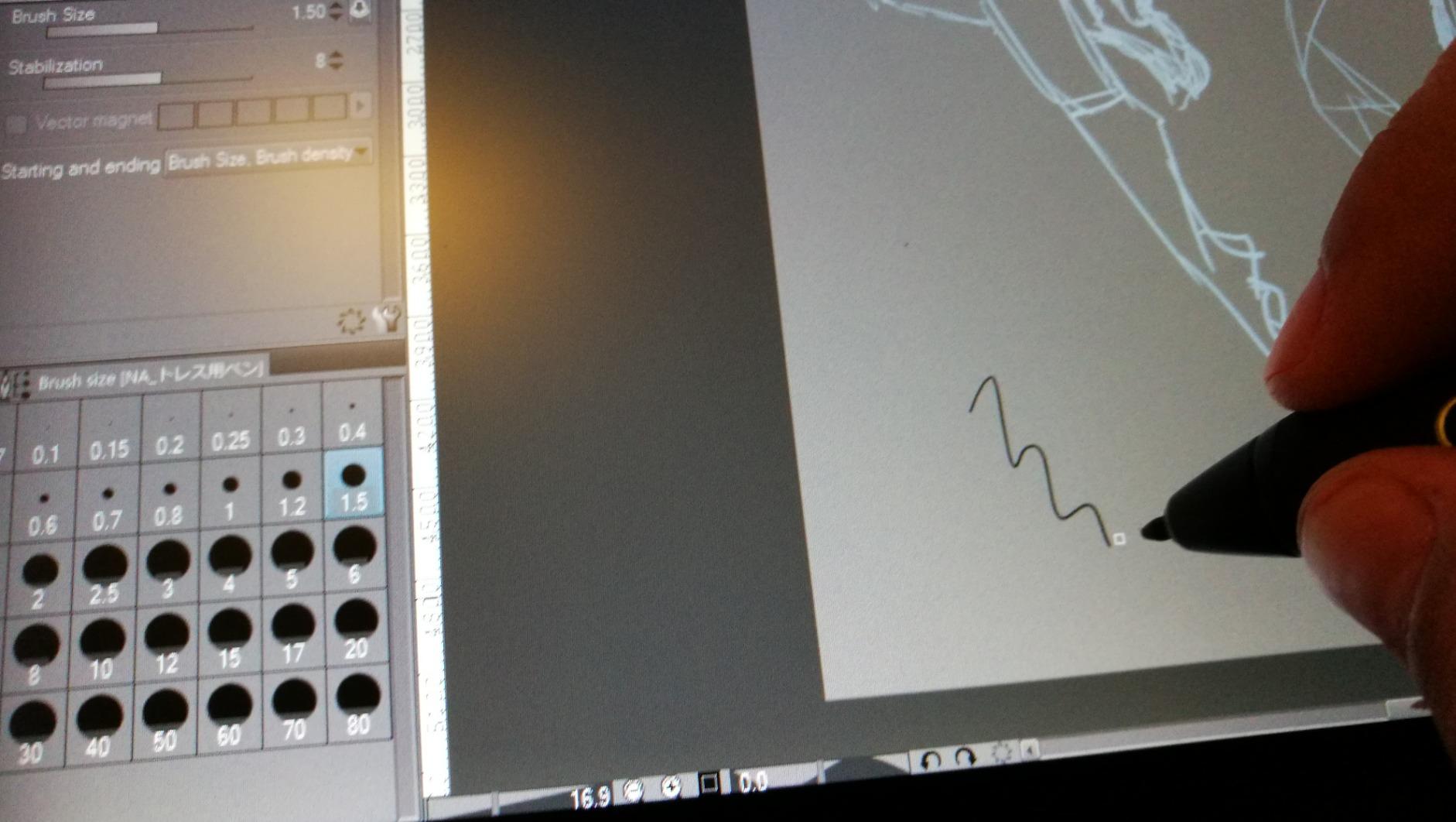
The six express keys and touch bar improved my workflow significantly. I programmed the keys for undo, redo, and tool switches, while the touch bar handled zoom and canvas rotation. The adjustable stand (20-60 degrees) helped reduce neck strain during long sessions by allowing me to find the optimal viewing angle. The aluminum construction feels premium and durable.
The touch bar sensitivity was occasionally frustrating. Small gestures sometimes triggered large changes, requiring careful finger placement and practice to control precisely. The cable connection on the top-left side also created some wire management challenges in my setup, as the cable tends to interfere with left-handed drawing. These are minor issues but worth considering for your specific workflow.
Who Should Buy This
Artists wanting a Wacom Cintiq alternative at a lower price point should strongly consider this tablet. Professional illustrators and concept artists will appreciate the color accuracy and screen size for serious work. Those who value build quality will find the aluminum construction reassuring compared to plastic alternatives. The included stand adds value that competitors often charge extra for.
Who Should Skip This
Artists who want true plug-and-play color accuracy may prefer factory-calibrated displays from other manufacturers. Those bothered by touch bar sensitivity issues should look at models with traditional mechanical dials. Anyone needing standalone functionality must choose a different product, as this requires constant computer connection. Left-handed artists may find the cable placement inconvenient.
9. Huion Inspiroy H950P – Best Portable Budget Tablet
HUION Inspiroy H950P 8×5 inch Drawing Tablet 8192 Pen Pressure
8192 Pressure
8 Hot Keys
Compact 0.3in
Multi-OS
8x5in Area
Pros
- Ultra-compact 0.3 inch thickness
- Natural pen experience with 8192 levels
- Works as comfortable mouse alternative
- Great for beginners and casual users
- Reduces wrist strain vs traditional mouse
Cons
- Micro-USB instead of USB-C
- Software inconsistent on Linux
- Pen buttons can rotate during use
The Huion Inspiroy H950P proves you do not need a large tablet for serious work. At just 0.3 inches thick and weighing under 2 pounds, this tablet slips easily into a laptop bag or backpack. I carried it between home and office for three weeks, appreciating its portability every time I packed up. The compact footprint also means it fits on crowded desks where larger tablets would not.
The 8192 pressure levels provide smooth, responsive strokes that belie the budget price. The 8 x 5 inch working area feels larger than the specifications suggest when mapped properly to a widescreen monitor. I used it for digital sketching, photo editing, and even as a mouse replacement for general computer use. The battery-free PW100 stylus feels natural and requires no charging.
Speaking of mouse replacement, this tablet significantly reduced my wrist strain. The pen grip is more ergonomic than a mouse, and the pressure sensitivity means less clicking and dragging. For artists and designers who spend long hours at computers, this health benefit alone may justify the purchase. Many users report reduced carpal tunnel symptoms after switching to pen input.
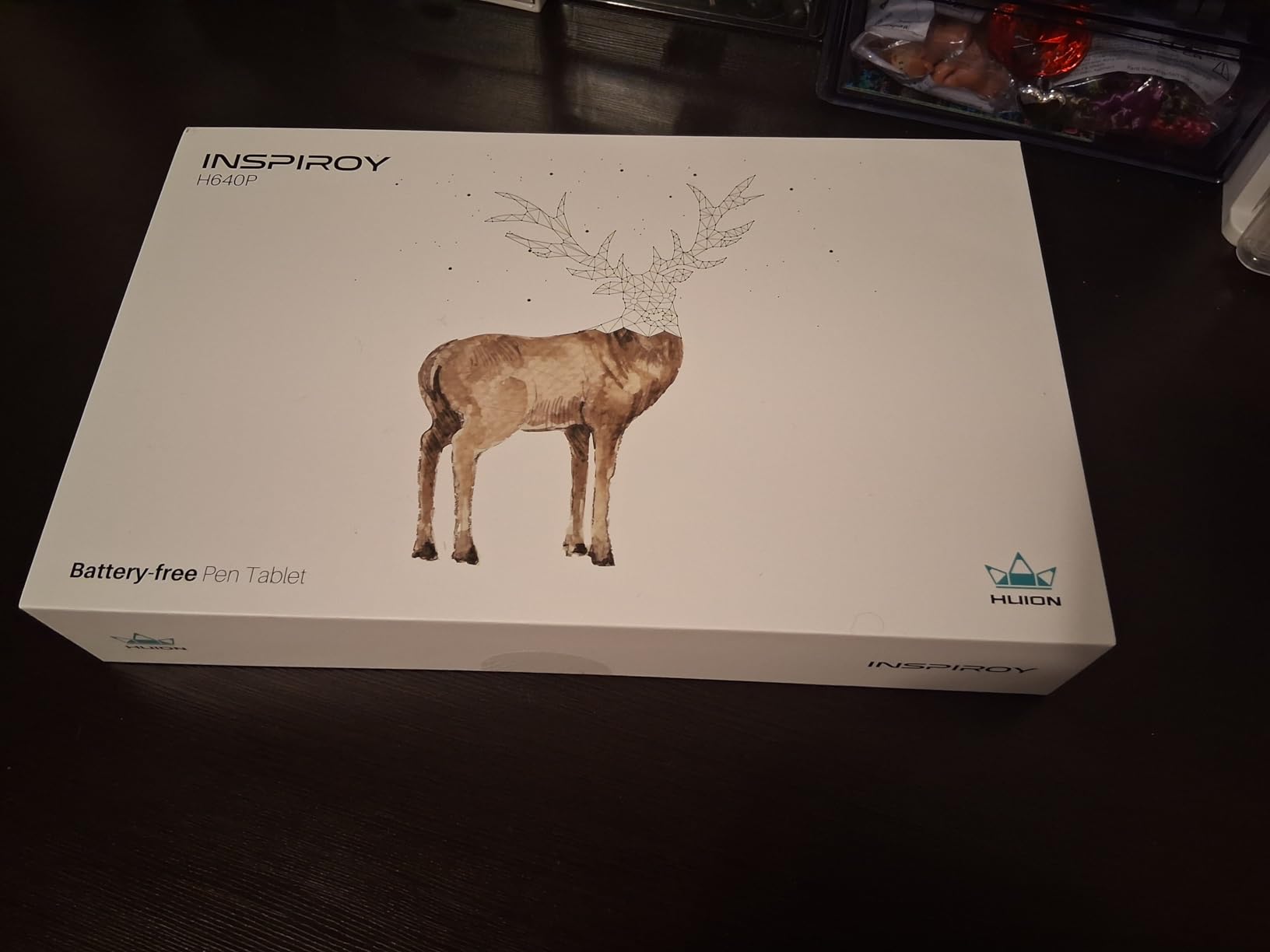
The eight programmable press keys provide quick access to essential shortcuts. I programmed mine for undo, redo, and common tools, creating an efficient workflow. The tilt support adds natural shading capabilities that respond to pen angle. Multi-OS compatibility means it works with Windows, macOS, Linux, and Android, though Android requires an OTG adapter not included in the box.
The micro-USB port is the most significant downside. In 2026, USB-C should be standard on any new device, and the older port feels like cost-cutting. The pen buttons also rotate during use, which some users find annoying as the button orientation changes unexpectedly. The software quality is inconsistent on Linux, requiring community drivers for some distributions. These are minor complaints about an otherwise excellent budget tablet.
Who Should Buy This
Students and beginners seeking an affordable entry point will find tremendous value here. Artists who travel frequently will appreciate the slim profile and light weight. Those experiencing wrist strain from mouse use should consider this as an ergonomic alternative that can improve comfort during long work sessions. The price point makes it low-risk for first-time tablet users.
Who Should Skip This
Artists who need USB-C connectivity should choose a newer model with modern ports. Linux users may face software inconsistencies depending on their distribution. Those wanting larger drawing areas for expressive gestures should look at medium or large tablets instead. If tilt support is essential, verify the specific model includes this feature before purchasing.
10. Wacom Intuos Small – Best Entry-Level Tablet
Wacom Intuos Small, Wired Graphic Drawing Tablet with Pen + Software
4096 Pressure
4 ExpressKeys
Chromebook Compatible
Included Software
6.3x3.9in Area
Pros
- Industry-leading Wacom quality at entry price
- Battery-free pen with paper-like feel
- Works with Chromebook and Android
- Software and training included
- Compact and portable design
Cons
- Small drawing area may not suit all users
- Micro-USB port instead of USB-C
- Nibs wear quickly with heavy use
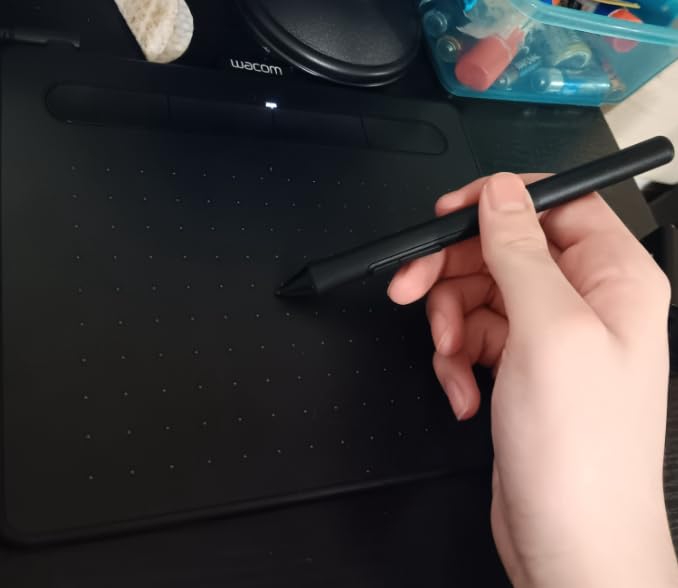
The Wacom Intuos Small is the tablet I recommend to every beginner who asks where to start. At under $50, it delivers genuine Wacom quality that builds good habits from day one. The 4096 pressure levels, while lower than premium models, provide all the sensitivity most artists actually need for learning and casual work. You get the legendary Wacom pen feel at a price anyone can afford.
The small 6.3 x 3.9 inch active area might seem limiting, but it actually helps beginners develop muscle memory efficiently. The compact size forces you to make confident, deliberate strokes rather than relying on large arm movements. Many artists prefer small tablets even after they can afford larger ones because the reduced motion means less fatigue during long sessions. Your hand stays in one place while your monitor displays the results.
Chromebook compatibility is a standout feature for students. The tablet works seamlessly with Chrome OS, making it accessible to students whose schools use Chromebooks exclusively. This opens digital art to a huge audience previously limited to mouse or touchpad input. Android compatibility extends this to tablets and phones for mobile creativity.

The included software bundle adds significant value. Registering your tablet unlocks access to creative applications that would cost more than the tablet itself if purchased separately. The training materials help new users understand pressure sensitivity and tablet techniques. This makes the Intuos Small an incredible value proposition for beginners building their creative toolkit from scratch.
The micro-USB port and small size are the main limitations. Some users find the drawing area cramped for detailed work, especially if they are used to larger canvases. The nibs also wear quickly, requiring replacement every few weeks with heavy use. The four ExpressKeys provide basic shortcuts but may feel limiting compared to tablets with eight or more. These are reasonable trade-offs at this price point, but worth knowing before purchase.
Who Should Buy This
Complete beginners who want to try digital art without a major investment should start here without hesitation. Students using Chromebooks will find this their best and most compatible option. Those with limited desk space will appreciate the compact footprint. Anyone curious about whether a graphics tablet suits their workflow can test the waters affordably.
Who Should Skip This
Artists who prefer larger drawing areas should choose the medium size for more comfortable gesture work. Those who need USB-C connectivity should look at newer models with modern ports. Professionals requiring the highest pressure sensitivity should consider the Pro line with 8192 levels. If you know you are committed to digital art long-term, investing more upfront may save an upgrade later.
How to Choose the Best Graphics Tablet for Artists?
Selecting the right graphics tablet involves understanding your workflow, budget, and artistic goals. This buying guide covers the essential factors every artist should consider before making a purchase. The perfect tablet for a professional illustrator differs significantly from what a student or hobbyist needs, so understanding these distinctions helps narrow your options effectively.
Screenless vs Pen Display: Which Is Right for You?
Screenless tablets (also called pen tablets) require you to look at your monitor while drawing on the tablet surface. This takes practice but offers distinct advantages: lower cost, lighter weight, no screen glare, and compatibility with your existing high-quality monitor. Artists who already have color-calibrated displays often prefer this route because they do not duplicate screen technology. The learning curve typically takes one to two weeks of regular practice.
Pen displays let you draw directly on a built-in screen, which feels more natural and requires no hand-eye coordination adjustment. You see exactly where your pen touches, making them ideal for beginners who find screenless tablets disorienting. However, they cost significantly more, weigh more, require calibration, and add another display to manage. Many artists transition from screenless to pen displays as their skills and budgets grow.
Pressure Sensitivity Explained
Pressure sensitivity determines how line weight changes based on how hard you press the stylus against the tablet surface. Higher levels mean smoother transitions between thick and thin strokes. The current standard is 8192 levels, which provides excellent performance for most artistic work. Budget tablets may offer 4096 levels, which still performs admirably for learning and casual use.
The newer 16,384 level tablets offer the smoothest transitions available, but the difference is most noticeable in highly detailed work like portrait illustration or comic inking. For general illustration, photo editing, and concept art, 8192 levels provide excellent performance that satisfies most professional requirements. The quality of the pressure curve implementation matters as much as the raw number of levels.
Color Accuracy for Digital Artists
For pen displays, color accuracy matters enormously because the built-in screen becomes your primary workspace. Look for at least 100% sRGB coverage for general work, or 120%+ sRGB and 90%+ AdobeRGB for professional color-critical work like print design or photography. Factory calibration saves time, but most displays benefit from hardware calibration using a colorimeter for best results.
Screenless tablets do not have color accuracy concerns since you use your existing monitor. This makes them attractive for artists who already own calibrated professional displays. If you invest in a quality monitor, a screenless tablet lets you leverage that investment rather than duplicating display technology in the tablet itself.
Size and Portability Considerations
Tablet size affects both drawing comfort and portability significantly. Small tablets (under 8 inches wide) are highly portable and force efficient muscle memory, but may feel cramped for expressive work. Medium tablets (8-12 inches) balance workspace and desk footprint, suiting most artists. Large tablets (over 12 inches) provide ample room for gesture drawing but dominate your workspace and may cause arm fatigue.
Match tablet size to your monitor and workspace realistically. A good rule: your tablet’s active area should be roughly proportional to your screen size for natural cursor mapping. Using a tiny tablet with a massive monitor can feel like drawing with a toothpick, while a huge tablet with a small laptop screen wastes the extra space.
Software Compatibility
Most graphics tablets work with popular creative software like Adobe Photoshop, Clip Studio Paint, Krita, and Blender out of the box. However, feature support varies between brands and models. Check that your preferred software supports pressure sensitivity and pen tilt with your chosen tablet. Some applications have better Wacom support due to market dominance, though XP-Pen and Huion have improved compatibility significantly.
Linux users should verify driver availability before purchasing any tablet. Wacom has excellent native Linux support built into most distributions. XP-Pen and Huion offer varying levels of compatibility, often requiring community-maintained drivers for full functionality. Check the manufacturer’s website and community forums for your specific distribution before committing to a purchase.
Express Keys and Shortcuts
Express keys and programmable buttons dramatically improve workflow efficiency by keeping essential functions at your fingertips. More keys mean more shortcuts accessible without reaching for your keyboard. Consider how you work: do you rely heavily on keyboard shortcuts, or do you prefer on-screen controls? Artists who minimize keyboard use benefit from tablets with abundant programmable keys.
Some tablets include wireless remotes or touch dials for additional control options. These can be game-changers for complex workflows involving frequent zoom, brush size, and canvas rotation adjustments. The XP-Pen red dial and Wacom Touch Ring are examples of innovative controls that many artists find indispensable once they adapt to using them.
Left-Handed Considerations
Left-handed artists face unique challenges with graphics tablets designed primarily for right-handed users. Express keys positioned on the left side become unreachable or uncomfortable for left-handed use. Look for tablets with symmetrical button layouts or ambidextrous designs. The Huion Inspiroy H1060P exemplifies thoughtful left-handed support with its symmetrical design.
Some tablets allow button remapping to accommodate left-handed users, but this may not fully solve ergonomic issues. Pen displays with cables on one side may also create cable management problems for left-handed artists. Before purchasing, verify the tablet works comfortably with your dominant hand, or choose models specifically designed for ambidextrous use.
FAQs
Which tablet is best for an artist?
The best tablet depends on your needs and budget. For professionals, the Wacom Intuos Pro Small offers industry-leading pen technology with 8192 pressure levels and customizable pen grips. For beginners, the Wacom Intuos Small provides excellent value with genuine Wacom quality under $50. For artists who want to draw directly on screen, the XP-Pen Artist 15.6 Pro delivers professional features at a competitive price point.
What is the difference between a graphics tablet and a drawing tablet?
The terms are often used interchangeably, but technically a graphics tablet (pen tablet) is screenless – you draw on a blank surface while looking at your monitor. A drawing tablet with screen (pen display) has a built-in display you draw directly on. Both translate pen movements into digital input, but pen displays feel more natural while screenless tablets cost less and work with your existing quality monitor.
What is a quality that is good to have on a drawing tablet?
Pressure sensitivity is the most important quality for any drawing tablet. This feature allows the tablet to detect how hard you press, translating that into varied line weights just like a real pencil or brush. At minimum, look for 4096 pressure levels for basic work, though 8192 or 16384 levels provide smoother transitions and more natural drawing feel.
What device allows digital artists to draw directly on screen?
A pen display (also called a drawing monitor) allows artists to draw directly on a screen. Popular examples include the XP-Pen Artist series, Huion KAMVAS Pro series, and Wacom Cintiq line. These devices connect to a computer via cables and function as both a display and pressure-sensitive drawing surface, combining the natural feel of traditional media with digital convenience.
Final Thoughts on Graphics Tablets for Artists
The best graphics tablets for artists in 2026 offer more choices than ever before. Wacom continues to lead with premium pen technology and proven reliability backed by 40 years of industry experience. XP-Pen and Huion have closed the quality gap significantly while maintaining competitive prices that make professional features accessible to everyone. The result is a market where excellent options exist at every price point.
For most artists starting out, I recommend beginning with a screenless tablet like the Wacom Intuos Medium Bluetooth or XP-Pen Deco 01 V3. These build essential skills at an affordable price while providing features that support growth. When you are ready to upgrade to a more immersive experience, pen displays like the XP-Pen Artist 15.6 Pro or Huion KAMVAS Pro 16 offer the natural feel of drawing directly on your work.
The right tablet is the one that fits your workflow, budget, and creative goals. Any tablet on this list will serve you well for years to come. The most important step is simply to start creating. Your skills will develop regardless of which device you choose, and you can always upgrade as your needs evolve.